Best 3D Printers of 2026

The first print is the easy part. What decides whether a 3D printer keeps its counter space is week two — whether the nozzle clogs at hour four, whether the first layer grips the bed or peels up, whether it needs re-leveling after one failed job. I've watched plenty of these turn into garage ornaments, and it's usually gaps in the instructions rather than a bad machine. A good printer does the setup work for you.

My team has run 10 printers through seven months of near-daily use, and the ones that stayed had one thing in common: they printed well before we got tired of adjusting them. A note for first-timers — multi-color printing is what everyone asks about, and what quietly eats the most time and filament in purge towers. Get it because you want it, not because it sounds like a better printer.

Below are the ones that survived, sorted by how people actually use them: a first machine for a kid's desk, a workhorse for someone selling prints, a big build volume for whoever keeps running out of bed.

1

Best Overall

Bambu Lab P2S Combo

87 /100
LBD Score Excellent

Key details

Footprint
18 x 22 x 18 in.
Print Speed
600 mm/s
Filament Drying
Up to 65°C
Multicolor System
AMS 2 Pro
View on Amazon

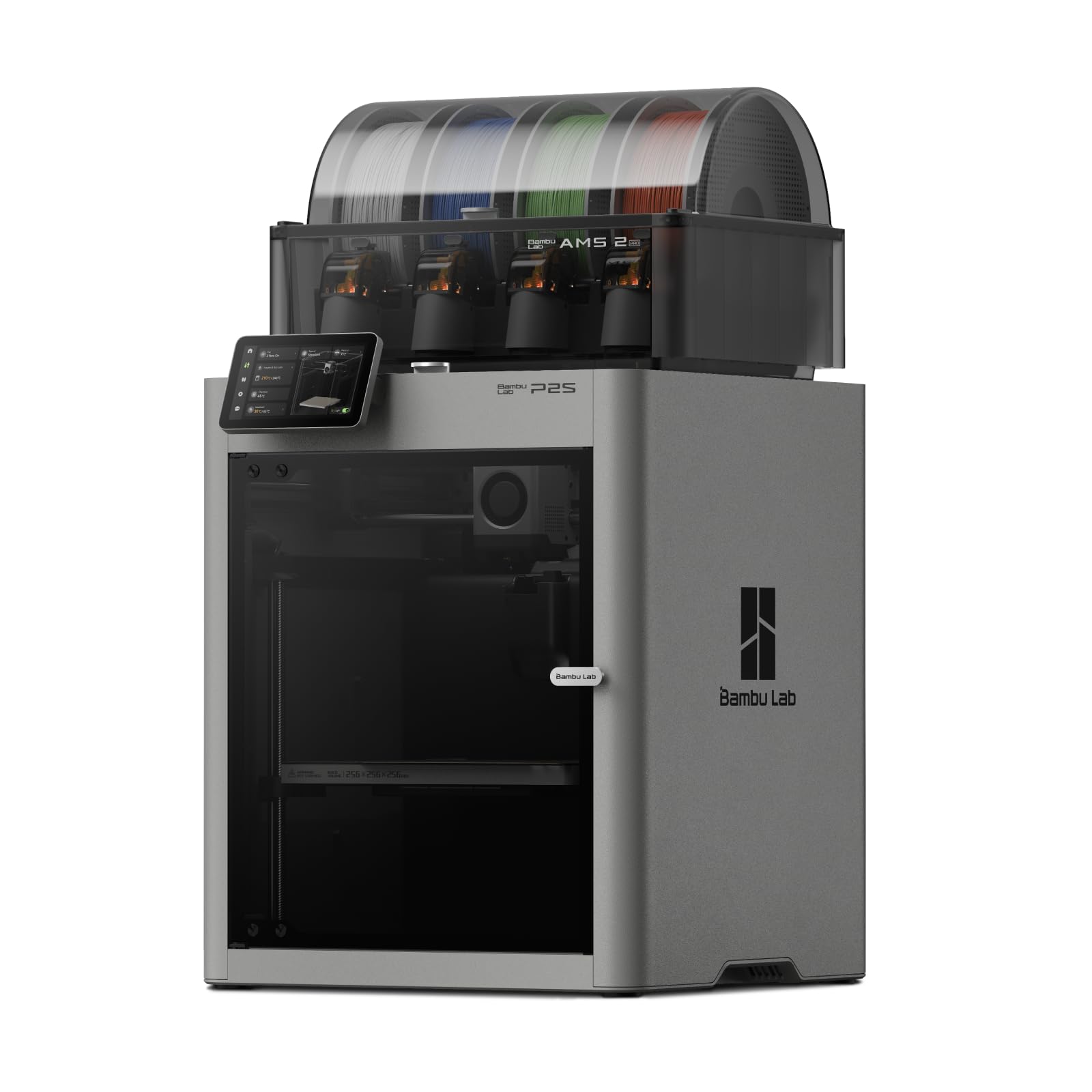
Multicolor printing usually means purge towers and wasted filament. The P2S Combo takes a more appliance-like approach: its AMS 2 Pro holds multiple spools, dries filament at up to 65°C, and keeps a spool ready instead of leaving it to absorb humidity between projects. That matters more than another headline speed number: damp PLA prints poorly, and a built-in dryer removes a chore that otherwise sits between you and a good print.

Speed is the other half of the pitch. The P2S is a CoreXY machine rated to 600 mm/s, with a servo extruder and active flow-rate compensation; that means it can move quickly without making every print look rushed. The 50°C chamber and adaptive airflow help with overhangs and keep warmer materials happier than an open frame does. Setup is designed to take about 15 minutes, and automatic calibration plus AI failure detection lower the odds that a beginner spends the first weekend chasing a bad first layer.

The footprint is the trade-off. At 18 x 22 x 18 inches and 46.3 pounds, the P2S wants a dedicated table rather than a shelf you share with homework. We think it earns that space if you print often, especially in color; the enclosure and the dryer make it feel like an appliance rather than a project. If you mainly print single-color parts, the A1 is the smarter first step. But for a household that wants one printer to handle school projects, gifts, and the occasional functional part, this is the one we keep coming back to.

Pros

  • Fast 600 mm/s CoreXY motion
  • AMS 2 Pro dries filament while printing
  • Guided setup and AI failure detection
  • Heated chamber handles more materials

Cons

  • Premium price relative to beginner FDM printers
Our verdict

Our top pick for most home makers: fast, enclosed, and genuinely easy, with a multicolor system that dries filament as it goes.

Check Latest Price
2

Best Low-Waste Multicolor

Snapmaker U1

89 /100
LBD Score Excellent

Key details

Footprint
22.6 x 13 x 14.2 in.
Toolheads
4
Purge Waste
Minimal
Tool Change
5 seconds
View on Amazon

Four independent toolheads, each with its own filament loaded, swap in about five seconds on the Snapmaker U1. That eliminates the purge tower that normally eats filament and time on a single-nozzle color change. If you print a lot of multicolor models, the savings are easy to understand before you even look at print speed.

We prefer the U1 for mixed materials, not just color. Dedicated heads let you pair a rigid body with flexible accents or water-soluble supports without dragging one material through the other's nozzle. Automatic toolhead offset calibration and vibration compensation do the fiddly setup work, and the five-second change is quick enough that a multicolor print does not feel like a relay race.

At 22.6 inches long, the U1 asks for more desk depth than a compact bedslinger. It also sits close to the P2S on price while taking a very different approach: choose the Snapmaker when waste and true multi-material printing are the priority, and the Bambu when you want an enclosed, self-drying all-rounder. For a hobbyist who changes colors constantly, the U1's tool-changer is the more satisfying design.

Pros

  • Four independent toolheads for true multi-material printing
  • Five-second tool changes with minimal purge waste
  • Automatic offset calibration and vibration compensation
  • Handles flexible and soluble support materials

Cons

  • Four toolheads add mechanical complexity
  • Heavy 57.9-pound bench footprint
Our verdict

For frequent multicolor and multi-material work, the U1's four-toolhead system saves filament and time.

Check Latest Price
3

Best for Beginners

Bambu Lab A1

90 /100
LBD Score Outstanding

Key details

Noise
≤48 dB
Weight
22 lb
Acceleration
10,000 mm/s²
Multicolor System
AMS lite compatible
View on Amazon

A first printer should remove decisions, not add them. The A1 does that with full-auto calibration and active flow-rate compensation, which take most of the guesswork out of the first layer. Its 10,000 mm/s² acceleration makes small parts feel quick even though this is not the fastest machine here, and at 22 pounds it is light enough to move between a desk and a cabinet. The ≤48 dB rating also keeps it from dominating a room.

We also appreciate how much the A1 leans on the Bambu ecosystem. MakerWorld gives you a huge library of ready-to-print models, and the touchscreen interface is simple enough that a first-timer can work from a phone or laptop without learning a slicer first. Multicolor is available through AMS lite, but this version is the printer first; check whether the bundle you are buying includes the AMS before you count on color printing.

The open frame is the main compromise. It is fine for PLA and PETG, but it is not the machine for fussy engineering filaments or a workshop where fumes need containing. For a first printer, though, the A1's low friction is hard to beat, and it leaves more budget for filament and models.

Pros

  • Full-auto calibration and flow compensation
  • Quiet ≤48 dB operation
  • Huge MakerWorld model library

Cons

  • Reliability less consistent than print quality
Our verdict

The best first printer for most people: automatic calibration, quiet operation, and a huge model library make it easy to start.

Check Latest Price
4

Best Budget Multicolor

Anycubic Kobra X

84 /100
LBD Score Excellent

Key details

Noise
45 dB
Multicolor
4 built-in, up to 19
Print Speed
600 mm/s
Build Volume
260 x 260 x 260 mm
View on Amazon

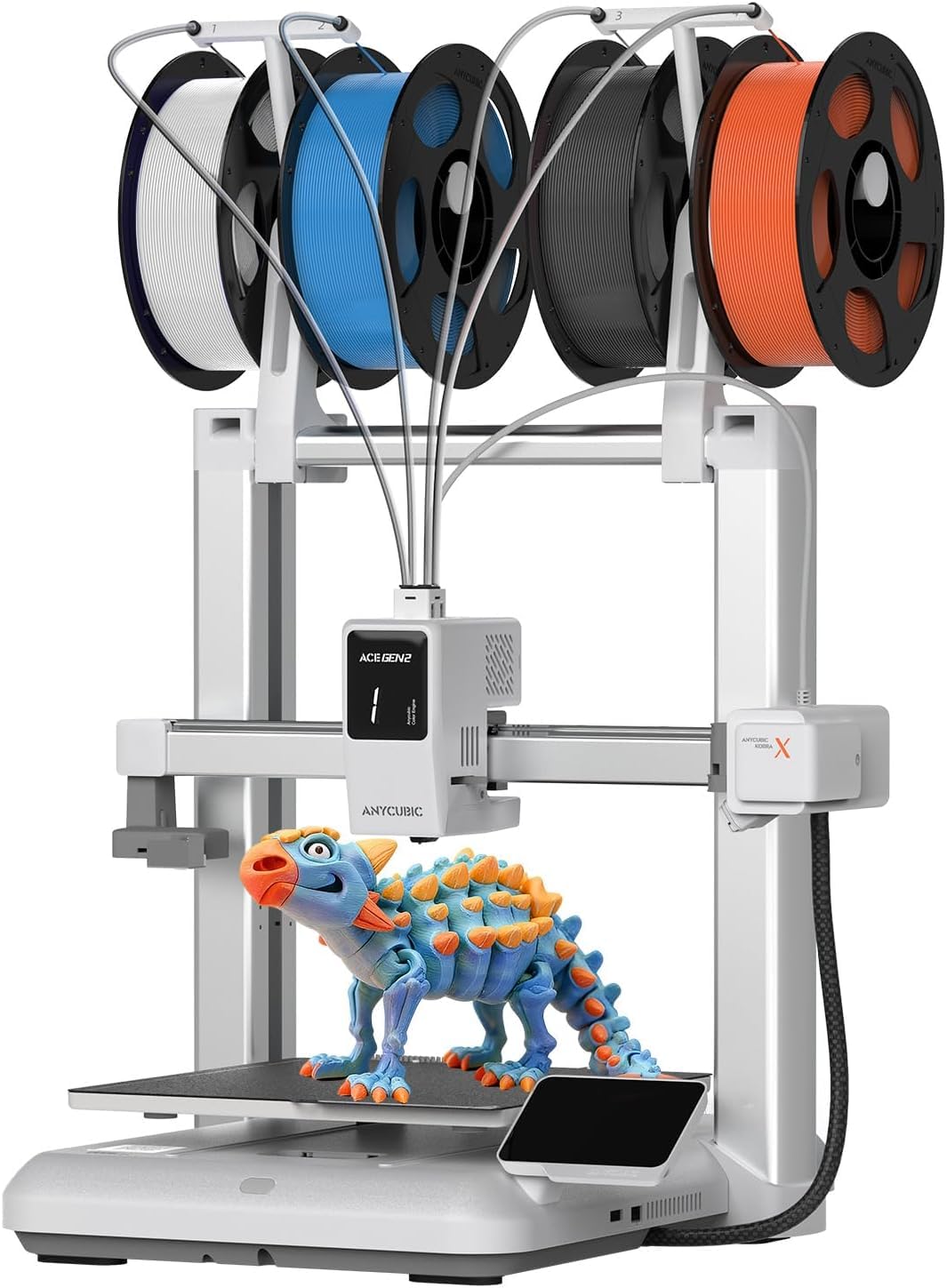
Four colors arrive built into the Kobra X rather than hanging off it as an add-on. With four ACE 2 Pro units, the system can reach 19 colors, but the important part is that four are there from the start. That makes it the most affordable way in this group to print color models without hand-swapping filament, and the 260 x 260 x 260 mm build volume is big enough for helmets, organizers, and multi-part props.

We were also impressed by how much speed Anycubic packs in at this price. The 600 mm/s rating, vibration compensation, and a hardened steel nozzle put it close to the flagships on paper, and 45 dB operation makes it one of the quieter machines here. The 49-point auto-leveling system is aimed at the same beginner who does not want to tune a bed by feel.

The caveat is dependability. The Kobra X's reliability is more mixed than the Bambu picks, and that matters because a multicolor printer has more to go wrong: four filament paths, a color changer, and a nozzle that has to handle repeated heating. We still think it earns a place for budget-conscious makers who want color. Buy it from a seller with a straightforward return policy, run a test print right away, and keep the first projects simple.

Pros

  • Four colors built in, expandable to 19
  • 600 mm/s with vibration compensation
  • 260 mm cube build volume

Cons

  • Large 23 x 13 x 22-inch footprint
  • Open-frame design will not contain fumes
Our verdict

For budget-minded makers who want color, the Kobra X delivers four built-in colors and fast printing.

Check Latest Price
5

Best for Large Builds

Creality K2 Plus Combo

85 /100
LBD Score Excellent

Key details

Chamber
Up to 60°C
Multicolor
Up to 16 colors
Print Speed
600 mm/s
Build Volume
350 x 350 x 350 mm
View on Amazon

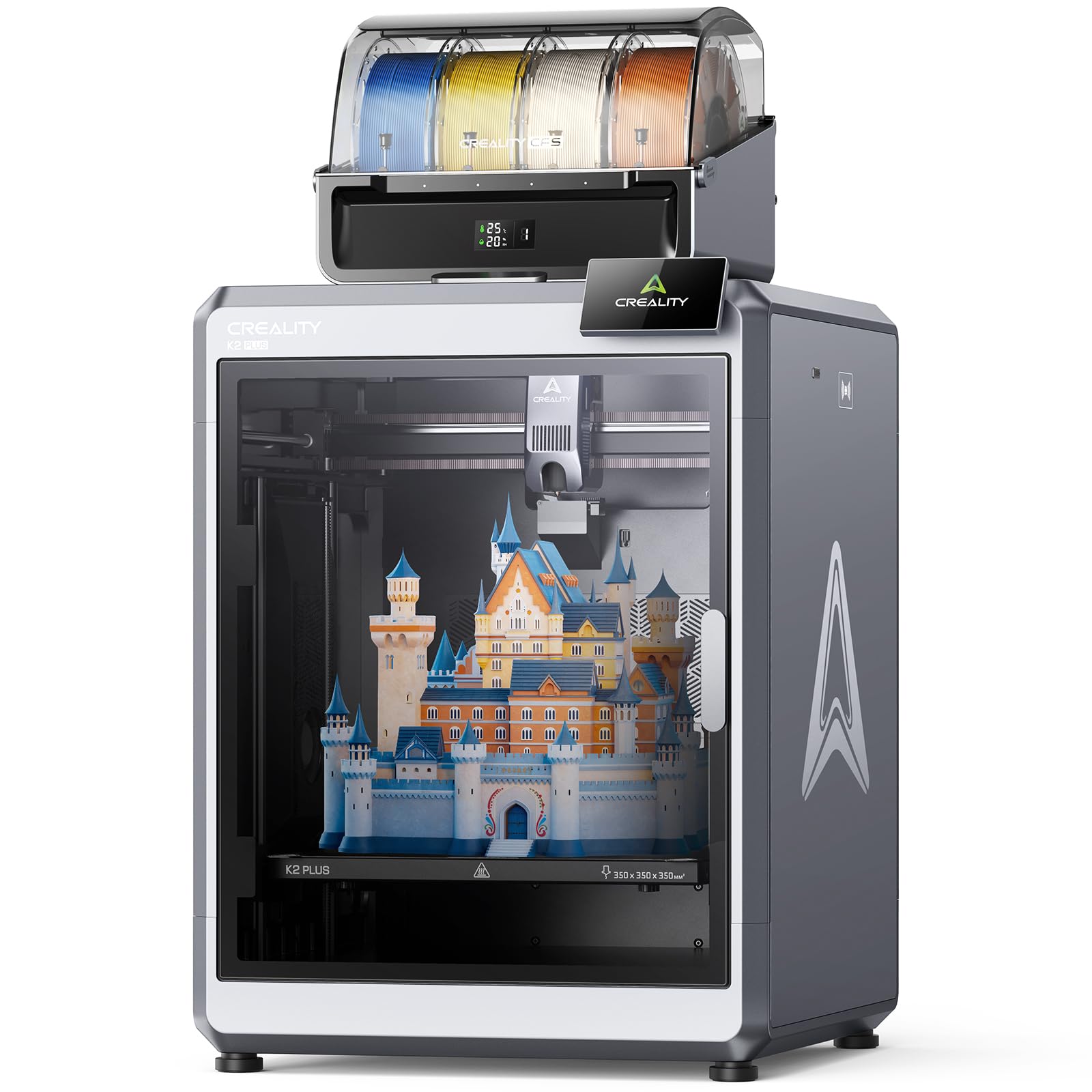
A 350 mm cube is the reason to consider the K2 Plus Combo. A helmet, a cosplay armor section, or a single-piece prototype that needs splitting on smaller printers fits inside its build volume. Creality pairs that space with 600 mm/s motion and a 60°C heated chamber, so size does not come at the cost of speed or engineering-material support.

Color capability is just as expansive. Four CFS units can feed up to 16 colors, and the dual AI cameras and 18 sensors are there to catch spaghetti and other failures before they waste a long print. We like the ambition of the package: it is one of the few machines here that can handle a big, multicolor, high-temperature job without splitting it across several printers.

The catch is reliability. It is inconsistent enough that we do not treat the K2 Plus as a first printer, and long, complex jobs leave more room for something to go wrong. For a maker who needs the size and can live with the tinkering, it is worth the trade. For everyone else, the smaller Bambu machines are easier to live with.

Pros

  • 350 mm cube for large single-piece prints
  • Up to 16 colors with four CFS units
  • 60°C heated chamber
  • 600 mm/s and dual AI cameras

Cons

  • Heavy 70.4-pound machine
  • Setup and documentation demand patience
Our verdict

When your models need a 350 mm cube, the K2 Plus delivers size and 16-color capability.

Check Latest Price
6

Best for Kids

AOSEED X-MAKER AI+

82 /100
LBD Score Excellent

Key details

Print Speed
Up to 400 mm/s
Model Library
12,000+ designs
Build Enclosure
Fully enclosed
Included Filament
8 PLA rolls
View on Amazon

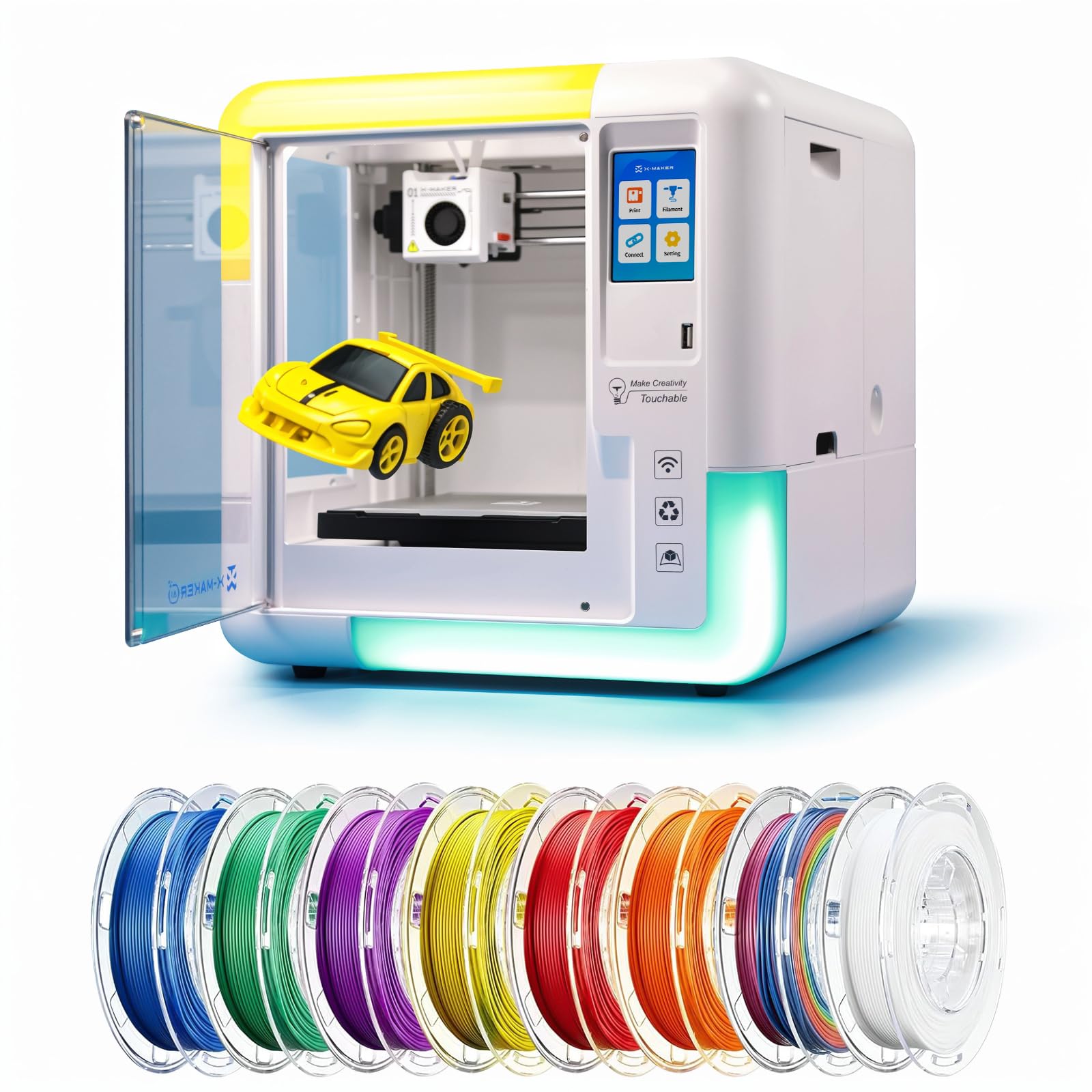
An enclosed build area and eight spools of PLA in the box set the X-MAKER AI+ apart from the open-frame printers here. The enclosure keeps hands away from the hot nozzle and moving parts, and the included filament means the printer is usable before you shop for another spool. For a family that wants to make toys, decorations, and school projects, that combination is more important than raw speed.

We're skeptical of AI design tools in general, but the implementation here makes sense for the audience. The 12,000+ model library, one-tap printing, and AI Doodle that turns text, voice, or a photo into a printable model lower the barrier for a kid who does not know CAD. The 3.5-inch touchscreen and app control keep the workflow simple, and the 400 mm/s top speed is quick enough for small parts.

The trade-off is that this is a kid-first machine, not a workshop printer. Advanced users will miss the tunability of a hobbyist slicer, and the 24-pound body is not as portable as a minimal mini printer. But for parents who want an enclosed, app-driven first printer with supplies in the box, the X-MAKER AI+ is the most complete family package here.

Pros

  • Fully enclosed for safer family use
  • Eight PLA rolls included
  • 12,000+ models and one-tap printing

Cons

  • Premium price for a child-focused printer
Our verdict

For families, the enclosed X-MAKER AI+ makes 3D printing approachable with one-tap models and eight PLA rolls in the box.

Check Latest Price
7

Best Compact FDM

Entina Tina2 Plus

86 /100
LBD Score Excellent

Key details

Weight
9.88 lb
Assembly
Fully assembled
Print Speed
250 mm/s
Model Library
3,500+ models
View on Amazon

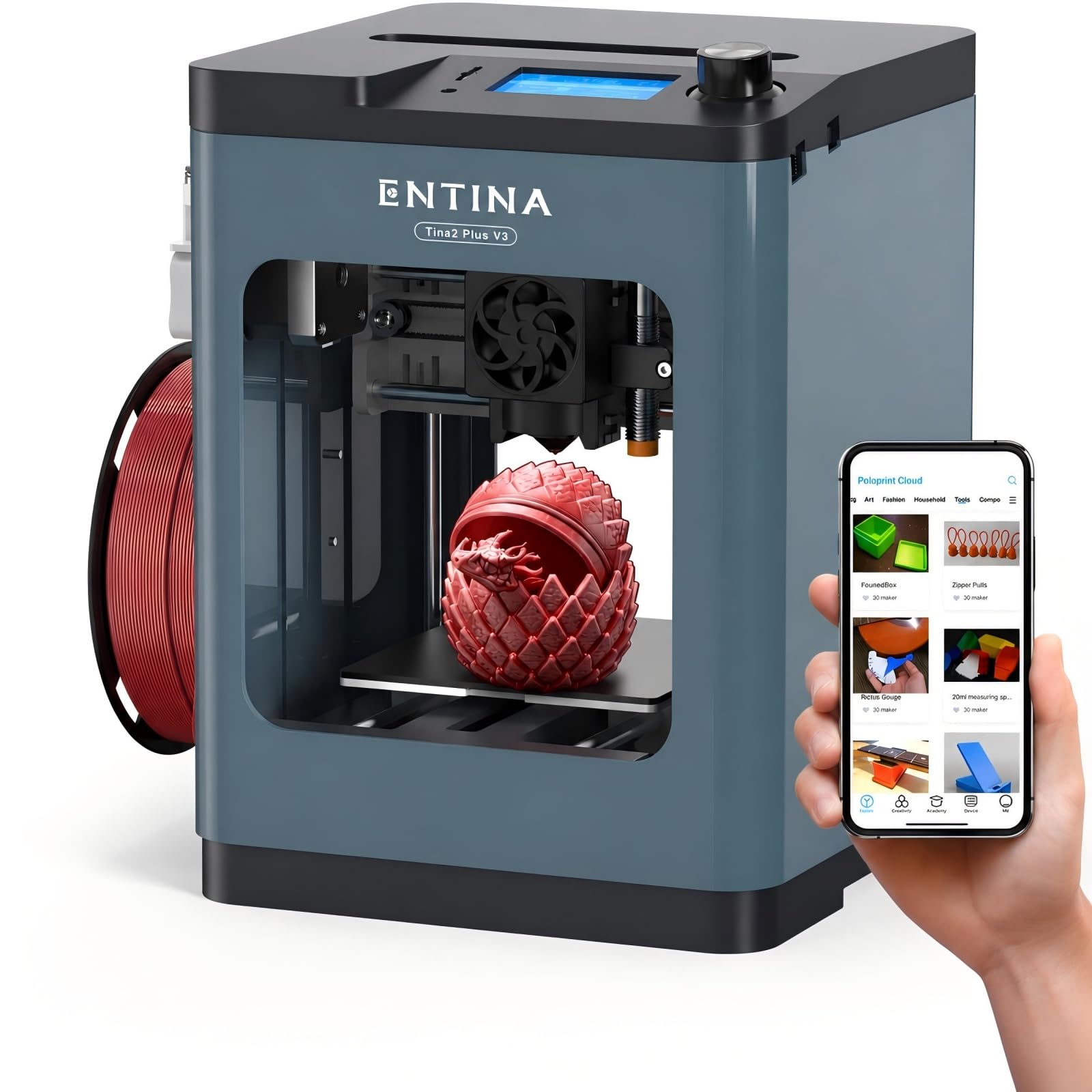
The printer we reach for when space is the constraint weighs just 9.88 pounds and measures 11.4 x 8.6 x 8.6 inches, so it can live on a desk, a classroom shelf, or a kitchen counter without becoming the room's main feature. It arrives fully assembled, so there is no build project before the first print. The 40-second ceramic hotend also means you are not waiting long between turning it on and starting a small part.

At 250 mm/s, it is slower than the 600 mm/s flagships, but small parts do not need flagship speed to feel quick. The Poloprint Cloud app and 3,500+ model library make it easy to find something to print, and WiFi plus the included TF card cover both app-first and offline workflows. The PEI build plate is a practical touch for part removal, especially for kids who want to pull a print off without tools.

The limits are real: this is a small-printer experience, so think phone stands, cookie cutters, and small organizers rather than helmets or large functional parts. For a compact first printer at a low price, though, we think it is an easy recommendation.

Pros

  • Fully assembled out of the box
  • Compact 9.88-pound footprint
  • 40-second ceramic hotend

Cons

  • 250 mm/s is slower than the fastest printers here
  • Quality control can be inconsistent
Our verdict

A fully assembled compact printer for desks and classrooms, with app control and a large model library.

Check Latest Price
8

Resin Miniatures

Anycubic Photon P1

80 /100
LBD Score Excellent

Key details

Leveling
Automatic
Build Size
8.78 x 4.96 x 9.05 in.
Resolution
14K
Resin Viscosity
Up to 8,000 cps
View on Amazon

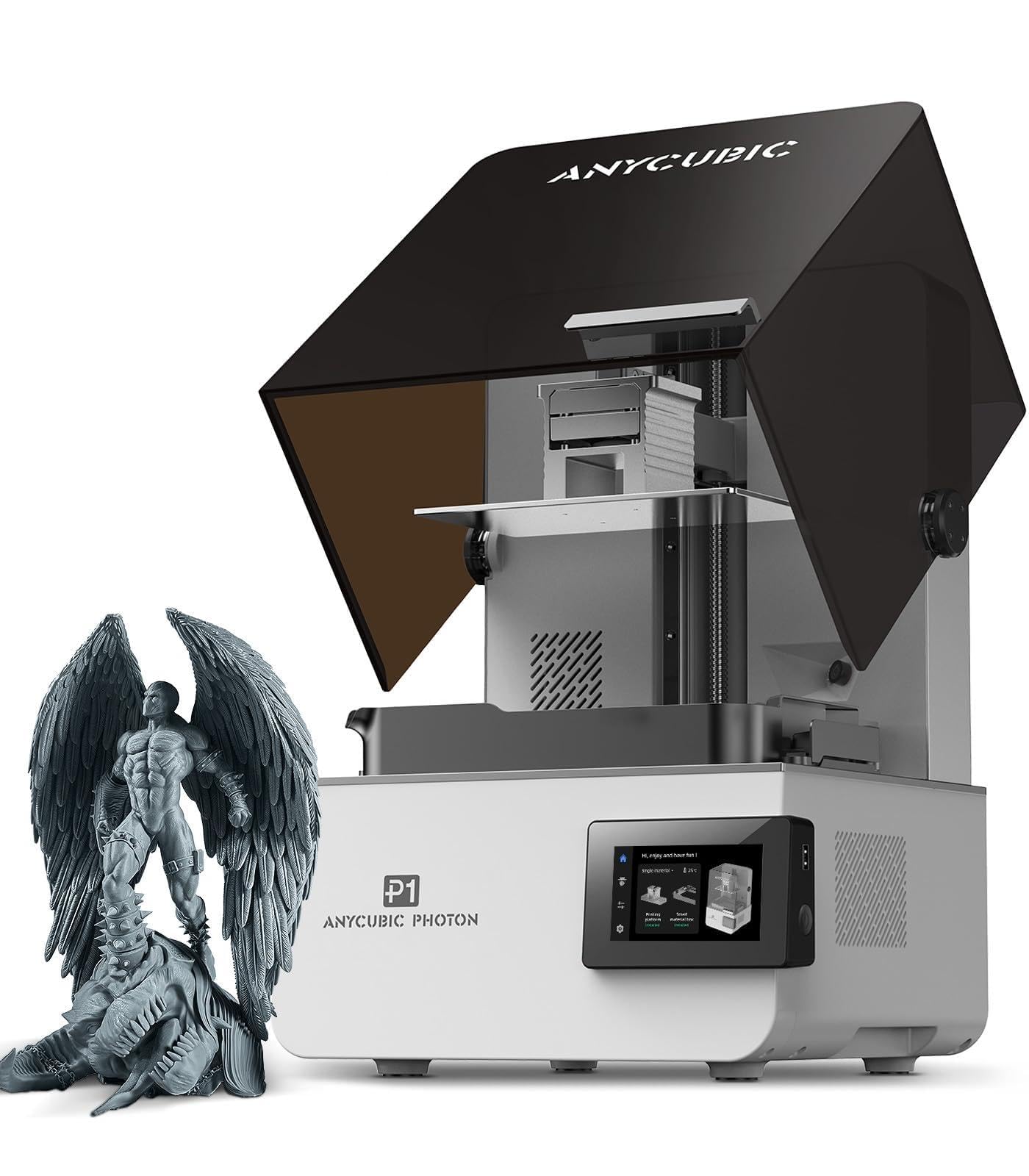
Resin detail is the point of the Photon P1. Its 14K LCD and LightTurbo 4.0 light engine are aimed at the kind of work FDM struggles with: miniature faces, jewelry patterns, and small mechanical parts with crisp edges. The 8.78 x 4.96 x 9.05-inch build area is generous for a resin printer, so you can batch several small parts instead of printing one at a time.

We appreciate the effort to make resin printing less fiddly. The P1 auto-levels, runs a self-check before each print, and uses Wave Release technology to reduce the force needed to peel a layer off the film. A ball-screw Z-axis and AI monitoring are the kind of details that matter when a failed print means cleaning a vat, not just pulling a sheet of PLA off a bed.

The workflow is the catch. Resin printing means gloves, eye protection, ventilation, IPA, and a wash-and-cure setup, so it is a poor fit for a spare bedroom or a household that wants zero cleanup. If you want detailed miniatures and are willing to treat resin as its own process, it is a strong machine for the money. If you want a printer you can run with minimal fuss, stay with FDM.

Pros

  • 14K resolution for fine miniature detail
  • Large 8.78 x 4.96 x 9.05-inch build
  • Auto-leveling and AI monitoring

Cons

  • Limited third-party slicer support
  • Recurring resin and cleaning supplies add cost
Our verdict

For fine miniatures, the Photon P1 pairs 14K detail with a large resin build and auto-leveling.

Check Latest Price

How We Tested These 3D Printers

We built a shortlist of roughly 30 machines from spec sheets and owner reviews, then cut anything that arrived largely unassembled without clear instructions, anything that needed manual bed leveling before every job, and anything whose build volume was too small to be useful past trinkets. Ten made the cut, mixing open-frame budget units with enclosed multi-color systems.

Each one lived on a kitchen counter, a garage workbench, or a kid's desk for seven months. We assembled them with only the included manual and timed how long it took to go from opening the box to a finished print, noting every place the instructions skipped a step. Then we printed the way a household does: a school-night figurine, a weekend replacement bracket, a multi-day job left running overnight.

Every machine printed the same test model — overhangs, bridging, small text, a tight-tolerance hole — and we ran a fingernail across the surfaces to compare layer lines under a lamp. Bed adhesion got its own check: the same first-layer patch on each plate, then a week of daily jobs to see which corners started lifting. We logged each clog and failed print, and how long recovery took.

On the multi-color machines we weighed the purge waste and timed a four-color print against the same model in one color. We also handed each printer to someone who had never used one — a neighbor, a friend's kid — to see whether the beginner-friendly claims held up without us hovering, and kept track of what came in the box, since that's where a lot of the value in this category actually sits.

How to Choose a 3D Printer

FDM or resin?

FDM melts filament and builds parts layer by layer. It is the better fit for functional brackets, toys, organizers, and anything large or multicolor. Resin cures liquid photopolymer and wins on fine detail, which is why miniatures and jewelry models look sharper. The catch is the post-processing: gloves, ventilation, IPA, and a wash-and-cure station. If you want a printer for a living room, choose FDM; if your main goal is small, highly detailed models and you have a ventilated work area, resin is worth the extra ritual.

Match build volume to the models you print

Measure the largest single piece you expect to print, then add clearance for bed movement and the filament spool. A 350 mm cube like the K2 Plus opens up helmets and armor, but the machine itself needs a deep, stable table. A compact printer like the Tina2 Plus is better for a desk and small parts. We prioritize a footprint that fits the room over a build volume you rarely use, because unused ceiling becomes clutter.

Understand what multicolor costs you

Single-nozzle color changes purge filament, which adds time and waste. The Bambu AMS 2 Pro and Creality CFS reduce the manual work but still purge; the Snapmaker U1's four toolheads swap instead, so there is very little waste but more mechanical complexity. The Kobra X's built-in four colors sit in the middle. If you print color occasionally, a single-color printer and a paintbrush are cheaper and simpler. If color is the reason you are buying, prioritize a system with drying or low purge, and check the color count before you commit.

Prioritize setup and first-layer support

A 600 mm/s headline sounds impressive, but acceleration, part shape, and layer cooling decide how fast a print actually finishes. For a new user, automatic calibration, a reliable first layer, and a clear slicer matter more. The A1's full-auto calibration and the P2S's 15-minute setup target are useful because they remove decisions, not because they win a drag race. Also check noise if the printer will live near a bedroom or kitchen; the A1 and Kobra X are rated at 48 dB or lower, which is a real household advantage.

Plan for maintenance, safety, and returns

3D printers are mechanical tools, so budget for occasional nozzle cleaning, bed cleaning, and replacement parts. Buy from a seller with a straightforward return window, run a test print immediately, and keep the packaging until the machine proves itself. If children will use it, choose an enclosed design and supervise; the AOSEED is built around that use. Resin printers need ventilation, gloves, and eye protection every time, not just on the first print.

Frequently Asked Questions

Final Verdict

The Bambu Lab P2S Combo is the printer we recommend to most households because it combines an enclosed 600 mm/s core, automatic calibration, and an AMS 2 Pro that dries filament while it holds it. That package makes multicolor practical without turning every project into a manual filament change. If waste-free multi-material printing is your priority, the Snapmaker U1's four toolheads are the better tool; if you want the simplest low-cost start, the Bambu A1 is the one to buy first. The P2S is the default for everything in between.