Best USB Docking Stations of 2026

A docking station is the difference between a laptop that lives on a desk and one that gets unplugged and carried to the couch. The catch is that the port count on the box tells you almost nothing, because two docks with the same list of ports can behave completely differently once your monitors, keyboard, and phone charger are all hanging off a single cable.

My team spent six months with 12 of them, and I've had a rotating pile on my own desk the whole time, re-plugging monitors more often than I'd like to admit. The ones that earn a permanent spot are rarely the ones with the longest feature list. They connect on the first try, keep both screens alive through a full workday, and don't send you hunting for a driver at 9 a.m.

One thing worth knowing before you compare: power delivery is shared, so the wattage a dock advertises is partly eaten by whatever else is plugged into it, and multi-monitor support often comes down to which operating system you're running. Everything below was judged on whether it wakes up, stays connected, and handles what you actually plug in.

1

Best Overall

Plugable UD-3900PDZ

86 /100
LBD Score Excellent

Key details

USB Ports
6x USB 5Gbps
HDMI Outputs
1x 4K 30Hz, 2x 1080p 60Hz
Wired Network
Gigabit Ethernet
Laptop Charging
100W Power Delivery
View on Amazon

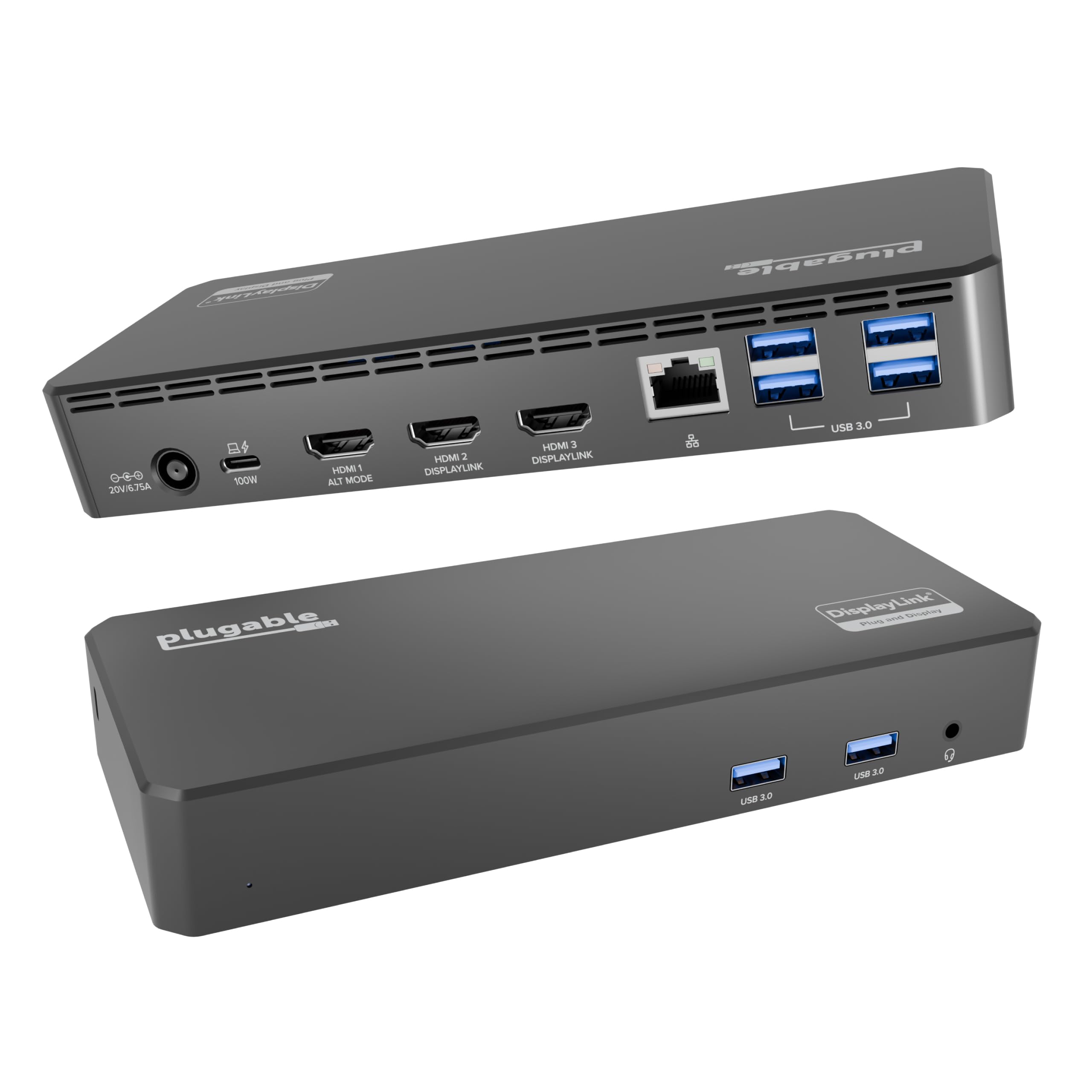
Three monitors is where dock shopping stops being fun. Most USB-C docks extend two displays on Windows and then hand a Mac two identical screens, because the laptop's own graphics can only drive so many panels. The UD-3900PDZ splits the job instead: one HDMI output runs natively off the laptop's USB-C port, and the other two are drawn by DisplayLink, the software display technology that adds screens the laptop's graphics chip won't handle on its own.

That split is why it's our top pick. One cable into a MacBook Air or a Windows laptop brings up three extended displays, six USB ports, wired Ethernet, audio and up to 100W of charging. We also like the way the outputs are ranked: the native port takes the sharpest screen at 4K, while the DisplayLink pair runs 1080p at 60Hz, which puts the resolution where the spreadsheets and the video calls are.

Two 1080p outputs is the compromise, and it bites if you already own a pair of 4K panels. A Mac also needs the DisplayLink driver installed by hand, a one-time download rather than true plug-and-play. What justifies the price is the coverage: it's the only dock here that gives you three HDMI displays on both Windows and macOS, and Plugable backs it with a two-year warranty and lifetime support.

Watch the second DisplayLink output during the first month. That's the part that goes quiet when a unit is faulty, and the warranty is what turns that from a disaster into an inconvenience.

Pros

  • Three extended displays on Windows and macOS
  • 100W charging through the same cable
  • Six USB 5Gbps ports plus Ethernet and audio
  • Two-year warranty and lifetime support

Cons

  • Two of the three HDMI outputs cap at 1080p
  • macOS needs a manual DisplayLink driver install
Our verdict

For a desk that needs three extended displays on either a Mac or a Windows laptop, this is the dock we point people to — provided 1080p on the outer two screens is acceptable.

Check Latest Price
2

Best Value for a Dual-Monitor Desk

Plugable UD-3900

91 /100
LBD Score Outstanding

Key details

USB Ports
6 (2x USB 3.0, 4x USB 2.0)
HDMI Outputs
2x, up to 1920x1200 at 60Hz
Wired Network
Gigabit Ethernet
Host Connection
USB 3.0 or USB-C cable
View on Amazon

1920x1200 is the number that decides whether the UD-3900 is your dock. Two HDMI outputs at that resolution and 60Hz is plenty for a pair of 24-inch office monitors and nowhere near enough for the 4K panel you bought for photo work, and a single screen can reach 2560x1440 at 50Hz if you only run one. We think the trade is worth making, because no dock here is easier to live with across a mixed fleet of laptops: the cable ends in both a USB-A and a USB-C plug, so an old ThinkPad and a new XPS share the same box.

Six USB ports, two at 3.0 speed and four at 2.0, plus Gigabit Ethernet and audio all come up from that single connection, and Windows installs the driver through Windows Update without a trip to a download page. macOS is fussier — from macOS 14 you install DisplayLink yourself — and this isn't a dock that powers your laptop, so the adapter stays plugged in. Two details to weigh: there's no DisplayPort, and HDCP-protected streaming won't play on the external screen, so a monitor that doubles as a television is the wrong job for it.

What keeps it on the list is the design's track record. Plugable has sold this dock long enough to have worked through the usual driver problems, covers it for two years, and staffs support by email from Seattle — worth more than an extra feature bullet in a category where one dead port ends the desk. Expect a few years of hard use rather than a decade, and keep the receipt.

Pros

  • Dual HDMI on a hybrid USB-A or USB-C cable
  • Driver installs through Windows Update
  • Six USB ports plus Gigabit Ethernet
  • Two-year warranty, lifetime support

Cons

  • Capped at 1920x1200, with no 4K and no DisplayPort
  • No HDCP, so protected streaming won't play
Our verdict

If your monitors are 1080p or 1200p and your laptop charges from its own adapter, this is the least fussy dual-HDMI dock here and the cheapest way into Plugable's support.

Check Latest Price
3

Best Budget Pick

Anker Nano 8-in-1

86 /100
LBD Score Excellent

Key details

USB Ports
4, all 10Gbps
HDMI Outputs
2x, dual 4K 60Hz on Windows
Power Supply
100W PD charger required, not included
Laptop Charging
85W pass-through
View on Amazon

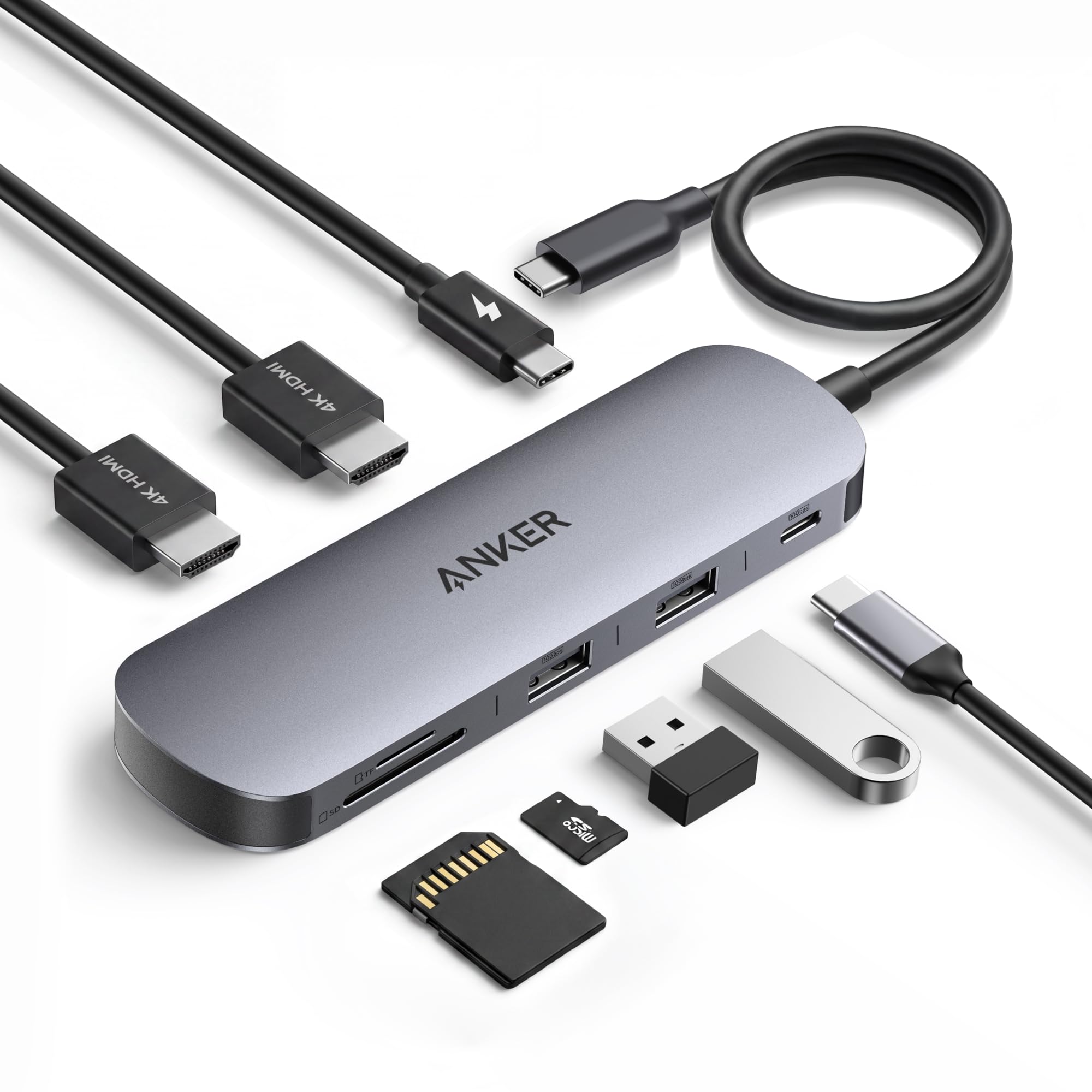
Ten gigabits per second on every USB port is the sort of figure you expect to pay a premium for, and the Nano does it for less than anything else here. Two HDMI outputs run at 4K and 60Hz on a Windows laptop with DP 1.4, and the aluminium shell is small enough to vanish behind a monitor. We came away thinking of it as the dock for someone who wants two screens and fast file transfers and doesn't need a network cable.

That last part is the catch: there's no Ethernet, so this is a Wi-Fi desk. There's no charger in the box either — the 100W USB-C PD input expects your laptop's own adapter, and the hub keeps roughly 15W for itself, so a 100W brick puts about 85W into the machine. Mac owners should look elsewhere, since macOS mirrors both external displays instead of extending them. On a Windows laptop with a full-function USB-C port, nothing here gets you two 4K screens and 10Gbps transfers for the same money.

Pros

  • Dual 4K at 60Hz on Windows
  • 10Gbps on every USB port
  • About 85W reaches the laptop
  • Aluminium body with a small footprint

Cons

  • No Ethernet port
  • Extended dual displays are Windows-only
Our verdict

A Windows-only dock that delivers dual 4K at 60Hz and 10Gbps on every port for the least money in this guide, as long as your desk runs on Wi-Fi.

Check Latest Price
4

Most Ports and Power

Anker Prime 14-in-1

85 /100
LBD Score Excellent

Key details

USB Data
10Gbps
Total Ports
14
HDMI Outputs
2x, up to 2K 60Hz
Laptop Charging
100W per USB-C, 160W total
View on Amazon

A hundred and sixty watts is a lot to push through a dock, and the Prime exists to spread it around: the laptop plus three more devices, each on USB-C at up to 100W, all charging while two monitors run.

The rest of the hardware is just as generous. Fourteen ports, ten of them USB, 10Gbps data throughout, Ethernet, audio, and a small display on the front reporting live power and speed for whatever is plugged in. That screen sounds like a gimmick until you're trying to work out which cable is only charging at half rate.

Two things hold it back. Displays top out at 2K at 60Hz on a DP 1.4 laptop and 1080p on an older DP 1.2 machine, which is modest at this price, and the plastic body is heavy enough that it stays on the desk rather than travelling. Stability is the bigger worry: a dock in this bracket that can drop a monitor mid-session is one to buy with your eyes open.

So picture the desk it suits: a laptop, two screens, a phone, a tablet and a couple of drives, where one box charging everything is worth the bulk. If you only need two monitors and a network cable, the cheaper docks here do that job and ask less of your desk.

Pros

  • 160W total output across four devices
  • Fourteen ports with 10Gbps data
  • Live power and speed readout
  • 24-month warranty

Cons

  • Dual displays cap at 2K 60Hz
  • Flicker and dropouts can interrupt a session
Our verdict

We recommend it for a desk with more devices than ports: 160W across four, fourteen connections, and display resolution that's modest for the money.

Check Latest Price
5

Best for Mixed Monitor Types

MOKiN 14-in-1 Dock

88 /100
LBD Score Excellent

Key details

USB Ports
5, at 5Gbps
Video Outputs
2x HDMI, 2x DisplayPort
Wired Network
Gigabit Ethernet
Laptop Charging
100W PD port
View on Amazon

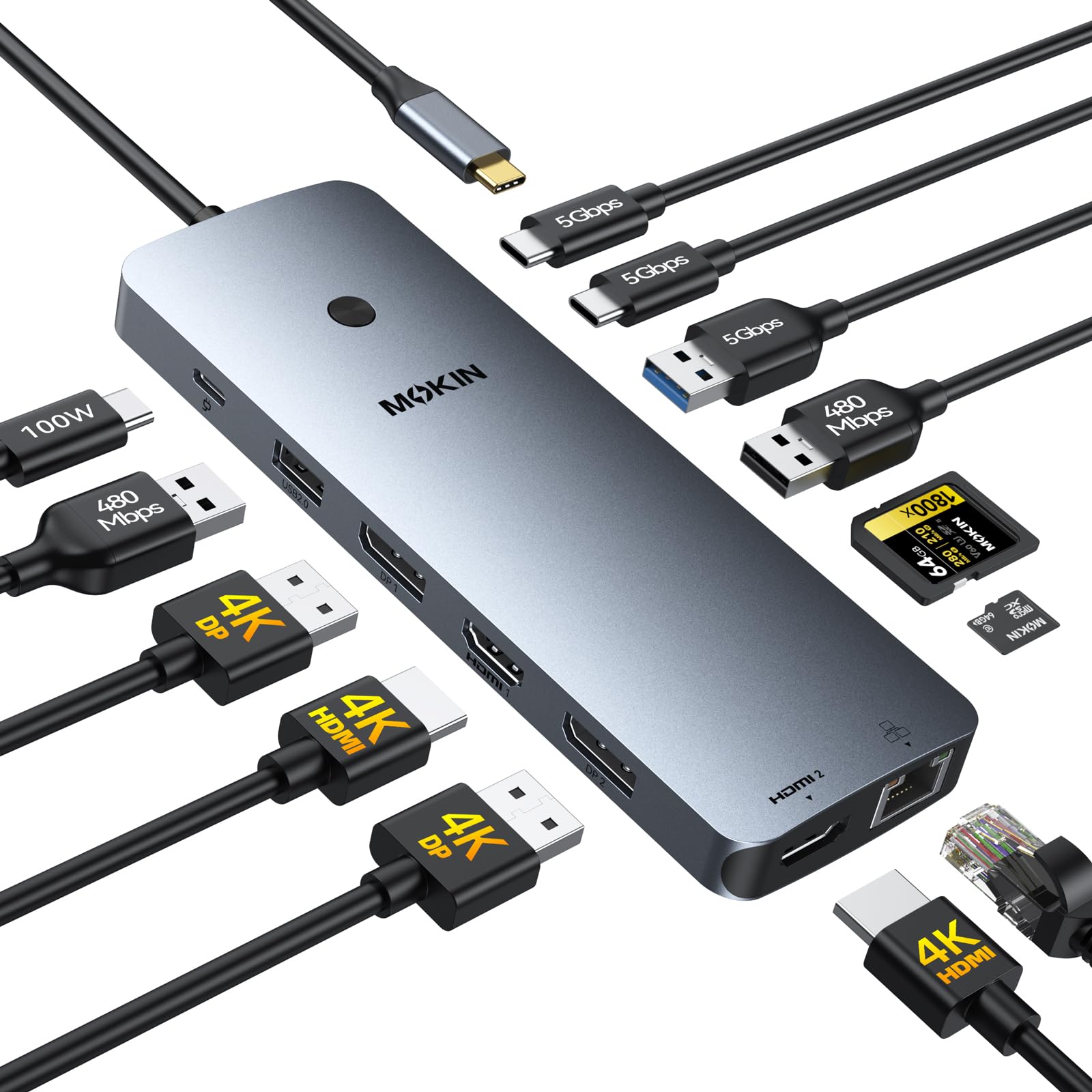
The button on the top is what makes this one worth a look. Press it and the external screens go dark while the machine keeps working — genuinely useful on a shared desk or in an open-plan office, and not something we expect from a dock in this bracket.

Underneath the trick is a flexible 14-in-1. Two HDMI and two DisplayPort outputs mean an HDMI projector and a DisplayPort monitor can share the same desk, alongside Gigabit Ethernet, SD and microSD slots, five USB ports at 5Gbps and a 100W PD port for the laptop. Windows extends across three screens; on macOS, expect mirrored outputs, as with nearly every dock here.

The USB ports run at 5Gbps, half the speed of the Nano and the Prime. That's irrelevant for a keyboard and a mouse and noticeable when you're moving video files to an external SSD. Durability is the other thing to keep in mind: docks at this price are among the likeliest bits of desk gear to fail early, and the two-year warranty is what you lean on when one does.

Pros

  • Two HDMI plus two DisplayPort outputs
  • Privacy button blanks the screens
  • Gigabit Ethernet and card readers
  • 100W PD port for the laptop

Cons

  • USB ports run at 5Gbps
  • Three-screen extension is Windows-only
Our verdict

Four video outputs and a screens-off button make this the most flexible mid-priced dock here, if your laptop runs Windows.

Check Latest Price
6

Most USB Ports

TobenONE 18-in-1 Dock

85 /100
LBD Score Excellent

Key details

USB Ports
9
Total Ports
18
HDMI Outputs
3x, 4K 60Hz
Power Supply
65W+ adapter required, not included
View on Amazon

Nine USB ports is the number that separates this dock from everything else here, and they sit on a box the size of a paperback with three HDMI outputs across the back. For a desk with a keyboard, a mouse, a webcam, a headset, a card reader and two drives, that's the end of the morning unplugging.

We like it best for a Windows triple-screen office where the monitors are 4K: all three HDMI outputs run at 4K and 60Hz on a supported laptop, which is more than the Plugable triple manages at the top end. The catch is that it's built for Windows and ChromeOS laptops rather than Macs, and there's no power adapter in the box. Supply 65W or more of your own, or the dock won't run stably.

Do that and the rest is tidy: SD and microSD on the front, audio, Ethernet, and a 100W PD port that keeps the laptop topped up through the same cable. The thing to watch is the HDMI outputs over the first few months, where early failures tend to show on a dock running three screens. The two-year warranty covers it, so register the unit when it arrives.

Pros

  • Nine USB ports plus three HDMI
  • Triple 4K at 60Hz on Windows
  • SD, microSD, Ethernet and audio
  • Two-year warranty

Cons

  • No power adapter included
  • Windows and ChromeOS only
Our verdict

Buy this one for a Windows triple-screen desk with nine things to plug in — and bring a 65W adapter.

Check Latest Price
7

Travel Setups

Giq USB 3.0 Dock

88 /100
LBD Score Excellent

Key details

Weight
3.6 oz
USB Ports
3x USB 3.0 at 5Gbps
Video Outputs
2x HDMI, 1x VGA
Wired Network
Gigabit Ethernet
View on Amazon

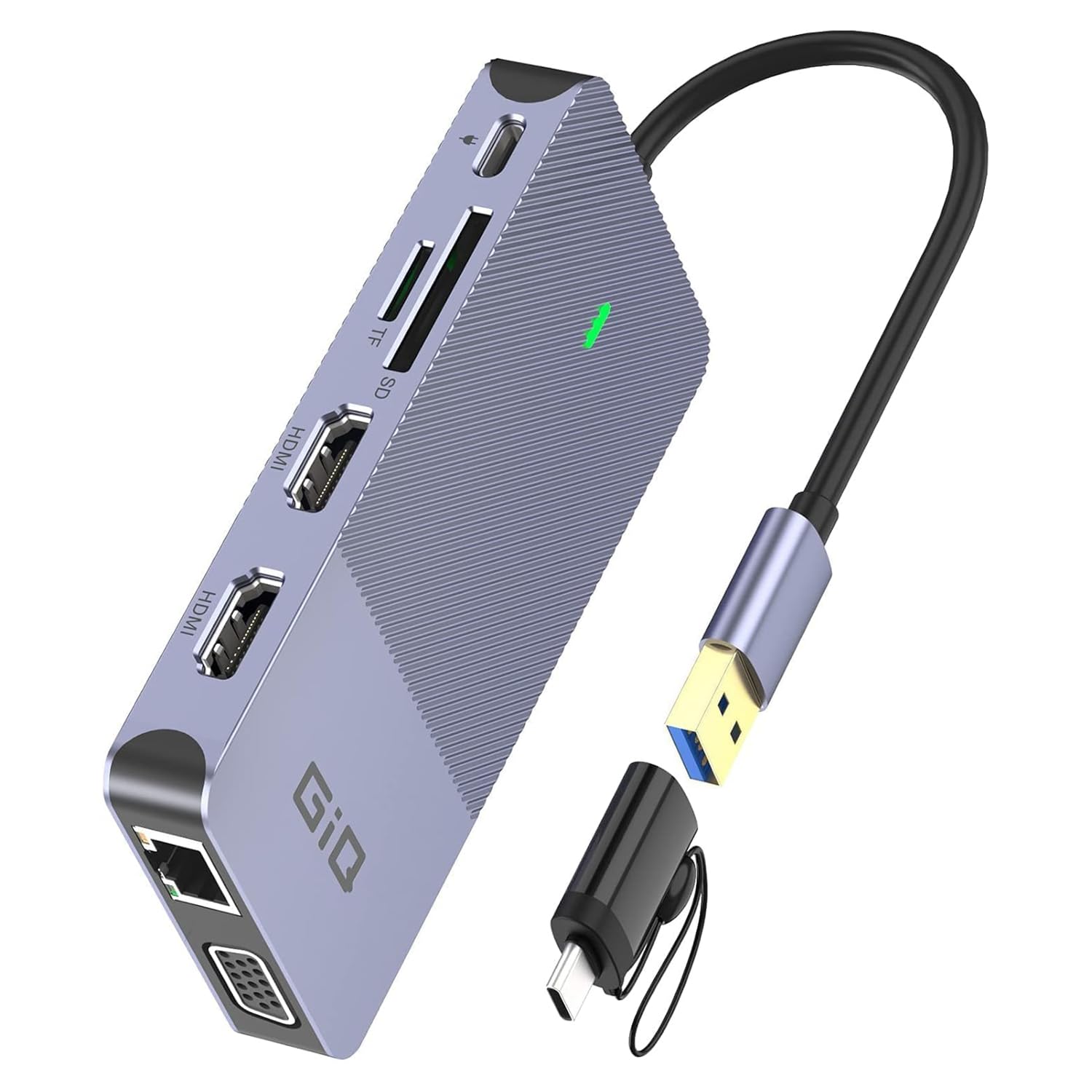
At three and a half ounces and about two inches square, this is the dock that lives in a laptop bag and takes a strip of velcro under the desk when you're home. It's the smallest thing here by a wide margin, and the only one with a VGA port, which still matters in a conference room with a projector older than your laptop.

Size aside, it does the full job: two HDMI outputs plus VGA for a third screen, three USB 3.0 ports at 5Gbps, Gigabit Ethernet, a headphone jack and SD plus microSD slots — though the two card slots can't run at once, and 4K output stops at 30Hz, so a 60Hz 4K panel is wasted on it. DisplayLink handles the extra screens, which is how it drives three displays from a MacBook.

The compromise is stability. This is a dock where cables matter: a brief dropout or a laggy mouse is the price of packing three displays into something this small, and a Windows 11 laptop is worth checking against the compatibility list before you order. If your week splits between an office desk and a kitchen table, that's a fair trade for a dock you can carry in a coat pocket. If it never leaves the desk, buy a box with its own power supply.

Pros

  • Fits in a coat pocket at 3.6 ounces
  • Two HDMI plus VGA for a third screen
  • Ethernet, audio and card readers
  • Works with Macs and Windows

Cons

  • 4K output capped at 30Hz
  • SD and microSD share one slot
Our verdict

The travel dock of the group: three displays from something two inches square, with the stability compromises that small size implies.

Check Latest Price

How We Tested the Docking Stations

We started by gathering every dock that matched how people actually shop this category, from pocket-sized hubs to full desktop units, then cut anything that couldn't drive two monitors, pass power to a laptop, or work with more than one operating system. That left 12, which my team used as their daily drivers for six months.

Each one lived on a real desk with two monitors, a keyboard, mouse, webcam, wired Ethernet, and an external drive attached, laptop lid closed. We unplugged and re-plugged several times a day, let the machine go to sleep, and noted whether both screens came back on their own or needed a cable wiggle or a restart. Setup got timed too: unboxing to two working displays, with a note on whether it demanded a driver download first.

For charging, we filled the ports with a phone and a webcam and then watched the laptop's battery percentage over an hour to see how much headroom was left. We pushed large file transfers through the USB-A and USB-C ports and the card reader instead of trusting the rated speeds, and we moved the same dock between a Windows laptop and a Mac to find out which ports quietly stopped working. We also counted the ports, then filled every single one at once.

Durability got the least glamorous test: cables coiled and uncoiled daily, docks tossed into a backpack for weekend trips, and the occasional accidental tug on the upstream cable to see if the connection dropped. A couple of units lost a monitor after a month of that; the rest held. Finally, we weighed what came in the box against the price, since more than one dock ships without a power adapter.

How to Choose a Usb Docking Station

Start With the Displays, Not the Port Count

A Windows laptop with a modern full-function USB-C port usually extends two external screens. Many MacBooks extend only one on their own and mirror everything else, unless the dock draws the extra panels itself using DisplayLink software. That's why the three-screen docks here split their outputs between the laptop's native Alt Mode and DisplayLink — and why a Mac owner after more than one extra monitor should look for the word DisplayLink before ordering anything.

The practical test is simple: count the monitors you want extended, then check whether the dock promises that many with the technology named. On a Mac, a cheap Alt-Mode hub gives you duplicate screens no matter what the port count says.

Decide Whether the Dock Should Charge the Laptop

Power delivery is what turns a dock into a one-cable desk: displays, peripherals and charging all arrive on the same connector. Check two numbers. First, the wattage that reaches the laptop — a 100W dock that keeps 15W for its own circuitry puts about 85W into the machine, comfortable for an ultraportable and marginal for a big workstation. Second, whether the dock charges at all; the Plugable UD-3900 doesn't, so its cable carries video and data while your own adapter handles power.

If docking is how your laptop charges all day, buy a dock that meets its adapter's rating. If the laptop's brick lives on the desk anyway, save the money and skip pass-through charging entirely.

Pick a Dongle or a Desktop Box

Format decides where the dock lives and what it drags around. A dongle-style dock such as the Anker Nano or the Giq hangs off the laptop's port on a short lead, packs flat and suits a laptop that travels. A desktop box such as the Anker Prime or the TobenONE stays put, spreads its ports across the back and runs one cable to the laptop instead.

For a fixed desk, favour a box with front-facing ports — the TobenONE's front USB is the sort of detail you appreciate every morning. For a hybrid week, favour weight: the Giq is the only one here you'll forget is in the bag.

Look Past the Port Count to the Ports You Use

Fourteen ports mean nothing if the one you need is missing. Ethernet matters more than extra USB-C for video calls, and a dock without it, like the Anker Nano, is a Wi-Fi-only desk. Card readers earn their place if you download photos; 10Gbps USB only pays off with an external SSD, while 5Gbps is fine for a keyboard, a mouse and a backup drive.

One trap worth naming: HDCP. The Plugable UD-3900 won't play protected streaming content such as Netflix on an external screen, so read the fine print if a monitor doubles as a television.

Frequently Asked Questions

Final Verdict

Buy the Plugable UD-3900PDZ if you need three extended screens on either a Mac or a Windows laptop and can live with 1080p on the outer two. It's the only dock here that solves that problem for both camps, and it charges the laptop while it does it.

If your monitors are 1080p and your adapter already lives on the desk, the older Plugable UD-3900 does the same dual-HDMI job with fewer things to go wrong. Windows-only buyers with a pair of 4K panels should take the Anker Nano instead and put the savings toward a bigger SSD.