Best Wired Routers of 2026

The box your internet provider rents you is a modem, a router, a switch, and a Wi-Fi radio in one plastic case, and it's mediocre at everything except the Wi-Fi. A dedicated wired router takes the routing back: it hands out addresses, runs the firewall, holds a VPN tunnel open, and switches to a backup internet line the moment the primary one drops.

None of these broadcast Wi-Fi, which is the point — you pair one with an access point that's actually good at it. My team has spent six months with 12 of them, and the differences that mattered were never port counts. They were whether setup ate an evening or a weekend, whether the interface assumed you already knew what VLAN tagging was, and whether speed held up once a dozen devices were pushing traffic.

The extras deserve a skeptical eye, too: load balancing only earns its keep if you genuinely have a second connection, and VPN support is worth little if the tunnel crawls. The picks below are the ones I stopped worrying about.

1

Best Overall

TP-Link ER605

89 /100
LBD Score Excellent

Key details

Warranty
5 years
Management
Omada SDN or standalone
WAN Options
Up to 3 Gigabit + 1 USB
Ethernet Ports
5 × Gigabit
View on Amazon

The ER605 is the router we recommend to almost anyone who asks, and the reason is arithmetic: five Gigabit ports, three of which can carry an internet connection, a USB port that takes a cellular modem, and a five-year warranty, in a box that sits on top of your modem without needing a shelf. For someone who has just worked out that the ISP's all-in-one is a mediocre router and a worse access point, that is the whole argument.

We set it up standalone, without the Omada controller, and it took one browser session: WAN type, LAN subnet, admin password. The controller is optional and, for a single router in a home lab, easy to ignore, though it is the reason to stay with TP-Link if you later add access points and switches.

The USB port is the detail we ended up appreciating most. A supported LTE stick gives you a second path to the internet for the cost of a data plan, and you can tell the router to take it when the main line drops. TP-Link publishes a compatibility list for those modems, so check yours before you count on cellular backup. The same discipline applies to the wired WANs: pulling the cable is the easy test, and watching it fail back cleanly is the one worth repeating with your own provider.

Two things to know first. There is no Wi-Fi here, so budget for an access point alongside it. And the interface assumes you know what a subnet mask is; if DHCP reservation and static route are new terms, plan an evening. The VPN support is tunnels, IPsec, OpenVPN, L2TP and PPTP, not a client for a commercial VPN service, and there is no local DNS resolver, which home-lab users notice within a day.

Pros

  • Five Gigabit ports, two switchable WAN or LAN
  • USB WAN for cellular backup
  • Optional Omada SDN management
  • Five-year manufacturer warranty

Cons

  • No built-in local DNS resolver
  • USB modem support limited to a compatibility list
Our verdict

We recommend the ER605 as the default wired router: five Gigabit ports, three WAN options, and Omada management if you want it, in a box that fits on top of the modem.

Check Latest Price
2

Best for Fiber Uplinks

MikroTik hEX S

93 /100
LBD Score Outstanding

Key details

Fiber Port
1 × 1.25 Gbps SFP
CPU And RAM
Dual-core 880 MHz, 256 MB
Ethernet Ports
5 × Gigabit
IPsec Throughput
~470 Mbps hardware-accelerated
View on Amazon

An SFP cage on a router you can hold in one hand is the reason the hEX S exists. If your fiber ONT hands over a module rather than an Ethernet cable, or you want to run fiber out to a detached garage, this is one of three picks here that can terminate it, and by far the smallest.

We like port 5's PoE-out more than we expected to. One cable to a ceiling access point or a camera, no injector and no second power brick, which is a real convenience in a small office. Check what your access point expects before you connect it, because the hEX S supplies PoE on that port and you want the voltage and draw to match.

The rest of the box is RouterOS, which is the part we have the most complicated feelings about. A dual-core 880 MHz CPU and 256 MB of RAM handle a gigabit line with firewall rules and a handful of tunnels, and hardware encryption puts IPsec around 470 Mbps. What that buys you is control most consumer routers never offer: VLANs, queues, routing tables, a packet sniffer, and The Dude on a microSD card. That depth is why it earns a place here, and it is also the reason half of this box's bad evenings happen.

The learning curve is genuinely steep. RouterOS gives you a dozen ways to lock yourself out of your own router, and the interface rewards people who already think in firewall chains. Budget a weekend, keep a laptop on a LAN port, and export a backup configuration before you change anything you cannot undo.

Pros

  • SFP cage for fiber handoffs
  • PoE-out on port 5 saves an injector
  • Full RouterOS with hardware IPsec around 470 Mbps
  • Palm-sized fanless chassis

Cons

  • Steep RouterOS learning curve
  • No manufacturer warranty listed
Our verdict

We keep the hEX S on the shortlist when the line arrives on fiber: an SFP cage, PoE-out on port 5, and full RouterOS in a fanless box you can hide behind the modem.

Check Latest Price
3

Best for Multi-Gig

TP-Link ER707-M2

86 /100
LBD Score Excellent

Key details

SFP
1 × Gigabit
WAN Ports
2 × 2.5 Gigabit, 4 × Gigabit
Max Clients
1,000+
Concurrent Sessions
500,000
View on Amazon

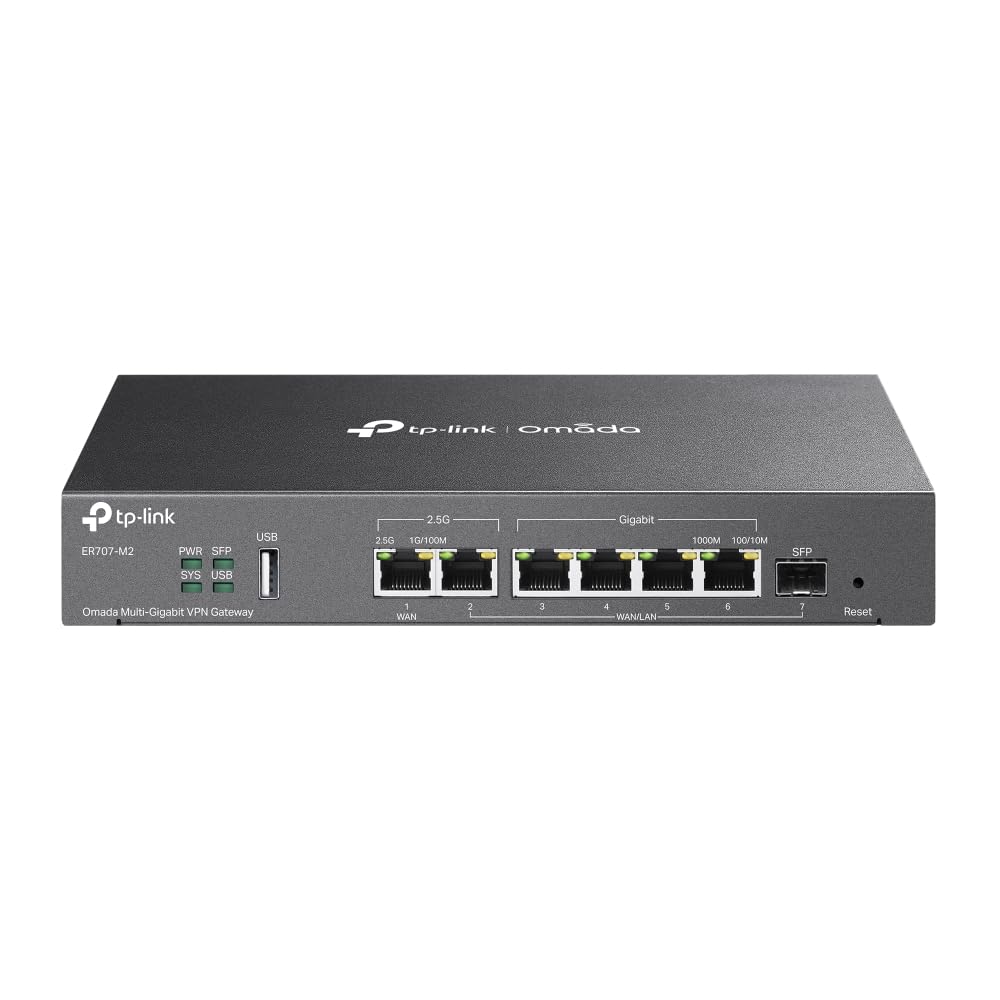
Two 2.5G ports is enough to get a multi-gig line into the building and not quite enough to spread it around. That is the honest summary of the ER707-M2: one 2.5G port for the WAN, a second that can feed a 2.5G switch or a fast NAS, four more Gigabit ports, and a Gigabit SFP cage for everything else.

We hand multi-gig buyers this one because the alternatives disappoint in one direction or the other. The Gigabit-only picks here cap you at the speed you are already paying past, and the closest step up costs meaningfully more. Budget for a 2.5G switch in the same order, though, because two fast ports do not make a fast network and your NAS and desktop need 2.5G network cards to see any of it.

Capacity is where the money goes. TP-Link rates it for 500,000 concurrent sessions and more than a thousand clients, with up to 100 IPsec and 66 OpenVPN tunnels, figures that matter in a small office or a lab full of virtual machines and figures you will never touch at home. It also slots into Omada, so the same app that manages the router can manage your switches and access points.

Expect the throughput ceiling to drop once you turn on traffic inspection and filtering, which is true of this class of router generally and worth deciding about before you buy a 2.5G line to feed it. The web interface is friendlier than RouterOS, but the settings still assume you know what a VLAN is and why you might want three of them.

Pros

  • Two 2.5G ports plus an SFP cage
  • 500,000 concurrent sessions, 1,000+ clients
  • Up to 100 IPsec tunnels
  • Five-year warranty

Cons

  • Only two ports run at 2.5G
  • Setup screens assume networking experience
Our verdict

We hand anyone with a multi-gig line the ER707-M2: two 2.5G ports, an SFP cage, and session capacity for a small office, provided you add a 2.5G switch.

Check Latest Price
4

Best Budget Multi-WAN

Cudy R700

86 /100
LBD Score Excellent

Key details

VPN
WireGuard, OpenVPN, IPsec, PPTP, L2TP
Firmware
OpenWRT-ready
Multi-WAN
Up to 5 ISPs
Ethernet Ports
5 × Gigabit
View on Amazon

Multi-WAN used to be the feature you paid a premium for. The R700 is the least expensive pick here and it takes up to five internet connections, moving traffic to a working line when one drops, which is the whole job when the fiber goes out and the backup link does not.

We set up the failover first, because it is the reason to buy this box, and it is one of the quicker setups in the group: assign the WAN ports, choose failover or load balancing, and you are routing. Load balancing spreads sessions across both lines rather than handing you one fat pipe, which is worth understanding before you expect a speed boost from adding a second provider.

The escape hatch is OpenWRT. Cudy ships its own interface, and the hardware is supported by the community firmware if you prefer VLANs, custom firewall rules, and packages from the OpenWRT library. Flashing replaces the stock interface, so do it before you build a configuration you are fond of.

One thing to test early: WireGuard is on the feature list, and a tunnel is the part to prove in the first week, because it is also the part that is hardest to get help with later. The case is plastic and the warranty runs two years against TP-Link's five, which is tolerable for a router on a shelf in the same room as you and less so for one nobody can reach.

Pros

  • Up to five ISPs with automatic failover
  • OpenWRT support as an option
  • WireGuard, OpenVPN, and IPsec built in
  • Quick to configure

Cons

  • Plastic housing and a two-year warranty
Our verdict

When the budget decides, we send you to the R700: five ISP links, automatic failover, and OpenWRT support for the least money in this group.

Check Latest Price
5

Best for Rack Mounting

Ubiquiti EdgeRouter 4

90 /100
LBD Score Outstanding

Key details

RAM
1 GB
Mounting
Desk, wall, or rack
Fiber Port
1 × SFP
Ethernet Ports
3 × Gigabit
View on Amazon

Rack ears, an internal power supply, and no fan: the EdgeRouter 4 is built like network equipment, not like a router that happens to sit on a desk. It draws up to 13 watts, mounts on a wall or in a rack, and wears a plain metal front panel that does not mind a closet.

We pick it for exactly that shelf, where a plastic desktop box looks out of place next to a patch panel. Three Gigabit ports and an SFP cage cover a WAN, a LAN, and a segment or two; 1 GB of RAM is more than the MikroTiks list, and EdgeOS routes a gigabit line without breathing hard.

The trade-off is EdgeOS itself. The web interface handles the wizards, WAN, LAN, DHCP and a basic firewall, then hands you a configuration tree that makes more sense to anyone who has touched Juniper or VyOS than to someone arriving from a consumer router. The command line is where the good things live: policy routing, offload settings, scheduled tasks.

Three Gigabit ports fill up fast once an access point and a couple of wired devices want one, so plan on a switch. And the serial console port on the front is a small detail that says a lot about the box: when you lock yourself out, you can still get back in without a screwdriver and a prayer.

Pros

  • Fanless metal chassis with rack ears
  • SFP plus three Gigabit ports
  • 1 GB RAM and a 13 W draw
  • Serial console for recovery

Cons

  • Only three Gigabit ports
  • Advanced EdgeOS settings need the CLI
Our verdict

For a rack shelf or a wiring closet, we pick the EdgeRouter 4: fanless, internally powered, and built to route hard, with EdgeOS rewarding the patient.

Check Latest Price
6

Learning RouterOS

MikroTik hEX

91 /100
LBD Score Outstanding

Key details

Dimensions
113 × 89 × 28 mm
CPU And RAM
Dual-core 880 MHz, 256 MB
Ethernet Ports
5 × Gigabit
IPsec Throughput
~470 Mbps hardware-accelerated
View on Amazon

The hEX S is this router with an SFP cage and PoE-out bolted on. If your internet arrives on an ordinary Ethernet cable, the plain hEX does the same routing for less, and it is the one we hand to anyone learning RouterOS without spending much on the lesson.

Five Gigabit ports, a dual-core 880 MHz CPU, 256 MB of RAM, a full-size USB port, a microSD slot, and hardware-accelerated IPsec rated around 470 Mbps. It also takes passive PoE in, so a single cable can power it if you already have a PoE switch. RouterOS L4 includes The Dude, which is a strange thing to get thrown in and a genuinely useful one if you keep an eye on a small network.

The learning curve is the same as the hEX S's and so is the payoff: VLANs, queues, firewall chains, a packet sniffer, and a configuration export you can paste into the next router you buy. What you give up is the fiber cage and the PoE-out port, and if neither is on your list, that is the right trade to make.

At 113 by 89 by 28 millimeters it will sit behind a monitor or on top of a switch without complaint, and there is nothing to hear because there is no fan. The 16 MB of internal storage is for configuration and little else, so plan on the microSD or the USB port if you want logs and The Dude's data living on the device rather than on a machine somewhere else.

Pros

  • Five Gigabit ports with RouterOS L4
  • Hardware IPsec around 470 Mbps
  • microSD and USB for storage
  • Passive PoE in for one-cable power

Cons

  • No SFP cage, unlike the hEX S
  • RouterOS assumes networking experience
Our verdict

We think the hEX is the right first RouterOS box: five Gigabit ports, a real dual-core CPU, and the lowest RouterOS price here, minus the SFP cage.

Check Latest Price

How We Tested a Dozen Wired Routers

We started with every wired router in a comparable price band that had shipped a firmware update in the past year, then cut anything that was really a Wi-Fi router with the radios switched off in the marketing copy. That left 12 units, which we ran in three places over six months: a living-room shelf beside the cable modem, a home office with a NAS and two wired desktops, and a small office where about 20 devices share one connection.

Setup was timed, not estimated. I started a stopwatch when the ISP box came unplugged and stopped it when the whole network was back online, noting whether the router negotiated the connection on the first try or needed VLAN tagging I had to guess at, and whether it played nicely with the access point already on the shelf. I also recorded whether the interface was a legible browser page or a command line with the manual open beside me, and whether the defaults were safe enough to leave alone.

Once running, every unit got the same abuse: a failover drill where we yanked the primary WAN cable mid-video-call and counted the seconds of dead air, a VPN test where I pushed a large folder through the tunnel and watched the transfer rate, and a VLAN exercise splitting a guest network off from the work machines. Then we simply lived with them — checking whether the case ran hot, whether a fan whined in a quiet room, whether QoS rules survived a firmware update, and whether dropped leases or surprise reboots showed up after a few weeks. Value came down to whether the configurability on the box was something you'd actually use or just a line on the spec sheet.

How to Choose a Wired Router

Count the internet lines you actually have

A router sold as multi-WAN usually has one fixed WAN port and one or more ports labeled WAN/LAN, which only become a second or third internet connection after you assign them. The ER605 gives you three WAN ports plus a USB port for a cellular modem; the Cudy R700 goes to five. Two covers most homes with a backup line, and four or five is an office running two providers plus an LTE dongle.

Know the difference between failover and load balancing before you buy. Failover keeps a standby link and switches when the primary dies; load balancing spreads sessions across live links, which helps a busy office but will not make one download faster. Whichever you configure, test the failback too, because coming home cleanly is the harder half.

Match port speed to the line you are paying for

Gigabit ports cap you near a gigabit, which is fine for most cable and fiber plans. If you already pay for more, or your provider hands off a fiber module instead of an Ethernet cable, you want 2.5G ports or an SFP cage. The ER707-M2 covers both with two 2.5G ports and a Gigabit SFP cage; the hEX S offers a 1.25 Gbps SFP cage for a fiber run out to another building.

The trap is buying fast ports and expecting a fast network. Two 2.5G ports get the internet in and out at that speed, but your switch, NAS, and desktop need 2.5G ports too, and a Gigabit switch in the middle undoes the whole thing. Put the switch in the same budget.

Decide how much router you want to operate

There are three management styles in this group, and the choice matters more than any single specification. A standalone web interface, as on the ER605, the R700, and the EdgeRouter 4, gets a working network going in one browser session. Omada adds a controller for central management of routers, switches, and access points across sites. RouterOS is a full operating system with a console, a scripting language, and a learning curve to match.

Read easy setup as the wizard, not the whole job. The first screen is quick on almost all of these; the VLANs, firewall rules, and tunnels that follow are where the evening goes. If you want a network you configure once and forget, stay with the standalone interfaces. If you want policy routing and packet captures, RouterOS and EdgeOS earn their evenings.

Plan for the shelf, the power, and the wireless

These are fanless boxes with no radios, so an access point is a separate purchase. A PoE-out port on the router saves you an injector if you are feeding a single ceiling AP, and the hEX S has one on port 5; on everything else, plan on a PoE injector or a PoE switch.

Think about where it lives before it arrives. The EdgeRouter 4 has an internal power supply and rack ears, so it belongs in a closet. The MikroTiks are small enough to tuck behind a shelf. Leave air around any of them rather than burying the router behind a stack of boxes in a closed cabinet, since a warm closet is where strange, hard-to-diagnose dropouts come from.

Frequently Asked Questions

Final Verdict

For most people the TP-Link ER605 is the wired router to buy. Five Gigabit ports, three WAN options plus a USB backup, a five-year warranty, and Omada management waiting if the network grows, with enough left in the budget for the switch and access point you need anyway.

Two upgrades are worth naming. If your line is faster than a gigabit, the ER707-M2 is the pick, with the 2.5G switch budgeted alongside it. If the line arrives on fiber and you want a cage instead of a copper handoff, the hEX S does it in a box you can hide behind the modem.