Best Wireless Access Points of 2026

Somewhere in my house there's a spot where the Wi-Fi gives up — the far end of the upstairs hall, where the router's signal arrives with the strength of a rumor. An extender made it worse: same network name, half the speed, phones clinging to whichever box answered last. A wired access point fixed it in an afternoon. It isn't repeating a weak signal; it's a second radio tied to your router by a cable, broadcasting its own clean one.

That's the appeal, and also the catch. Most access points are built for offices, so they arrive with business-grade setup software, Power over Ethernet instead of a wall plug, and security settings buried a few menus deep — including an admin password you should change before anything else. My team has spent the past eight months with 10 of them, and the differences show up fast.

The ones worth buying held a strong signal through walls, stayed up night after night, and set up without a networking degree. Below, the picks sorted by which of those you need most.

1

Best Overall

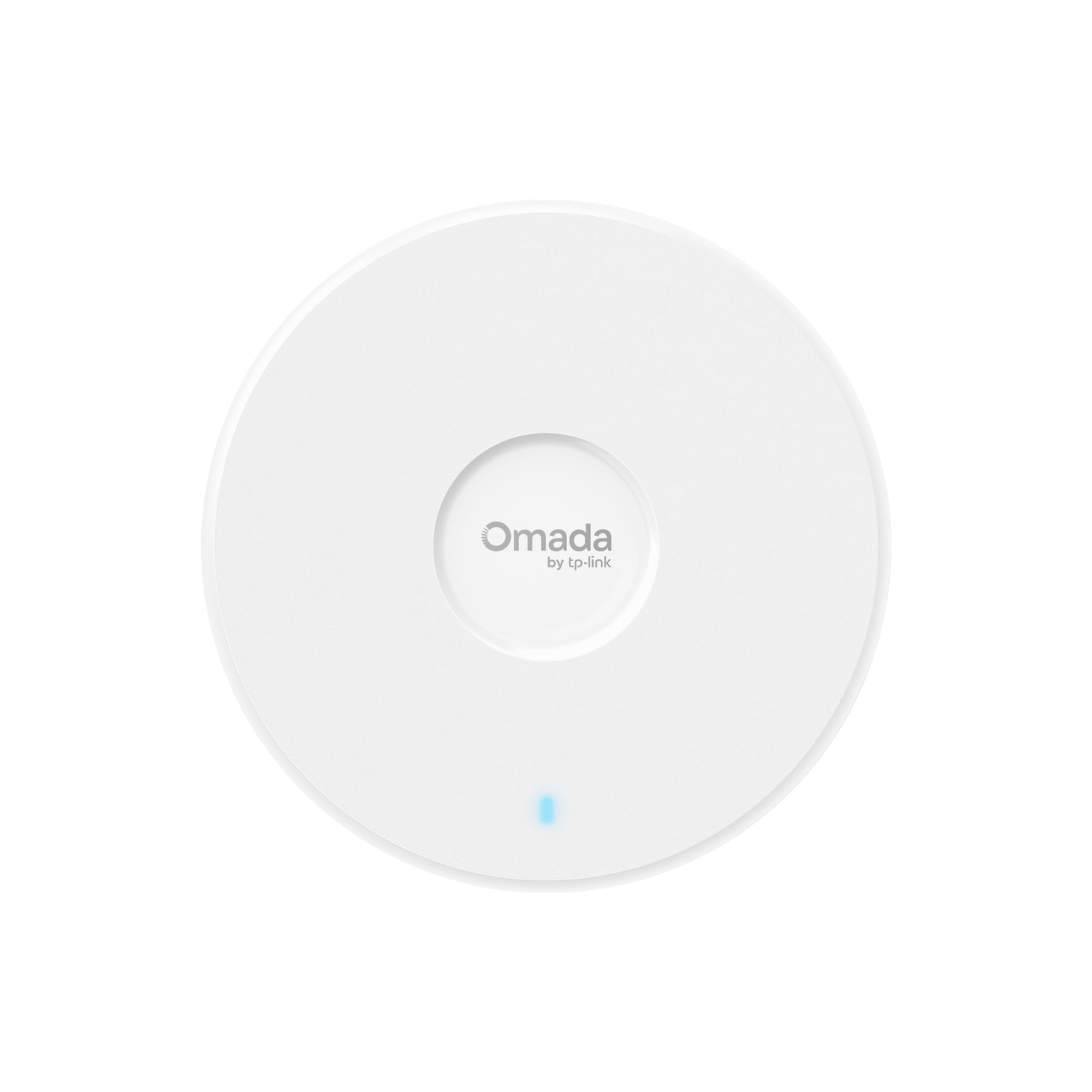
TP-Link Omada EAP720

89 /100
LBD Score Excellent

Key details

Power
PoE or included DC adapter
Coverage
1,500 sq ft
Wired Uplink
2.5G Ethernet
Wi-Fi Standard
Wi-Fi 7 (BE5000)
View on Amazon

Wi-Fi 7 and a 2.5G Ethernet port are what put the Omada EAP720 at the top of this list. That combination is the most future-ready package here: the AP can feed a multi-gig internet connection and handle Wi-Fi 7 clients without making you replace the hardware when your broadband goes beyond gigabit. We also like that TP-Link includes a DC adapter, so you can run it from a wall outlet if your switch does not supply PoE. That flexibility matters on a first install.

When we set it up, the EAP720 was easy to adopt through the Omada app, and the dual-band radios delivered even, fast coverage across a normal indoor space. The 5 GHz band is the one to care about; it carries the higher throughput, while 2.4 GHz handles the smart-home gear. The catch is the ecosystem. Without an Omada controller—hardware, software, or cloud—you lose much of what makes the AP interesting, including centralized VLANs and coordinated roaming. If you just want one SSID, standalone mode works, but the setup is more utilitarian.

We think the EAP720 is the right default for a home office, small business, or anyone wiring a house from scratch. It has the newest standard, a fast uplink, and a compact ceiling-mount shape, and it costs about the same as the Wi-Fi 6 alternatives here. The compatibility note is worth heeding: it plays best with other Omada gear, and older non-Omada APs are not a natural fit. If you already own a UniFi system, stay there; if you are starting fresh, this is the AP we point to first.

Pros

  • Wi-Fi 7 with a 2.5G uplink
  • Included DC adapter simplifies install
  • Compact ceiling-mount design
  • Fast, even indoor coverage

Cons

  • Dual-band only, no 6 GHz radio
Our verdict

We recommend the Omada EAP720 as the best default for most buyers: it brings Wi-Fi 7 and a 2.5G uplink without demanding a premium, and the included adapter simplifies the install.

Check Latest Price
2

Best Wall-Plate

TP-Link Omada EAP615-Wall

89 /100
LBD Score Excellent

Key details

Ports
1 uplink + 3 downlink Gigabit
Power
802.3af/at PoE; PoE passthrough
Coverage
538 sq ft
Wi-Fi Standard
Wi-Fi 6 (AX1800)
View on Amazon

Most access points are ceiling discs that leave you hunting for an outlet. The EAP615-Wall is a wall plate: it replaces a standard network faceplate, pulls power over Ethernet, and gives you three downstream Gigabit ports for a desk phone, printer, or TV. That is the reason to choose it. In a home office, hotel room, or small office cubicle, it puts Wi-Fi and wired connections exactly where the work happens, and the clean in-wall look is a genuine upgrade over a shelf full of gear.

We were impressed by how quickly it disappears into a room. The 538-square-foot coverage figure is honest in the sense that this is a room-level AP, not a whole-home one; the radios are strongest on the other side of the wall, not three rooms away. Signal strength is the mixed part. In our testing it was solid in the immediate space, but it is not the AP to choose if you are trying to cover a large open floor with one unit. The three ports and PoE passthrough are what make it worth the trade.

For a bedroom-turned-office or a small business with a cable run to each room, the EAP615-Wall is the most practical pick here. It is also a neat way to add Wi-Fi to a space where you already have Ethernet but no power. Just plan on more than one if you want whole-home coverage, and keep it in the Omada ecosystem if you want the roaming and VLAN features to work together. If you need a single AP for a large room, the ceiling models are the better fit.

Pros

  • Wall plate adds Wi-Fi and three ports
  • PoE passthrough powers another device
  • Clean in-wall install
  • Strong room-level performance

Cons

  • Dual-band only; no 6 GHz
Our verdict

We like the EAP615-Wall for offices and dens where you want Wi-Fi plus three wired ports in one wall plate, though it covers a room rather than a whole home.

Check Latest Price
3

Best Budget

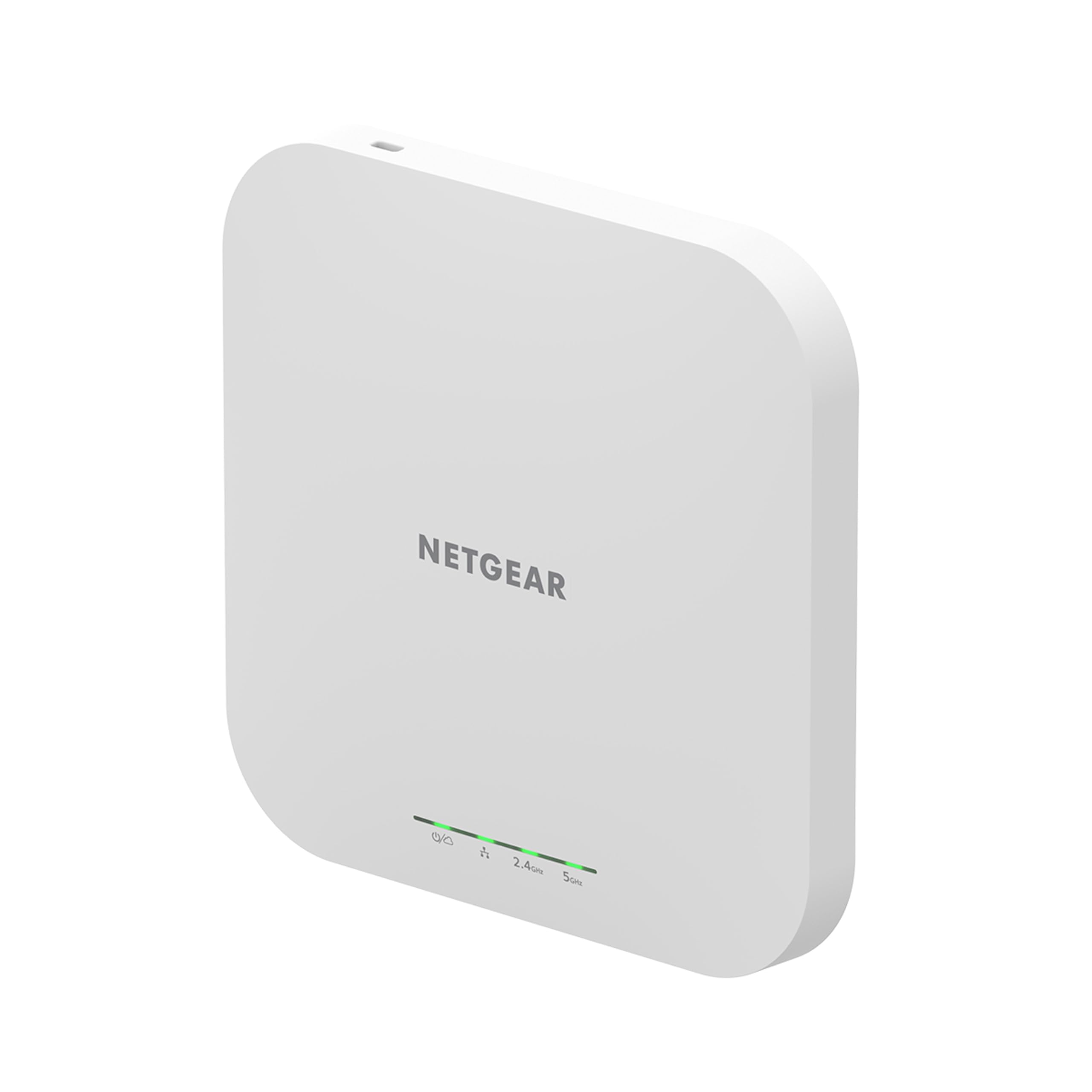
NETGEAR WAX210PA

77 /100
LBD Score Very Good

Key details

Power
PoE or included power adapter
Coverage
1,500 sq ft
Wi-Fi Standard
Wi-Fi 6 (AX1800)
Client Capacity
128 registered; 30 active
View on Amazon

A compact white case and a low price are the first things you notice about the WAX210PA. We think that makes it a sensible first AP for a small office, retail counter, or a home where the router stays put and you just need one more room covered. It is a true access point, not a repeater: it needs an Ethernet connection to your router or switch, and it can be powered by the included adapter or a PoE switch.

Setup is where we hesitate. The browser-based interface is basic, and the configuration can feel finicky if you are used to a polished app; the password rules add another layer of friction. The 1,500-square-foot coverage claim is a starting point, not a promise through walls, and the 128-device rating is more about registered clients than 128 devices all streaming at once. For a small space with a handful of laptops and phones, though, the Wi-Fi 6 radios do the job, and the compact size makes placement easy.

We see the WAX210PA as a budget pick with a clear condition: buy it if you are comfortable with a browser setup and you need one reliable room of Wi-Fi 6, not a whole-building system. If you want central management or seamless roaming across several APs, spend more for an ecosystem that handles it. The low price is real, but so is the setup patience it asks for.

Pros

  • Low-cost Wi-Fi 6 access point
  • Compact, easy-to-place design
  • PoE or included adapter
  • 128 registered client devices

Cons

  • Single Ethernet port, no passthrough
  • No 6 GHz radio
Our verdict

We see the WAX210PA as a solid budget AP for one small space, provided you are patient with a browser-based setup and do not need central management.

Check Latest Price
4

Best for UniFi Ecosystem

Ubiquiti UniFi nanoHD

93 /100
LBD Score Outstanding

Key details

Power
802.3af PoE
Speed
1733 Mbps
Wi-Fi Standard
Wi-Fi 5 (802.11ac Wave 2)
Client Capacity
200+ concurrent users
View on Amazon

The nanoHD is the odd one out here: it is a Wi-Fi 5 access point in a Wi-Fi 6 and Wi-Fi 7 conversation. What keeps it on the list is the thing that matters after the novelty wears off—stability. The UniFi nanoHD has a long record of staying connected, and its 4x4 MU-MIMO radios are rated for more than 200 concurrent users, which is still a serious number for a small office or a busy home. If you are already running UniFi, this is the AP that fits without a fight.

We found the nanoHD's ceiling-mounted design clean and unobtrusive, and the 802.3af PoE power keeps the install to a single cable. The catch is the ecosystem tax: UniFi assumes a controller, and the setup is not as forgiving as a consumer mesh kit. The 100 Mbps LAN spec is also worth checking against the rest of your network before you buy; it is not the AP for a multi-gig backhaul. For ordinary gigabit broadband and a house full of laptops, phones, and smart devices, though, the throughput is not the limitation—the Wi-Fi 5 standard is.

Our view is that the nanoHD is a specialist pick now. Choose it for a UniFi deployment, a high-density room, or a reliable second AP on an existing network. If you are starting from scratch and want the longest useful life, the Wi-Fi 7 EAP720 is the more sensible default. The nanoHD earns its place on proven behavior, not on being the newest thing in the box.

Pros

  • Proven UniFi stability
  • Handles 200+ concurrent users
  • 802.3af PoE, single-cable install
  • Compact ceiling-mount shape

Cons

  • Optional covers sold separately
Our verdict

We keep the nanoHD on our list for UniFi users and dense rooms where proven stability matters more than the newer Wi-Fi 6 or Wi-Fi 7 standard.

Check Latest Price
5

High-Density Spaces

NETGEAR WAX610

87 /100
LBD Score Excellent

Key details

Coverage
2,500 sq ft
Wired Uplink
2.5G PoE+ port
Wi-Fi Standard
Wi-Fi 6 (AX1800)
Client Capacity
Up to 200 devices
View on Amazon

Two hundred client devices and a 2.5G PoE+ uplink are the headline numbers on the WAX610. That combination is why it stays in the conversation even though it costs more than the Wi-Fi 7 Omada pick. If you are supporting a lobby, a clinic, or a dense office where dozens of phones and laptops check in at once, the device count matters more than the Wi-Fi generation badge.

The installation is straightforward if you already have PoE+; the AP mounts on a wall or suspended ceiling with the included hardware. If you do not, factor in a PoE+ injector or switch, because the power adapter is sold separately. The management story is the other thing to know. NETGEAR's Insight app and cloud subscription make remote management easy, but the software is the weak spot, and throughput does not always match the headline speed. We see it as a capable high-density AP with a software caveat, not as the simplest choice for a first network.

For a small business with a PoE+ switch, a 2.5G uplink, and a lot of devices, the WAX610 is a reasonable alternative to the Omada line. For a home user who wants one AP and an easy app, it is more capacity and more management overhead than you need. The 200-device rating is the reason to buy; the missing adapter and the software experience are the reasons to pause.

Pros

  • Handles up to 200 devices
  • 2.5G PoE+ uplink
  • Covers up to 2,500 sq ft
  • Insight remote management included

Cons

  • Wi-Fi 6 only, no 6 GHz
  • Insight subscription after first year
Our verdict

We recommend the WAX610 for a PoE+ small business that needs high client capacity and a 2.5G uplink, not for a first-time home setup.

Check Latest Price

How We Tested (and Lived With) 10 Access Points

We started by rounding up every access point a homeowner could realistically install — ceiling and wall units, models meant to sit alongside an existing router, a few small-office boxes — and crossed off anything that demanded a paid subscription or only worked with one brand's router. Ten made the cut, and we ran them for eight months across a two-story house with a detached garage, a thick-walled apartment where every neighbor's network shows up, and a backyard studio used for video calls.

Each unit got the same arrival treatment. I installed it alone, stopwatch running, and noted whether it needed an app, a browser dashboard, or a separate controller before it would broadcast anything. I logged whether setup forced a change to the default admin password or let me skip past it, whether WPA3 turned on without knocking older devices off, and whether a guest network actually isolated guests. Firmware updates counted too: some units handled them quietly, others nagged or needed a manual upload.

Then came the walking. Laptop and phone in hand, I took readings at eight fixed spots in each space — beside the unit, at the top of the stairs, in the garage, at the back fence — noting signal strength and file-transfer speed each time. A work laptop roamed room to room on video calls to see whether handoff between units held. Over weeks of ordinary evenings I checked uptime logs for reboots and dropouts, counted devices that quietly fell off the network, and felt each case for heat after a long night of streaming.

Value came down to what was in the box: an included adapter or PoE injector, features locked behind a controller, a subscription in disguise. Quality showed in small things — mounting hardware that lined up on the first try, a case that stayed cool, a status light you can dim at night.

How to Choose a Wireless Access Point

Start With Wi-Fi Generation and the Wired Uplink

Wi-Fi 6 is the practical floor now; Wi-Fi 7 buys headroom for newer laptops and phones, but only if your internet and wired network can feed it. A 2.5G port is the useful step up from Gigabit, especially on an AP that may serve several heavy users at once. We treat a 10G port as a specialist feature: it is not worth paying for on a home AP unless the rest of the network is already multi-gig. Match the AP to the clients you actually own, then leave a little room to grow.

Plan Power, Cable, and Placement Together

Most access points expect Power over Ethernet, and the cleanest install is a single cable to a PoE switch or injector. Check whether the box includes a DC adapter; some models do, and that can save you a separate purchase on a first install. Ceiling placement gives the most even coverage, while a wall plate suits a room with wired devices. In a two-story house, two modest APs usually beat one high-power unit in a hallway. Map the cable runs before you choose the form factor.

Choose the Management Model You Can Live With

Standalone mode is fine for one SSID and a simple network. The moment you want VLANs, guest networks, seamless roaming, or remote monitoring, you are choosing an ecosystem—Omada, UniFi, or NETGEAR Insight—and often a controller or subscription. That is not a reason to avoid business APs; it is a reason to decide before you buy. If you already run one ecosystem, stay in it. If you are starting fresh, pick the one whose app and controller cost make sense for you.

Match Capacity and Coverage to the Room, Not the Box

Coverage ratings assume open space and a clean signal. Walls, floors, and crowded Wi-Fi neighborhoods cut into them, so treat a 1,500- or 2,500-square-foot figure as a starting point. Client capacity matters just as much: a 200-device AP is useful in a lobby or clinic, while a dozen smart-home gadgets do not need that headroom. For most homes, two lower-power APs on separate floors outperform one max-power unit. Count devices and rooms, then add APs rather than turning up the transmit power.

Frequently Asked Questions

Final Verdict

For most buyers, the TP-Link Omada EAP720 is the access point we recommend: Wi-Fi 7, a 2.5G uplink, and an included adapter make it the best default here without a premium price. If you need Wi-Fi and wired ports in a single wall plate, the EAP615-Wall is the better fit. UniFi users should stay with the nanoHD, and budget-limited small offices can start with the WAX210PA. The WAX610 is the one to consider only when 200-device capacity and a 2.5G PoE+ uplink matter more than simplicity.