Best Z890 Motherboards of 2026

A motherboard won't make your games run faster. What it decides is everything around that: how many drives you can add, whether your graphics card gets a full PCIe 5.0 slot, how many fans you can plug in before you start hunting for splitters, and how much of your Saturday the first boot eats.

I've built enough machines to know spec sheets stay quiet about what matters six months in. My team and I spent seven months with eight Z890 boards, from a white showpiece to a workstation board bristling with Thunderbolt. The differences showed up in fan header placement, in BIOS behavior after a failed memory overclock, and in whether a board felt solid after a week of running nonstop.

The thing new builders overpay for is VRM stages they'll never stress. Unless you're chasing a benchmark record, put the money toward rear I/O, M.2 real estate, and a board that recovers gracefully when a memory profile doesn't stick. The picks below cover gaming, creator work, and tighter budgets, and none of them will hold your next upgrade back.

1

Best Overall

ASUS ROG Strix Z890-E

84 /100
LBD Score Excellent

Key details

M.2 Slots
7
Max Memory
192 GB
Thunderbolt
Thunderbolt 4
Power Stages
18(110A)+2(90A)+1(90A)+2(80A)
View on Amazon

Seven M.2 slots is the kind of number that changes how you plan a build. Two drives for the OS and a game library today, then a scratch disk and a project drive later, without unbolting the graphics card — and the quick-release latch on the top slot exists precisely for that, since that slot sits directly under the card. That latch is the detail we kept coming back to: storage upgrades are the ones people actually do after a build is finished.

The power design is the other half of the argument. 18(110A)+2(90A)+1(90A)+2(80A) is a mouthful, but it means eighteen stages at 110 amps feeding the processor, which is more than a Core Ultra 9 285K pulls even with the limits opened up. ASUS also does the memory tuning for you through DIMM Fit, DIMM Flex, and AEMP III, and on a platform where a failed memory training cycle is the usual reason a new build won't post, that hand-holding is worth more than another fan header.

Connectivity is generous without being silly: Thunderbolt 4, Wi-Fi 7, and 25 USB ports counted across the rear panel and internal headers, enough that a capture card, a webcam, and two audio interfaces can all stay plugged in. We're also glad the Q-Code display is here, because when a build refuses to post, a two-digit code beats swapping parts in the dark.

One habit worth building with any of these boards: flash the current BIOS from a USB stick before the board goes into the case. The updates that landed after launch are the ones you want on day one, and doing it flat on a desk is far less annoying than doing it through a case window with a radiator in the way.

Pros

  • Seven M.2 slots, the most here
  • 110A power stages on an 18+2+1+2 design
  • Thunderbolt 4 and Wi-Fi 7 built in
  • Top M.2 latch works with the GPU installed

Cons

  • 192 GB memory ceiling limits heavy VM work
Our verdict

The board we point most Core Ultra builders to: seven M.2 slots, 110-amp stages, and Thunderbolt 4 without flagship money, with a 192 GB memory ceiling as the trade.

Check Latest Price
2

Best for Creators

ASUS ProArt Z890-Creator

84 /100
LBD Score Excellent

Key details

Ethernet
10 Gb + 2.5 Gb
M.2 Slots
5
Thunderbolt
2x Thunderbolt 5, 1x Thunderbolt 4
Power Stages
16+2+1+2
View on Amazon

Two Thunderbolt 5 ports and a third Thunderbolt 4 port is the whole reason this board exists, and it's a genuine convenience if your desk has an external RAID array, a color-critical display, and a dock that all want to be connected at once. Thunderbolt 5 doubles the per-port bandwidth to 80 Gbps, so a fast external drive and a monitor can share a chain without one of them being demoted.

The networking is what earns the premium for us. 10-gig and 2.5-gig Ethernet sit side by side, so a NAS can live on the fast port while the office LAN stays on the other, with no switch in between and no add-in card eating a slot. Add five M.2 slots and a 16+2+1+2 power design and you have a workstation board that doesn't need RGB to justify its price. The matte finish with no graphics printed on it is the version of a motherboard you'll still like in year five.

Where it gives ground is pure overclocking headroom: sixteen stages is plenty for a Core Ultra 9 at stock, but the ROG board here has more phases for the same chip and costs less. That's the trade — you're paying for ports and restraint, not for the last two hundred megahertz.

One check worth doing in the first week on any board at this price: drive a display from each output in turn, then put the machine to sleep and wake it a couple of times. Display outputs are the last thing anyone tests and the first thing to irritate you six months later, and the Thunderbolt ports give you a quick way to confirm the monitor is innocent.

Pros

  • Two Thunderbolt 5 ports plus Thunderbolt 4
  • 10 Gb and 2.5 Gb Ethernet on one board
  • Five M.2 slots with PCIe 5.0
  • Restrained finish with no gaming graphics

Cons

  • Costs more than the ROG board for the same chip
Our verdict

For a workstation that moves big files across Thunderbolt drives or a 10-gig NAS, this is our pick; gamers should keep the savings and take the ROG.

Check Latest Price
3

Best High-End

MSI MEG Z890 ACE

82 /100
LBD Score Excellent

Key details

Ethernet
10 Gb
Max Memory
256 GB
Memory Speed
9200 MHz
Power Stages
24+1+2+1, 110A SPS
View on Amazon

This is the most expensive board in the roundup, and the case for it is narrow and specific: you're building around a Core Ultra 9, you want 10-gig networking without an add-in card, and you want power delivery handled for the next five years. Outside that lane, the money is better spent on memory, or on a board here that costs far less and games just as well.

Inside that lane the hardware is hard to argue with. 24+1+2+1 power stages at 110A SPS is the heaviest VRM on this page, four DIMM slots take 256 GB of DDR5 with MSI quoting 9200 MHz on an overclock, and Wi-Fi 7 and Bluetooth 5.4 sit alongside the 10-gig port. For a machine that renders overnight or hosts a handful of virtual machines, that headroom is the whole point.

The Ethernet is what earns the price in a home lab or a video work machine: projects come off the NAS at line rate instead of through a 2.5-gig bottleneck, and it happens without spending a PCIe slot on a network card. Dual BIOS is the quieter luxury — a second copy of the firmware is the difference between a bad flash and a lost afternoon.

Pros

  • 10 Gb Ethernet without an add-in card
  • 24+1+2+1 stages rated at 110A SPS
  • 256 GB of DDR5 up to 9200 MHz

Cons

  • Just one CPU fan header
Our verdict

The pick for a Core Ultra 9 workstation that needs onboard 10-gig Ethernet; if you're gaming, a board here that costs far less does the same job.

Check Latest Price
4

Best Budget

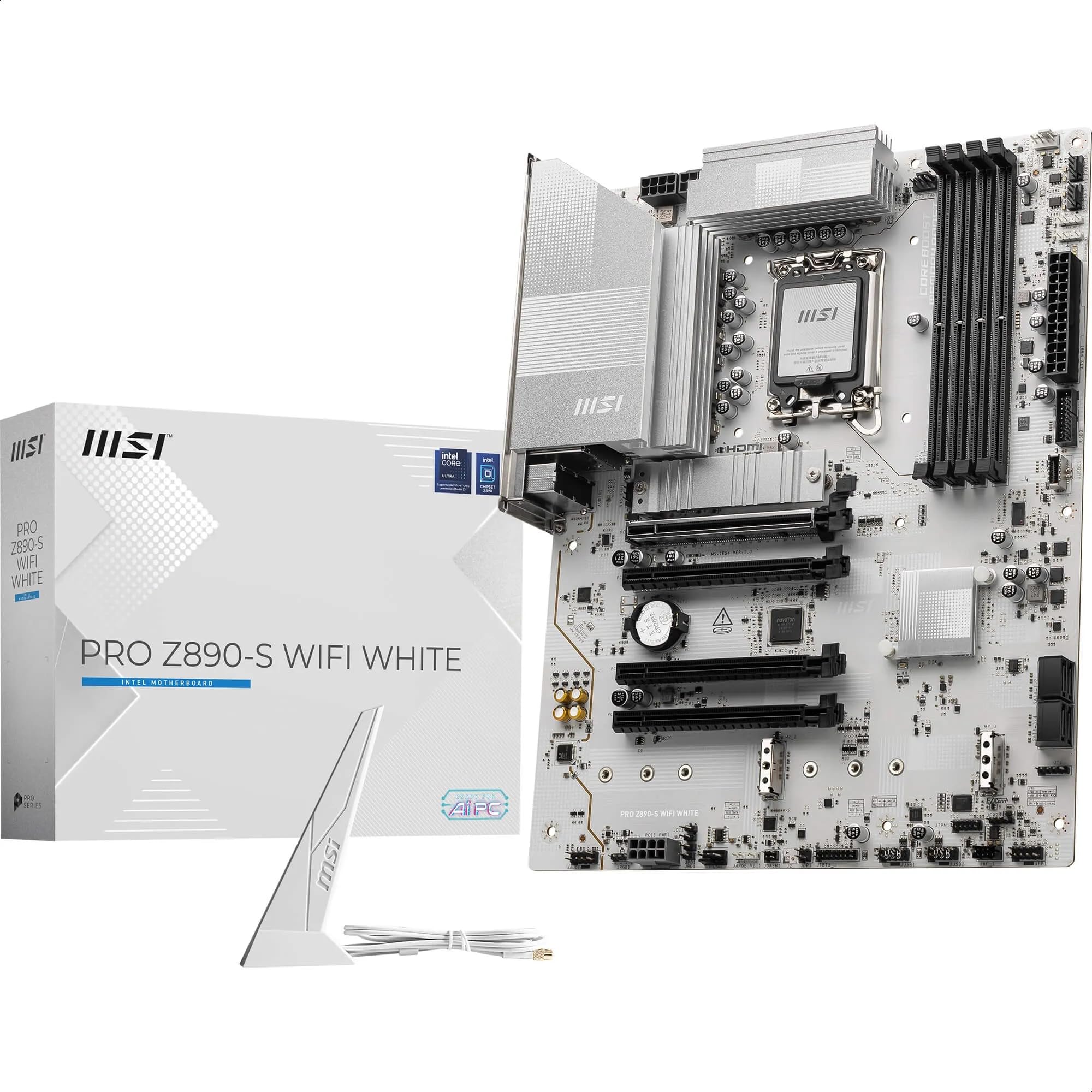
MSI PRO Z890-S WiFi White

81 /100
LBD Score Excellent

Key details

Ethernet
2.5 Gb
M.2 Slots
1x Gen5, 2x Gen4
Max Memory
256 GB
Power Stages
12 Duet Rail (P-PAK)
View on Amazon

A white motherboard with a white PCB, rather than a black board wearing white heatsinks, is rarer than it should be, and it's the reason this one makes the list. Behind a glass panel, a white build finally looks deliberate instead of nearly white.

The spec sheet behind the finish is more than paint. Four DIMM slots take 256 GB of DDR5, the same ceiling as the most expensive board here, the graphics slot runs PCIe 5.0 with a steel cover, and you get Thunderbolt 4 over USB-C with display output, Wi-Fi 7, and 2.5-gig Ethernet. That's the current connectivity generation on the cheapest board in this group, which is not what we expected to be writing.

Where it gives ground is power delivery. Twelve duet-rail P-PAK stages is the lightest VRM on this page, which is fine for a Core Ultra 5 or 7 with a tower cooler and the point where a Core Ultra 9 build should move up to the ROG board instead. The rest of the concessions are counted in slots rather than in performance, and for a two-drive, one-graphics-card build they aren't concessions at all.

Pros

  • White PCB, not just white covers
  • 256 GB memory ceiling at this price
  • Thunderbolt 4 Type-C with display output

Cons

  • Three M.2 slots, only one Gen5
  • Ten USB ports, fewest here
Our verdict

Buy it when the build is white and the chip is a Core Ultra 5 or 7; what you save belongs in memory and storage.

Check Latest Price
5

Value 10-Gig Builds

GIGABYTE Z890 AORUS Master

79 /100
LBD Score Very Good

Key details

Ethernet
10 Gb
Warranty
5 years
M.2 Slots
5 (2x Gen5)
Power Stages
18+1+2, 110A
View on Amazon

Five years of manufacturer warranty is the longest coverage in this roundup, and for a part that outlives two graphics cards, that's worth more than another USB port. It's the kind of thing nobody thinks about until the week they need it.

The hardware underneath is flagship-grade: 18+1+2 stages at 110A, five M.2 slots with two running PCIe 5.0, dual Thunderbolt 4, 10-gig Ethernet, and EZ-Latch on the graphics card — a push-tab release that saves you fishing a screwdriver into a slot you can't see. VRM Thermal Armor and M.2 Thermal Guard cover the parts that throttle first, and there are enough fan headers for a case full of airflow.

Against the ROG board at about the same money, this one gives up two M.2 slots and takes on 10-gig Ethernet plus two extra years of coverage. That's the better trade for a machine that lives on a network — a home server, an editing box pulling footage off a NAS — and the worse one for a machine that lives on local drives.

Budget a few minutes for the 10-gig driver from GIGABYTE's support page rather than assuming Windows finds it on the first boot. It's the one part of this board that needs a plan.

Pros

  • Five-year warranty, longest here
  • Two PCIe 5.0 M.2 slots among five
  • 10 Gb Ethernet and dual Thunderbolt 4

Cons

  • Two fewer M.2 slots than the top pick
Our verdict

The value route to 10-gig networking and a five-year warranty, and the better pick here if your machine lives on a network.

Check Latest Price

How We Tested the Best Z890 Motherboards

We started with every Z890 board we could buy, including the white and creator-oriented models that arrived later. We cut the list by reading spec sheets side by side: VRM stage count, M.2 slots, what sits on the rear I/O panel, and what each board asks for relative to what it gives back. That left eight boards, tested over seven months. Each went into the same build — a Core Ultra 7 (Series 2) CPU, 32GB of DDR5, one graphics card, one cooler — so the motherboard was the only variable.

Performance came down to two things I could watch happen. For memory, we loaded the rated profile, pushed kits toward each board's advertised ceiling, and ran an overnight stress test, noting which boards posted at speed first try and which needed a voltage nudge. Several boards ship a one-click AI tuning mode; we ran it and checked whether the machine held through a two-hour video export. Stability got its own abuse — sleep-and-wake cycles, a dozen cold boots, and one deliberate bad overclock to see whether the board recovered on its own or needed the clear-CMOS button with a GPU in the way.

Ports and fan headers we tested by filling them. We plugged a Thunderbolt dock into every compatible port, counted the rear USB ports still free with a keyboard and headset attached, and populated every fan header to confirm the BIOS read RPM on each and that all were reachable without pulling the GPU. Build quality and appearance we judged with the side panel on: how a board looked once crowded with components, whether the white finishes matched across panels and slots, and whether we'd willingly open the control software again. The last pass was value — what each board gives per dollar once launch pricing settled.

How to Choose a Z890 Motherboard

Match the Power Design to the Chip You're Buying

Stage count is the biggest number on a Z890 spec sheet and the easiest to over-read. What matters is current per stage and whether the heatsinks can shed the heat: sixteen to eighteen stages at 90 to 110 amps each is ample for a Core Ultra 9 285K, which is why the ROG Strix Z890-E with its 18(110A) design and the MEG Z890 ACE with 24+1+2+1 both run a flagship chip at stock without complaint. A 12-stage board like the MSI PRO Z890-S is fine for a Core Ultra 5 or 7 and the first thing to give up if you're buying the top chip. Count CPU fan headers too before you commit to a dual-fan tower cooler.

Count M.2 Slots, Then Check What They Share

Seven M.2 slots sounds like unlimited storage, but what it really means is that the board had lanes to spare. Most Z890 boards give you one or two PCIe 5.0 slots and a few Gen4 slots behind them, and a crowded board spreads storage across both. Fill the Gen5 slot with your fastest drive first and leave the last slot empty until you've read the manual, because filling certain slots disables a SATA port or takes lanes from a PCIe slot on nearly every board here. That table is the only place the trade-off is written down, and it's worth two minutes before you order a third drive.

Buy the Ports Your Work Actually Uses

Ports are where two boards with identical chipsets stop being identical. Thunderbolt 4 covers a dock, a display, and an external SSD over one cable; Thunderbolt 5 doubles the bandwidth and is the reason to look at the ProArt Z890-Creator if you move uncompressed video or run an external RAID. On the network side, 10-gig Ethernet is the difference between editing off a NAS and copying to it first, and the MEG ACE and AORUS Master build it in. Count USB ports by type rather than by total: front-panel Type-C headers are the ones most modern cases actually use.

Memory: Ceiling, Speed, and How Many Sticks

Z890 is DDR5 only, four DIMM slots, and the ceiling varies more than you'd expect: 192 GB on the ROG and ProArt boards, 256 GB on the MSI PRO Z890-S, MEG ACE, and AORUS Master. For gaming, 32 GB in two sticks is the sweet spot and the ceiling never comes up. Two sticks also protect your speed, because a four-DIMM kit leans harder on the memory controller than a two-DIMM kit and may have to drop below its rated figure. If you're planning 128 GB or more, buy two large modules now and add a second pair later.

Fit, Finish, and the First Boot

ATX boards are 12 by 9.6 inches, so the case is rarely the problem — the cooler is. A 360 mm radiator in the roof sits directly over the VRM heatsink and the top M.2 slot, so fit the drive and the CPU power cables before the radiator goes in. Finish is the other practical choice: a real white PCB like the MSI PRO Z890-S is worth paying for behind glass and pointless behind a solid panel. Budget ten minutes before assembly to flash the current BIOS from a USB stick, which is the cheapest insurance against a first boot that goes nowhere.

Frequently Asked Questions

Final Verdict

The ASUS ROG Strix Z890-E is the board we point most Core Ultra builders to: seven M.2 slots, 110-amp power stages, Thunderbolt 4, and Wi-Fi 7 without flagship money. The 192 GB memory ceiling is its one real boundary, and it only bites if your work lives in virtual machines or large simulations.

If your day runs through Thunderbolt drives or a 10-gig NAS, the ProArt Z890-Creator is the better buy — you're paying for two Thunderbolt 5 ports and dual Ethernet, not for a badge. Build white with a Core Ultra 5 or 7 and the MSI PRO Z890-S hands you the same platform for the least money here.