Best 4K 144Hz Monitors of 2026

Sharp and smooth used to mean two different monitors: a 4K panel capped at 60Hz, or a fast one that left everything soft. A 4K 144Hz screen folds both into one — full resolution for spreadsheets in the morning, high frame rates after dinner. Plenty of panels claim those numbers and only deliver one of them.

Over the past nine months I've cycled eight of them through my desk setup, working on them all day and gaming at night. The feature worth understanding is dual mode: several drop from 4K at high refresh to 1080p at roughly double the rate for competitive play, and the good ones remember your settings when they switch. A DisplayHDR 400 badge, meanwhile, tells you about peak brightness, not a cinematic picture.

What separates them day to day is duller: whether the stand rises high enough to save your neck, whether the ports match the devices you own, and whether the speakers are usable without headphones. The picks below weigh all of that alongside the spec sheet.

1

Best Overall

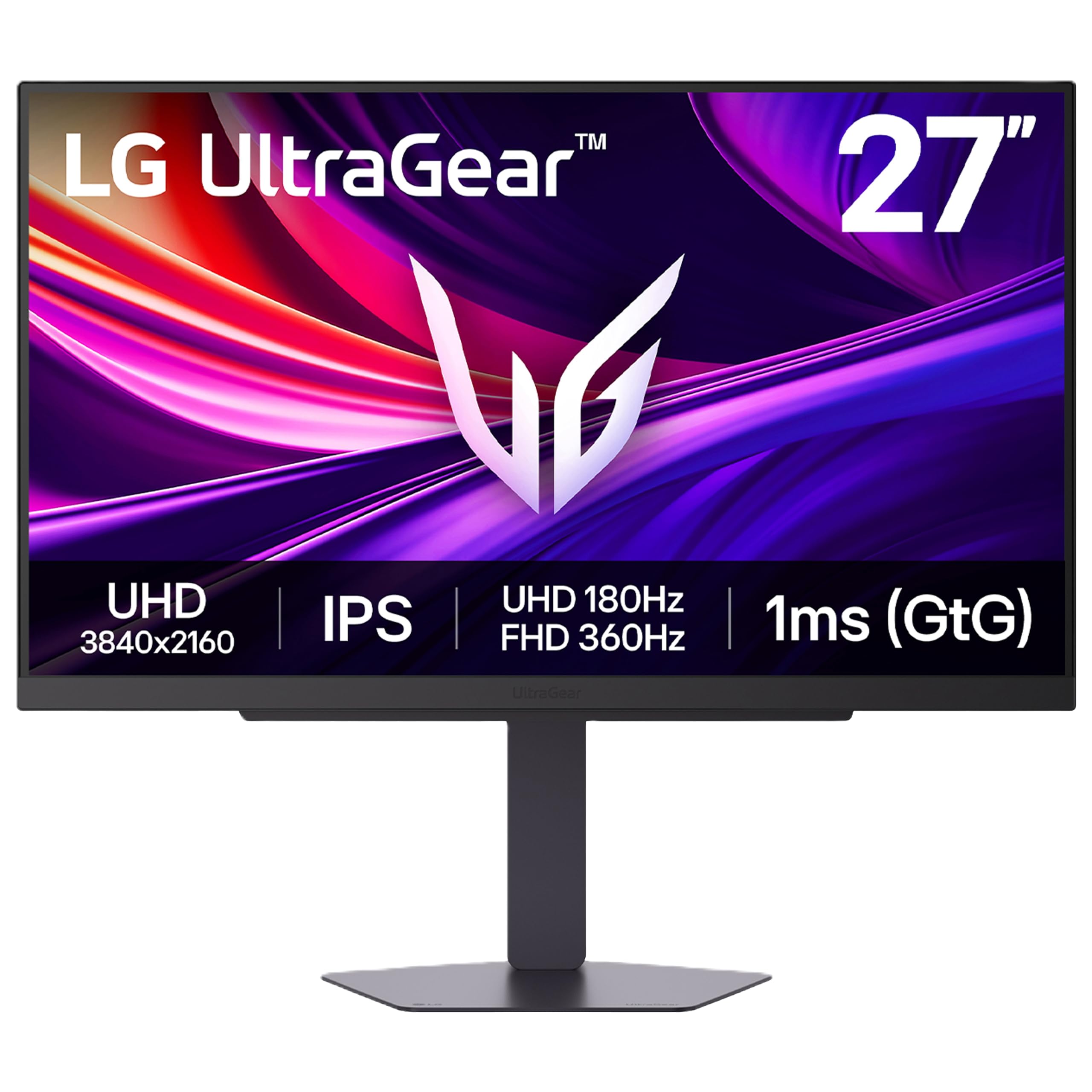
LG UltraGear 27G810A-B

86 /100
LBD Score Excellent

Key details

HDR
DisplayHDR 400
Panel
27-inch IPS, 95% DCI-P3
Stand
Height, pivot, swivel
Dual-mode Refresh
4K UHD 180Hz or Full HD 360Hz
View on Amazon

180Hz at true 3840x2160 is the figure that puts the 27G810A-B at the front of this group, and it isn't the only reason it stays there. The panel is IPS with 95% DCI-P3 coverage and DisplayHDR 400, and Dual Mode drops resolution to 1920x1080 for a 360Hz refresh when you want frame count over detail. That's the argument for it: a story-driven game at 4K and a ranked match at 360Hz live on one screen, with no second monitor and no cable swap between them. It's the most complete 4K gaming display in this article, and nothing here asks you to give up as little.

We also paid attention to the parts that get skipped. The stand adjusts for height, pivot, and swivel, so the top of the panel comes down to eye level without a VESA arm — a real saving if your desk backs onto a wall and an arm won't fit. Two HDMI 2.1 inputs, DisplayPort, and three USB 3.0 ports keep a console, a PC, and a headset connected at once. LG even packs a DisplayPort cable and an HDMI 2.1 cable in the box, which you only fully appreciate at nine at night with the monitor unboxed and no 4K-capable cable anywhere in the house.

The trade-offs are modest but worth naming. Coverage runs one year, the shortest term among the major-brand picks here, so keep the receipt and register the panel. Color also lands slightly flat in the default picture mode; we moved to a brighter preset and nudged saturation before the screen looked like that 95% DCI-P3 coverage suggests. Ten minutes in the menu fixes it, and after that this is the screen we point people to first.

Pros

  • 180Hz at full 4K, the highest here
  • 360Hz 1080p mode for competitive play
  • Height, pivot, and swivel without an arm
  • Two HDMI 2.1 inputs plus DisplayPort and USB hub

Cons

  • One-year warranty, the shortest here
  • Default picture mode arrives slightly flat
Our verdict

We recommend the LG 27G810A-B to most people shopping this category: 180Hz at full 4K, a 360Hz mode for shooters, and a stand that sets height, pivot, and swivel.

Check Latest Price
2

Best for USB-C Desks

ASUS ROG XG27UCG

85 /100
LBD Score Excellent

Key details

HDR
DisplayHDR 400
Panel
27-inch Fast IPS, 95% DCI-P3
Ports
USB-C, HDMI, DisplayPort
Dual-mode Refresh
4K 160Hz or FHD 320Hz
View on Amazon

One USB-C cable is the whole pitch. Plug a laptop into the XG27UCG and it carries the display signal and the hub, so a work machine and a gaming desktop share a single panel without a dock, a KVM box, or a second nest of cables on the desk. Behind that port sits 4K at 160Hz, a 1080p mode at 320Hz, 95% DCI-P3 coverage, and DisplayHDR 400.

This is the pick we keep coming back to for a desk that has to be a workstation before it's a battlestation. Fast IPS viewing angles hold their color when you stand up or turn the screen to show someone a clip, SDR color looked right without a trip through the menu, and the three-year warranty is the longest here — worth real money on a panel you intend to carry through a graphics card upgrade or two. Of the two ASUS screens in this guide, it's the one that feels like the finished article.

Two things to know before ordering. Intermittent cutouts, where the screen blanks for a second and comes back, are the fault to watch for: keep the box through the first month, swap the cable before blaming the monitor, and use the warranty if it keeps happening. Backlight bleed in the corners is the other one, visible on a black loading screen in a dark room and completely invisible in daylight.

Pros

  • USB-C carries video and hub data on one cable
  • 160Hz at 4K with a 320Hz 1080p mode
  • Three-year warranty, the longest in this group

Cons

  • Corner backlight bleed on dark scenes
Our verdict

If a work laptop shares your monitor, the XG27UCG earns its premium: one USB-C cable, 160Hz at 4K, and the longest warranty in this group.

Check Latest Price
3

Best Value

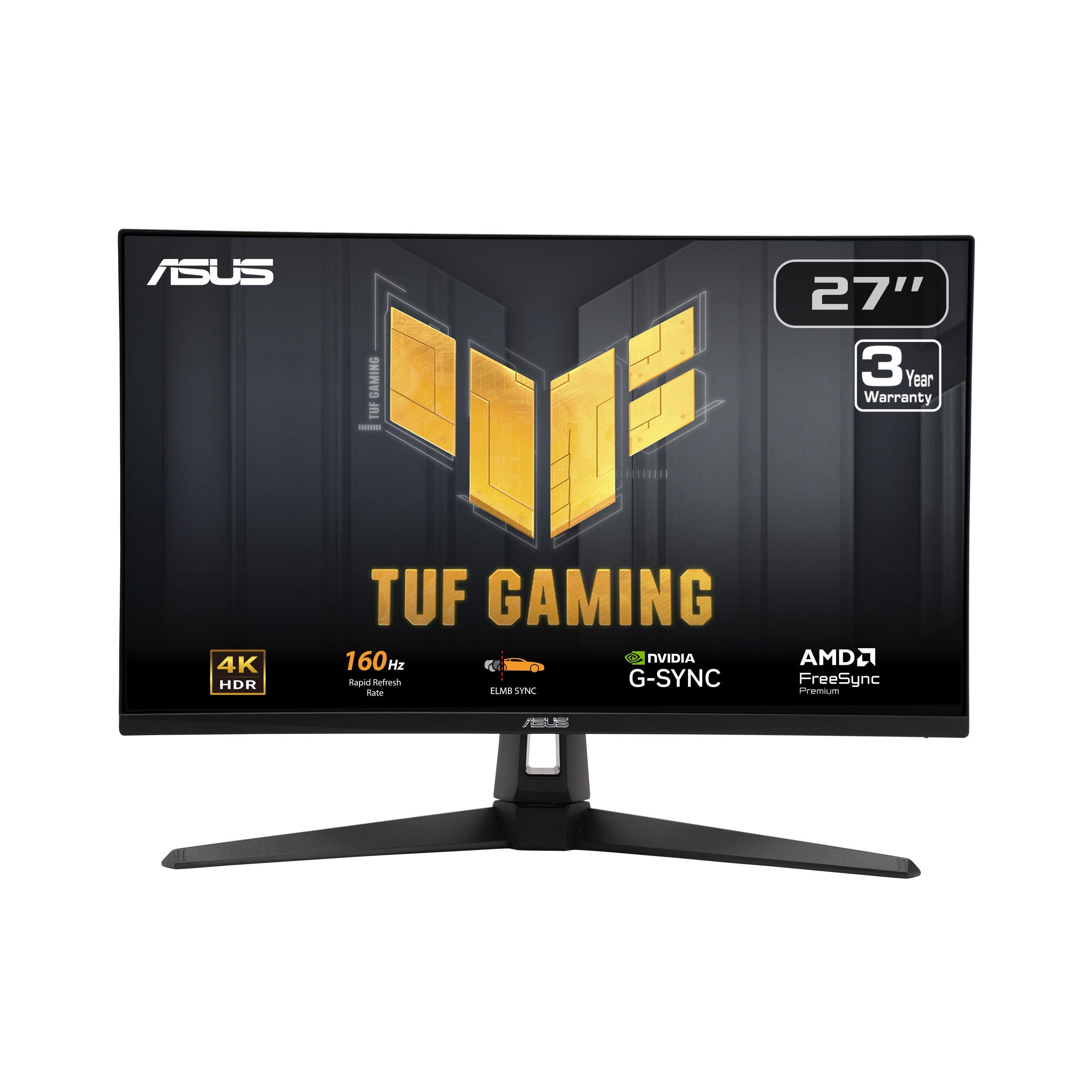
ASUS TUF VG27UQ1A

83 /100
LBD Score Excellent

Key details

Panel
27-inch, 95% DCI-P3
Ports
1x HDMI, DisplayPort
Warranty
3 years
Refresh Rate
160Hz at 4K
View on Amazon

Take the ROG above, remove the USB-C input and the 320Hz mode, and you have the VG27UQ1A — for noticeably less money. What survives is the part that matters: 3840x2160 at 160Hz, 1ms response, 95% DCI-P3 color, FreeSync Premium alongside G-Sync compatibility for whichever card you own, and ELMB Sync that cuts motion blur without forcing variable refresh off.

At 10.6 pounds it's the lightest monitor we recommend, which makes it the easy answer for a basic VESA arm on a small desk — a 100x100mm plate and a modest arm will carry it. The matte coating keeps a bright window behind you from turning the panel into a mirror, and the thin bezels mean a pair side by side reads as one wide surface rather than two screens with a gap.

The saving shows up in the port count. With one HDMI input, a console and a PC can't both use HDMI, so run the computer on DisplayPort and leave HDMI for the console or a capture card. The picture also needs a few minutes of setup: the default preset looks washed out against desktop backgrounds, and switching to the standard mode with a small saturation bump fixed it for us. Do that and it's the value pick of the group, with a three-year warranty behind it.

Pros

  • 160Hz 4K for noticeably less money
  • Three-year warranty included
  • Lightest panel here at 10.6 pounds

Cons

  • Only one HDMI input
  • HDR barely registers at this brightness
Our verdict

We point value-first buyers at the VG27UQ1A: 4K at 160Hz, 95% DCI-P3 color, and a three-year warranty, with only a single HDMI input to plan around.

Check Latest Price
4

Best Stand and Ports for the Money

KTC H27P22S

88 /100
LBD Score Excellent

Key details

Panel
27-inch Fast IPS, HDR400
Ports
HDMI 2.1 x2, DP 1.4 x2
Stand
Height, tilt, pivot, swivel
Refresh Rate
160Hz, 144Hz supported
View on Amazon

A stand that goes up, down, sideways, and portrait is rare on a 4K 160Hz monitor in the cheaper half of this group; most budget panels hand you a tilt hinge and a fixed height. The H27P22S has the full range, and behind it sits a fast IPS panel rated at 400 nits with HDR400 and a 132% sRGB gamut. If your monitor has to land at a particular seating height without an arm, this is where we start.

The inputs carry the same theme. Two HDMI 2.1 and two DisplayPort 1.4 connections mean a console, a desktop, and a laptop all stay plugged in, and you switch sources instead of crawling under the desk with a torch. FreeSync with G-Sync compatibility covers either graphics card, and the panel lists 160Hz with 144Hz supported below it, so nothing in your chain has to be exotic to hit the headline figure.

What it doesn't buy is backup. Coverage runs one year, and 1000:1 contrast is IPS-normal — space scenes and night levels read dark gray rather than black. Neither shows up on a bright desk in daylight, and for a mixed work-and-play setup those are the least painful compromises in the group. Mount it, set the height once, and the stand stops being something you think about.

Pros

  • Full height, tilt, pivot, and swivel stand
  • Two HDMI 2.1 and two DisplayPort 1.4 inputs
  • 400-nit IPS panel with 132% sRGB
  • 160Hz with 144Hz supported

Cons

  • One-year warranty
Our verdict

For a desk where monitor height is non-negotiable, the KTC H27P22S gives you a four-way adjustable stand and four modern inputs on a 400-nit 160Hz panel.

Check Latest Price
5

Best for Console Players

MSI MAG 275UPD E14

0 /100
LBD Score Fair

Key details

Panel
27-inch IPS
Ports
2x HDMI, DisplayPort
Warranty
2 years
Dual-mode Refresh
4K 144Hz or FHD 288Hz
View on Amazon

144Hz is the lowest 4K refresh here, and the MAG 275UPD E14 doesn't pretend otherwise. It also happens to be exactly what the spec asks for, and MSI spends the money elsewhere: a 1080p Dual Mode that climbs to 288Hz, a Console Mode tuned for the current consoles, adaptive sync, built-in speakers, and a two-year warranty that beats most of the screens in this article.

Console owners are who we point at it. A PS5 or Xbox Series X caps at 4K 120Hz, so the 160Hz and 180Hz panels above are selling headroom your console cannot spend; what a console does use is HDMI 2.1, a clean 120Hz handshake, and a warranty that outlasts the hardware generation. That's this monitor's job description, and it's why it earns a place with the lowest refresh figure in the group.

One setup detail we noticed: the Dual Mode toggle takes hunting through the on-screen menu, and the printed guide is thin enough that you'll be doing it by feel the first time. Once it's set, it stays set. If there's no console in the house and you're chasing the highest frame rate your card can feed, the 160Hz and 180Hz panels are the better spend.

Pros

  • 288Hz 1080p Dual Mode for fast shooters
  • Console Mode tuned for PS5 and Xbox
  • Two-year warranty

Cons

  • 144Hz ceiling at 4K; 288Hz is 1080p only
Our verdict

We hand the MAG 275UPD E14 to anyone with a PS5 or Xbox on the desk: 4K 144Hz is plenty for a console, and the two-year warranty outlasts most of the field.

Check Latest Price
6

Tight Budgets

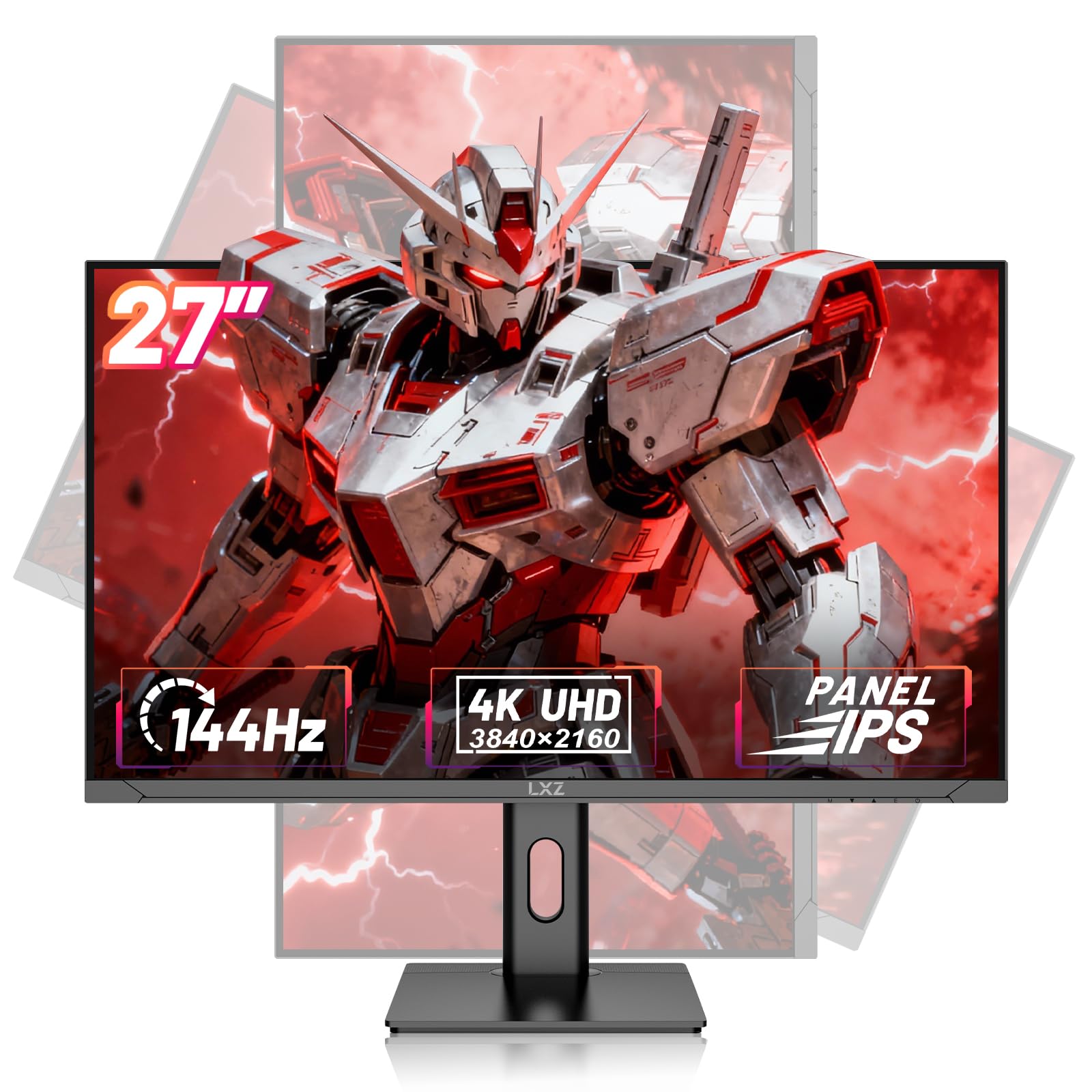
LXZ LX270ZG

86 /100
LBD Score Excellent

Key details

Mount
VESA 75 x 75mm
Panel
27-inch IPS, 99% sRGB
Contrast
1200:1
Refresh Rate
144Hz at 4K
View on Amazon

1200:1 is the number that surprised us. The LX270ZG is the least expensive 4K 144Hz IPS screen in this article, and its listed contrast beats the 1000:1 of the LG and KTC panels, so dark scenes hold together a little better than the price suggests. Around that sits 27 inches of 3840x2160 at 144Hz, 99% sRGB coverage, a matte finish, and a 75x75mm VESA pattern for an arm.

The compromise is gamut. 99% sRGB covers SDR games, streams, and spreadsheets properly, but it's a narrower space than the 95% DCI-P3 coverage on the pricier picks — HDR content looks flat, and wide-gamut photo editing is off the table. The HDR10 badge on the listing doesn't change any of that, and neither does the eye-care feature set.

Support is the part to buy carefully. The warranty field on this listing is a promise to help rather than a stated term with years attached, so the seller's return policy ends up doing the work a warranty usually does. Buy from someone with easy returns, keep the packaging through the first month, and this becomes an inexpensive way onto a genuinely sharp 4K desktop with a real 144Hz refresh.

Pros

  • 1200:1 contrast beats the pricier IPS panels
  • 144Hz 4K IPS at the lowest price here

Cons

  • Warranty terms aren't spelled out
  • Panel failures show up within the first months
Our verdict

The LX270ZG is the cheapest route onto a sharp 4K 144Hz IPS desktop, provided you buy it somewhere with an easy return window.

Check Latest Price

How We Tested These 4K 144Hz Monitors

We built the shortlist from spec sheets first, filtering for native 4K at 120Hz or better, IPS panels, adaptive sync support, and either an adjustable stand or a VESA mount. Anything that only reached its advertised refresh through an overclock that broke color or dropped the signal got cut. Price came last: we compared what each step up in cost actually bought. That left eight monitors, which we lived with for nine months.

Each one spent several weeks as the only display on a desk used for documents, photo editing, and evening gaming, and each also did a weekend hooked up to a current-generation console to see how it handled a 4K 120Hz signal. For picture and color, we took brightness readings at the center and all four corners, pulled up gradients to look for banding, compared skin tones across the same set of photos, and sat with each panel in a dark room to see whether the blacks turned gray. HDR got its own check: we watched the same night scene and noted whether highlights gained detail or just got brighter.

For responsiveness we played shooters and panned the camera slowly on purpose to catch ghosting and overshoot, then switched each dual-mode panel down to 1080p and noted whether the higher refresh rate arrived without losing our settings. We also timed how long the switch took.

Adjustability and sound were judged by hand and ear. We raised and lowered every stand through its full range, tried it one-handed, and pressed on the desk to see how much the panel wobbled. We played a podcast at full volume with no headphones to decide whether the built-in speakers were usable or a formality. Across the nine months we logged dead pixels, backlight bleed, coil whine, and any monitor that failed to wake from standby.

How to Choose a 4K 144Hz Gaming Monitor

Read the Refresh Rate at 4K, Not the Mode Name

Several monitors here can claim a big number, and a few of them earn it at 1920x1080 rather than at 3840x2160. The figure that matters for this purchase is the 4K one: 144Hz is the floor, 160Hz and 180Hz are the headroom. The dual-mode figures — 288Hz, 320Hz, 360Hz — only apply after the panel drops resolution, which is why they appeal to competitive shooters and mean almost nothing to someone playing a story game.

Decide which player you are before you pay. If your week splits between a single-player backlog at 4K and a shooter where frame rate wins, a dual-mode panel like the LG or the ASUS ROG genuinely does two jobs on one desk. If everything you play stays at 4K, put the difference into panel quality instead.

Panel Type Decides What the Picture Looks Like After Dark

IPS gives you color and viewing angles with contrast around 1000:1. VA pushes contrast to 3000:1 and much deeper blacks, but it shifts color as you move off-axis and smears in fast motion. Nearly everything we recommend is IPS, and the contrast spread within that group — 1000:1 to 1200:1 — is real but small.

The practical question is your room. A bright desk used for work and daytime gaming is IPS territory, where the wide gamut and stable color do the most good. A dark room where black level outranks color accuracy is the one case for VA, and you accept the motion trade that comes with it.

The Stand Is the Cheapest Upgrade You Can Get

A tilt-only hinge is the quiet tax on cheaper 4K monitors: the screen sits at whatever height the box decided, and you stack books or buy an arm to fix it. Height, pivot, and swivel adjustment gets the top of the panel to eye level, which is the single largest comfort change you can make to a desk. The KTC and the LG both ship the full range; the budget screens in this category usually don't.

If you plan on an arm anyway, check the VESA pattern before ordering — 75x75mm and 100x100mm are both common and they are not interchangeable without a plate. Weight matters as much: a lighter panel like the ASUS TUF hangs happily on a basic arm, while heavier screens need one rated for them.

Count Inputs Before You Count Features

Two HDMI 2.1 ports are worth more than they sound. One runs a console at 4K 120Hz and the other stays free for a PC, a second console, or a capture card. A single HDMI input forces a choice every time you switch devices, and the workaround is a switcher or a cable swap behind the desk.

For a desktop, DisplayPort is the connection to use. USB-C is the one worth paying for if a laptop shares the desk, since it carries video and hub data on one cable. Check what your graphics card offers before you decide the monitor's port list is the limit.

Two Specs That Don't Mean What They Look Like

The first is the HDR badge. Everything here is DisplayHDR 400: 400 nits, no local dimming, no wide brightness range. In practice HDR games read as slightly brighter SDR rather than a different experience, so pay for panel quality and ignore the logo.

The second is the warranty. Coverage in this group runs from one year to three, and the cheaper the panel the more that gap matters — a screen that fails in month fourteen is a total loss on a one-year term. Where the term is short or vague, the seller's return window is doing the real work, so buy accordingly.

Frequently Asked Questions

Final Verdict

For most people, the LG 27G810A-B is the one to buy: 180Hz at true 4K, a 360Hz 1080p mode for shooters, and a stand that sets height, pivot, and swivel without an arm. If cost is the deciding factor, the ASUS TUF VG27UQ1A keeps 4K at 160Hz, adds a three-year warranty, and gives up only the extras. A desk with a console on it should take the MSI.