Best Ultrawide OLED Monitors of 2026

For years my desk had two 27-inch panels on a dual arm, and I defended that arrangement like a favorite team. Then I spent a week with a curved ultrawide and gave the second monitor away. One wide screen does the same work without a bezel down the middle of every spreadsheet, and OLED is what makes the format worth the money — dark game levels and letterboxed movies come out black instead of gray.

The catch is that desktop OLED is a different bargain than living-room OLED. Frame rates that swing can cause visible flicker, a static taskbar can leave faint ghosts, and small text can look slightly fringed up close. My team and I spent six months living with eight of these monitors — working, gaming, and streaming daily — and we tracked all of it, plus whether each USB-C port and built-in KVM really lets one cable run a laptop.

Size class changes the job, too. A 34-inch 3440 x 1440 replaces a single monitor, a 49-inch dual-QHD replaces two with the bezel deleted, and the newest 5K2K panels land in between at a price that reflects it. The picks below follow that split.

1

Best Overall

Alienware AW3425DW

86 /100
LBD Score Excellent

Key details

Warranty
3 years, burn-in covered
Resolution
3440 x 1440
Screen Size
34.2 inches
Refresh Rate
240Hz
View on Amazon

The least glamorous fact about the AW3425DW is the one that put it at the top of this list: three years of warranty coverage that includes burn-in, with advance exchange service if a panel goes bad. OLED wear is the single failure nobody can repair at home, and only one other monitor in this group matches that promise.

The rest of the package is why we point most shoppers here. At 34.2 inches the 3440 x 1440 panel hits the size that suits a normal desk — wide enough that a racing game fills your vision, small enough that you are not turning your head to read a menu. The 1800R curve is gentle by the standards of this group, which we prefer: spreadsheets stay flat and text stays straight at the edges, while the aggressive wrap that makes the LG 34GS95QE so much fun in a shooter would be a daily nuisance in Excel. Color arrives close to correct, at 99.3% DCI-P3 with a Delta E under 2, so photo work does not require a calibration detour.

One thing we noticed over long sessions: full-frame brightness is where OLED still compromises. A white document or a snow-covered landscape pulls the whole panel down as the dimming circuit does its job, and 250 nits of full-field output is modest next to the 1000-nit highlights on the spec sheet. That is the technology rather than a fault, and it stops mattering in the dark, mixed-tone scenes games actually live in. The 20-pound panel is also light enough for one person to hang on a decent arm without swearing.

Pros

  • 240Hz QD-OLED at a midrange price
  • Three-year warranty that covers burn-in
  • Gentle 1800R curve suits mixed work and play
  • Accurate color before any calibration

Cons

  • Intermittent screen dropouts on some units
Our verdict

The ultrawide OLED we recommend to most people: 240Hz, color that is close to correct out of the box, and three years of coverage that includes burn-in.
Check Latest Price
2

Best for Work and Play

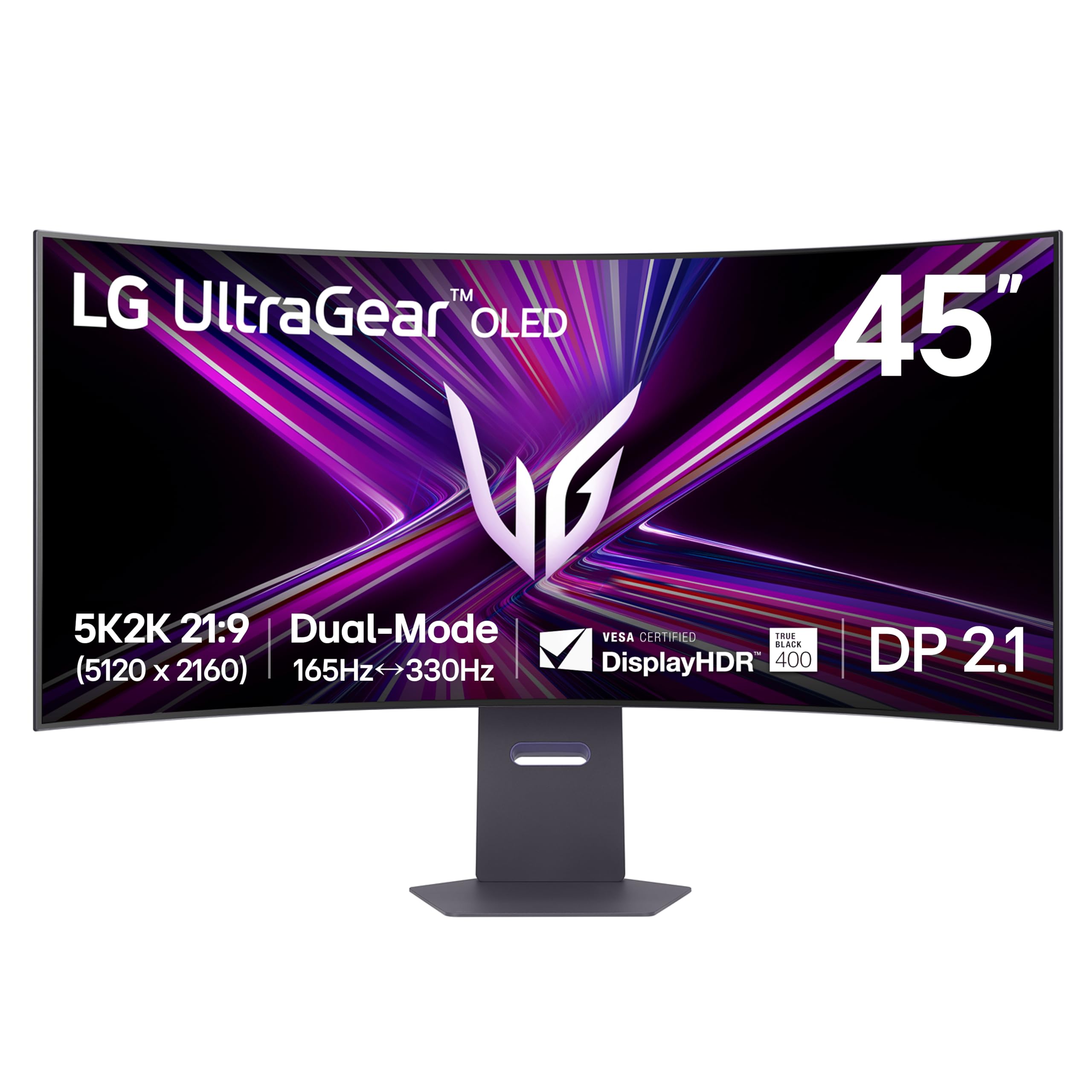
LG 45GX950A-B

85 /100
LBD Score Excellent

Key details

Resolution
5120 x 2160
Screen Size
45 inches
USB-C Power
90W
Refresh Rate
165Hz or 330Hz dual mode
View on Amazon

The number that separates the 45GX950A from everything else here is 125, as in pixels per inch. A 5120 x 2160 panel across 45 diagonal inches is the only screen in this group dense enough that text stops looking like text rendered on an OLED and starts looking like text on a good IPS panel — the colored halo around letter edges that OLED owners learn to tolerate is largely gone, helped by the revised subpixel layout.

Everything around that panel is fully equipped. Dual-mode drops the resolution for a 330Hz mode when you switch to something competitive, DisplayPort 2.1 carries 5K2K at 165Hz without leaning on the compression that makes some high-refresh setups fussy, USB-C pushes 90W to a laptop, and the built-in speakers are good enough that you stop noticing they exist. The matte finish handles a window behind you without the grainy haze that older anti-glare coatings left on white backgrounds.

For a desk that has to do two jobs, this is the pick: it is the only screen here that stops you choosing between a work monitor and a gaming monitor. The cost is real. Driving 5120 x 2160 at 165Hz wants a top-tier graphics card, and a midrange one will spend its life in the dual-mode resolution instead — which is a fine place to be, just not the one you paid for.

Watch the return window. A vertical white line, or a screen that will not wake from sleep, has turned up on some units, and a big panel is expensive to ship back twice. Run it hard in the first two weeks.

Pros

  • 125 PPI makes text genuinely sharp
  • 90W USB-C and DisplayPort 2.1
  • Dual-mode 165Hz or 330Hz
  • Built-in speakers worth using

Cons

  • Heavy at 30.9 pounds for arm mounting
  • Smart TV menus get in the way of settings
Our verdict

The pick for a desk that has to serve work and games: 125 PPI makes text clean and 90W USB-C makes a laptop a one-cable affair, if you can pay premium money and feed the pixels.

Check Latest Price
3

Best Big-Screen Value

Samsung Odyssey OLED G9 (G91SD)

85 /100
LBD Score Excellent

Key details

Warranty
3 years
Resolution
5120 x 1440
Screen Size
49 inches
Refresh Rate
144Hz
View on Amazon

A 49-inch monitor is a furniture decision before it is a display decision. The G91SD is 47 inches across and 28.4 pounds, and the ends of the screen sit far enough out that you feel them rather than look at them. Get the desk right and it is the most screen in this group for the money.

What that money buys: 5120 x 1440 across the full span, which works out to about 110 pixels per inch — the same density as a 34-inch 3440 x 1440 panel, so nothing gets blurrier just because the screen got wider. QD-OLED supplies the blacks and the saturation, 144Hz keeps motion clean, and Samsung's thermal modulation and logo and taskbar detection quietly pull brightness down on static elements before they can settle in. The three-year warranty is the same promise the Alienware makes.

The 144Hz ceiling is the honest trade-off. It is smooth, genuinely, but the 240Hz panels here are smoother, and in a fast shooter that gap is the one you notice. The other thing nobody mentions until they own one: 1440 rows is 1440 rows. You gain columns, not height, so a 49-inch panel gives you a wider desk rather than a taller one, and code and long documents still scroll.

Ports are where it is lean. There is a single HDMI input, so a console takes it and the PC lives on DisplayPort, and laptop docking is not part of the deal — bring a dock or bring a desktop.

Pros

  • Largest canvas in the group for the money
  • Burn-in guards built into the panel
  • Three-year manufacturer warranty
  • 110 PPI keeps detail at 49 inches

Cons

  • 144Hz trails the 240Hz panels here
  • 1440 rows feel short across 47 inches
Our verdict

The 49-inch we recommend if you want a wall of pixels without a flagship price: buy it for the canvas and Samsung's burn-in housekeeping, not for refresh rate.

Check Latest Price
4

Best Budget

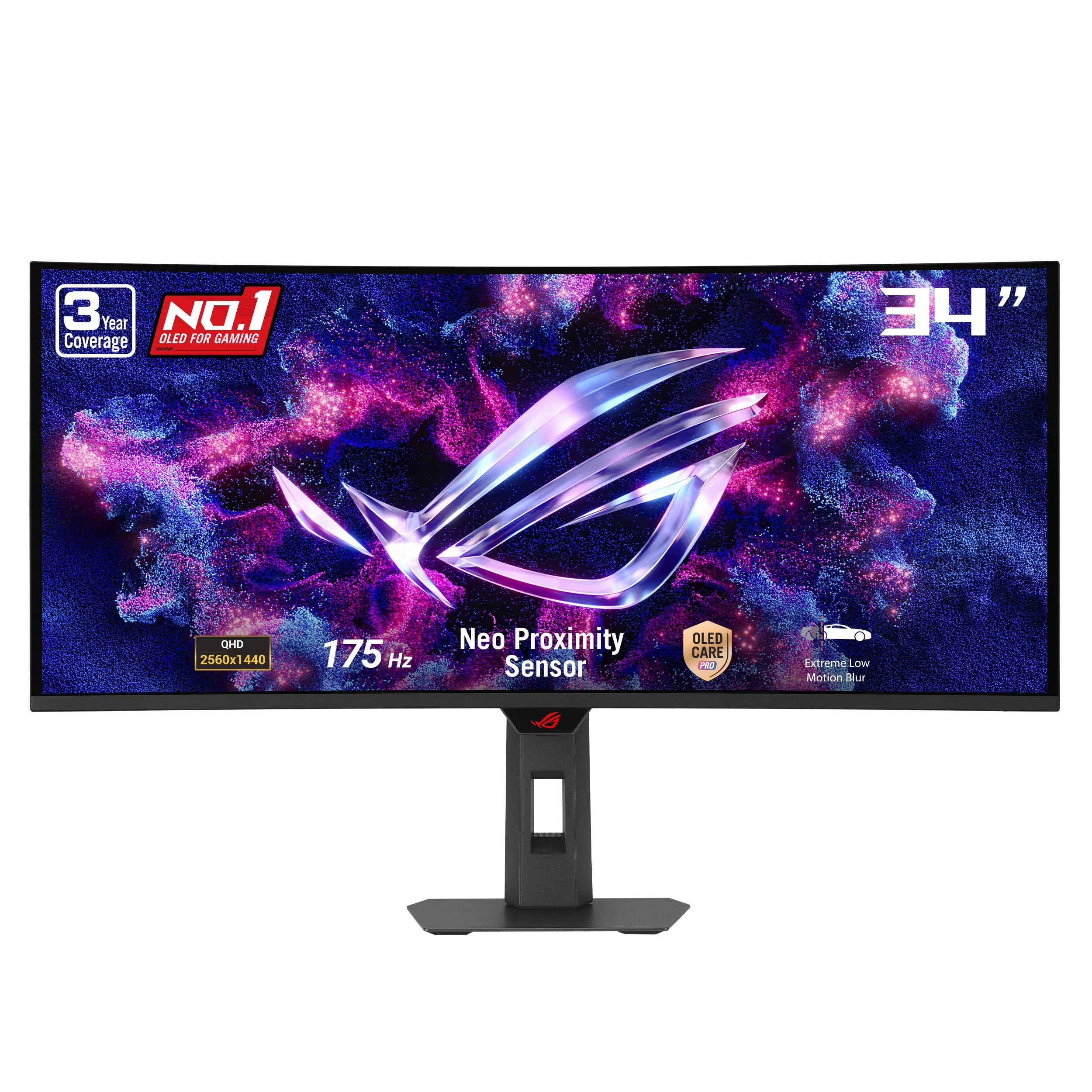
ASUS ROG XG34WCDG

83 /100
LBD Score Excellent

Key details

Warranty
3 years, burn-in covered
Resolution
3440 x 1440
Screen Size
34 inches
Refresh Rate
175Hz
View on Amazon

The XG34WCDG is the cheapest monitor in this group, which usually means a concession somewhere. Here it is refresh rate: 175Hz instead of the 240Hz the Alienware and the LG run, on the same 34-inch 3440 x 1440 QD-OLED panel, for less money.

The feature worth paying for is OLED Care Pro's proximity sensor. Walk away and the panel goes black, which is burn-in protection that happens without you remembering to run it — more useful in daily life than another hundred nits. In use the sensor has been the flaky part of an otherwise well-behaved monitor, so set it up deliberately rather than trusting the default profile. At 18.3 pounds this is also the lightest 34-inch here, which makes arm mounting simple.

What 175Hz costs you is the last increment of smoothness in fast pans, and it is a smaller loss than the price difference suggests. You still get the 0.03ms response, the true 10-bit panel, and a Delta E under 2, so color and motion both land where they should. The software layer — the DisplayWidget Center app and the AI profiles — is the part that feels unfinished.

Pros

  • Cheapest OLED ultrawide in this group
  • Three-year warranty with burn-in coverage
  • Proximity sensor blanks the panel automatically
  • Lightest 34-inch chassis here at 18.3 pounds

Cons

  • 175Hz is the slowest refresh here
  • OLED care software can be finicky
Our verdict

The budget answer: same 34-inch QD-OLED panel and same three-year burn-in coverage as the top pick, with 175Hz instead of 240Hz as the only real sacrifice.

Check Latest Price
5

Best for Deep-Curve Immersion

LG 34GS95QE

86 /100
LBD Score Excellent

Key details

Curve
800R
Resolution
3440 x 1440
Screen Size
33.9 inches
Refresh Rate
240Hz
View on Amazon

An 800R curve means a radius of 800 millimeters, and the 34GS95QE bends harder than anything else in this group. Sit at the center and the edges come toward you instead of falling away — in a racing sim or a flight sim, that is the difference between watching a corner and being in it.

What it buys in games it charges you for in documents. Spreadsheets bow, a straight line in a schematic is not straight, and the window edges you drag around feel like they live on a cylinder. If your day splits between games and a text editor, the gentler 1800R curve on the Alienware is the easier companion; if it does not, the wrap is worth the trade every time you drop into a cockpit.

Everything else is competitive: 240Hz, a 1.5M:1 contrast figure, 275 nits, and RGB lighting on the rear that is a nice touch on a desk that faces a wall. The 20.5-pound panel is manageable on the included stand. Text is the weak spot — it can look soft at 100% scaling — and a few panels have developed lines down the middle, so check the screen on day one.

Pros

  • 800R curve is the most immersive here
  • 240Hz OLED with 0.03ms response
  • Rear RGB lighting adds desk presence

Cons

  • 800R curve warps documents and spreadsheets
  • Two-year warranty trails the three-year picks
Our verdict

Buy it if immersion is the whole point: the 800R curve wraps a 240Hz OLED around you in a way no other 34-inch here does, and you accept the two-year warranty.

Check Latest Price
6

Laptop Docking

INNOCN 49Q1R

83 /100
LBD Score Excellent

Key details

Resolution
5120 x 1440
Screen Size
49 inches
USB-C Power
90W
Refresh Rate
144Hz
View on Amazon

The 49Q1R is a docking station with a 49-inch QD-OLED bolted to the front of it. One USB-C cable carries video to the screen, data to the hub, and 90W back to a laptop, and a KVM moves your keyboard and mouse between two machines without a second set of peripherals.

The panel itself is the 32:9 shape people picture when they hear ultrawide: 5120 x 1440, 144Hz, a matte finish, an 1800R curve, and a stand with height, tilt, and swivel adjustment. PIP and PBP let you park a second computer or a console in a corner of the same screen, which is more useful on a panel this wide than it sounds — you get a reference window without losing your canvas.

Two things to know before ordering. The built-in speakers exist for convenience rather than for anything worth listening to, and some units have gone blank and needed a power cycle or a return. Run it hard in the first week and keep the packaging until you are satisfied.

Against the Samsung G91SD, the case here is ports rather than panel: the same 49-inch QD-OLED canvas for about the same money, with more ways to plug into it and a KVM for a two-computer desk. If you carry a laptop between rooms, that is the difference that decides it.

Pros

  • 90W USB-C plus a KVM switch
  • Matte 1800R panel with height adjustment
  • PIP and PBP for two sources

Cons

  • Built-in speakers are thin
  • 144Hz is the slower 49-inch option here
Our verdict

The 49-inch to buy if a laptop is the center of your desk: 90W USB-C, a KVM, and a hub do more for a two-computer setup than any panel tweak here.

Check Latest Price
7

49-Inch Value

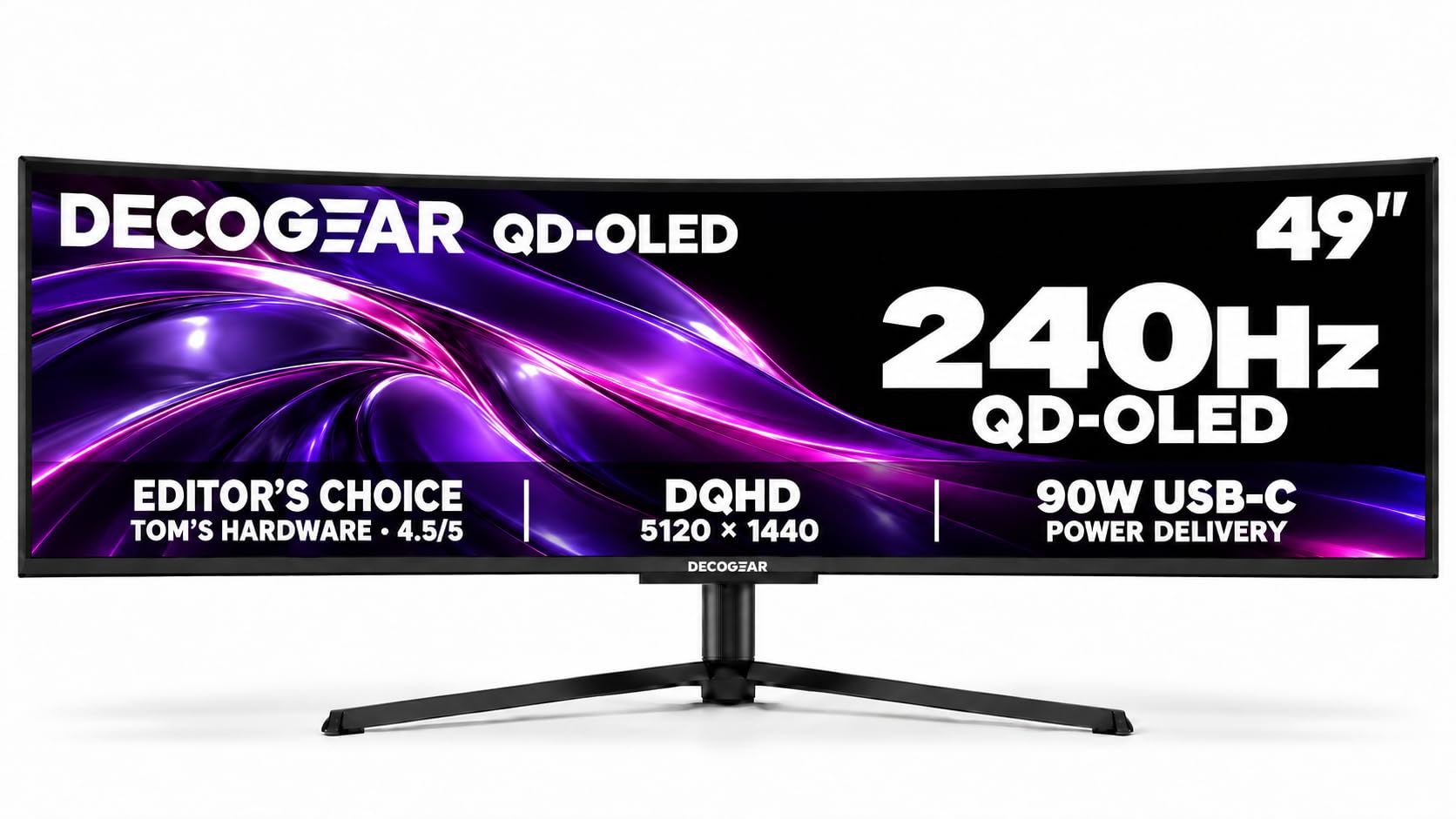
Deco Gear DG49OLED240

83 /100
LBD Score Excellent

Key details

Warranty
1 year
Resolution
5120 x 1440
Screen Size
49 inches
Refresh Rate
240Hz
View on Amazon

Same 49-inch 5120 x 1440 QD-OLED canvas as the Samsung G91SD, roughly the same money, and 240Hz instead of 144Hz. That is the pitch, and it is a strong one if motion matters more to you than a long warranty.

It is also the lightest of the big panels here at 20.9 pounds, against 28.4 for the Samsung and 30.9 for the LG 45GX950A — a real advantage if the screen is going on an arm rather than the included stand. The port selection is generous for the money: 90W USB-C with a KVM, two DisplayPort 1.4 inputs, HDMI 2.1, an Ethernet jack, and built-in speakers.

The part that cannot be talked around is certainty. The track record behind it is shorter than the Alienware's or LG's, and a USB-C input that stopped working after a few weeks is the kind of fault that strands a laptop dock. Exercise that port on the day it arrives, while the return window is still open, and you will know what you have.

Pros

  • 240Hz on a 49-inch QD-OLED
  • Lightest 49-inch here at 20.9 pounds
  • 90W USB-C, KVM, and Ethernet

Cons

  • One-year warranty is the shortest here
  • Yellow tint on some panels out of the box
Our verdict

The value play for a big desk: 240Hz on a 49-inch QD-OLED for mainstream 49-inch money, as long as you can live with one year of warranty.

Check Latest Price

How We Tested These Ultrawide OLEDs

We started by rounding up every ultrawide OLED we could find from the major display makers, then filtered by resolution, curve radius, refresh rate, port selection, stand adjustability, and whether the manufacturer published any burn-in coverage. Eight monitors made it onto our desks, and each one stayed there for six months as the only screen in the setup, with no second display to fall back on.

Testing looked like a normal workday. Mornings were email, full-width spreadsheets, and long PDFs at 100 percent scaling, which is where text fringing shows up first. Evenings were games and weekends were movies, and we ran both with the overhead lights on to judge glare and reflection handling. We also noted how far forward each curve pushed us, since a deep arc eats desk depth that a spec sheet never mentions.

We measured color and brightness with a colorimeter, then checked those numbers against skin tones and night scenes, because a panel can score well and still make faces look waxy. Flicker got its own pass: we dropped frame rates into the 40 to 60 range with adaptive sync on and watched for the strobing some OLEDs produce. In between, we plugged a laptop into every USB-C port, confirmed the listed wattage actually charged it while pushing full resolution, and swapped a keyboard and mouse between two machines through each KVM to see how quickly the screen caught up.

A week of ordinary wake-from-sleep, input switching, and menu fumbling told us more about reliability than any benchmark did, and we finished by weighing what each monitor cost against what it actually delivered — ports, stand adjustment, warranty length, burn-in coverage — rather than against its spec sheet.

How to Choose an Ultrawide Oled Monitor

Match the Curve and the Footprint to Your Desk

A 34-inch 21:9 panel is roughly 31 inches across; a 49-inch 32:9 is about 47. That second number decides more purchases than any specification on the box, because 47 inches of glass has to sit far enough back that the ends stay inside your field of view. Plan on sitting roughly an arm's length from the center and measure your desk before anything else.

Curve radius matters just as much. An 1800R curve is gentle enough that spreadsheets stay flat and window edges look straight, which is why we prefer it for mixed work. An 800R curve like the LG 34GS95QE pulls the edges toward you and is genuinely better in a cockpit or a shooter — and genuinely worse in Excel.

Resolution and Pixel Density Decide Whether Text Looks Clean

3440 x 1440 across 34 inches and 5120 x 1440 across 49 inches both land near 110 pixels per inch, so going wider does not make anything sharper — you get more desk, not more detail. The step up is the LG 45GX950A at 5120 x 2160 over 45 inches, which works out to 125 PPI.

That gap matters for anyone who reads documents, code, or timelines for a living. OLED subpixel layouts can leave a colored halo on letter edges, and higher density hides it. If your day is mostly games and video, 3440 x 1440 is the smarter buy — it is far easier to drive at high frame rates.

Pick a Refresh Rate You Can Actually Feed

The jump from 60Hz to 144Hz is the one you feel immediately. The jump from 144Hz to 240Hz is subtler and costs GPU headroom that could go toward resolution instead. Every OLED here lists a 0.03ms response time, so motion blur is not the differentiator — sustained frame rate is.

This is where dual-mode earns its keep. The LG 45GX950A runs 5120 x 2160 at 165Hz or drops resolution for a 330Hz mode when you switch to something competitive, so one monitor covers both habits. Budget for the panel you can drive, not the one on the box.

Burn-In Protection Is Worth More Than Extra Nits

OLED monitors dim bright full-frame content automatically, and static elements — a taskbar, a dock, a scoreboard — are what actually burn in. The useful features are the boring ones: Samsung's logo and taskbar detection, ASUS's proximity sensor that blanks the panel when you walk away, and pixel-refresh cycles you should let finish.

Then look at the paperwork. Three years of coverage that explicitly includes burn-in, as Alienware and ASUS offer here, is worth more than a brightness figure you will rarely use. LG covers its panels for two years and the Deco Gear for one, which is the single biggest reason to think twice about the cheapest big screen.

Ports Decide Whether It's a One-Cable Desk

If a laptop is part of your setup, USB-C with power delivery is the feature to pay for: one cable carries video, data, and up to 90W of charge, which the LG 45GX950A, the INNOCN 49Q1R, and the Deco Gear all provide. A KVM then moves your keyboard and mouse between two machines without a second set of peripherals.

For everything else, count inputs. DisplayPort 2.1 is what makes 5K2K at 165Hz practical, HDMI 2.1 matters for a current console, and the Samsung G91SD gives you a single HDMI port — fine if one computer owns the desk, cramped if a console shares it.

Frequently Asked Questions

Final Verdict

Buy the Alienware AW3425DW. It is the ultrawide OLED we point people to first: 240Hz, a 1800R curve that behaves itself during the workday, color that arrives close to correct before you touch a setting, and three years of warranty that covers the burn-in every OLED eventually risks.

Spend more only for a specific reason — the LG 45GX950A if text clarity and one-cable laptop docking matter, or the Samsung G91SD if you want a 47-inch wall of pixels and have the desk for it.