Best Curved Monitors of 2026

A curved screen is a geometry trick you sit inside: the panel bends toward your face so the edges land roughly as far from your eyes as the center does, which is why a tight 1000R arc feels different from a gentle 1800R one. The tradeoff is that a deep curve assumes you're planted in one spot, and a wide panel assumes your desk is deep enough for it. My team and I have spent the past six months with 12 curved monitors, from a 24-inch office model up to a 49-inch ultrawide.

The spec sheet tends to bury what actually annoys you day to day. Refresh rate and resolution matter, and adaptive sync really does smooth out a game, but a stand that only tilts will have you stacking books under the screen, and a panel that can't get bright enough washes out in afternoon sun. Built-in speakers and spare ports are worth checking too if you'd rather not bolt a soundbar and a hub onto the desk.

The picks below run from a plain second screen to a 32:9 monster, and every one of them earned its spot on a real desk.

1

Best Overall

Samsung Odyssey G55C 32"

88 /100
LBD Score Excellent

Key details

Curve
1000R
Resolution
2560 x 1440
Screen Size
32 inches
Refresh Rate
165 Hz
View on Amazon

A 32-inch screen is where resolution stops being a detail. Stretch 1080p across that much glass and text turns soft from a normal sitting distance, which is why the G55C's 2560 x 1440 panel is the first thing worth talking about: the pixels are small enough that a spreadsheet or a long document stays crisp without you leaning in. Move up from a 1080p panel of the same size and the tighter grid is the difference you notice first.

This is the one we recommend to most people. The 1000R curve is the tightest here alongside the G9, and at 16:9 it reads as a gentle wrap rather than a fishbowl, pulling the edges of a wide window to a more even distance from your eyes. The VA panel's 2500:1 contrast gives dark scenes real depth. HDR10 is on the sheet, but at 300 nits treat it as a label rather than an experience you'll switch on for movies.

Gaming is handled properly: 165Hz with FreeSync, and a 1ms MPRT figure that keeps fast pans clean instead of smeared. The stand is where Samsung saved money, tilting but not rising, so the top of the screen sits wherever it sits. A riser or a wall bracket solves that in an afternoon, and at 11.5 pounds this is light enough to lift onto either alone.

One thing to check against your room: the panel is glossy, not matte. Facing a window it turns into a mirror at the wrong time of day, and the LG below is the calmer choice in a bright office. In a room where you control the light, that gloss is part of why images look as punchy as they do.

Pros

  • Sharp 2560 x 1440 panel at 32 inches
  • 165Hz with FreeSync for smooth games
  • 1000R curve wraps without warping the desktop
  • Deep VA blacks at 2500:1 contrast

Cons

  • Glossy panel picks up window reflections
  • Single HDMI and single DisplayPort input
Our verdict

Buy this one if you want a single curved screen that's sharp for work and fast enough for games; it's the best balance in this group.
Check Latest Price
2

Best for Desk Work

LG 32MR50C-B

89 /100
LBD Score Excellent

Key details

Resolution
1920 x 1080
Screen Size
32 inches
Refresh Rate
100 Hz
Contrast Ratio
3000:1
View on Amazon

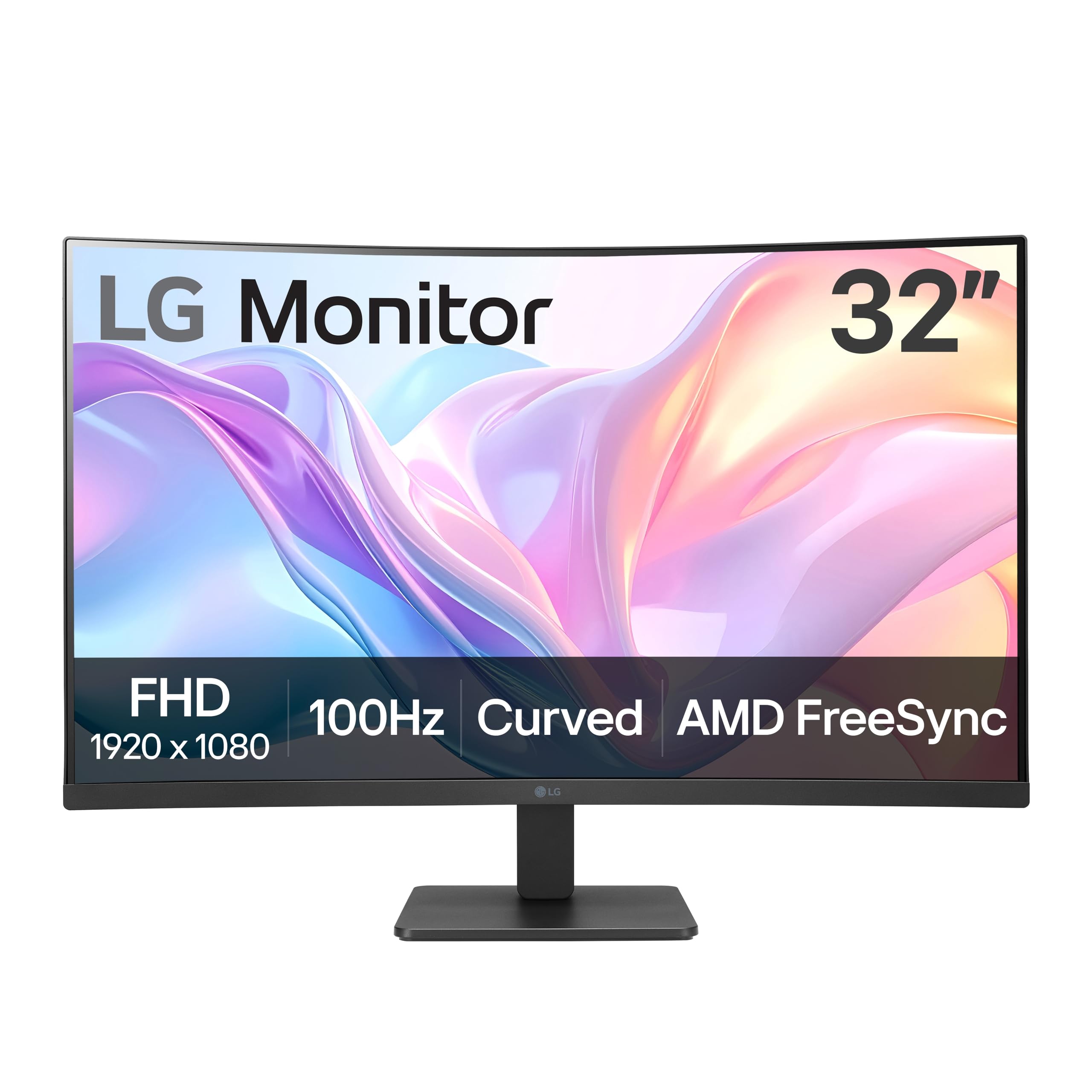
This is the monitor for the desk that needs one big screen and nothing fancy: a 32-inch curved VA panel, 100Hz, and a matte finish. We point people here when the work is documents, email, video calls, and a little streaming, and when paying for 165Hz would be paying for something they never touch.

The trade-off is resolution. At 1920 x 1080 across 32 inches the pixel grid is visible if you sit close, and small text in a dense document looks softer than it does on the Samsung G55C. Sit back a little further than you would with a 27-inch screen and it holds up fine; lean in to read a contract and you'll see the pixels. Games and video hide the gap almost completely.

The 100Hz refresh is the quiet win, since cursor movement and scrolling feel smoother than 60Hz, and FreeSync keeps casual games from tearing. The 5ms response time tells you plainly that this isn't a competitive shooter panel. OnScreen Control is better than most bundled monitor software: you drag windows into a layout with the mouse instead of fighting a joystick menu, which matters when one wide screen is doing the work of two.

Reader Mode warms and dims the panel for long text sessions and is one of the few picture presets worth leaving switched on. The port selection is the giveaway on who LG built this for: two HDMI plus VGA, an office-replacement spec sheet rather than a gamer's one. If your desktop is old enough to need VGA that's a gift; if not, it's a port you'll never use.

Pros

  • Matte finish shrugs off window glare
  • 100Hz with FreeSync for everyday motion
  • 3000:1 VA contrast
  • OnScreen Control splits windows with a mouse

Cons

  • 1080p across 32 inches looks soft up close
  • 5 ms response time limits fast gaming
Our verdict

A big, calm screen for desk work: the pick for buyers who want 32 inches of curve and don't need gaming-grade refresh.

Check Latest Price
3

Best Super-Ultrawide

Samsung Odyssey G9 49"

81 /100
LBD Score Excellent

Key details

Curve
1000R
Resolution
5120 x 1440
Screen Size
49 inches
Refresh Rate
144 Hz
View on Amazon

Forty-five inches across and about 34 pounds before you count the stand: this is furniture as much as it is a monitor. The desk gets measured before anything else gets decided, and if yours is narrower than roughly four feet, the overhang becomes the whole story. It's the one pick here that needs a plan before it needs a review.

What you get for the space is 5120 x 1440, effectively two 27-inch 1440p screens fused with no seam down the middle, wrapped in a 1000R curve that angles the far edges back toward you. Spread four windows across it and the curve stops being a gimmick, because everything sits at roughly the same distance instead of the outer two drifting out of focus. 144Hz with 1ms and FreeSync Premium Pro means fast games hold up, and the DisplayHDR 600 rating is the first tier of HDR that's worth switching on.

The detail we appreciated most is the stand. It's the only monitor here with height adjustment, and on a screen this tall that's not a luxury, it's the difference between a comfortable eyeline and a permanent crick. Samsung also builds in a three-port USB hub, so a keyboard and mouse can live on the monitor rather than trailing back to the tower.

The reality check is that 5120 x 1440 is wider rather than taller. You get the same 1440-pixel height as the 34-inch Sceptre, so the extra money buys width, not sharpness. For trading screens, timeline-heavy editing, and racing rigs that's exactly the right trade; for one document and a browser, it's a great deal of desk for the money.

Pros

  • 5120 x 1440 across 49 inches
  • 144Hz with FreeSync Premium Pro
  • Only height-adjustable stand among these picks
  • Three-port USB hub on the monitor

Cons

  • Needs about four feet of desk width
  • The most expensive monitor in this group
Our verdict

The super-ultrawide pick: two 1440p screens in one panel at 144Hz, with the only height-adjustable stand in this group.

Check Latest Price
4

Best Ultrawide for Gaming

Sceptre C345B-QU240T

83 /100
LBD Score Excellent

Key details

Resolution
3440 x 1440
Screen Size
34 inches
Refresh Rate
240 Hz
Response Time
1 ms
View on Amazon

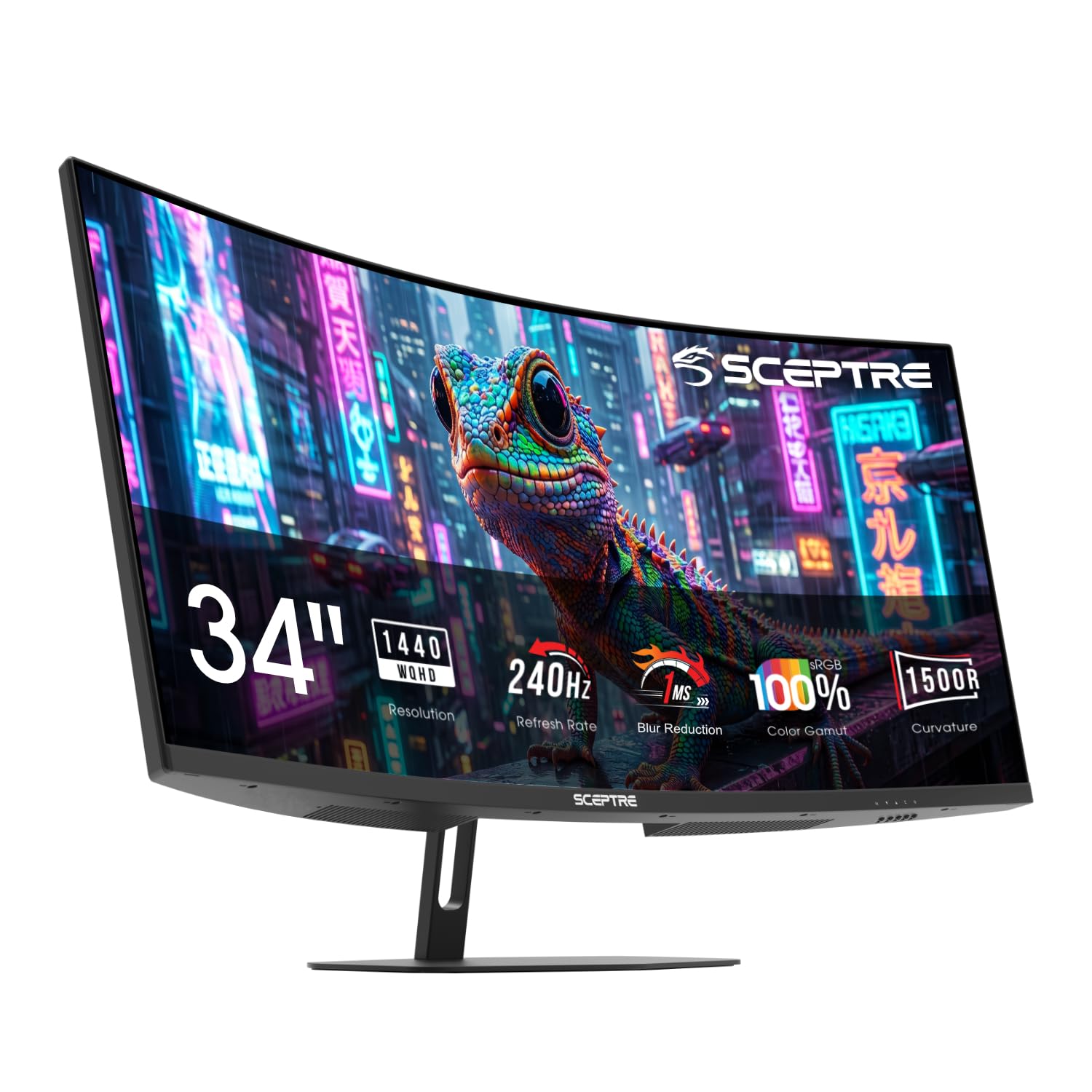
Two hundred and forty hertz at 3440 x 1440 is the number that makes this Sceptre worth a look, and it's a strange one to find on a monitor that undercuts the 32-inch Samsung. The rest of the sheet holds up too: a 1500R curve, 1ms response, 100% sRGB, and four video inputs.

We read this as the gaming-first ultrawide of the group. The 1500R curve is gentler than the G55C's 1000R, which we actually prefer for work, because two documents side by side stay level instead of tilting away at the edges. The refresh rate is what you notice in a fast game: panning stays clean, and 240Hz with adaptive sync makes tracking a target across that width feel almost unfair.

Four inputs, two HDMI and two DisplayPort, is the most generous arrangement here, and it's the difference between swapping cables every time a console comes out and simply leaving both plugged in. The built-in speakers are there for system sounds and video calls rather than for anything you'd sit down and listen to.

It's a 14-pound panel just under 32 inches wide, so desk space is the entry fee, and the stand is basic enough that this is the monitor to put on an arm if you already own one. The other catch is upstream: 240Hz only pays off if your graphics card can push frames that fast at 3440 x 1440. On a mid-range card you'll live nearer 100 to 144Hz and the headroom goes unused.

Pros

  • 240Hz refresh at 3440 x 1440
  • Two HDMI and two DisplayPort inputs
  • Gentler 1500R curve suits split-screen work
  • 100% sRGB color coverage

Cons

  • 240Hz goes unused without a fast graphics card
  • Nearly 32 inches wide needs a deep desk
Our verdict

The gaming-first ultrawide: 240Hz at 3440 x 1440, and it costs less than the 32-inch Samsung, provided your desk is wide enough.

Check Latest Price
5

Best Budget

Sceptre C275W-FW100T

90 /100
LBD Score Outstanding

Key details

Resolution
1920 x 1080
Color Gamut
100% sRGB
Screen Size
27 inches
Refresh Rate
100 Hz
View on Amazon

This is the least expensive monitor on our list, and it's the one we hand to people building a first setup, adding a second screen, or outfitting a dorm desk. For the money you get a 27-inch curved panel at 1920 x 1080, 100Hz, a 1ms blur-reduction mode, 100% sRGB, and both HDMI and DisplayPort inputs, a combination that would have been premium not long ago.

At 27 inches, 1080p is still a comfortable density, noticeably sharper than the same resolution stretched across 32 inches, and the 1500R curve is subtle enough that spreadsheets and browser windows don't look warped. The matte panel and blue-light shift make it an easy screen to sit in front of for a whole evening.

What we appreciate most is that nothing about it feels like a corner was cut to reach the price. You get full sRGB coverage, a blur-reduction mode for games, and a stand that tilts rather than a rigid foot. The speakers are the exception: thin and quiet enough that you'll want a cheap set of desktop speakers or a headset, which is true of nearly every budget curved monitor we've used.

The 100Hz ceiling and the 1080p resolution mark the boundary. It's fine for work, consoles, and last-generation games, but the moment you start reading code all day a 1440p panel will look sharper. If you already know a 1440p workflow is coming, put the money toward the 34-inch Sceptre instead.

Pros

  • 100Hz refresh at a budget price
  • 100% sRGB color coverage
  • DisplayPort plus two HDMI inputs
  • Matte, flicker-free panel

Cons

  • Built-in speakers are too weak to rely on
  • 1080p caps sharpness for text-heavy work
Our verdict

Our budget pick: a 27-inch curved 100Hz panel that handles work and casual games for less than anything else on this list.

Check Latest Price
6

Small Desks

Samsung Essential S3 24"

90 /100
LBD Score Outstanding

Key details

Curve
1800R
Resolution
1920 x 1080
Screen Size
24 inches
Refresh Rate
100 Hz
View on Amazon

The stand is the first thing to know about: the screen sits at a fixed forward tilt, with no height or swivel adjustment, so you end up fitting your chair to the monitor instead of the other way round. On a 24-inch panel that's a smaller problem than it sounds, since the whole thing weighs under seven pounds and a low riser or a wall bracket solves it in minutes, but it's why we treat this as a companion screen rather than the centerpiece of a desk.

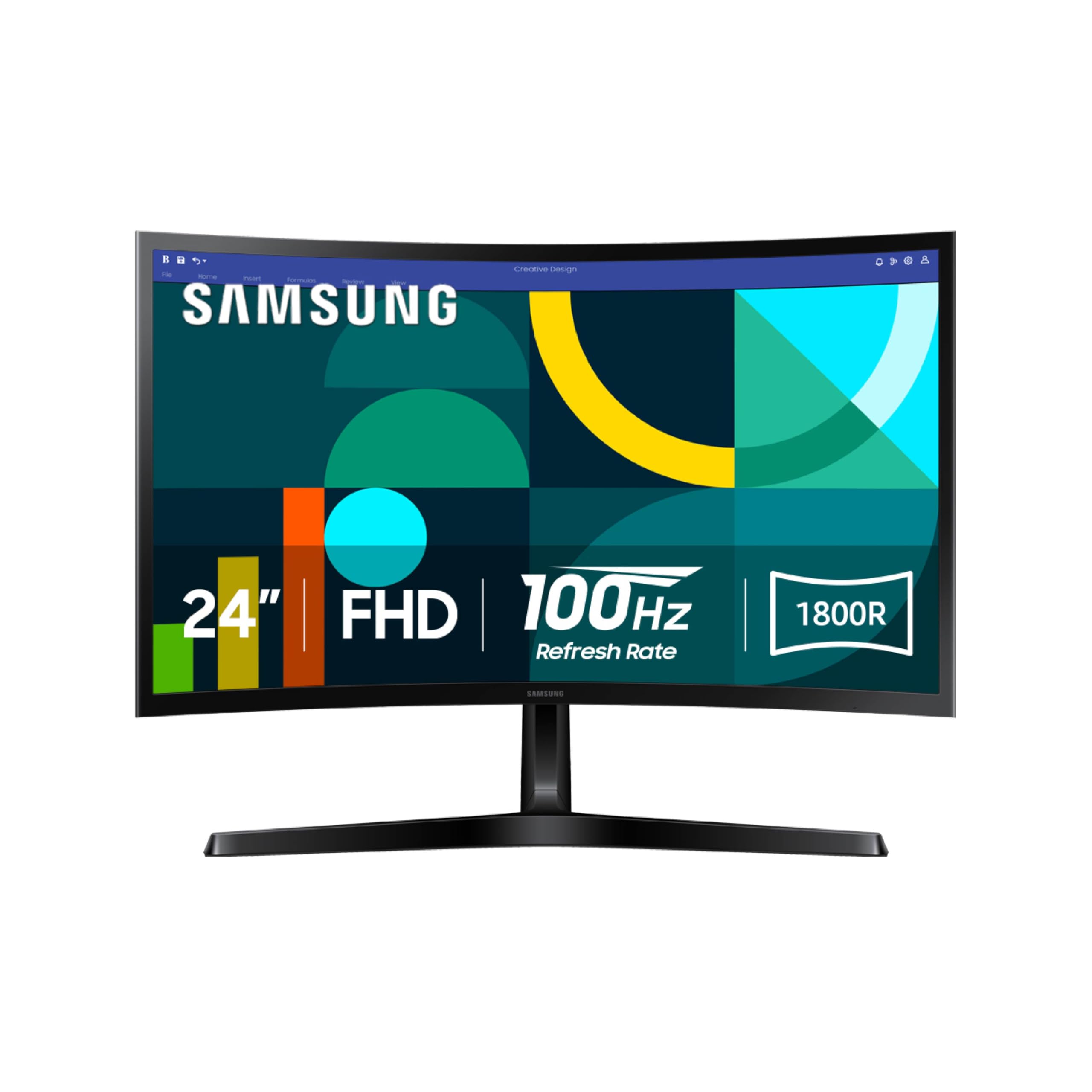
What it does well is the small-desk job. Twenty-four inches at 1080p is dense enough that text stays crisp, the 1800R curve is the gentlest here and barely noticeable in the best way, and 100Hz with Game Mode is more than a budget office panel usually offers. The 3000:1 contrast keeps dark interfaces readable, and Samsung certifies the eye-comfort mode through TÜV, the sort of claim we normally ignore until we're reading in a dark room at eleven at night.

The port mix, one HDMI and one VGA, is a giveaway that this was built for offices replacing old D-sub monitors, and it's the cheapest route here to adding a screen to an older desktop. On a laptop you'll use the HDMI and never touch the VGA.

Next to the 27-inch Sceptre it gives up three inches and costs slightly more, and what you get back is a footprint that fits a narrow desk and a panel that's easier to live beside a laptop. That's the trade to make deliberately: buy this one for the space it doesn't take, not for the value.

Pros

  • Gentle 1800R curve suits small desks
  • 100Hz with Game Mode
  • Crisp 1080p at 24 inches
  • TÜV-certified eye comfort mode

Cons

  • Fixed forward tilt with no height adjustment
  • Only one HDMI and one VGA input
Our verdict

A sensible second screen or small-desk monitor: sharp at 24 inches, gently curved, and affordable, as long as you plan around the fixed stand.

Check Latest Price

How We Tested 12 Curved Monitors

We started with every curved monitor sold by the major display manufacturers, then filtered for a spread of sizes and prices — 24 to 49 inches, plain FHD up to high-refresh QHD — and dropped anything that couldn't tilt or would force an adapter on a standard laptop. Twelve made the cut, and they've been running for six months.

Most lived on my home-office desk as the main screen for spreadsheets and video calls, with a laptop docked alongside. Others went into a spare-bedroom gaming setup shared with a console, onto a family desk where they got used for homework and streaming in the same evening, and onto a desk in front of an uncovered south-facing window. We played the same dark game saves and test clips on every panel, watching how colors shifted when we stood up and whether the corners of a tight curve dimmed. Brightness got timed: we worked by that window from early afternoon to sunset and noted when each screen started losing contrast.

Adjustability we handled the way anyone would — sitting down, raising or tilting the screen to eye level, and noticing when a book had to stand in for a height adjustment. We muted our desk speakers for a week to hear each built-in set on calls, then plugged in a laptop over USB-C, a desktop over DisplayPort, and a console over HDMI to count free ports and check which cables came in the box. Text got its own hour: reading and writing in a document, watching for letters that softened at the edges of the curve.

How to Choose a Curved Monitor

Match Resolution to Screen Size

The bigger the panel, the more pixels it needs to keep text crisp. 1080p is comfortable at 24 and 27 inches; at 32 inches it starts to look soft, which is why the LG here is a video-and-email screen and the similarly sized Samsung G55C, at 2560 x 1440, is the one we hand to people who read documents all day. Ultrawides need more again: 3440 x 1440 across 34 inches, and 5120 x 1440 across 49. If you find yourself leaning toward the screen to read, buy resolution before you buy size.

Pick the Width Before the Curve

Curvature is a radius: 1000R bends more tightly than 1500R, and 1800R is the gentlest of the three. On a 24- or 27-inch screen the difference is subtle, and a gentle curve mainly stops the edges from looking tilted away. It earns its keep on the widest panels, where a 1000R curve pulls the far corners back toward your eyes.

The practical warning is desk space. A 34-inch ultrawide is roughly 32 inches wide and the 49-inch Samsung is 45, so measure the desk, the speakers, and the tower before you commit to either.

Choose a Refresh Rate You'll Actually Use

100Hz is the sensible floor now: the desktop feels smoother than 60Hz and games tear less with adaptive sync switched on. 165Hz covers competitive play without asking much of your graphics card. 240Hz is a specialist's number — it pays off in fast shooters only if your card can drive frames that quickly at the panel's resolution, and at 3440 x 1440 most mid-range cards can't. FreeSync support is worth having on any of them, because it's the difference between a smooth frame rate and a visibly torn one.

Check the Stand, the Mount, and the Ports

Height adjustment is the first thing budget curved monitors drop: most of the picks here tilt but won't rise, and the 24-inch Samsung doesn't adjust at all. Plan on a riser, a wall bracket, or a monitor arm, and match the mount to the panel's listed weight — 6.8 pounds for the 24-inch Samsung, 34.4 for the 49-inch.

Ports are the other quiet compromise. One HDMI and one DisplayPort means a console and a PC take turns; the Sceptre 34-inch gives you two of each, the friendliest setup here for two devices.

Frequently Asked Questions

Final Verdict

If you want one answer, it's the Samsung Odyssey G55C: 2560 x 1440 across 32 inches, 165Hz with FreeSync, and a 1000R curve that wraps without making a spreadsheet look bent. Nothing else here balances work and play this well.

Take the LG instead if the budget is tighter and gaming isn't the point, since its matte 32-inch panel is the calmer office screen. And if you have four feet of desk and the money, the 49-inch G9 replaces a two-monitor setup in one sweep.