Best DisplayLink Docking Stations for Mac and Windows

A DisplayLink dock sends video over a plain USB cable instead of pulling it off the laptop's graphics chip, which is why it's the one dependable way to run two, three, or even four monitors from a machine built to drive one. That trick is what makes the category worth shopping. The rest of the dock — the ports, the charging, the driver — is where the good ones separate from the ones you send back.

A dock has lived on my desk for years, and I've quit judging them by the spec sheet. We spent eight months with nine of them, and the keepers were versatile without being fussy: compact enough to hide behind a monitor, enough ports that you quit hunting for an adapter, and a setup that took minutes rather than an afternoon. The rejects dropped a display mid-meeting or left a cursor lag I could feel.

One thing worth knowing: video outputs share a bandwidth budget, so a dock advertising four displays often means four at lower resolutions. The picks below run from a tidy two-monitor setup to a port-heavy hub for a four-screen desk.

1

Best Overall

Plugable UD-6950PDH

86 /100
LBD Score Excellent

Key details

Displays
2x 4K 60Hz (HDMI/DisplayPort)
USB Ports
5
Compatibility
macOS 11+, Windows 10+, ChromeOS 100+
Laptop Charging
100W
View on Amazon

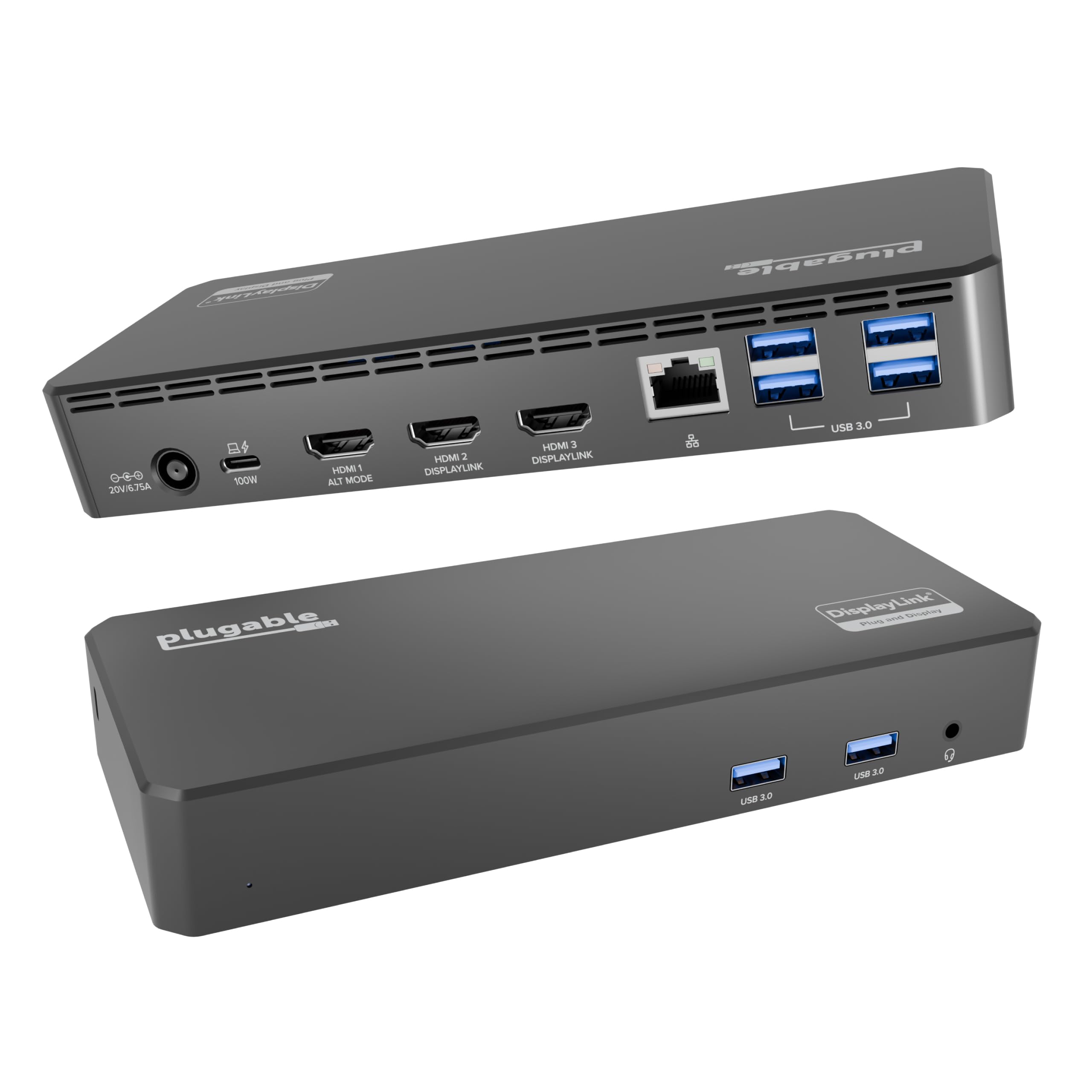
Apple Silicon Macs will happily run one external display and pretend the second one does not exist. The Plugable UD-6950PDH is the dock we reach for when that limit is the problem: DisplayLink drives two 4K monitors at 60Hz over HDMI, DisplayPort, or one of each, and it does it from a single USB-C connection. The 100W power delivery means the same cable charges a MacBook Pro, so the desk stays a one-cable setup. We also appreciate that the 14-in-1 layout gives you five USB ports and the front-facing access most people actually use.

The aluminum body has a small footprint and a space-gray finish that disappears next to a MacBook. In use, the dock is the least interesting part of the desk, which is the goal: the screens wake, the keyboard and mouse stay connected, and the laptop charges without a second cable. DisplayLink software is required, as it is on every dock in this guide, so install the driver before you judge the dock. We found the setup straightforward, but it is still an extra step that native USB-C video does not need.

Where it gives ground is display count. It stops at two external monitors, so the TobenONE is the one for a four-screen wall. For a dual-4K Mac or Windows desk, though, this is the balance we prefer: 4K60 on both screens, 100W charging, and a two-year warranty.

Pros

  • Dual 4K60 over HDMI or DisplayPort
  • 100W laptop charging
  • Five USB ports plus front access
  • Two-year limited warranty

Cons

  • Stops at two external monitors
Our verdict

We think this is the best default for a two-monitor Mac or Windows desk: dual 4K60, 100W charging, and a full port set in one solid dock.
Check Latest Price
2

Best for Four Monitors

TobenONE 20-in-1

87 /100
LBD Score Excellent

Key details

Displays
4x 4K 60Hz (4 HDMI + 4 DP)
Total Ports
20
Power Supply
150W
Laptop Charging
100W
View on Amazon

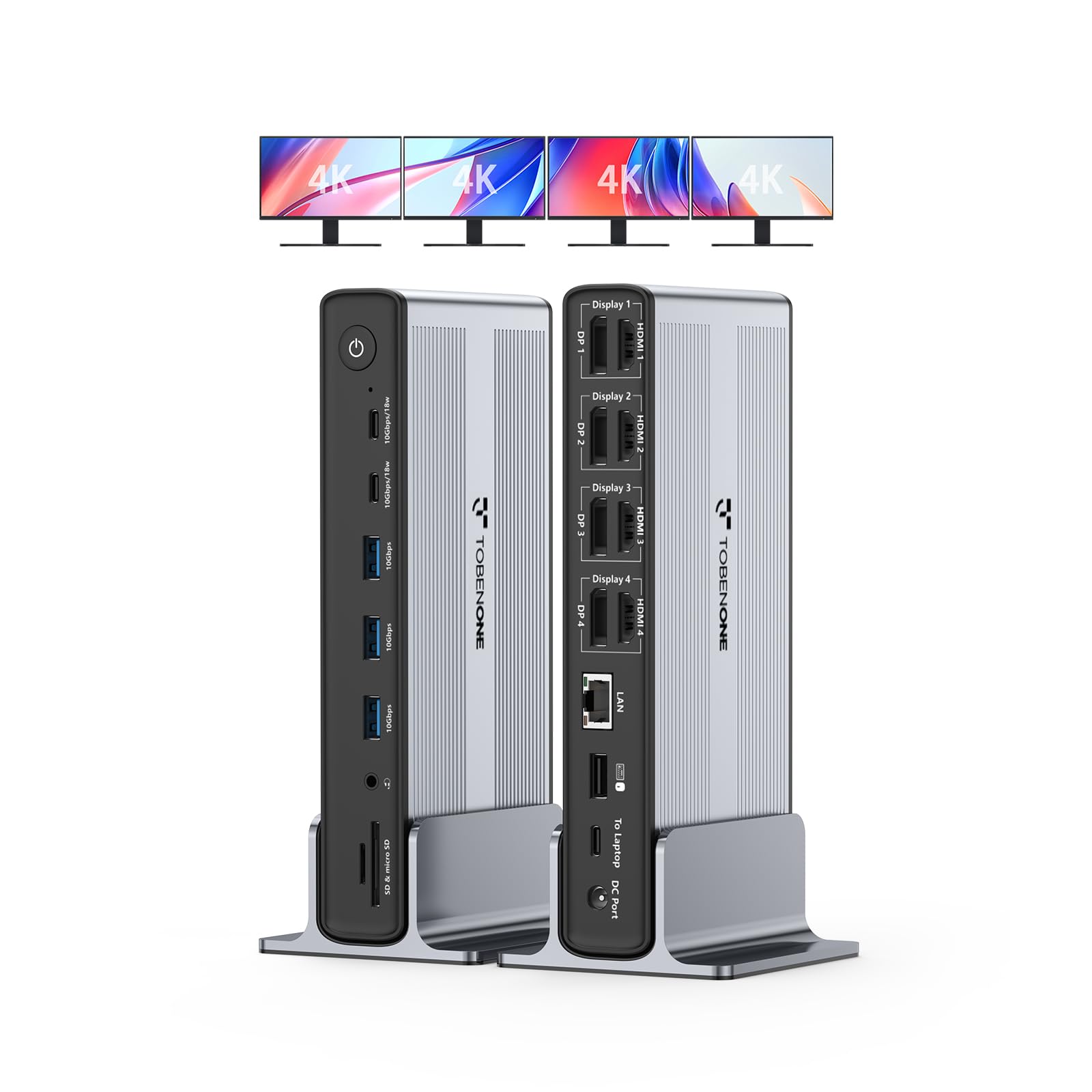
Four monitors is the number that makes the TobenONE stand apart. The 20-in-1 dock has four HDMI and four DisplayPort outputs, so Windows laptops and MacBooks can run a wall of screens from one USB-C connection. We value the headroom: a trading desk, a video-editing bay, or a home office with a main 4K panel and three reference screens can all hang off the same box. The 150W power supply sends up to 100W to the laptop, so the dock is also the charger.

The port count is just as generous: six USB ports, gigabit Ethernet, SD and microSD, and audio. We treat it as a specialist rather than the default because the body is 11.8 inches long and 2.3 pounds; it needs more desk depth than the compact Plugable, and it costs more. The four-screen support also depends on the DisplayLink driver, so install it first and check that your laptop can handle the display count you have in mind.

For two screens, it is more dock than most people need. For three or four, the extra outputs and ports are the reason to buy. We also like that the 20 ports are all reachable without a dongle chain, which is the real luxury here.

Pros

  • Four 4K60 displays via 4 HDMI and 4 DP
  • 20 ports including six USB and Ethernet
  • 100W laptop charging from a 150W supply
  • Works with Windows, macOS, and ChromeOS

Cons

  • Takes up more desk depth
  • Premium price
Our verdict

We recommend it when two screens are not enough: four 4K outputs, 20 ports, and 100W charging for a serious multi-screen desk.

Check Latest Price
3

Best Value Dual 4K

UGREEN 9-in-1

83 /100
LBD Score Excellent

Key details

Displays
2x 4K 60Hz (2 HDMI + 2 DP)
USB Ports
4
Power Adapter
Not included
Laptop Charging
100W PD
View on Amazon

The UGREEN 90912 is the value play: dual 4K60 for less than the Plugable, but you need to bring your own USB-C power adapter. The 9-in-1 dock has two HDMI and two DisplayPort outputs, 100W PD pass-through, two USB-A and one USB-C at 10Gbps, and gigabit Ethernet. We like the 10Gbps ports for external SSDs; they move files faster than the 5Gbps ports on some docks here.

The catch is literal: the box has the dock and a USB-C cable, not the power adapter or an HDMI cable. The 100W rating is pass-through, so your laptop's charger does the work. If you already own a suitable USB-C charger, the savings are real; if you do not, add the cost of one before you compare it with the top pick.

We prefer it for a laptop that lives on a charger and needs two screens, not for a desk with a half-dozen USB accessories. The 4K60 support on both outputs is the headline, and it holds up for spreadsheets, browsers, and photo work. If you want the charger in the box and a longer port list, the Plugable is the safer buy.

Pros

  • Dual 4K60 over HDMI and DisplayPort
  • 100W PD pass-through
  • 10Gbps USB-C and USB-A ports
  • Gigabit Ethernet in a 9-in-1 body

Cons

  • Power adapter not included
  • Only four USB ports
Our verdict

We see it as the value route to dual 4K60, provided you already own the USB-C charger it leaves out of the box.

Check Latest Price
4

Best for Three HDMI Monitors

Plugable UD-3900PDZ

86 /100
LBD Score Excellent

Key details

Displays
3x HDMI (1x 4K 30Hz, 2x 1080p 60Hz)
USB Ports
6
Compatibility
Windows, macOS 11+, ChromeOS 100+
Laptop Charging
100W
View on Amazon

Three HDMI outputs is an unusual hand in a deck of DisplayLink docks, and it is the reason to look at the UD-3900PDZ. It drives one 4K display at 30Hz and two 1080p displays at 60Hz, with 100W charging over USB-C. We admire the practicality: a 4K main screen for detail work and two 1080p side screens for email and chat is how a lot of three-screen desks actually run. Six USB ports and front-facing access keep the peripherals simple.

The trade-off is the resolution mix. Your main screen runs at 4K but only 30Hz, and the side screens top out at 1080p. That is fine for static work and a step behind the dual-4K60 docks, but it is also why this one costs less than the top pick. We wish the 4K output ran at 60Hz, because the difference is visible in motion and video.

The second and third displays are the parts most likely to drop out after a sleep cycle; keep the two-year warranty in mind and replug if the screens do not wake. For a three-HDMI desk with mixed-resolution monitors, those are manageable compromises.

Pros

  • Three HDMI outputs from one USB-C connection
  • 100W laptop charging
  • Six USB ports
  • Works with macOS, Windows, and ChromeOS

Cons

  • No DisplayPort outputs
Our verdict

We like it for a three-HDMI desk where a 4K30 main screen and two 1080p side screens are enough.

Check Latest Price
5

Legacy Triple Display

WAVLINK 12-in-1

80 /100
LBD Score Excellent

Key details

Displays
4K 60Hz + 2x 2K (HDMI/DVI)
Ethernet
Gigabit
USB Ports
6x 5Gbps
Power Adapter
45W
View on Amazon

A DVI port in 2026 is a strange sight, and that is exactly why the WAVLINK 12-in-1 earns a place for older monitors. It gives you one 4K HDMI at 60Hz, one 2K HDMI, and one 2K DVI, plus six 5Gbps USB ports, gigabit Ethernet, and audio. We like the USB-A and USB-C mix; it covers a keyboard, mouse, webcam, and an external SSD without a separate hub. If you have a pair of older 2K panels or a DVI monitor you are not ready to replace, this dock connects them without a chain of adapters.

The power side is the limitation. The included adapter is rated 45W, well below the 100W docks here, so a demanding laptop will not fast-charge from it. That makes it a desk dock for a lighter laptop or a setup where the laptop has its own charger. The display mix is also not triple 4K: one 4K screen and two 2K screens is the ceiling. We accept those trades because the price is low and the legacy ports are genuinely useful. For a budget triple-screen office with older monitors, it is a smart buy.

It is a newer design, so we treat it as a budget specialist rather than the default for a new 4K desk. The six USB ports and Ethernet make it more than a video adapter, which is the point.

Pros

  • Triple display with 4K HDMI, 2K HDMI, and DVI
  • Six 5Gbps USB ports
  • Gigabit Ethernet and audio
  • Low-cost way to reuse legacy monitors

Cons

  • 45W adapter is modest for laptop charging
  • No triple-4K support
Our verdict

We keep this one for budget triple-screen setups with older 2K or DVI monitors, accepting the modest 45W adapter.

Check Latest Price
6

Travel and Hot-Desking

Giq Compact Dock

88 /100
LBD Score Excellent

Key details

Weight
3.6 oz
Displays
2x HDMI + VGA
Ethernet
Gigabit
USB Ports
3x USB 3.0
View on Amazon

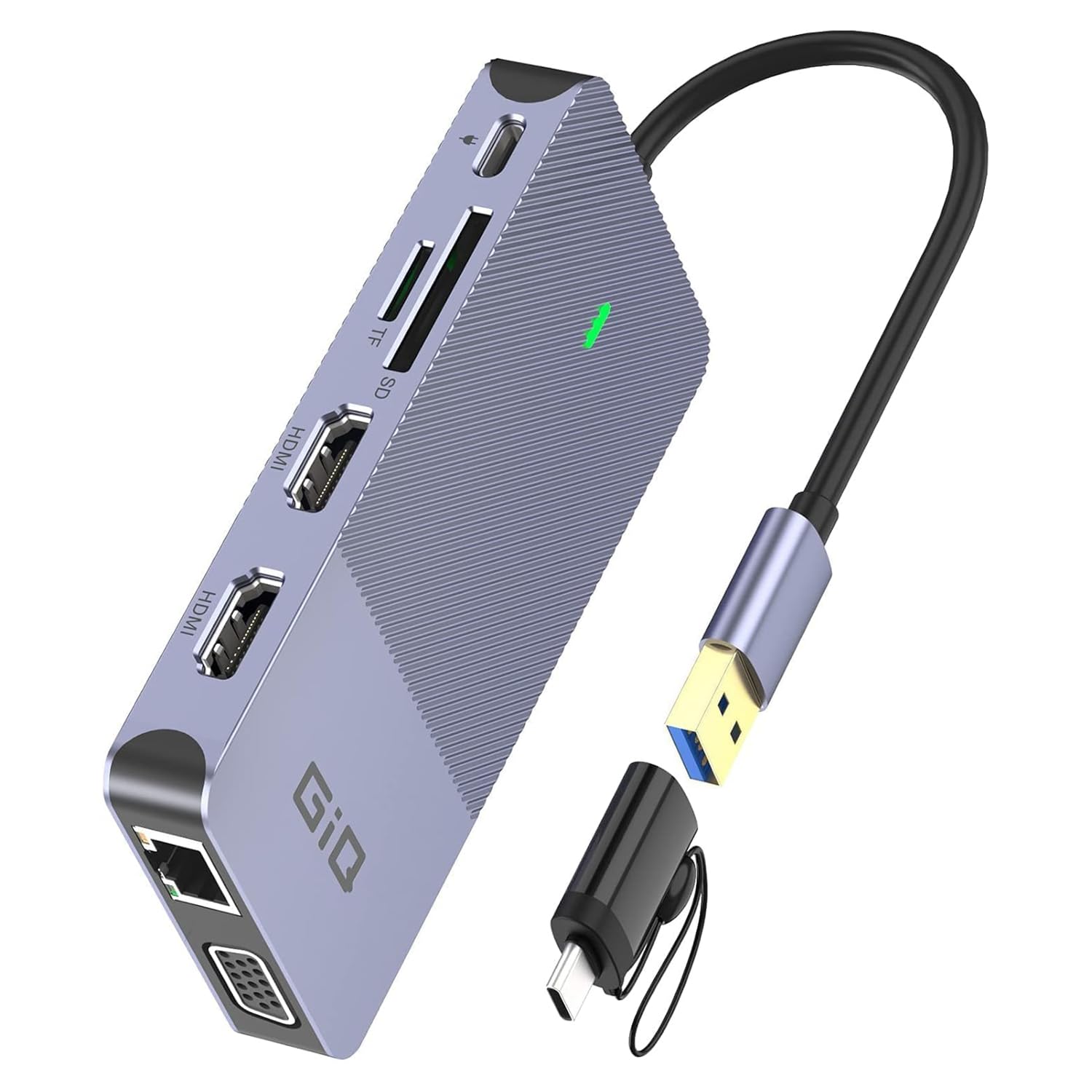
At 3.6 ounces and roughly two inches square, the Giq dock is the one that disappears into a laptop bag. It covers two HDMI outputs plus VGA, three USB 3.0 ports, Ethernet, and SD/microSD, so a traveler can leave a full desk dock behind. We were struck by how much connectivity fits in such a small body: it takes almost no space on a hotel desk or a kitchen table, and it runs from the laptop's USB port rather than a separate power brick.

The trade-offs are real. It is bus-powered, so it will not charge the laptop; keep the laptop's charger in the bag. The mouse can lag when its receiver is plugged into the dock under load; a Bluetooth mouse avoids the issue. The HDMI outputs top out at 4K30 or 1080p, so this is not a dual-4K60 dock. We were pleased by the dual-HDMI-plus-VGA mix for older projectors, but a permanent desk with two 4K60 screens and a dozen accessories deserves a larger dock. For travel and hot-desking, the tiny footprint is the whole point.

Pros

  • Compact 3.6-ounce body
  • Two HDMI plus VGA outputs
  • Three USB 3.0 ports, Ethernet, and card readers
  • No separate power brick

Cons

  • Small USB port count
  • SD and microSD slots cannot be used at once
Our verdict

We reach for this compact dock for travel and hot-desking, not as the charging anchor of a permanent desk.

Check Latest Price

How We Tested DisplayLink Docking Stations

We started with spec sheets, not samples. I pulled every dock I could find that used DisplayLink rather than plain USB-C alt mode, then filtered for at least two video outputs, wired networking, and a power supply that could genuinely charge a laptop while everything else was plugged in; anything that only mirrored screens or topped out at low refresh rates got cut. We also weighed what shipped in the box, since a dock that needs a separate power adapter or a dongle for Ethernet is worse value than its price suggests. That left nine docks, which we ran for eight months.

Most of that time happened at my own desk: laptop lid shut, two monitors plus a third borrowed from the office, Ethernet, a keyboard, an external SSD, and a card reader all hanging off one cable. Each dock also spent a week in a bag for hot-desking and travel, where I counted the power brick in the footprint and checked whether the whole kit fit in a laptop sleeve. Every unit went onto both a MacBook and a Windows machine, because driver behavior is where this category lives or dies.

On setup I timed the driver install, noted whether it demanded a restart, and watched whether monitors came back on their own after the laptop woke from sleep. I handled each one to check for flex in the shell and wiggle in the ports, then watched for a display that dropped during a video call. With both screens live I pushed large files to the external drive to see if the USB ports choked, and clamped a watt meter in line to check what was actually reaching the laptop. For latency, I dragged windows between screens, scrolled long documents, and played high-frame-rate video on each output, then unplugged and replugged each dock a dozen times to see how fast the desktop layout returned.

How to Choose a Displaylink Docking Station

Start with displays, not port count

DisplayLink is software-driven video over USB. It is the tool that lets an Apple Silicon Mac run more monitors than its native video controller allows, and it lets a Windows laptop add screens without a Thunderbolt dock. The catch is bandwidth: two 4K60 displays are a heavier lift than one 4K30 display and two 1080p screens. Decide the resolution of your main screen first, then the side screens. If you need two identical 4K60 panels, the Plugable UD-6950PDH is the straightforward match; for four screens, the TobenONE has the outputs. A cheaper triple-display dock that mixes 4K30 and 1080p is fine for email and chat, but not for color work on every panel.

Check the wattage and what is actually in the box

A 100W label can mean two different things: the dock includes a power supply that charges the laptop, or it passes your laptop's charger through to the laptop. The UGREEN 9-in-1 is the second kind and does not include the adapter, so the total cost depends on the charger you already own. The WAVLINK includes a 45W adapter, which is enough for the dock and a lighter laptop but not a fast charge for a power-hungry model. Match the wattage to your laptop, and add the price of a charger to any dock that leaves it out.

Match the host port and install the driver first

Most DisplayLink docks want a full-featured USB-C port, but some also work from USB-A 3.0. On a Mac, install the latest DisplayLink driver and allow screen recording in Privacy & Security; on Windows, Windows Update may install it for you. A dock that shows no picture on first plug-in is often waiting on that driver, not dead. Install the driver before you decide the dock is faulty, and use the cable the dock ships with rather than a charge-only cable.

Count the ports you will actually use

A five-port dock fills up fast once a keyboard, mouse, webcam, external SSD, and phone cable are attached. Ethernet and a card reader are the first connections to disappear on compact travel docks, so decide whether you need them at the desk or only occasionally. The TobenONE's 20 ports are overkill for a two-screen setup, but they are the reason it works as a single desk hub. Leave one USB port free; you will use it more often than you expect.

Plan for desk space and a warranty

A vertical dock saves desk space but can be tipsy with stiff cables; a long horizontal dock like the TobenONE needs depth behind the monitors. Measure the spot before you buy, and keep the vents clear. A two-year warranty is a useful backstop on a dock that runs all day, especially because the second and third displays are the parts most likely to need a replug after sleep. Buy from a brand that will replace the unit rather than leave you troubleshooting alone.

Frequently Asked Questions

Final Verdict

For most people, the Plugable UD-6950PDH is the dock we recommend: two 4K60 displays, 100W charging, and a 14-in-1 layout in a solid aluminum body. It is the cleanest one-cable upgrade for an Apple Silicon Mac or a Windows laptop that needs a second screen.

If you need four monitors, the TobenONE 20-in-1 is the better fit; if you already own a 100W USB-C charger, the UGREEN 9-in-1 gets you dual 4K60 for less. The three-HDMI Plugable UD-3900PDZ is the choice when your side screens are 1080p.