Best Laptop Docking Stations of 2026

A docking station promises one cable: you sit down, plug in a single USB-C connector, and the monitor wakes, the keyboard reconnects, and the laptop starts charging. What you get instead, often enough, is a second screen that stays black and a battery that holds steady but never climbs.

I've spent the past six months bouncing between a standing desk, a shared office desk, and a kitchen table, so I care more about what survives a dozen re-plugs a day than about the port count on a spec sheet. My team and I tested 12 docking stations over that stretch, from palm-sized hubs to brick-sized Thunderbolt units, and watched the unglamorous parts: charging under load, displays that wake on the first try, and setup that doesn't turn into a driver hunt.

One thing worth knowing before you shop: not every USB-C port on a laptop carries video, and Macs extend to fewer external displays than Windows machines do on the identical dock. The picks below are the ones that held up.

1

Best Overall

Dell Pro WD25

86 /100
LBD Score Excellent

Key details

Ports
10 (6 USB)
Warranty
3 years
Display Support
Up to 4 displays
Laptop Charging
100W
View on Amazon

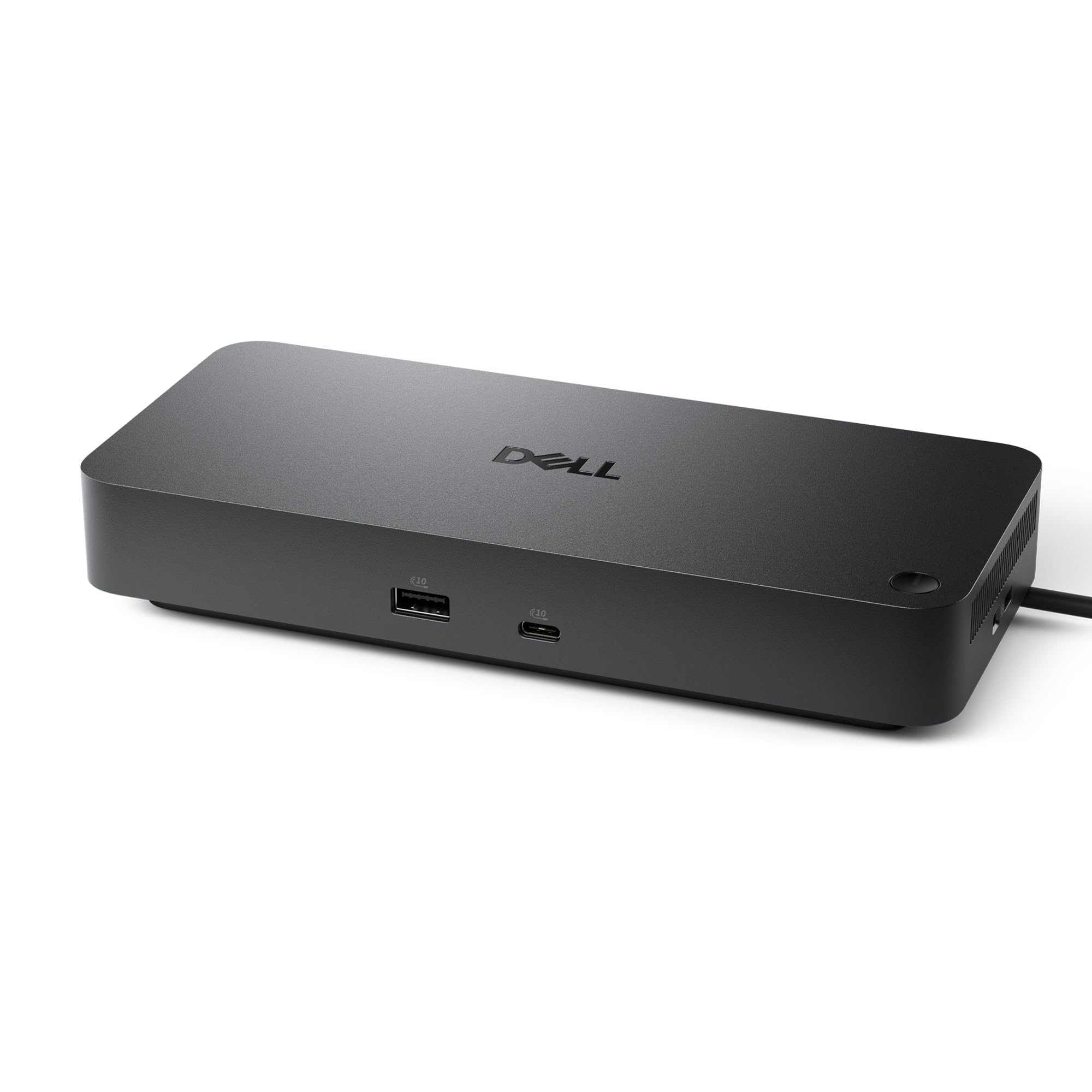
Four displays and 100W charging are the two numbers that make the Dell WD25 the default dock on this list. It's a business-class USB-C dock with 10 ports, six of them USB, plus HDMI, DisplayPort, Ethernet, and an ambidextrous USB-C cable that can route left or right. We like that flexibility because it lets the cable disappear toward the back of a desk rather than looping across the front.

What sold us is the breadth: Windows 10 and 11, Ubuntu 24.04, Red Hat Enterprise Linux 9.6+, and ChromeOS 137 are all on the compatibility list. In use, the WD25 is the kind of dock that disappears: plug in one cable, and the laptop charges, the wired network comes up, and the keyboard and mouse stay connected. The 130W adapter gives the dock headroom while delivering 100W to the laptop, so a mainstream 65W or 90W machine won't be starved.

The limitation is the single HDMI output. If both of your monitors are HDMI-only, you'll need an adapter or a DisplayPort cable for the second screen. That's a small tax on an otherwise generous port layout. The three-year limited hardware warranty with advanced exchange is the part that makes it easy to leave on a desk for years.

Pros

  • 100W charging over one cable
  • Up to four displays
  • Broad operating-system support
  • Three-year hardware warranty

Cons

  • Only one HDMI output
Our verdict

The WD25 is the dock we recommend for most desks: 100W charging, four-display support, and a three-year warranty cover a mixed Windows, Chrome, or Linux setup.

Check Latest Price
2

Best Thunderbolt 4

Dell Pro SD25TB4

81 /100
LBD Score Excellent

Key details

Network
2.5GbE
Thunderbolt
2x Thunderbolt 4
Display Support
Up to 4 4K displays
Laptop Charging
130W Dell, 96W others
View on Amazon

The Dell Pro Thunderbolt 4 Smart Dock SD25TB4 is the dock you choose when the desk has to do more than one thing well: Thunderbolt 4, 2.5GbE, and enough display outputs to keep four 4K screens running. It's a 12-port smart dock with two Thunderbolt 4 ports, two DisplayPort 1.4, HDMI 2.1, 130W USB-C charging for Dell laptops and 96W for others, and remote management over Wi-Fi.

We think the 2.5GbE port is the detail that separates it from the cheaper USB-C docks here. If you move large files to a NAS or work on a managed network, the extra headroom is worth paying for; if you're just connecting a mouse and a pair of 1080p monitors, it's overkill. The dual Thunderbolt 4 ports also let you chain up to six devices, which is the kind of expansion a creative or IT-managed desk actually uses. Setup is plug-and-play, and the back-facing USB slots keep the desk-side cables tidy.

The trade-off is price and Dell-specific charging: non-Dell laptops top out at 96W, and the dock costs more than the WD25. That's the premium for Thunderbolt 4 and 2.5GbE, not a hidden flaw. If your laptop is a Dell with a Thunderbolt 4 port, the 130W handshake is the reason to pick this one over a universal dock.

Pros

  • 130W charging for Dell laptops
  • Up to four 4K displays
  • 2.5GbE and remote Wi-Fi management
  • Dual Thunderbolt 4 ports

Cons

  • 96W charging for non-Dell laptops
  • Premium price for Thunderbolt 4
Our verdict

For a Thunderbolt 4 desk that has to drive four screens and a 2.5GbE network, the SD25TB4 is the most capable dock here.

Check Latest Price
3

Best for Desk and Travel

Anker Nano 13-in-1

82 /100
LBD Score Excellent

Key details

Ports
13
Display Support
3 displays (2 HDMI, 1 DP)
Laptop Charging
100W
Included Adapter
140W
View on Amazon

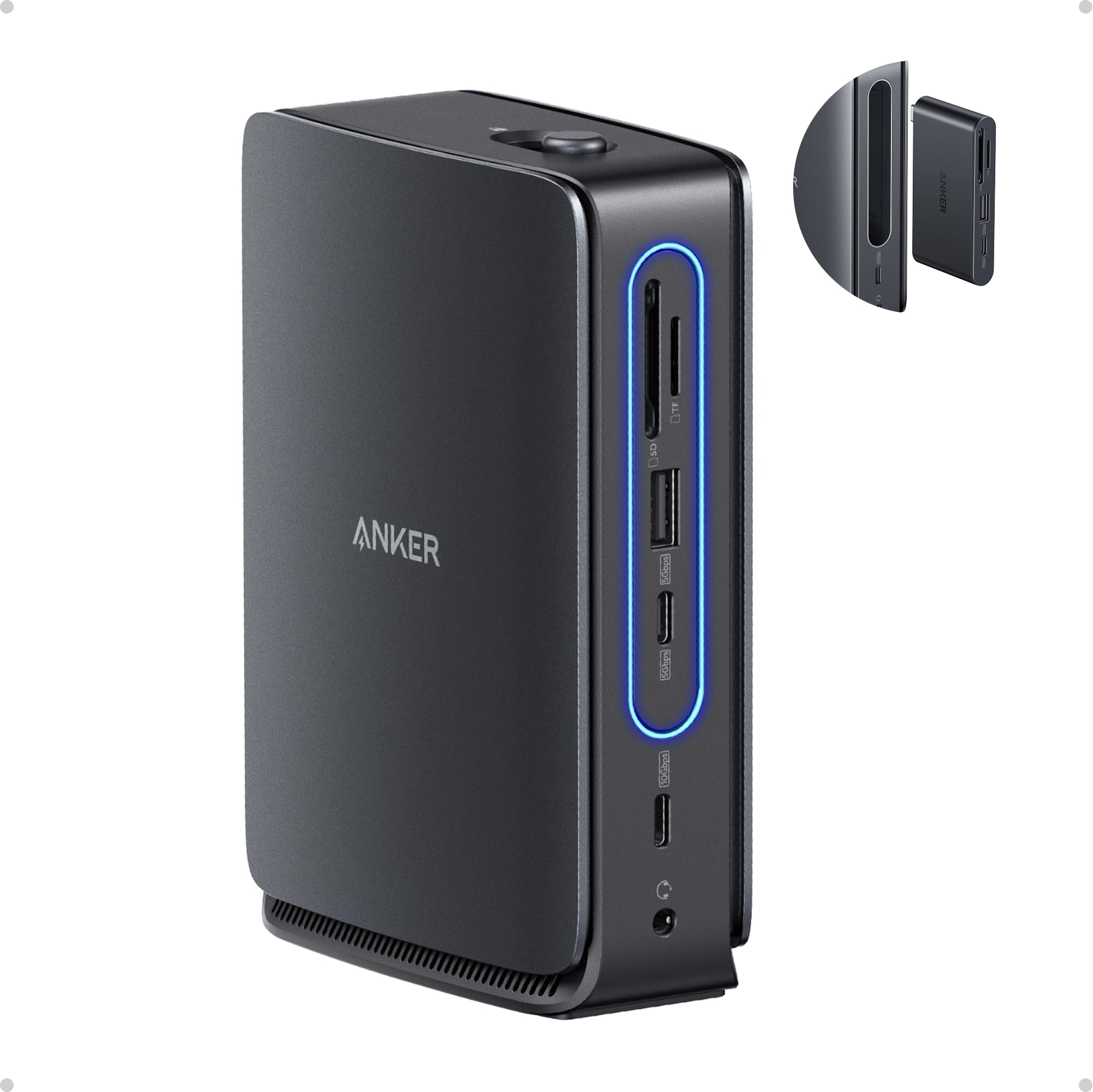
The Anker Nano's party trick is the 6-in-1 hub that snaps out of the 13-in-1 desktop dock. That one design choice solves a real problem: you can leave the power adapter, Ethernet, and monitor cables connected at the desk, then take the small center section on the road without buying a second accessory. We like it for hybrid workers who don't want to rebuild their setup every time they move.

At the desk, the Nano covers three displays through two HDMI ports and one DisplayPort, with up to 4K at 60Hz on a single screen. It also brings 10Gbps USB-C data, three USB-A ports, Gigabit Ethernet, audio, and SD/TF slots. The 140W adapter feeds 100W to the laptop, so a 90W or 100W machine can charge while the dock runs the rest of the desk. The detachable section is the part we kept coming back to: it's small enough to live in a laptop bag and useful enough to leave there.

Connectivity is the caveat. Some Macs and multi-monitor setups can hit HDMI handshake problems, and the dock is happiest with a full-featured USB-C or Thunderbolt port. If your laptop has a locked-down USB-C port without DisplayPort Alt Mode, this isn't the dock that fixes it. For everyone else, the Nano is the most practical desk-and-travel dock in this group.

Pros

  • Detachable 6-in-1 travel hub
  • Three display outputs
  • 100W charging with included 140W adapter
  • 13 ports including Ethernet and SD/TF

Cons

  • HDMI handshake issues on some Mac setups
  • Requires full-featured USB-C port
Our verdict

If you want one dock for the desk and a lighter hub for the road, the Anker Nano's detachable center section is the cleverest design here.

Check Latest Price
4

Best Budget Triple Display

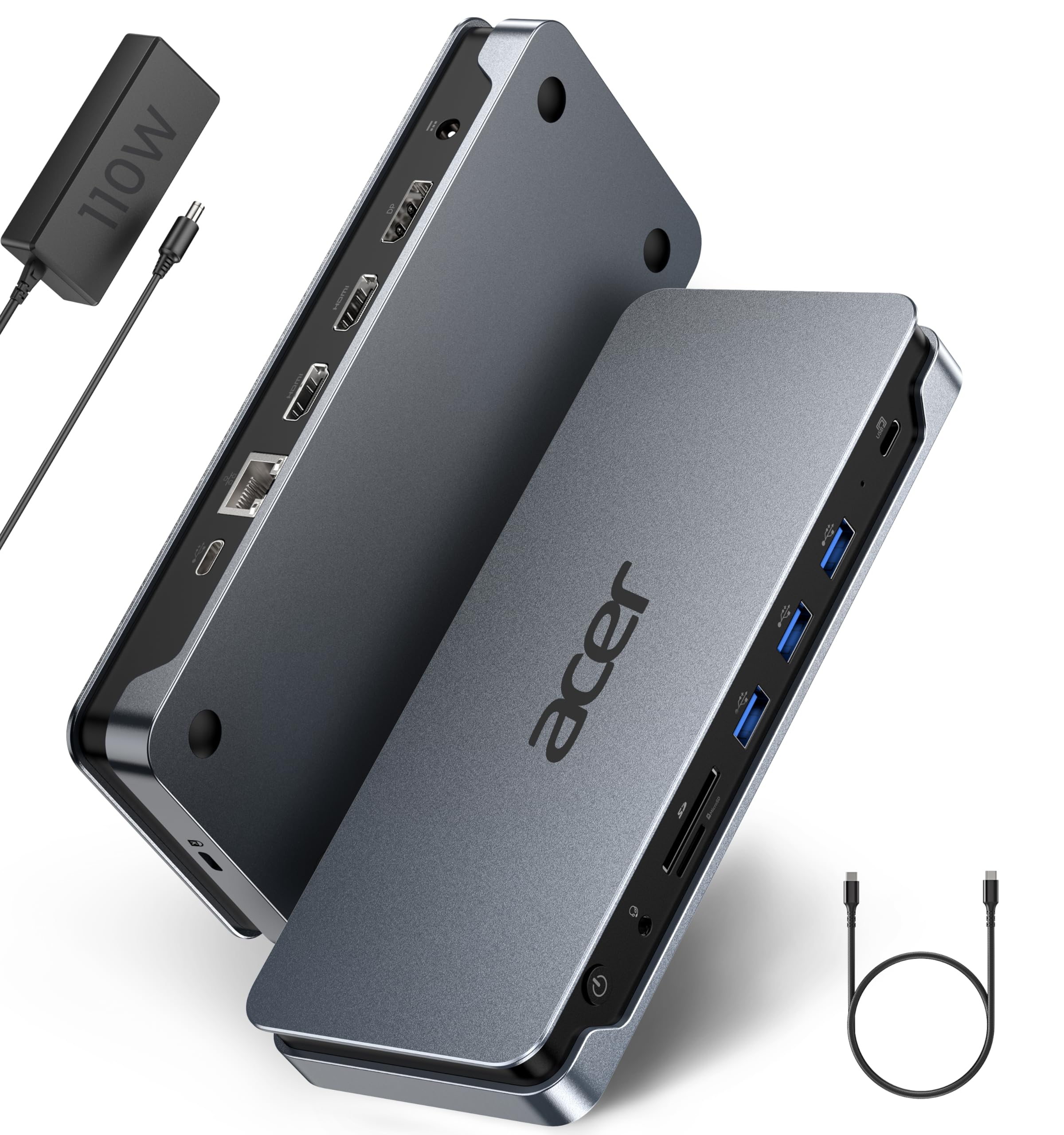
Acer 13-in-1

81 /100
LBD Score Excellent

Key details

Ports
13
Display Support
3 displays (2 HDMI, 1 DP)
Laptop Charging
100W
Included Adapter
110W
View on Amazon

The Acer 13-in-1 is the value play for a Windows desk that needs three screens. It pairs two HDMI ports and one DisplayPort with 100W laptop charging and includes a 110W power adapter, so you're not hunting for a separate USB-C charger just to make the dock work. Add Gigabit Ethernet, four USB data ports, and SD card support, and it covers the everyday desktop without the Thunderbolt premium.

We think the triple-display support is the reason to pick it: Windows laptops with MST can run three independent screens, and the Acer makes that setup affordable. The build feels solid in the hand, and the labeled ports make the first setup straightforward. The catch is that macOS is limited to a single extended display, so this is a Windows-first dock. It also runs its USB ports at 5Gbps rather than 10Gbps, which matters only if you move large files often.

One more thing to check: power delivery can be fussy with some Dell laptops, so test the charge rate in the return window if your machine is picky about USB-C charging. That's a condition to verify, not a reason to avoid the dock for every Windows setup. If you want three monitors and 100W charging for the least money among the triple-display docks here, the Acer is the one.

Pros

  • Triple display for Windows
  • 100W charging with included 110W adapter
  • 13 ports with Ethernet and SD
  • Solid build quality

Cons

  • macOS limited to one extended display
  • 5Gbps USB data ports
Our verdict

The Acer 13-in-1 is the value pick for a Windows desk that needs three screens and 100W charging without paying Thunderbolt money.

Check Latest Price
5

Best for Three Monitors

Plugable UD-3900PDZ

86 /100
LBD Score Excellent

Key details

Warranty
2 years
USB Ports
6x USB 5Gbps
Display Support
3 HDMI (1 4K, 2 1080p)
Laptop Charging
100W
View on Amazon

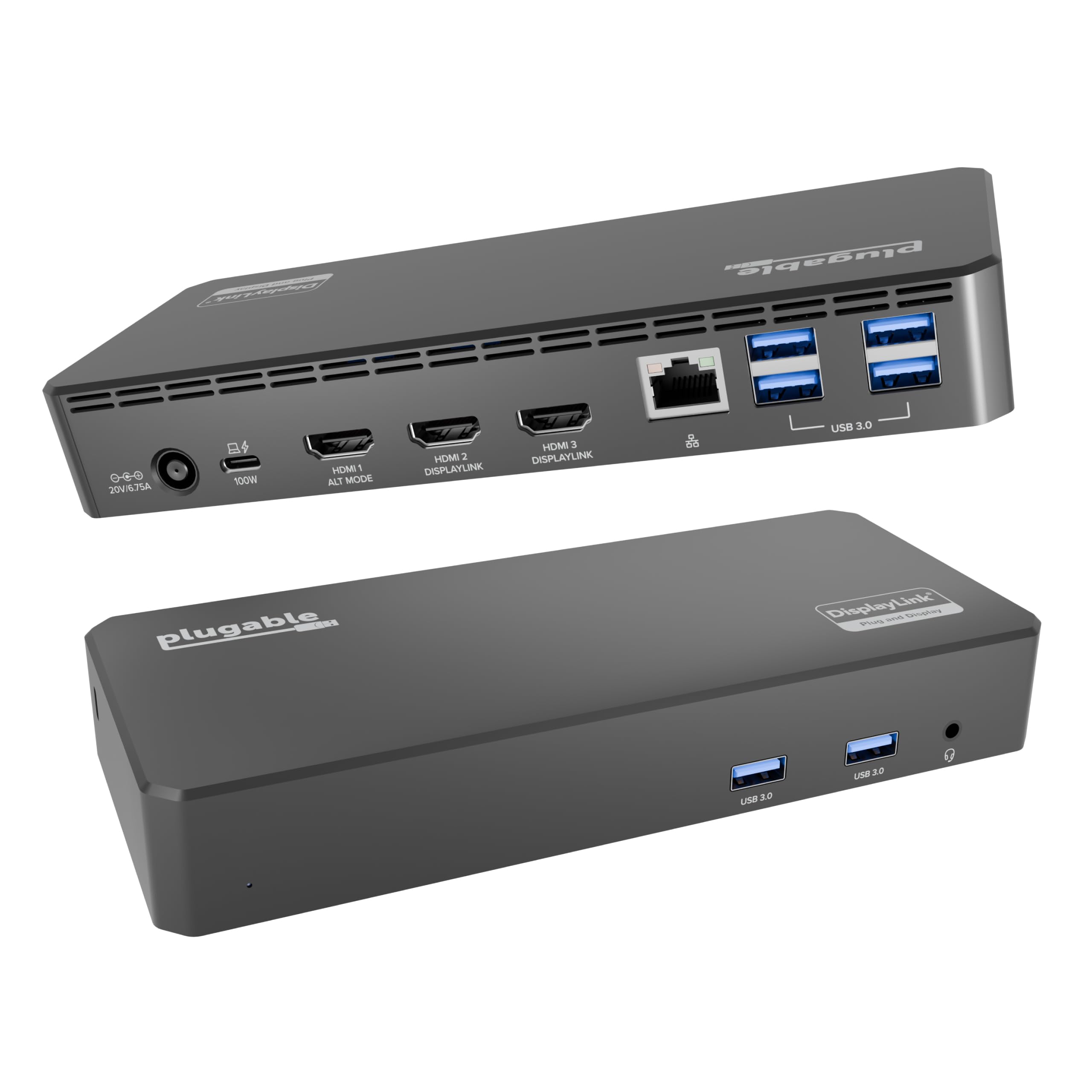
Three HDMI outputs is an unusual thing to find on a USB-C dock, and it's the reason the Plugable UD-3900PDZ earns a place here. One output runs up to 4K at 30Hz through the laptop's native USB-C video, while the other two run 1080p at 60Hz through DisplayLink. That mix is not a universal win—if you need three 4K screens, keep looking—but it is a practical way to add screens to a mixed Mac and Windows office.

We were impressed by how much display flexibility the dock buys for the money: 100W charging, six USB 5Gbps ports, and support for Windows, macOS, and ChromeOS in one box. The DisplayLink driver is the trade-off on macOS. It's a manual install, and it's what lets the Mac run more displays than its native port supports. On Windows, the setup is more straightforward. The dock also carries a two-year warranty, which is a useful cushion for a dock that runs three screens.

The reliability picture is mixed: some units lose one of the display outputs over time, and the second monitor is the one to watch. That's a condition worth checking in the return window, especially if you're running a trading desk or a classroom display. If you need three screens and can live with 1080p on two of them, this is the most flexible dock in the group.

Pros

  • Three HDMI outputs
  • 100W laptop charging
  • Six USB 5Gbps ports
  • Works across Windows, macOS, and ChromeOS

Cons

  • Two of three displays top out at 1080p
  • DisplayLink driver required on macOS
Our verdict

For a three-monitor desk that mixes Mac and Windows laptops, the UD-3900PDZ is the most flexible way to add screens, as long as you can live with 1080p on two of them.

Check Latest Price
6

Older Laptops

Plugable UD-3900

91 /100
LBD Score Outstanding

Key details

Network
1GbE
USB Ports
6
Display Support
2 HDMI (1920x1200)
Laptop Charging
None
View on Amazon

The Plugable UD-3900 starts with a limitation you need to hear first: it does not charge your laptop. It's a full desktop dock for older USB-A and USB-C machines, with two HDMI outputs, Gigabit Ethernet, audio, and six USB ports, but the laptop's own power adapter stays plugged in. We think that's still a fair trade for a legacy desk or a tight budget, as long as you know what you're giving up.

What it does, it does with unusual consistency for a dock this old-school. The hybrid USB 3.0/USB-C cable covers laptops that predate USB-C, and the DisplayLink driver setup is well documented. Dual displays top out at 1920x1200 at 60Hz, and a single HDMI screen can reach 2560x1440 at 50Hz; 4K is not on the menu. That's fine for spreadsheets, email, and a pair of 24-inch office monitors, but it's not the dock for photo editing or a 4K creative setup. The six USB ports are the quiet luxury here: keyboard, mouse, webcam, headset, and two drives can all stay connected.

The UD-3900 is the one to choose when your laptop still has a USB-A port and you don't want to replace a working charger. It's also backed by a two-year warranty and lifetime support, which matters more on a dock you plan to keep through a laptop upgrade. Just don't buy it expecting a one-cable desk; this is a two-cable desk with better port coverage.

Pros

  • Dual HDMI and Gigabit Ethernet
  • Six USB ports
  • Works with USB-A or USB-C laptops
  • Two-year warranty and lifetime support

Cons

  • Does not charge the laptop
  • No 4K; dual displays top out at 1920x1200
Our verdict

The UD-3900 is for the older laptop that still needs two screens and a wired network; it does not charge the laptop, so keep the power brick plugged in.

Check Latest Price

How We Tested Laptop Docking Stations at Real Desks

I built the shortlist from spec sheets first — how many displays a dock claims, which video outputs it uses, whether it actually charges the laptop or only passes data, and whether it works on plug-and-play or needs a driver install. I set aside anything that topped out below 85 watts of power delivery, since that won't keep a larger laptop alive under load, and anything locked to one brand. That left 12 docks, which we tested for six months on a standing desk, a shared office desk, a kitchen table, and in a backpack on commutes, comparing what each one cost against the ports it actually delivered.

Setup was stopwatch work: I plugged each dock into a cold laptop and counted the seconds until a display appeared, noting whether anything had to be downloaded first. Then I closed the lid and added a second and third monitor, checking whether the Mac mirrored the screens or truly extended them and whether refresh rates dropped. For charging, I ran a video call and a large file export at once and tracked the battery percentage for an hour, with a power meter in line to see what reached the laptop versus what the dock claimed.

Ports got loaded all at once — flash drives in every USB-A, a phone charging, Ethernet, an SD card yanked mid-transfer — and I watched for a flickering display or a stuttering mouse. Durability came down to repetition: unplugging and re-plugging the host cable twenty times a day, bending it at an angle, and carrying the smaller units between home and office. I also felt the top of each dock after an hour of charging and transfers, since a hot brick is usually a throttled one.

How to Choose a Laptop Docking Station

Start with the laptop, not the port count

A 14-in-1 label tells you how many connectors the dock has, not how many screens your laptop can run. You need a full-featured USB-C port with DisplayPort Alt Mode for video, and Power Delivery if you want charging through the same cable. Thunderbolt 4 adds bandwidth and a cleaner path to multiple 4K displays, but it is not required for a normal two-monitor office desk. We treat Thunderbolt as a bandwidth decision, not a badge. Check the laptop's own spec sheet for the maximum external displays and resolution before you pay for outputs the machine cannot use.

Count screens, then match the outputs

Two HDMI ports are convenient, but they are not automatically two independent screens. Resolution matters too: a dock that promises three displays may run one at 4K and two at 1080p. The Plugable UD-3900PDZ is the clearest example—one 4K output and two 1080p outputs, which is a good trading-desk setup and a poor photo-editing one. Match the dock to the monitors you own now, and leave one output free if you plan to add a screen. If you need every display at 4K, expect to pay for Thunderbolt or a higher-bandwidth dock.

Treat charging as a wattage question

A dock's charging number should be close to your laptop's own adapter. A 100W dock is comfortable for most 65W and 90W ultrabooks; a 130W dock is better for a high-power Dell or a workstation laptop. Pass-through docks are different: they borrow your USB-C charger and lose some wattage to the dock itself, so a 100W charger may deliver only 85W to the laptop. If the dock does not include an adapter, plan for one that meets the laptop's requirement. The Plugable UD-3900 is the exception here: it is a dock without laptop charging, so it only makes sense if you keep the laptop's adapter connected.

Decide whether the dock stays on the desk

Desktop docks are built to stay put: they have more ports, a bigger power brick, and usually better cable routing. Travel hubs are smaller and bus-powered, but they often give up Ethernet, card slots, or full charging. The Anker Nano 13-in-1 splits the difference with a detachable 6-in-1 section, which is genuinely useful if you move between an office and a kitchen table. Buy for the desk first; the travel piece is a bonus, not the reason to choose a dock. A dock that lives under a monitor can be heavier and less tidy; a dock that travels needs a captive cable and a small footprint.

Plan for support, not just ports

Docks sit in the background until a display output or the charging circuit fails, and that is when the warranty matters. A three-year advanced-exchange plan, like the one on the Dell WD25, is worth more on a work desk than an extra USB-A port. For a mixed Mac and Windows office, check that the maker supports the operating systems you actually run and offers a driver path for the displays. A two-year warranty and real support are the quiet specs that keep a dock useful after the laptop changes.

Frequently Asked Questions

Final Verdict

For most people, the Dell WD25 is the dock to buy. It delivers 100W charging, four-display support, and a three-year warranty without the Thunderbolt premium, which makes it the easiest recommendation for a mixed Windows, Chrome, or Linux desk. The single HDMI output is the one compromise to plan around.

If your laptop is Thunderbolt 4 and your work depends on 2.5GbE or four 4K screens, the Dell SD25TB4 is the better spend. For a desk that has to travel, the Anker Nano 13-in-1 is the one we reach for. Start with the WD25 unless one of those specific needs changes the calculation.