Best Dual Monitor Docking Stations of 2026

Laptops get thinner by shedding ports, and the bill comes due on your desk: a cable to each monitor, a dongle for ethernet, a charger, a webcam receiver. A docking station turns that pile into one cable, and whether you can plug in and forget it is the whole ballgame.

I've had a dock on my desk for years, and I still side-eye any box promising two displays, laptop charging, and a row of USB ports. Over the past six months, my team and I tested 10 docking stations, and the spec sheet was the least useful thing about most of them. A dock can advertise 4K and run it at a refresh rate that makes the cursor drag like it's underwater; the wattage printed on the box is rarely what your laptop receives.

So we judged the dull stuff: whether both screens wake on the first try, whether the battery climbs during a long call, and whether the ports you need are still free once the monitors and ethernet are plugged in. Everything below earned its spot.

1

Best Overall

Dell Pro WD25

86 /100
LBD Score Excellent

Key details

Displays
Up to 4
Warranty
3 years
USB Ports
6
Laptop Charging
100W
View on Amazon

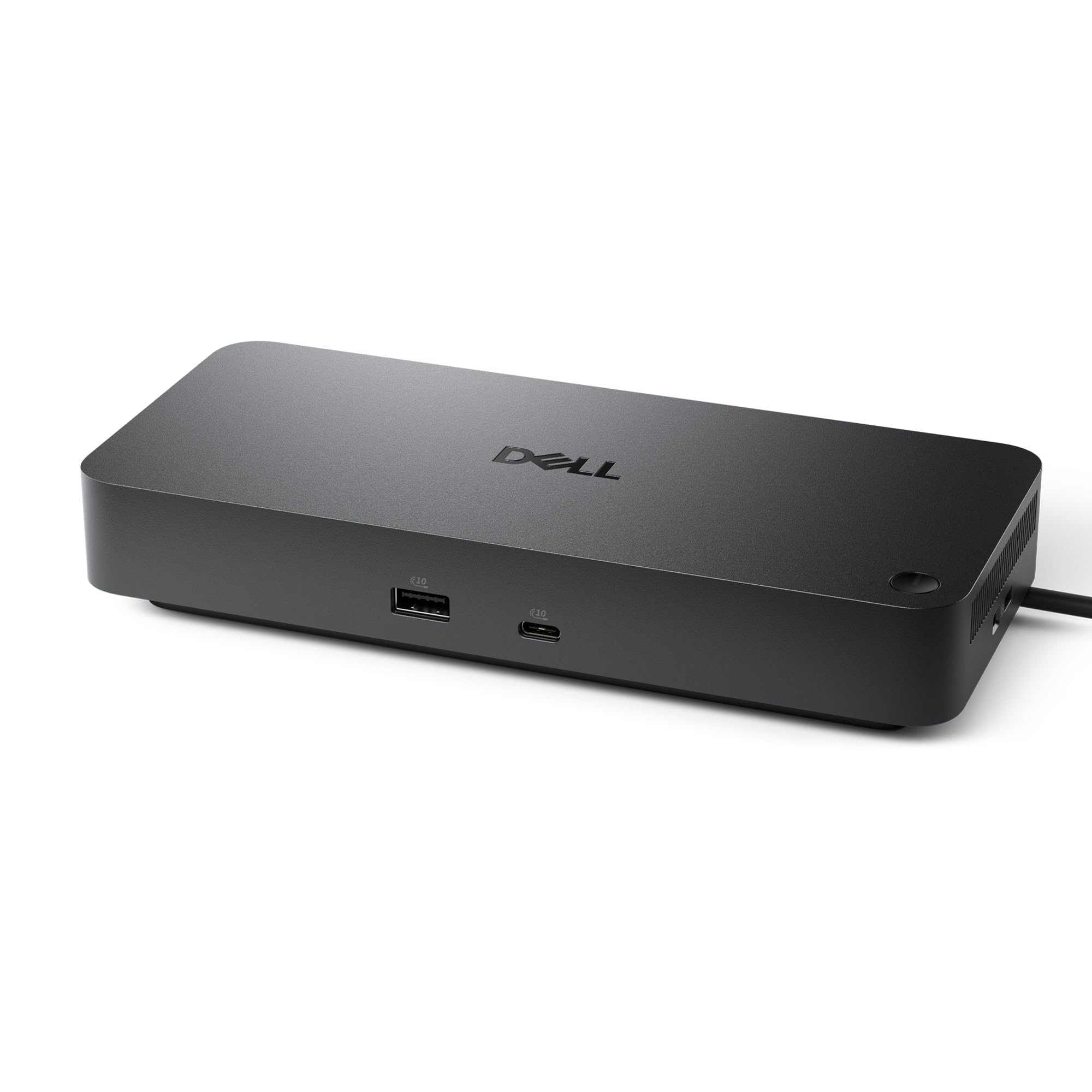
The first thing we noticed about the Dell Pro WD25 is the cable: it can be routed out the left or right side, which matters more than it sounds when the dock sits against a wall or under a monitor. At 8.07 by 3.54 by 1.39 inches and 1.2 pounds, it is compact enough to tuck behind a laptop stand, and the 100W USB-C power delivery means the same cable that carries the displays also charges a mainstream laptop.

The port count is the reason we put it at the top. Six USB ports, Ethernet, one HDMI, one DisplayPort, and support for up to four high-resolution displays cover a two-monitor office without a second hub. We like that the dock is built for Windows, ChromeOS, Ubuntu, and Red Hat rather than pretending to be all things to every laptop; it is the one we choose for a mixed-PC office where the monitors stay put and the laptop comes and goes.

Dell's three-year limited hardware warranty is longer than most docks here, and the ambidextrous cable makes a tidy desk easier. The one HDMI and one DisplayPort pairing is worth checking against your monitors; a DisplayPort cable is the clean way to add the second screen. That cable routing is the small design detail we appreciate every time we slide the laptop into place.

Pros

  • 100W laptop charging over USB-C
  • Up to four high-resolution displays
  • Six USB ports plus Ethernet and video
  • Three-year hardware warranty

Cons

  • No macOS compatibility listed
Our verdict

The WD25 is the dock we recommend first for a Windows desk: 100W charging, up to four displays, six USB ports, and a three-year warranty in one tidy box.
Check Latest Price
2

Best for Macs and Triple Displays

Plugable UD-3900PDZ

86 /100
LBD Score Excellent

Key details

Displays
3 HDMI
USB Ports
6
Laptop Charging
100W
Display Resolution
1× 4K @ 30Hz via Alt Mode, 2× 1080p @ 60Hz via DisplayLink
View on Amazon

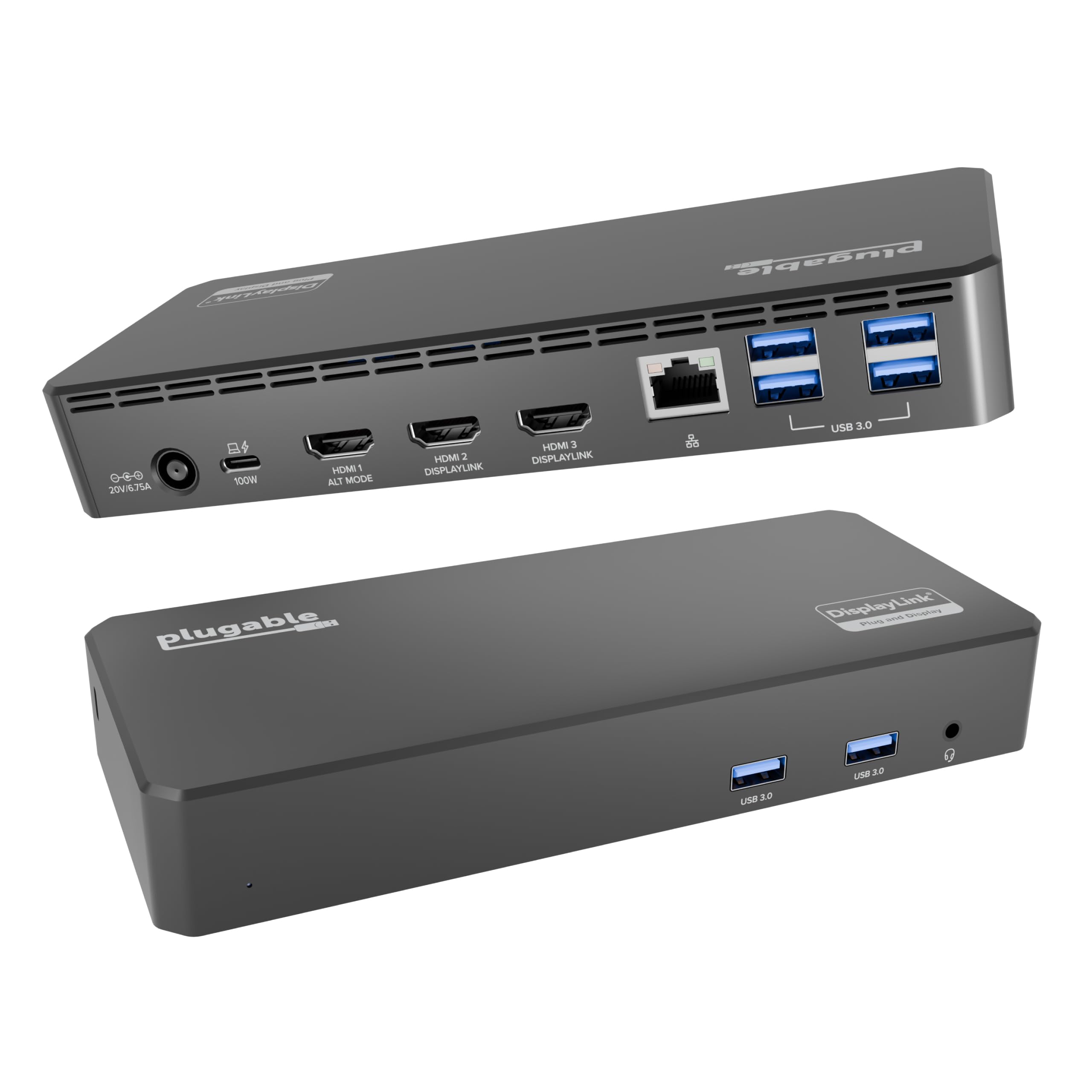
A MacBook and three monitors is the setup that separates the useful docks from the spec sheets. The Plugable UD-3900PDZ gets there with one 4K display at 30Hz over USB-C Alt Mode and two 1080p displays at 60Hz through DisplayLink, so the Mac sees three separate screens instead of three copies of the same one.

We like the practicality of that mix. One hundred watts of power delivery means a single cable can charge a MacBook Pro or a Windows laptop, and six USB 5Gbps ports leave room for a keyboard, mouse, drive, and phone cable without a second hub. DisplayLink is the technology that makes the extra screens possible on a Mac, and it works on Windows and ChromeOS too.

The trade-off is resolution: only one of the three displays reaches 4K, and it runs at 30Hz. If your monitors are 4K and you want 60Hz on both, the Acer 13-in-1 is the better Windows choice; if you need a Mac to drive more than two screens, this is the one we point you to. Plugable's two-year warranty and lifetime support add some reassurance.

Pros

  • Three extended displays via HDMI
  • 100W laptop charging
  • Six USB 5Gbps ports
  • Two-year warranty and lifetime support

Cons

  • Requires DisplayLink driver
Our verdict

For a MacBook or a three-screen desk, the UD-3900PDZ is the dock we trust: DisplayLink adds extended displays and 100W charging, with a 1080p cap on two screens.

Check Latest Price
3

Best with Included Power Adapter

Acer 13-in-1 Dock

81 /100
LBD Score Excellent

Key details

Displays
2 HDMI + 1 DP
USB Ports
4
Laptop Charging
100W
Included Adapter
110W
View on Amazon

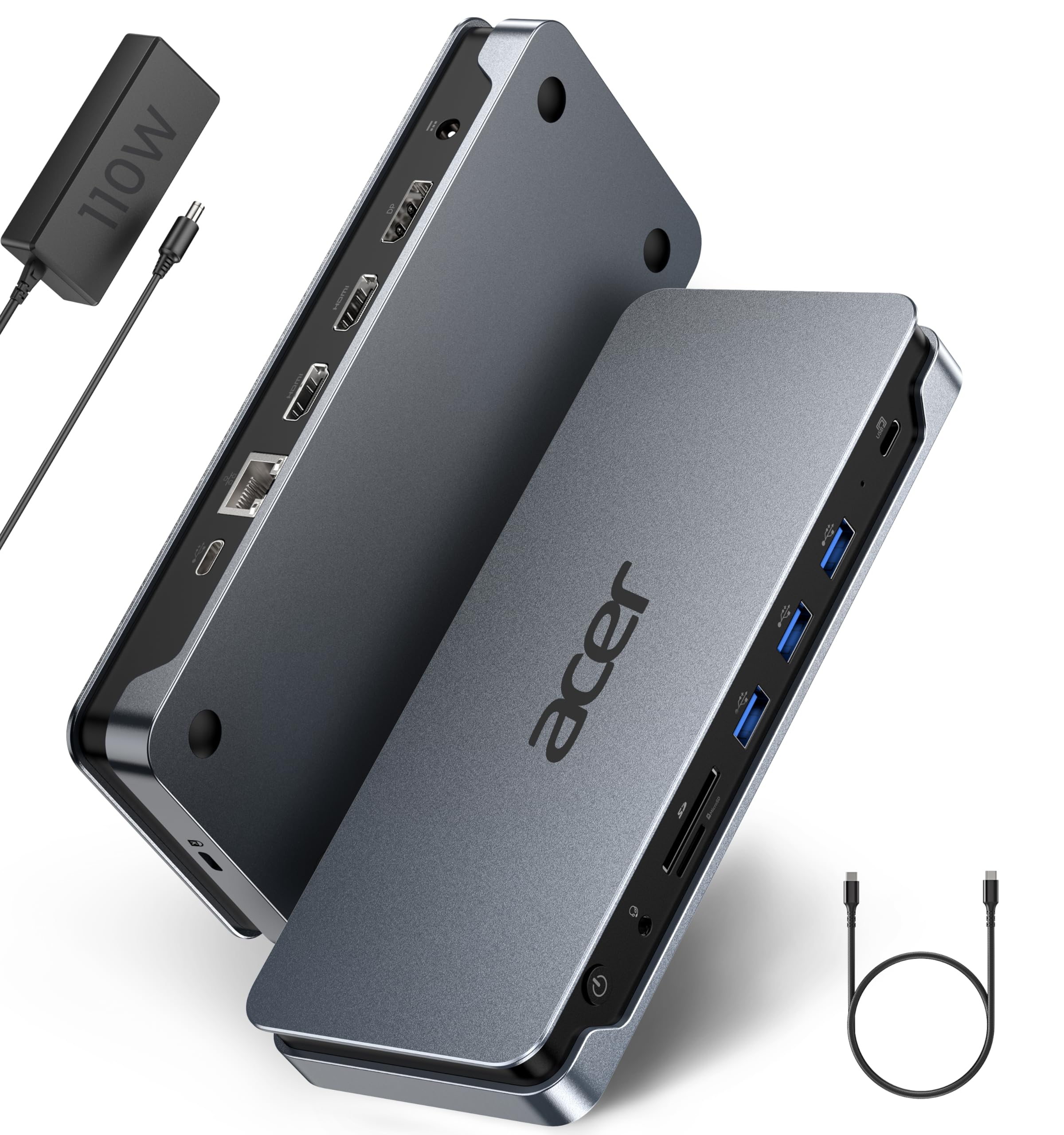
A dock that includes its own 110W power adapter is rarer than it should be. The Acer 13-in-1 does, and that single fact makes it easier to recommend than a cheaper hub that leaves you hunting for a USB-C charger that can actually keep up. Plug it into a full-featured USB-C port on a Windows laptop and you get two HDMI outputs plus DisplayPort, enough for three independent screens.

We like the 13-port layout for a fixed desk: four USB ports, Gigabit Ethernet, audio, and 100W laptop charging, all fed by the included adapter. The 5Gbps USB ports are not the fastest here, but they are fine for a keyboard, mouse, and external drive. The space-gray body is compact enough to sit quietly under a monitor, and the three video outputs are the reason it earns a runner-up slot.

One small detail we appreciate: the USB-C data port sits opposite the host cable, so a thumb drive is easier to reach without turning the dock around. The 13-in-1 is a fixed-desk dock, not a travel hub, and its 110W adapter is the reason it can keep a laptop charged while three screens are live.

Pros

  • Included 110W power adapter
  • Two HDMI plus DisplayPort
  • 100W laptop charging
  • 13 ports with Ethernet and 5Gbps USB

Cons

  • macOS gets only one extended display
  • One-year warranty
Our verdict

The Acer 13-in-1 is the complete Windows dock we choose for three screens, because the 110W adapter, 100W charging, and two HDMI plus DisplayPort are all in the box.

Check Latest Price
4

Best Compact Budget Dock

Anker Nano Dock

86 /100
LBD Score Excellent

Key details

Displays
2 HDMI
Resolution
Dual 4K@60Hz for DP 1.4
USB Data Speed
10 Gbps
Laptop Charging
85W max
View on Amazon

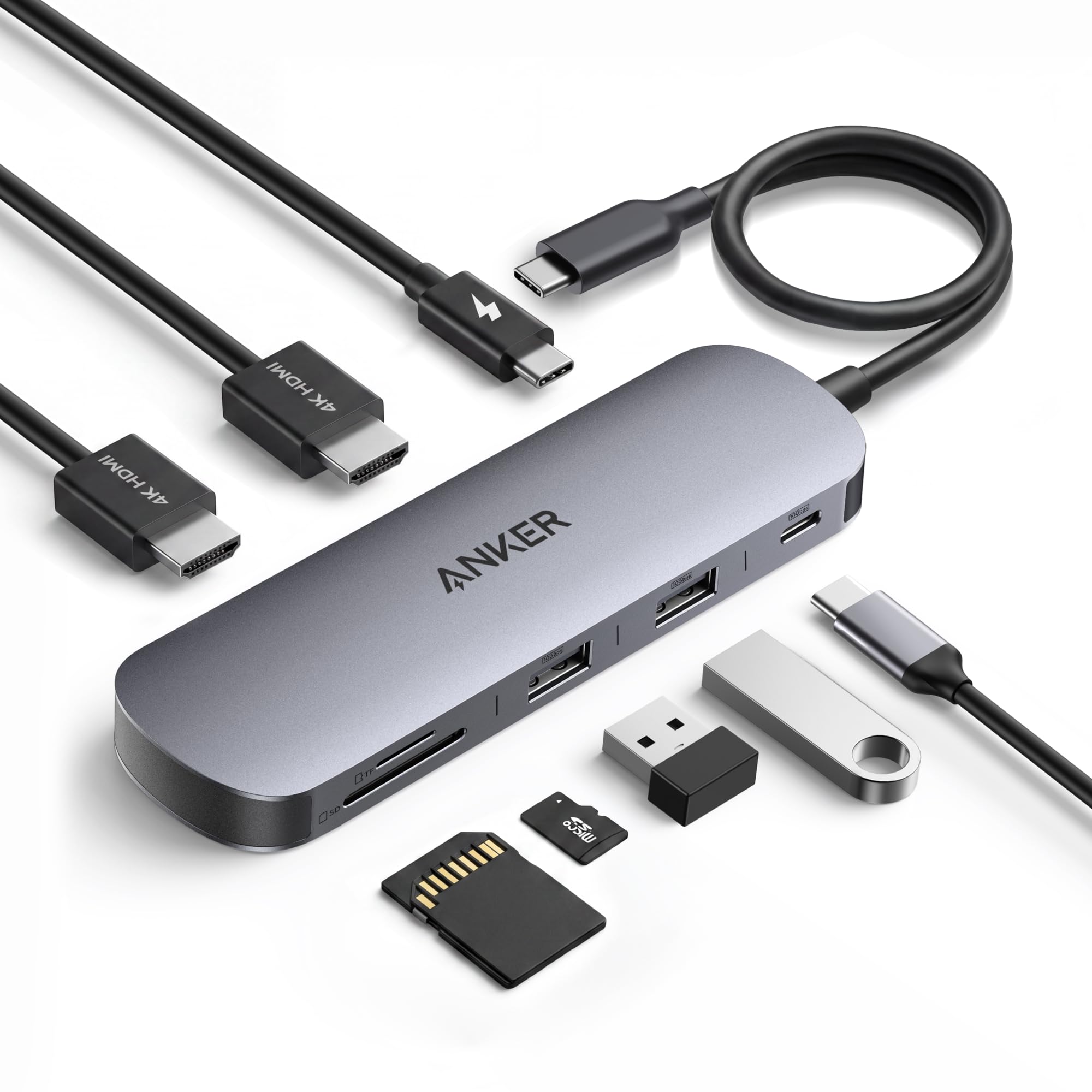
The Nano is the dock we reach for when the bag is already full. At 3.84 ounces and under an inch thick, it takes up less room than a phone, yet it carries two HDMI outputs, a 100W USB-C PD input, an 85W pass-through charge, a USB-C data port, two USB-A ports, and SD/microSD slots. For a Windows laptop with DisplayPort Alt Mode, that is a serious travel kit.

We especially like the 10Gbps rating on the USB-A and USB-C data ports, because it makes an external SSD feel native rather than like a compromise. Dual 4K at 60Hz is also more than most budget hubs promise, and the aluminum body feels more substantial than the weight suggests.

The 85W pass-through is the number to check against your laptop's draw. A 65W ultrabook is comfortably inside it; a 100W workstation will charge more slowly, especially under load. The Nano is also a Windows-first design, with dual extended displays tied to DisplayPort 1.4.

Pros

  • Dual 4K@60Hz on Windows
  • 10Gbps USB-A and USB-C data
  • 85W pass-through charging
  • Compact aluminum body

Cons

  • No charger included
  • Macs mirror both displays
Our verdict

The Anker Nano is the compact budget dock we recommend for Windows laptops: dual 4K@60Hz, 10Gbps ports, and 85W pass-through in a body that disappears into a bag.

Check Latest Price
5

Best for Older USB-A Laptops

Plugable UD-3900

91 /100
LBD Score Outstanding

Key details

Displays
2 HDMI
USB Ports
6
Resolution
1920x1200 @ 60Hz
Host Connection
USB 3.0 or USB-C
View on Amazon

Most docks assume your laptop has a full-featured USB-C port. The Plugable UD-3900 does not: its hybrid cable connects to either USB 3.0 or USB-C, which makes it one of the few options here for an older laptop that still has a rectangular USB-A port. That alone gives it a place in a roundup about dual monitors.

The display setup is built for 1080p offices. Two HDMI monitors run at up to 1920x1200 at 60Hz, and a single monitor can reach 2560x1440 at 50Hz. We like that Plugable is upfront about the driver requirement, because a DisplayLink install is the difference between a working second screen and a frustrating afternoon.

Six USB ports, Gigabit Ethernet, and audio cover the rest of a desk, and the 13-ounce body stays put. The UD-3900 is a fixed-desk dock rather than a travel hub, and its two-year warranty is longer than most budget alternatives. For a 1080p setup with an older machine, it is a sensible way to add two screens without replacing the laptop.

Pros

  • Works with USB-A or USB-C laptops
  • Two HDMI outputs at 1080p
  • Six USB ports and Ethernet
  • Two-year warranty

Cons

  • No laptop charging
  • No 4K support
Our verdict

The UD-3900 is the dock we recommend for a 1080p office and an older USB-A laptop: two HDMI outputs, six USB ports, and a two-year warranty, with no laptop charging.

Check Latest Price
6

Tiny Budget Desks

Vicfluxion 9-in-1

88 /100
LBD Score Excellent

Key details

Displays
2 HDMI
USB Ports
4
Resolution
4K@60Hz
Laptop Charging
Up to 90W
View on Amazon

The Vicfluxion is the smallest full-featured dock in this group, and its port list reads like a larger model: two HDMI outputs at up to 4K@60Hz, Gigabit Ethernet, three USB-A 3.0 ports, a USB-C data port, a 3.5mm audio jack, and 100W USB-C PD input with up to 90W to the laptop. At 2.88 ounces, it is the one that can live in a laptop sleeve.

We like the dual 4K@60Hz claim at this size, because most budget hubs drop to 30Hz on the second screen. The three USB-A 3.0 ports are also more useful than a pair of USB 2.0 ports for a keyboard, mouse, and external drive. If your laptop has a full-featured USB-C port and you already own a USB-C charger, this is a lot of connectivity for the money.

The 90W ceiling is the number to watch: a 65W ultrabook is fine, but a 100W workstation will charge slowly or not at all under load. For a second desk or a travel bag, that is a reasonable trade. It is a budget dock, not the one we choose for a primary workstation with a power-hungry laptop.

Pros

  • Dual 4K@60Hz HDMI
  • Up to 90W charging
  • Three USB-A 3.0 ports
  • Tiny 2.88-ounce body

Cons

  • USB-C data port is USB 2.0
Our verdict

The Vicfluxion is the tiny budget dock we recommend for a Windows laptop that needs two 4K screens, 90W charging, and a wired network without spending much.

Check Latest Price
7

High-Power Dell Laptops

Dell WD19S Bundle

78 /100
LBD Score Very Good

Key details

Displays
Dual monitor
Power Supply
180W
Cables Included
HDMI and DisplayPort
Laptop Charging
130W
View on Amazon

The WD19S is the dock you choose when the laptop is a Dell and the charger is the bottleneck. The bundle includes a 180W power supply and delivers up to 130W over USB-C, which is more than the 100W docks here and enough for a mobile workstation that otherwise complains about slow charging.

The HDMI and DisplayPort cables come in the box, which matters because a dock that arrives without the cables is a shopping trip disguised as a product. The port layout covers dual monitors, three USB-A 3.0 ports, USB-C, and Ethernet, and the 3.2-pound body is heavy enough to stay put on a desk.

The compatibility list is narrower than a universal dock's: it is built around select Dell Latitude, Precision, and Inspiron models rather than every USB-C laptop. If you have a fleet of Dell laptops, the bundle is a practical way to standardize the desk and keep the cables together.

What makes the WD19S worth its place here is the power headroom: 130W is the highest delivery in this group, and the 180W supply leaves room for a loaded Precision without straining. For a mixed-brand office, the WD25 or a Plugable is the safer buy; for a fleet of Dell workstations, this is the bundle we recommend.

Pros

  • 130W laptop charging
  • 180W power supply included
  • HDMI and DisplayPort cables included
  • Three USB-A 3.0 ports

Cons

  • Renewed unit with one-year warranty
Our verdict

The WD19S bundle is the high-power Dell dock we recommend for a Precision or a loaded Latitude, with 130W charging and the HDMI and DisplayPort cables included.

Check Latest Price

How We Tested Dual Monitor Docking Stations

The shortlist started with the basics: at least two video outputs, a stated power delivery figure, a port layout we could live with, and whether the dock needed drivers installed before it would drive a second screen. We also weighed what came in the box, since a dock that leaves you hunting for a power supply or an HDMI cable is not the bargain it looks like. Ten made the cut.

Testing ran six months, on my home office desk, two colleagues' desks, and a rotating spot at the kitchen table on work-from-home days, with one unit commuting in a backpack to a coworking space twice a week. We rotated the same Windows work laptop, a personal MacBook, and a Chromebook through each dock, on the same two monitors.

Each dock got the same treatment. We timed the gap between plugging in the host cable and both screens waking, and counted the tries it took before the second display appeared. Then a 45-minute video call, with the battery percentage logged before and after, because a dock that loses charge while you work has moved your problem rather than solved it. We dragged windows across a 4K monitor at 60Hz watching for stutter, moved a folder of photos to an external drive, and ran a speed test through the ethernet port. Capacity meant the full load at once: two monitors, ethernet, webcam, keyboard, mouse, and a phone charging, with nothing dropping out.

Reliability was judged the boring way: plugging and unplugging the host cable dozens of times a week, switching machines the way a shared desk gets used, and watching for displays that flickered on their own. We felt how hot each power brick ran after a long afternoon, coiled the cables back into a bag, and checked port tightness after weeks of use. A dock that needs a wiggle to work did not stay on the list.

How to Choose a Dual-Monitor Docking Station

Match the dock to your laptop's display technology

A USB-C port is not automatically a video port. The laptop needs DisplayPort Alt Mode or Thunderbolt, and the dock has to support the same standard. On Windows, a USB-C dock can usually extend two displays over HDMI or DisplayPort; on macOS, most USB-C docks mirror the two screens unless they use DisplayLink. If you use a Mac and need three extended screens, make DisplayLink a requirement. The Plugable UD-3900PDZ is the clearest example here.

Decide how much charging you need

A dock's charging number is not the same as its input. A 100W USB-C PD input often sends 85W to the laptop because the dock keeps some power for its own ports. If your laptop came with a 100W charger, look for a dock that accepts 100W and delivers at least 85W, or one with an included power adapter. We prioritize included power supplies for laptops above 90W. The Acer 13-in-1 includes a 110W adapter and delivers 100W; the Anker Nano is pass-through and needs your charger.

Choose resolution by your monitors, not the box

Dual 4K at 60Hz is the headline, but a dock that runs one 4K and one 1080p may be all you need for a pair of office monitors. Higher resolution and refresh rate eat bandwidth, so budget docks often drop the second HDMI to 30Hz. If your monitors are 1080p, the Plugable UD-3900 is a better fit than paying for 4K you cannot use. If they are 4K, check that both HDMI ports are rated for 60Hz, not just one.

Check the desk fit and the warranty

A dock is a single point of failure, so support matters. Dell's WD25 carries a three-year warranty; Plugable's docks carry two years; Acer's 13-in-1 carries one. Also look at cable routing and port placement: an ambidextrous host cable is easier to hide, and a front-facing USB-C port saves you from reaching behind the desk. We care about these details because a dock that is awkward to plug into stops being a one-cable setup.

Frequently Asked Questions

Final Verdict

For most Windows desks, the Dell Pro WD25 is the dock we recommend. It delivers 100W, drives up to four displays, and gives you six USB ports and a three-year warranty without a second power brick. The single HDMI port is the one thing to check against your monitors.

If you use a Mac or need three extended screens, the Plugable UD-3900PDZ is the alternative; it trades 4K on every display for DisplayLink support and 100W charging. Budget buyers with their own USB-C charger can save with the Anker Nano.