Best Pen Display Tablets of 2026

A screenless tablet teaches you to draw blind — your hand moves in one place and the line lands a few inches away. A pen display closes that gap, which is why people who switch rarely switch back. But it doesn't close on every model: some keep a visible pocket of air between nib and mark, some wash out under a desk lamp, and some need recalibrating every time you shift the stand.

We've spent eight months drawing on eleven of them, from a 12-inch beginner panel to a 22-inch screen that ate half my desk, through client illustrations, animation roughs, and a lot of late-night sketching. What surprised me: a matte, laminated surface does more for accuracy than a slightly sharper panel, and you'll touch the shortcut keys far more often than you'll think about pressure levels.

Setup trips up more first-time buyers than pen quality does — drivers, cable counts, and whether your computer has the right port are where an evening disappears. The ones below all earned a permanent spot on my desk.

1

Best Overall

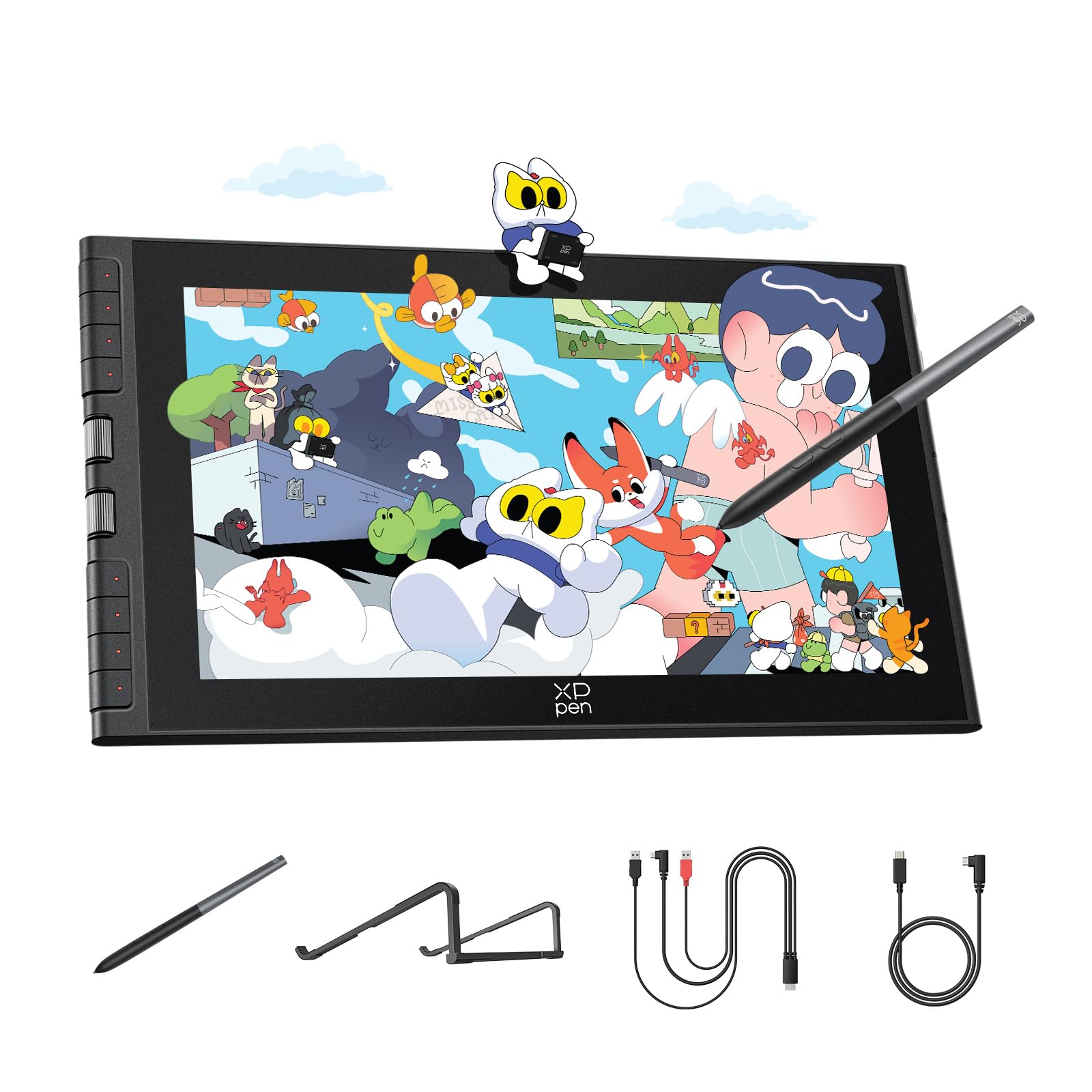
XPPen Artist Pro 14 Gen 2

88 /100
LBD Score Excellent

Key details

Resolution
1920x1200
Screen Size
14 inches
Color Coverage
99% sRGB
Pressure Sensitivity
16,384 levels
View on Amazon

Sixteen by ten is the detail we keep coming back to. The Artist Pro 14 Gen 2 is a 14-inch panel at 1920x1200, and that extra height over the 16:9 screens most of this group uses is the difference between parking your layers palette in a margin and burying it in a floating window over the artwork. The glass is fully laminated and etched, so the cursor sits under the nib instead of trailing a millimetre behind it, and it stays readable under a desk lamp.

XPPen rates the X3 Pro stylus at 16,384 pressure levels, which is more than anyone consciously uses. Where it shows up is the light end of a stroke, where feather pressure registers before the pen feels like it is pressing, and 60 degrees of tilt handles shading without a trip to the brush settings. The mini keydial is the piece we did not expect to care about: it sits on the desk beside the display, so zooming and stepping through layers does not mean reaching across the drawing you are trying to see.

It needs a host computer, like everything else here, and macOS users should check the driver against their exact OS version before ordering — a mismatched driver looks exactly like a dead tablet, which is the wrong first evening with a new tool. The etched surface also has real drag to it. We like that for pencil-style work; if you prefer the glide of smooth glass, this will feel slow for the first week.

Pros

  • Taller 16:10 canvas keeps toolbars out of the drawing
  • Fully laminated etched glass with negligible parallax
  • Desk-side keydial keeps shortcuts off the screen
  • 16K pressure levels and 60-degree tilt on a battery-free pen

Cons

  • Etched surface adds drag that slick-glass fans notice
  • macOS driver support needs checking before ordering
Our verdict

This is the pen display we point most artists to: a taller 16:10 canvas, current 16K pen tech, and a keydial that keeps shortcuts off the glass.
Check Latest Price
2

Best Large Studio Canvas

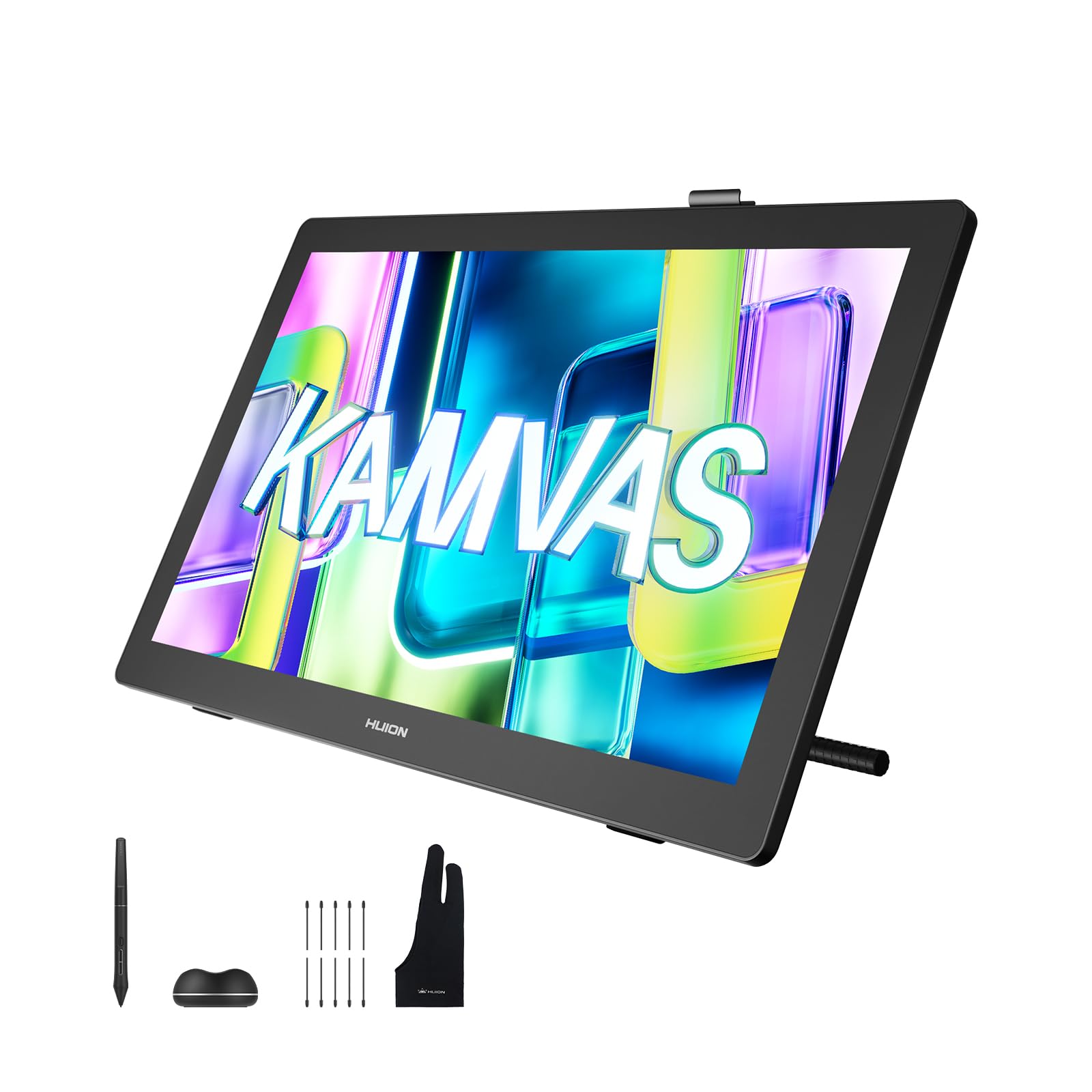
HUION Kamvas 22 Gen 3

91 /100
LBD Score Outstanding

Key details

Resolution
2560x1440
Screen Size
21.5 inches
Refresh Rate
90Hz
Color Accuracy
ΔE<1.2
View on Amazon

Clear a desk before you order this one. The Kamvas 22 Gen 3 is a 21.5-inch display that weighs 3.6 kg, and it wants a permanent home with room behind it for cables, a socket you never unplug, and enough depth that the far edge is not at arm's length. What you get for the space is the largest canvas in this guide and the only one that handles a full comic page at working size without zooming out.

The panel is the reason it is here. 2560x1440 across 21.5 inches is the sharpest combination in this group, and the 90Hz refresh rate is the only one above 60 — you notice it when a fast stroke stays smooth instead of smearing behind the nib. HUION factory-calibrates to ΔE<1.2 and builds in five professional color modes, which matters when files go to a printer or a client's brand guide. Canvas Glass 2.0 is nano-etched, so the pen has texture and a window behind you does not turn the screen into a mirror.

Setup deserves an evening rather than twenty minutes. The hookup is HDMI plus USB or a single full-featured USB-C cable, and seating both ends properly is the difference between drawing and a screen that insists there is no signal. Once it is talking, give it a fixed home — this is not a display you will want to unplug and re-seat every week.

Pros

  • 2.5K at 90Hz, the sharpest and smoothest panel here
  • Factory calibration to ΔE<1.2 with five color modes
  • Nano-etched anti-glare glass with paper-like texture
  • Cable management and ambient lighting for a fixed desk

Cons

  • 3.6 kg makes it a permanent desk fixture
Our verdict

If your work needs a full page on screen at once, we think the 2.5K 90Hz panel here justifies both the desk space and the price.

Check Latest Price
3

Best Mid-Size Value

HUION Kamvas Pro 16

91 /100
LBD Score Outstanding

Key details

Controls
6 keys + touch bar
Resolution
1920x1080
Screen Size
15.6 inches
Color Coverage
120% sRGB
View on Amazon

If canvas per dollar is what you optimize for, this is the pick: a 15.6-inch laminated screen for roughly the same money as our smaller top pick. The catch sits in the pixel count. Spreading 1920x1080 across 15.6 inches buys you drawing room, not detail — toolbar text looks softer here than it does on the denser 14-inch XPPen.

The folding stand is the part we ended up appreciating most. It is a bundled ST200 that runs from 20 to 60 degrees, and on a screen this size it is not a nicety: lying flat, the top edge is far enough away that you start hunching. The touch bar handles zoom and brush size with a swipe, and that swipe is easier to find blind than the six express keys beside it.

Color is generous at this price — 120% sRGB and 92% Adobe RGB on an 8-bit panel with 1000:1 contrast. The pen is the older generation at 8,192 pressure levels with 60-degree tilt, and the gap between that and the 16K pens here is smaller in the hand than on the spec sheet; line weight and tilt shading both behave. What you give up is future-proofing and a little crispness. Worth it if you sketch and paint broadly, less so if the day is spent at 100% zoom on fine linework.

Pros

  • 15.6-inch laminated screen for about the top pick's money
  • Adjustable ST200 stand included, 20 to 60 degrees
  • 120% sRGB color on an 8-bit panel
  • Six express keys plus a swipe touch bar

Cons

  • 1080p spread thin across 15.6 inches
  • 8,192 pressure levels, a generation behind the rest
Our verdict

Our pick when you want the most canvas for the money: a big laminated screen, a stand in the box, and color that holds up.

Check Latest Price
4

Best for Small Desks

XPPen Artist 12 3rd

89 /100
LBD Score Excellent

Key details

Controls
8 keys + 2 dial wheels
Resolution
1920x1080
Screen Size
11.9 inches
Pressure Sensitivity
16,384 levels
View on Amazon

Splitting brush size and zoom across two dials sounds like overkill until you have spent an afternoon diving into menus instead of drawing. XPPen put dual X-Dial wheels and eight keys on the Artist 12 3rd, and it is the control layout we miss whenever we go back to a single-wheel display.

The screen punches above its size: 11.9 inches at 1920x1080, full lamination, and nano-etched anti-glare glass with an anti-fingerprint coat — most of the top pick's surface treatment in a much smaller frame, plus 99% sRGB and ΔE<1.5 out of the box. At about 2.5 pounds it drops into a laptop bag without a second thought, which is the whole point. This is the one here you can carry to a class, a client's office, or a kitchen table and have running next to a laptop.

Small has a cost. An 11.9-inch canvas runs out of room on long sweeping strokes, and full comic pages or wide landscapes will have you zooming constantly. The pen is current, though — 16,384 levels, 2 grams of activation force, 60-degree tilt — so the limitation is the size of the paper, not the quality of the mark.

Connection is where to slow down. A single full-featured USB-C cable keeps the desk tidy, but only if your laptop's port carries video as well as data and power; otherwise you are on the 3-in-1 cable with the adapter. Set it up the day before a deadline, not the hour before.

Pros

  • Two dial wheels split brush size and zoom
  • Etched, laminated 11.9-inch screen at 99% sRGB
  • About 2.5 pounds, genuinely bag-friendly
  • 16K pen with 2-gram activation force

Cons

  • Tight canvas for full pages and long strokes
Our verdict

We recommend this one to anyone drawing away from a fixed desk — two dials, a proper etched screen, and about 2.5 pounds to carry.

Check Latest Price
5

Best Budget

UGEE UE16

86 /100
LBD Score Excellent

Key details

Controls
8 keys + scroll wheel
Resolution
1920x1080
Screen Size
15.4 inches
Color Coverage
143% sRGB
View on Amazon

A black-and-white drawing mode is not a feature anyone shops for, and it is the one we use most on this display. The UE16 switches between sRGB, Adobe RGB, DCI-P3, and a monochrome mode from the panel itself; drop into black and white for value studies or ink work and you stop second-guessing hues while you block in shapes. No other display here advertises a mode like it.

The rest of the spec sheet is why it earns a spot rather than a shrug: a 15.4-inch fully laminated 1920x1080 panel, 143% sRGB coverage, 16,384 pressure levels, 60-degree tilt, eight keys, a scroll wheel, and a pen with two hotkeys and an eraser on the end. The bezel is plain and the pen is light in the hand, but nothing about it feels flimsy. It is the most screen for the least money in this guide, and the wide gamut means color lands close to what a decent laptop shows.

The one real catch is the surface. Etched glass with a paper-like texture is lovely under the nib and hard on it — softer tips wear faster — and a screen protector is the usual fix, taking the wear itself and softening the texture slightly. Keep spare nibs on hand either way, because a worn tip drags on the coating that is doing the work.

The hookup is HDMI plus USB with a separate power adapter, so there is no single-cable USB-C option and you will want three ports free at the back of the desk. At this price that is a trade we accept happily: a big laminated screen and a wide color gamut first, polish later.

Pros

  • 15.4-inch laminated screen for the least money here
  • 143% sRGB with four selectable color spaces
  • 16K pen with two hotkeys and an eraser
  • Eight shortcut keys plus a scroll wheel

Cons

  • Etched surface wears nibs; a protector is worth adding
  • HDMI and USB plus a power brick, no single-cable option
Our verdict

Buy this if screen size is the budget line that matters most: 15.4 laminated inches, a wide gamut, and a 16K pen for the least money here.

Check Latest Price

How We Tested the Best Pen Displays

We started with about 30 pen displays from the major drawing brands and cut the list by size, price, and ports, aiming for a mix of small panels that sit beside a laptop and larger ones that take over a desk. Anything that couldn't connect to both a Windows PC and a Mac got dropped. That left eleven units, which we used for eight months.

Setup came first, since that's where most of the frustration in this category lives. I installed each driver fresh on Windows and on macOS and timed how long it took from unboxing to a recognized pen, then counted the cables each needed — a single USB-C, or HDMI plus USB plus power. On a shallow desk I adjusted every stand to see whether I could reach a comfortable drawing angle without the screen tipping.

The drawing test was the same file every time: slow diagonal lines to check for wobble, dense hatching to see whether the pen kept up, and fast flicks into the corners to catch the cursor drifting away from the nib. Between passes I put a printed color target and a reference photo next to each screen to see whether whites read neutral or blue, and whether skin tones survived a desk lamp at night and window light the next morning.

Shortcut keys get mentioned in almost every review, so I drew one full illustration on each tablet without touching the keyboard and counted every reach for the mouse instead. Two- and three-hour evening sessions showed which screens ran hot or bounced glare back at me, and one 12-inch model went into a backpack for weekend trips. At the end we set each price against what it actually did well.

How to Choose a Pen Display Tablet

Start With Size, Then Live With It

A 12-inch display sits beside a laptop and travels; a 22-inch one becomes the centre of a fixed setup, needs depth behind it, and wants a stand tilted up so the far edge stays in view. Measure the distance from your eye to where the screen would sit, because past arm's length the extra inches buy less than you expect.

Then look at how the pixels are spread. 1920x1080 across 15 or 16 inches is a bigger canvas but a softer image than the same resolution on a 12- or 14-inch panel, while 2.5K on 21.5 inches is the sharpest pairing here. If you work zoomed in on line art all day, density beats diagonal.

Lamination and Glass Texture Matter More Than the Pressure Number

Full lamination bonds the glass to the display, which pulls the cursor directly under the nib instead of leaving it floating a millimetre away. It is the single biggest difference between a screen that feels like paper and one that feels like drawing through a window, and every pick here has it.

Texture is the other half. Etched anti-glare glass gives the nib drag and kills reflections from a window or a lamp, at the cost of faster nib wear. Smooth glass is quicker and slicker. Both 8,192 and 16,384 pressure levels feel fine in practice, so decide which surface your hand wants first.

Match the Color Space to What You Deliver

Coverage figures are easy to over-buy. Work that ends on a screen — web illustration, comics, social — is well served by 99% sRGB with decent factory calibration, which the Artist Pro 14 Gen 2 and Artist 12 3rd both list. Print and photography pull you toward Adobe RGB coverage and a stated accuracy figure, such as the Kamvas 22 Gen 3 at ΔE<1.2 or the UE16 at 143% sRGB.

The trap is a wide-gamut panel with no calibration: colors look thrilling on the desktop and wrong everywhere else. If files go to a printer, buy the model with a factory figure you can trust or budget for a calibrator.

Work Out the Cable Run Before You Order

None of these is standalone — each is a monitor, and monitors need a computer. The tidy version is one full-featured USB-C cable carrying video, data, and power; the older version is HDMI plus USB plus a power adapter, which is three cables and a brick. Check whether your laptop's USB-C port carries video before you plan around a single cable, and note that some models here have no single-cable option at all.

Install the manufacturer's driver before you plug anything in, and do it on a day when nothing is due. A driver mismatch and a dead display look identical from the outside.

Count the Controls and the Stand in the Price

Shortcut keys, dials, and remote pucks are the difference between a screen you draw on and a screen you draw on without touching menus. Two dials beat one, a puck that sits off the glass beats a bezel button you have to find blind, and eight keys mapped per application are worth more than twenty unmapped ones.

Consumables belong in the same calculation. Etched glass eats nibs, every pen here is battery-free and takes replaceable tips, and a pack of spares plus a screen protector costs little next to a scratched panel.

Frequently Asked Questions

Final Verdict

The XPPen Artist Pro 14 Gen 2 is the one we recommend to most people. The 16:10 panel gives you a squarer, taller canvas than the 1080p screens here, the pen is current rather than cut-price, and the keydial keeps your shortcuts within reach without covering the drawing you are trying to see.

If the work needs a whole page on screen at once, the HUION Kamvas 22 Gen 3 earns its desk space with 2.5K at 90Hz. If the budget is the hard limit, the UGEE UE16 puts a laminated 15.4-inch canvas and a wide gamut in front of you for less than anything else in this guide.