Best Ultrawide Monitors for Productivity of 2026

The first thing most people do when they consider an ultrawide is measure their desk; the second is wonder whether all that glass actually makes them faster or just gives them a better view of their own clutter. What a good one really fixes is window management — your spreadsheet, your email, and the document you're supposed to be writing, all open at once, no alt-tabbing.

Not every wide panel earns the space. Over the past six months, my team and I have used eight of them as daily drivers, docked to laptops, loaded with spreadsheets, and running from the first morning call to late-night writing. The differences show up where the spec sheet is quiet: how the curve sits at arm's length, whether brightness holds up after eight hours, and whether the USB-C port actually charges the laptop plugged into it.

One thing worth knowing before you shop: the resolution spread in this category is wider than the size spread. Two 34-inch monitors can look nothing alike at 2560 x 1080 versus 3440 x 1440, and text is where you feel it first. Some of what follows suits a standard desk; one replaces a two-monitor setup outright.

1

Best Overall

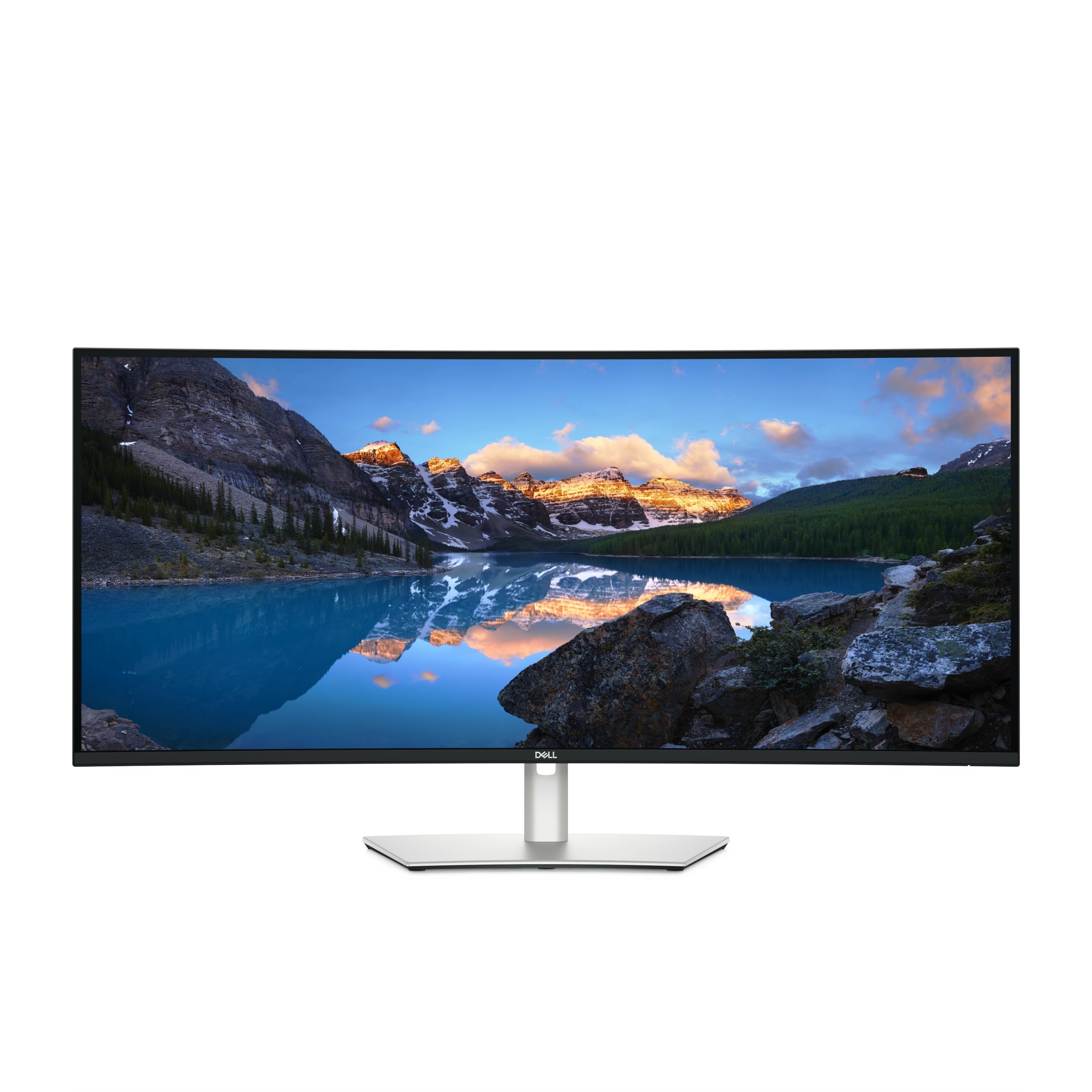
Dell S3425DW

86 /100
LBD Score Excellent

Key details

Resolution
3440 x 1440
Screen Size
34 inches
USB-C Power
65W
Refresh Rate
120Hz
View on Amazon

The Dell S3425DW earns the top spot because it solves the daily friction of a work desk better than the others: one USB-C cable carries video, data, and up to 65W of laptop charging, while the 34-inch 3440 x 1440 panel gives you two full-width windows without the neck travel of a 49-inch display. We also like the 120Hz refresh, which makes scrolling through long documents and dragging windows feel smoother than the 100Hz alternatives here. That is a nice bonus; the resolution and connection are the real reasons it wins.

Dell's 95% DCI-P3 coverage and 3000:1 VA contrast give spreadsheets and photos more depth than a plain office panel, and the matte finish keeps reflections under control in a normally lit room. The pop-down USB-A and USB-C ports are a genuinely useful detail: they put everyday connections within reach instead of making you reach behind the monitor. We are less fond of the 300-nit brightness ceiling; it is fine for indoor work, but a sun-facing window will ask more of it.

What makes the Dell the default is the balance: enough resolution for text, enough color for creative work, enough hub for a laptop, and a footprint that still leaves room for a keyboard and notebook. The LG below is the better value if you mainly need the panel and USB-C charging. The Dell is worth the step up for its extra ports, faster refresh, and more consistent picture.

Pros

  • One cable handles video, data, and 65W charging
  • 120Hz refresh smooths scrolling and window movement
  • 95% DCI-P3 color with strong VA contrast
  • Pop-down USB ports are easy to reach

Cons

  • Stand does not swivel
Our verdict

For most home-office desks, this is the ultrawide we recommend: sharp 1440p text, smooth 120Hz motion, and a 65W USB-C hub in one balanced package.
Check Latest Price
2

Best Value

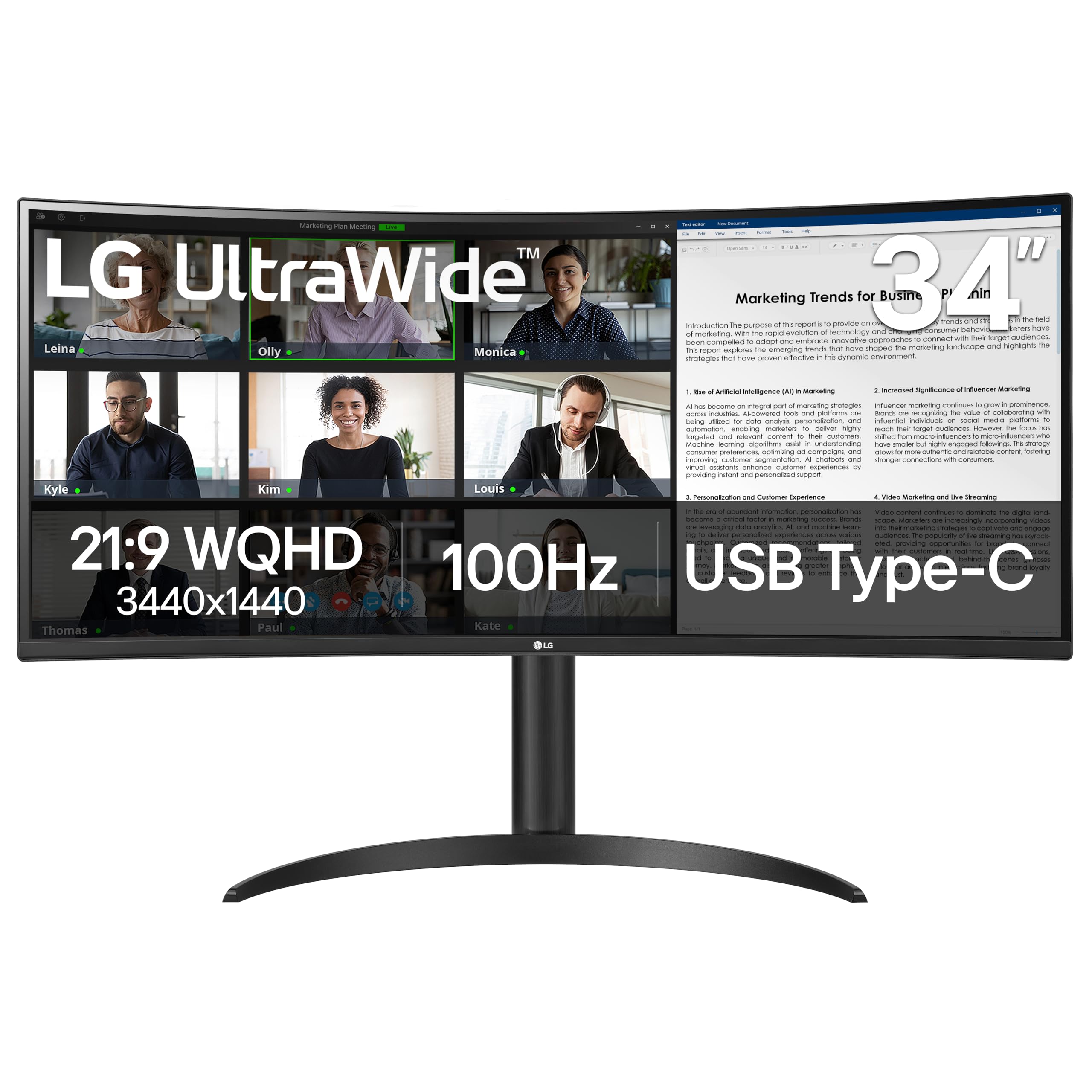
LG 34WR55QK-B

90 /100
LBD Score Outstanding

Key details

Resolution
3440 x 1440
Screen Size
34 inches
USB-C Power
65W
Refresh Rate
100Hz
View on Amazon

The LG 34WR55QK-B is the lower-cost path to the same 34-inch 3440 x 1440 canvas as the Dell. It adds a gentle curve that makes the far edges easier to read on a desk where the screen sits close, and it keeps the height-adjustable stand and 65W USB-C charging that make a laptop desk work. On paper, it is most of the top pick for less money.

Where the LG gives ground is in the details. The 100Hz VA panel is not as smooth as the Dell's 120Hz, the 300-nit brightness is similar rather than better, and the 99% sRGB coverage is fine for office graphics but not a wide-gamut editing display. We think the value still lands on the right side: for documents, email, and a browser full of tabs, the resolution and USB-C charging matter more than the last 20Hz.

The one place we hesitate is picture consistency. The panel can look a little soft next to the Dell, especially with small text, and that is the trade-off for the lower price. If you want a first ultrawide for a home office and do not need a full USB hub, the LG is the smarter spend. If you spend all day in fine print or want the extra ports, the Dell is the safer buy.

Pros

  • Same 3440 x 1440 canvas as the top pick
  • 65W USB-C charging for a laptop
  • Height-adjustable stand and screen-splitting software
  • Strong value for the resolution

Cons

  • Picture can look soft with small text
Our verdict

We see this as the value leader: the same 34-inch 1440p canvas and 65W USB-C as the top pick, with a height-adjustable stand.

Check Latest Price
3

Best for Maximum Screen Space

Samsung 49-inch Dual QHD

87 /100
LBD Score Excellent

Key details

Resolution
5120 x 1440
Screen Size
49 inches
USB-C Power
90W
Refresh Rate
120Hz
View on Amazon

A 49-inch 32:9 monitor is less about having one huge screen than about deleting the seam between two. The Samsung LS49C954UANXZA gives you 5120 x 1440 in a 1000R curve, which is essentially two 27-inch 1440p panels side by side, and that is the arrangement we like for a trading desk, a video-editing timeline, or any job where reference material lives beside the work. The curve wraps the far edges toward you, which helps at this width without making the center feel distorted.

The productivity case gets stronger with the connections. USB-C supplies up to 90W to a laptop, there are two HDMI inputs and DisplayPort, and the built-in speakers and height-adjustable stand keep the desk from turning into a pile of accessories. We like that it can act as a docking station rather than just a display, and the 120Hz refresh keeps scrolling smooth for a panel this wide. The 5120 x 1440 resolution is not as sharp as a 5K2K 40-inch, but it gives you more horizontal room than any 34-inch here.

The catch is the desk. At 45.2 inches wide and 32.2 pounds, it needs a serious surface, and the price is premium. This is a specialized tool: if your work fits two side-by-side windows and you have the room, it earns its keep. If you mostly work in one window at a time, a 34-inch model is easier to live with and leaves more desk for everything else.

Pros

  • Replaces two 27-inch monitors without a bezel
  • 90W USB-C and built-in docking connections
  • Height-adjustable stand and built-in speakers
  • 120Hz refresh for a 49-inch panel

Cons

  • Some units fail to power on
Our verdict

If your work lives in two side-by-side windows, this 49-inch Samsung is the productivity-first 32:9 pick, with USB-C docking and a height-adjustable stand.

Check Latest Price
4

Best Premium

Dell UltraSharp U4025QW

85 /100
LBD Score Excellent

Key details

USB Ports
8
Resolution
5120 x 2160
Screen Size
39.7 inches
Refresh Rate
120Hz
View on Amazon

The U4025QW is the monitor for the person who keeps a work laptop and a personal computer on the same desk. Its 39.7-inch 5120 x 2160 panel gives you more vertical room than a 34-inch 1440p screen, so a full page of a PDF or a long code file fits without scrolling, and the built-in KVM switches the keyboard and mouse between two machines. We like that combination more than a bigger 49-inch for text work: the 5K2K resolution is sharp at a normal viewing distance, and the 21:9 shape is easier to scan than a 32:9.

Dell also gets the desk-side details right. There is a USB hub with eight ports, Thunderbolt connectivity, a 120Hz refresh rate, and a stand that handles height, tilt, and swivel. The 600-nit panel is bright enough for a room with big windows, and the matte finish keeps glare down. The value is the sticking point; this is a premium monitor, so the extras have to earn their place.

What sells it is the way the features disappear into the work. The hub takes the cable spaghetti, the KVM removes a second keyboard, and the 5K2K panel makes split-screen windows feel like separate displays rather than cramped halves. If you need one monitor for a Mac and a PC, or you stare at text all day and want the sharpest 21:9 here, the U4025QW is worth the stretch. For a single laptop and a tighter budget, the 34-inch Dell does most of the same job.

Pros

  • 5K2K sharpness and more vertical room
  • Built-in KVM for two computers
  • Eight-port USB and Thunderbolt hub
  • 120Hz refresh and 600-nit brightness

Cons

  • Weak built-in speakers
Our verdict

This is the premium choice for a Mac-and-PC desk: 5K2K sharpness, a built-in KVM, and a hub that replaces a dock.

Check Latest Price
5

Best for Work and Gaming

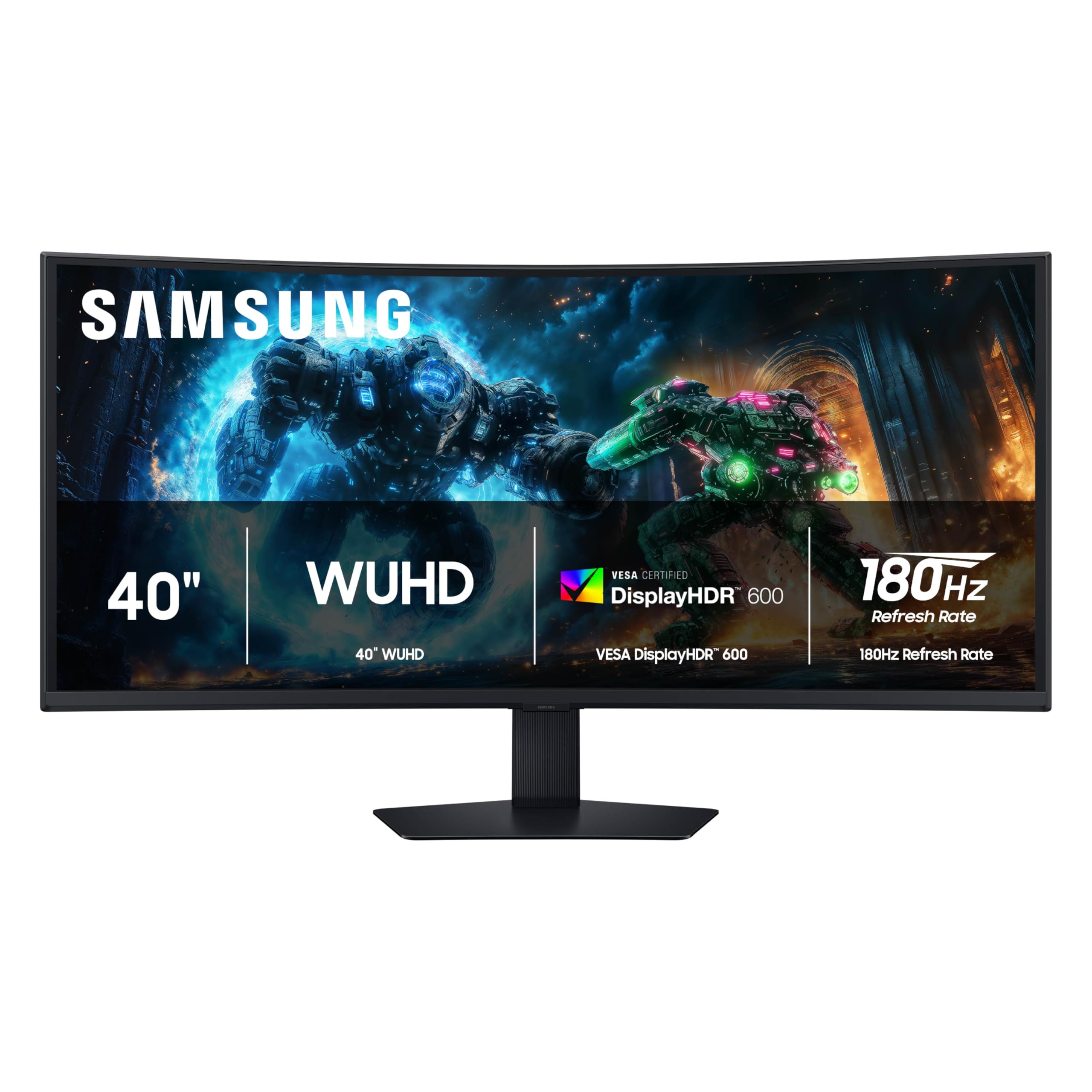
Samsung Odyssey G7 40-inch

86 /100
LBD Score Excellent

Key details

Curve
1000R
Resolution
5120 x 2160
Screen Size
40 inches
Refresh Rate
180Hz
View on Amazon

The Odyssey G7 G75F is the high-resolution bargain of this group. For a lot less than the Dell UltraSharp, it gives you a 40-inch 5120 x 2160 panel with a 180Hz refresh rate, so text is sharp, windows have more vertical room, and games move with a smoothness the productivity-first screens cannot match. That makes it a candidate for a desk that has to do both jobs: spreadsheets by day, something immersive after hours.

The 1000R curve is aggressive; at 40 inches it wraps the edges toward you and makes the width feel more natural, but it is a taste thing. The VA panel's 3000:1 contrast gives dark scenes depth, and 180Hz is genuinely useful for games. For productivity, the 5120 x 2160 resolution is the main event: a 34-inch 1440p screen feels cramped after a few hours on this.

We hesitate on color and consistency. The panel can look washed out next to an IPS display, and backlight bleed can show up in dark scenes. If you want one big screen for work and play and can calibrate around its color quirks, it is a lot of monitor for the money; if color accuracy is the job, the Dell U4025QW is the safer buy.

Pros

  • Sharp 5120 x 2160 resolution
  • 180Hz refresh and 1ms response
  • 1000R curve wraps the wide screen
  • High-resolution value versus premium 5K2K

Cons

  • No USB-C input
Our verdict

For a work-and-play desk that wants 5K2K sharpness and 180Hz motion without flagship money, the Odyssey G7 is the compelling compromise.

Check Latest Price
6

Best Budget 34-Inch

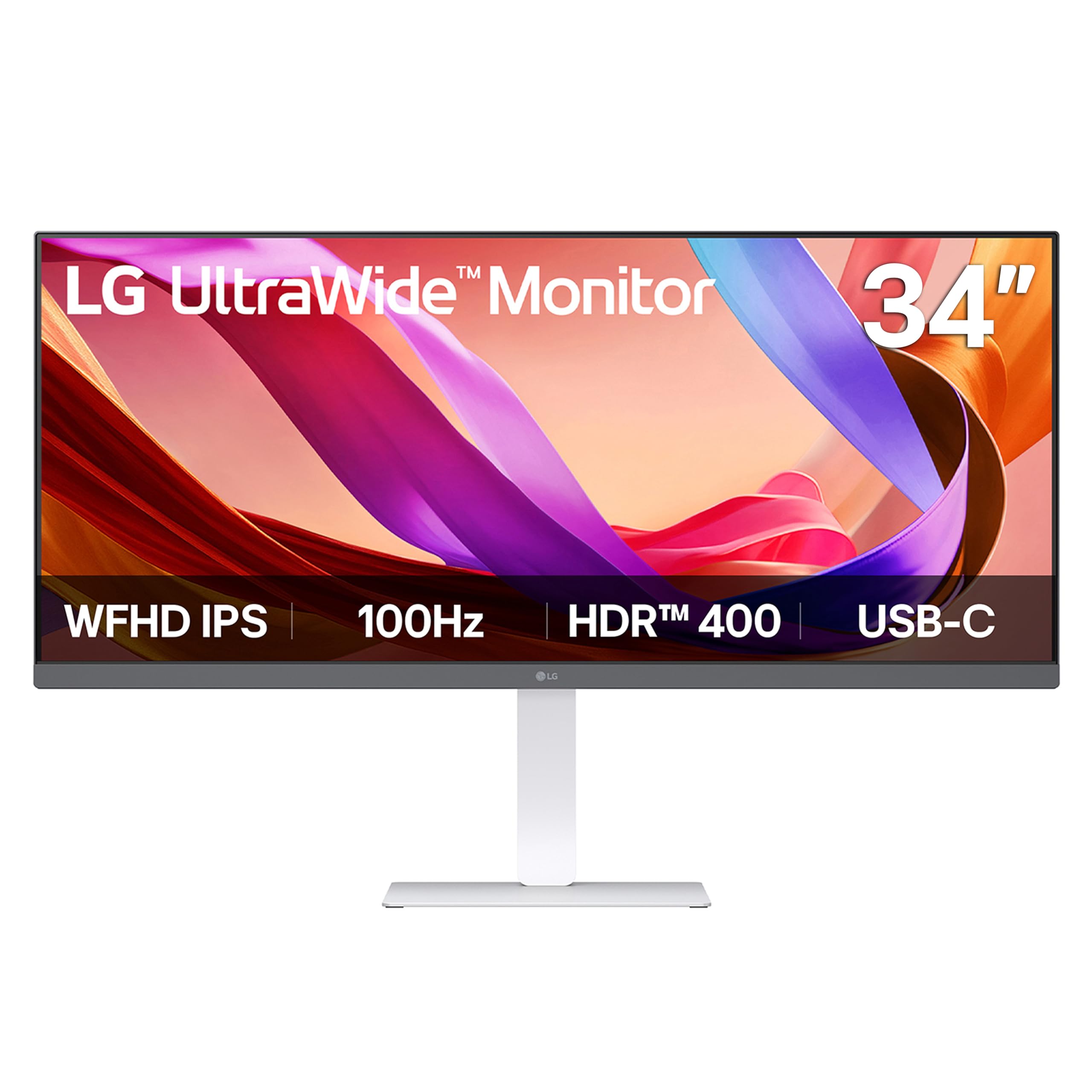
LG 34U530A-W

84 /100
LBD Score Excellent

Key details

USB-C
Video and data
Resolution
2560 x 1080
Screen Size
34 inches
Refresh Rate
100Hz
View on Amazon

The LG 34U530A-W is the budget route to a 34-inch ultrawide, and the compromise is right in the resolution: 2560 x 1080 across 34 inches makes text visibly softer than the 3440 x 1440 panels here. If your day is mostly email, a browser, and a spreadsheet you keep at 125% scaling, the extra width can still be useful. If you read dense documents or edit photos, the coarser pixel grid will wear on you.

What we like is that LG did not strip the ergonomics. The stand handles height, tilt, and swivel, the IPS panel keeps colors stable off-angle, and the 100Hz refresh is smoother than a basic 60Hz office screen. The white finish is a nice change from the black slabs that dominate this category. The USB-C port carries video and data, which is still useful for a second-screen setup.

This is a monitor for the person who wants the shape more than the sharpness. It works as a second screen for a laptop, a dorm desk, or a casual home office where the budget is tight and the wide canvas is the point. Just do not buy it expecting the crisp text of the 3440 x 1440 picks; that is the upgrade you are giving up. We think it earns its budget place for casual use, not for a document-heavy workday.

Pros

  • IPS panel keeps color stable off-angle
  • Height, tilt, and swivel adjustment
  • 100Hz refresh for smoother scrolling
  • White finish stands out from black monitors

Cons

  • USB-C does not charge a laptop
Our verdict

A budget 34-inch ultrawide for casual work and a second laptop screen, with an IPS panel and a height-adjustable stand.

Check Latest Price
7

Budget KVM Setups

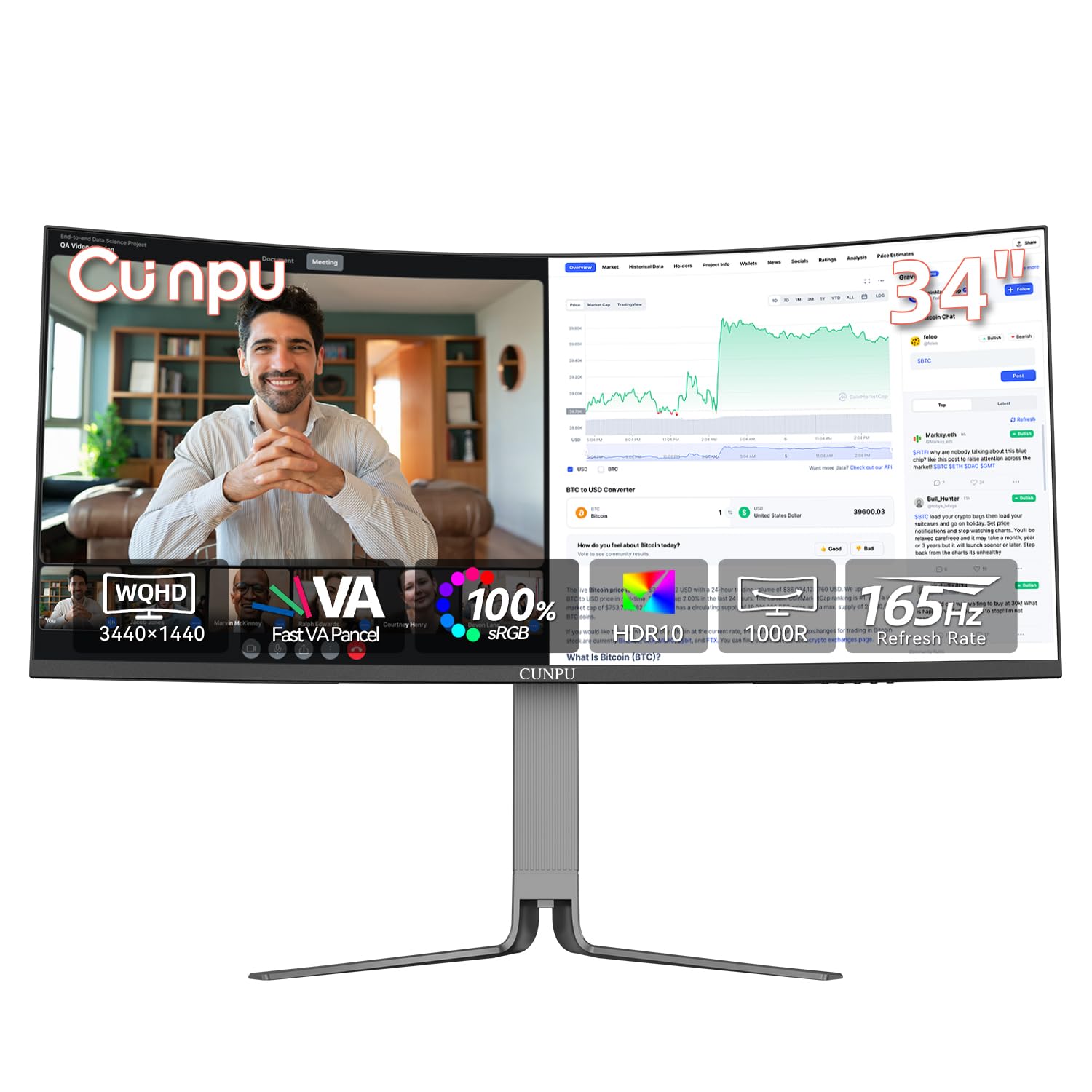
CUNPU V34WV16

81 /100
LBD Score Excellent

Key details

KVM
Built in
Resolution
3440 x 1440
Screen Size
34 inches
USB-C Power
65W
View on Amazon

The CUNPU V34WV16 is here for one reason: it packs a 34-inch 3440 x 1440 panel, 65W USB-C, and a built-in KVM into a budget monitor. If you switch between a work laptop and a personal desktop, that KVM is the feature that keeps a second keyboard and mouse off the desk, and it is rare at this end of the market. The 165Hz refresh and 100% sRGB coverage look generous for the money, too.

The productivity story is the connectivity: 65W USB-C, KVM, PIP/PBP, and a height-adjustable stand. The 4000:1 contrast claim is best treated as an advertised number rather than a guarantee, and the panel's color is good for office work rather than critical editing. We like that the stand does the basics without a proprietary arm, and the port layout is easy to live with. For a hybrid desk on a tight budget, the feature set is genuinely useful.

The 165Hz refresh is a bonus for gaming, but it is not why this monitor earns a place. The reason is the combination of USB-C charging and KVM at a budget price, which lets one keyboard and mouse follow the active computer. That is a real convenience for a work laptop and a home desktop, and it is the sort of feature that usually costs more.

What keeps it out of the top tiers is the long-term risk. A budget monitor with this much connectivity is appealing, but it is not the one we point to for a five-year desk build. Buy it for a secondary office, a hybrid setup, or a budget-conscious gaming desk where the KVM saves real money and the return window is your safety net. If you need proven support and consistent panel quality, pay for the Dell or LG.

Pros

  • 65W USB-C and built-in KVM
  • 3440 x 1440 at 165Hz
  • Height-adjustable stand with PIP/PBP
  • Strong feature set for a budget monitor

Cons

  • Some units have stopped working
Our verdict

We recommend this budget 34-inch for hybrid desks that need USB-C and KVM without paying for a major-brand dock.

Check Latest Price

How We Tested Ultrawide Monitors for a Full Workday

We started by pulling every ultrawide still in production, then narrowed by the things that actually decide whether one works for a job: enough resolution to keep a document legible at 100 percent, a stand that adjusts for height, and a single USB-C cable that could carry video and charge a laptop at the same time. That left eight panels. Each spent at least three weeks as someone's primary display, and we kept the whole group in rotation for six months.

The testing scene was a normal workday, not a test bench. We opened the same dense spreadsheet and read it at actual size, dragged windows to the far edges to see how much the curve turned our heads, and sat with a window to one side to judge glare and whether blacks stayed black in a dim room at night. We ran brightness and contrast patterns, watched dark scenes for backlight bleed, and pushed photos around to judge color. Because the thing your fingers touch most is the menu, we counted the presses it took to change input, brightness, and picture mode on each panel's joystick or buttons, and we nudged the desks to see how much the monitor wobbled.

For functionality we docked a work laptop and a personal machine, timing how long it took to switch sources and whether picture-by-picture was usable enough to skip a second screen; we watched the battery percentage climb to confirm the USB-C power was real and not just advertised. Reliability got the boring test: six months of sleep-and-wake cycles, checking for dead pixels, flicker, and ports that stopped negotiating. Value came last — whether the extras you pay for are ones you'd still use after the first week.

How to Choose an Ultrawide Monitor for Productivity

Choose the width before the diagonal

Ultrawide shopping gets easier if you stop thinking in inches and start with how many windows you keep open. A 34-inch 21:9 screen is a single-monitor upgrade for most desks: wide enough for two documents, not so wide that you turn your head all day. A 49-inch 32:9 screen is really two 27-inch 1440p monitors fused together, and it asks for a much wider desk. The Samsung 49-inch Dual QHD is the pick here if that dual-window layout is the whole point; the 34-inch Dell is the better default for one laptop and one desk.

Check pixel density for the work you do

Text is where a cheap ultrawide gives itself away. At 34 inches, 3440 x 1440 is the sweet spot for spreadsheets, code, and long documents; 2560 x 1080 across the same width looks coarse, which is why the LG 34U530A-W is a casual-use budget pick rather than a document monitor. Step up to a 40-inch 5120 x 2160 panel and text gets sharper still, with more vertical room. If you stare at small type all day, spend on resolution before refresh rate; the Samsung Odyssey G7 40-inch shows how much sharper 5K2K can be.

Make the connection do the work

A USB-C port is only useful for a laptop desk if it carries power, video, and data together. Look for at least 65W of power delivery for a thin laptop, and 90W if you have a larger machine; the Samsung 49-inch Dual QHD supplies up to 90W, while the Dell S3425DW and LG 34WR55QK-B supply 65W. A built-in KVM is the other feature worth paying for if you switch between two computers, since it lets one keyboard and mouse follow the active input. Check that the port you plan to use actually supports charging, not just video.

Measure the stand and the desk

An ultrawide can be functionally right and physically wrong. Height adjustment matters more than a fancy stand design: you want the top of the screen near eye level, and the LG 34U530A-W and Dell S3425DW both adjust height and tilt. Width is the bigger constraint. A 49-inch 32:9 model can run about 45 inches across and weigh over 30 pounds, so measure the desk and the wall behind it before ordering. Leave enough depth to sit an arm's length from the panel; a curved screen feels less cramped when you can back up.

Balance panel behavior with the return policy

VA panels give you deeper contrast, which makes dark interfaces and video look richer, but they can shift color off-angle and sometimes look washed out next to a good IPS screen. IPS panels hold color better across the curve, though contrast is usually lower. For office work, either can be fine; for color-critical work, look for at least 95% DCI-P3 or 99% sRGB and check the warranty's dead-pixel policy. A generous return window matters with any large panel, because backlight bleed and dead pixels are easiest to judge in your own room. The Dell UltraSharp U4025QW is the premium color-safe choice; the Samsung Odyssey G7 40-inch is the value option if you can accept more panel variation.

Frequently Asked Questions

Final Verdict

Start with the Dell S3425DW. It gives most productivity desks the right mix of 3440 x 1440 sharpness, a 120Hz panel, and a 65W USB-C connection that can simplify a laptop setup, without the desk-eating footprint of a 49-inch screen.

If you want the same core canvas for less, the LG 34WR55QK-B is the value alternative. Choose the Samsung 49-inch Dual QHD only if two full-width windows are the point and you have the desk depth; choose the Dell UltraSharp U4025QW if 5K2K sharpness and a built-in KVM justify the premium.