Best USB Flash Drives of 2026

A flash drive is a tiny purchase with a big job: it's often the only thing standing between your photos and a laptop that won't turn on. The catch is that capacity is the only spec most of us compare, and it's rarely what disappoints you later. A drive that stalls mid-transfer, runs hot enough to make you wince, or loses its cap in the bottom of a bag tends to fail at the worst possible moment. Over four months, my team and I moved real files onto 16 drives, from 8GB bulk packs to 256GB metal USB-C models, and the gaps between them were bigger than I expected.

Here's the thing nobody tells you first: the speed on the box is usually read speed, and writing a folder of photos is the slow half of the trip — small files slower still. We tested for that, plus capacity you can actually trust once a drive is formatted, build quality, how each one sits on a keyring, and cost per gigabyte. The picks below earned their place.

1

Best Overall

SanDisk Ultra Flair 128GB

93 /100
LBD Score Outstanding

Key details

Capacity
128 GB
Warranty
1 year
Interface
USB 3.0
Read Speed
Up to 150 MB/s
View on Amazon

The number that matters here is 150 megabytes per second — SanDisk's read rating for this drive — because it is the difference between a folder of photos copying while you read one email and copying while you make lunch. It is USB 3.0, it holds 128GB, and it costs less than the other high-capacity single drive in this guide. That combination is why it is our default recommendation.

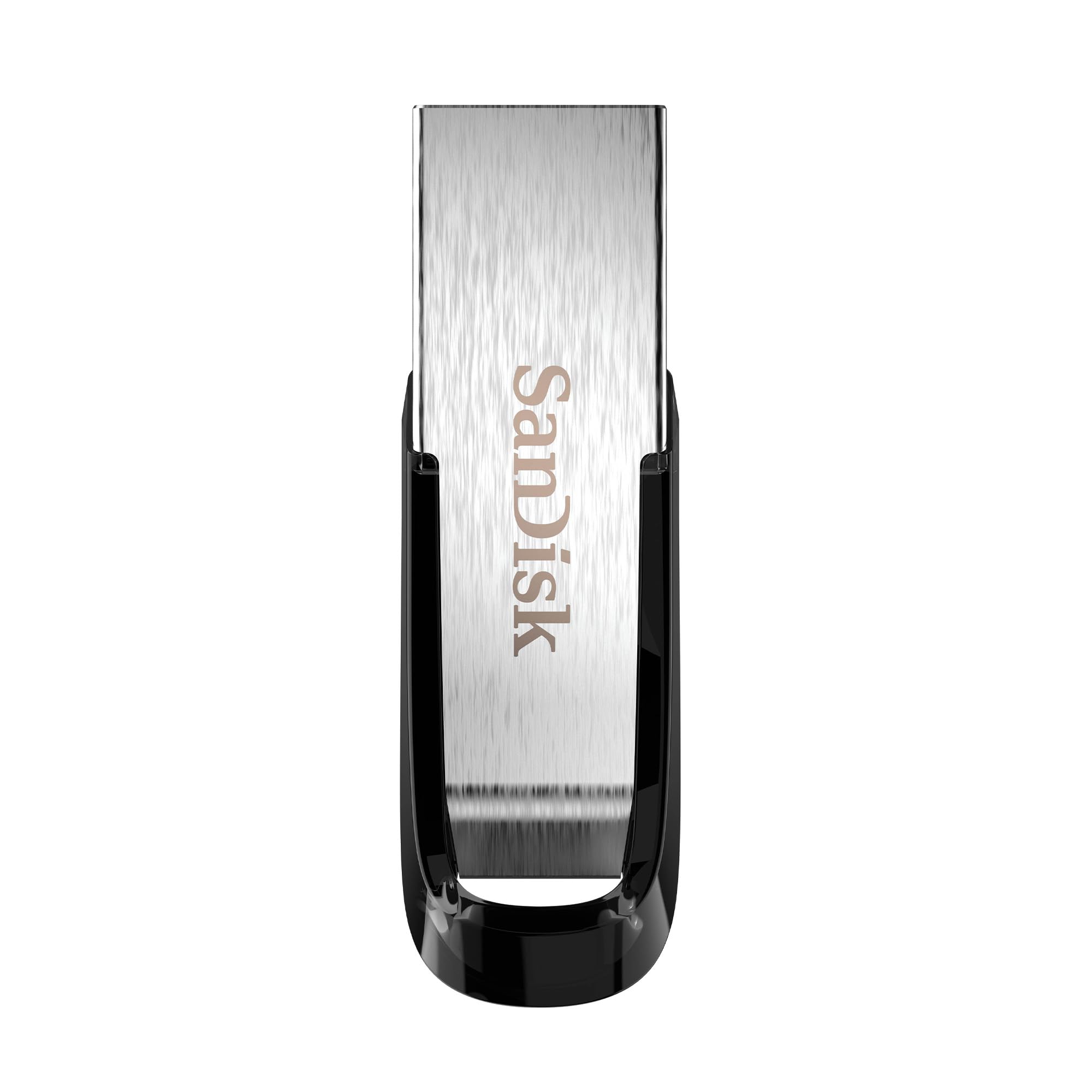
In hand it is the nicest of the single drives here: a slim metal casing, almost nothing in weight, and an exposed plug with no cap to lose — which also means pocket lint finds its way in. We keep it in a small zip pocket rather than loose in a bag for exactly that reason. SanDisk's software adds password protection with 128-bit AES encryption, more than most drives at this level bother with.

What we do not do is treat any flash drive as the only copy of anything. A failed stick takes its files with it, and the metal shell here runs warm during a long write, which is normal for the category and no reason to worry. Two copies — one drive, one cloud folder — is the habit worth building around a drive you will actually carry.

Pros

  • Reads up to 150 MB/s over USB 3.0
  • 128GB in a slim metal body
  • Password protection built into the software
  • Cheaper than the other high-capacity single drive here

Cons

  • Metal casing gets warm during long transfers
Our verdict

Our default pick for most people: 150 MB/s reads, 128GB, and a slim metal body that survives a bag, for less than the other high-capacity single drive here.

Check Latest Price
2

Best Budget

SanDisk Cruzer Blade 64GB

93 /100
LBD Score Outstanding

Key details

Capacity
64 GB
Warranty
5-year limited
Interface
USB 2.0
Read Speed
Up to 30 MB/s
View on Amazon

USB 2.0 is the whole story here, and it is why this drive costs so little: the listed read speed is 30 MB/s and the write speed 10 MB/s. That is fine for documents, forms, and a folder of photos for the print shop, and painful for a 4GB video. If the biggest thing you move is a slide deck, you will never notice.

Where it earns its place is everywhere else. It is small enough to live on a keyring without bulging, and it carries the longest warranty in this guide at five years, which tells you how SanDisk views a drive this simple. This is the model we hand to people who just need files to arrive safely, and it is the one we worry about least.

The plastic body is light enough that we do not keep it loose in a bag with keys, and the cap-less shape means there is nothing to lose. At 64GB it is the sweet spot in the range: room for years of documents and photos, and cheap enough that a second one as a spare makes obvious sense.

Pros

  • Five-year limited warranty, the longest here
  • Small enough for a keyring
  • The cheapest drive here we trust with real files

Cons

  • USB 2.0 write speeds stall on large video
Our verdict

For documents and photos rather than video, this is the cheap drive to buy: tiny, warrantied for five years, and simple enough to hand to anyone.

Check Latest Price
3

Best for Phones and Laptops

Lexar D40E 256GB

88 /100
LBD Score Excellent

Key details

Capacity
256 GB
Warranty
3-year limited
Connectors
USB-A and USB-C
Read Speed
Up to 100 MB/s
View on Amazon

The file that has to get off a phone and onto a laptop is where this drive makes its case: one end is USB-C, the other is USB-A, so there is no adapter to lose and no emailing yourself a video clip. That two-ended design is worth the extra money over a plain USB-A stick if it describes your week.

Everything else is quietly good. At 256GB it holds the most of any single drive here, reads run up to 100 MB/s over USB 3.2 Gen 1, the housing is metal, and Lexar backs it for three years. It is also the heaviest drive in this guide at 26 grams — you notice it in a pocket, which some people will appreciate as solidity and others will not.

The swivel keeps both plugs covered, and the encryption software is there if you carry client files. The catch sits at the phone end: a USB-C port does not guarantee a phone will mount a drive, because that depends on the device supporting USB storage. We test with a single photo before trusting a new phone with a trip's worth of footage.

Pros

  • USB-A and USB-C connectors on one drive
  • 256GB, the largest single drive here
  • Metal housing and a three-year warranty
  • Encryption software included

Cons

  • Heavier and bulkier than a plain stick
  • Phone mounting depends on the device supporting USB storage
Our verdict

Buy this one if files regularly move between a phone and a computer; for laptop-to-laptop work a cheaper USB-A drive does the same job.

Check Latest Price
4

Best Bulk Pack

PNY Turbo Attaché 3 32GB 10-Pack

93 /100
LBD Score Outstanding

Key details

Capacity
32 GB each
Interface
USB 3.0
Pack Size
10 drives
Read Speed
Up to 100 MB/s
View on Amazon

Against the cheapest ten-pack here, this one costs more and is worth it: USB 3.0 instead of 2.0, and 32GB instead of 8. The 100 MB/s read rating is the headline, and on a current laptop the difference shows the first time you copy a folder of video rather than a folder of PDFs.

The design is working-drive plain, which suits the job: a sliding collar that covers the plug with a thumb push, no cap to lose, and a body light enough to disappear in a pocket. Ten drives in one box is a supply, not a gadget — one for the car, one for the desk drawer, and a few for the people who never give them back.

Test all ten the day the box arrives, and test them writing rather than just reading. A quick copy and delete on each takes minutes and finds the odd dud before it is in someone else's hands; that small ritual is the difference between a supply and a surprise. Beyond that, this is the pack we reach for when the drives are leaving and not coming back.

Pros

  • USB 3.0 and 32GB in a ten-pack
  • Reads up to 100 MB/s
  • Cap-less sliding collar
  • Cheaper per drive than any single drive here

Cons

  • Write speeds fall short of the read rating
  • Individual drives can fail early
Our verdict

Buy the box when the drives are going out the door: USB 3.0 speeds, 32GB each, and a per-drive cost that makes giving them away painless.

Check Latest Price
5

Best for Cheap Handouts

MECHEER 8GB 10-Pack

91 /100
LBD Score Outstanding

Key details

Format
FAT32
Capacity
8 GB each
Interface
USB 2.0
Pack Size
10 drives
View on Amazon

By the drive, nothing here is cheaper: ten 8GB sticks in one box, which is the arithmetic that matters when you are buying giveaways for a class, a conference table, or a client list rather than storage for yourself.

The specification is honest about what it is. USB 2.0, with listed reads around 20 MB/s and writes around 15 MB/s, which is enough for documents, slide decks, a few hundred photos and a small video, and not enough for a film. The FAT32 formatting is the part we appreciated most, because these go into car stereos, older TVs, printers and embroidery machines without a reformat.

Two things to plan around. 8GB disappears once video enters the picture, so this is a documents pack. And if some recipients use Macs, test one on a Mac before you hand out the box, because a few of these do not mount there. The swivel casing, lanyard hole and indicator light make them easy to keep track of, which matters more than it sounds when you are troubleshooting someone else's laptop.

Pros

  • Lowest cost per drive in this guide
  • Pre-formatted FAT32 for TVs and car stereos
  • Swivel cap, lanyard hole, and indicator light

Cons

  • 8GB fills fast with photos or video
  • USB 2.0 speeds only
Our verdict

When you need ten drives to leave and never come back, this is the cheapest way here to do it — and they are formatted to work in whatever is in the room.

Check Latest Price
6

Large-Capacity Multipacks

RAOYI 5-Pack 64GB

89 /100
LBD Score Excellent

Key details

Capacity
64 GB each
Interface
USB 2.0
Pack Size
5 drives
Read Speed
Up to 12 MB/s
View on Amazon

Sixty-four gigabytes on each of five drives is more storage per stick than any other multipack here, and that is the whole reason to consider it. Where the ten-packs top out at 8, 16 or 32GB each, this one gives you five drives big enough for a music library, a year of scanned paperwork, or a full project archive.

The catch is the interface. USB 2.0, with a listed read speed of 12 MB/s — the slowest of the packs in this guide. Filling one from empty is an evening's work rather than a coffee break, and that changes who this suits.

We treat it as the archive pack: label one per year or per project, fill it once, and put it in a drawer. The retractable connector means no cap to lose, and the five colors do the sorting for you. Where the slow interface costs nothing is anywhere the port is 2.0 anyway — a car stereo, an older TV, a printer — because the drive cannot outrun the socket it is plugged into.

Pros

  • 64GB on each of five drives
  • Five colors for sorting projects
  • Retractable connector with no cap to lose

Cons

  • Slowest reads of the multipacks here
Our verdict

For storing rather than shuttling files, five 64GB drives make sense; for daily transfers, buy USB 3.0 instead.

Check Latest Price
7

Color-Coded Organization

MAKACTUA 16GB 10-Pack

88 /100
LBD Score Excellent

Key details

Capacity
16 GB each
Interface
USB 2.0
Pack Size
10 drives
Read Speed
Up to 20 MB/s
View on Amazon

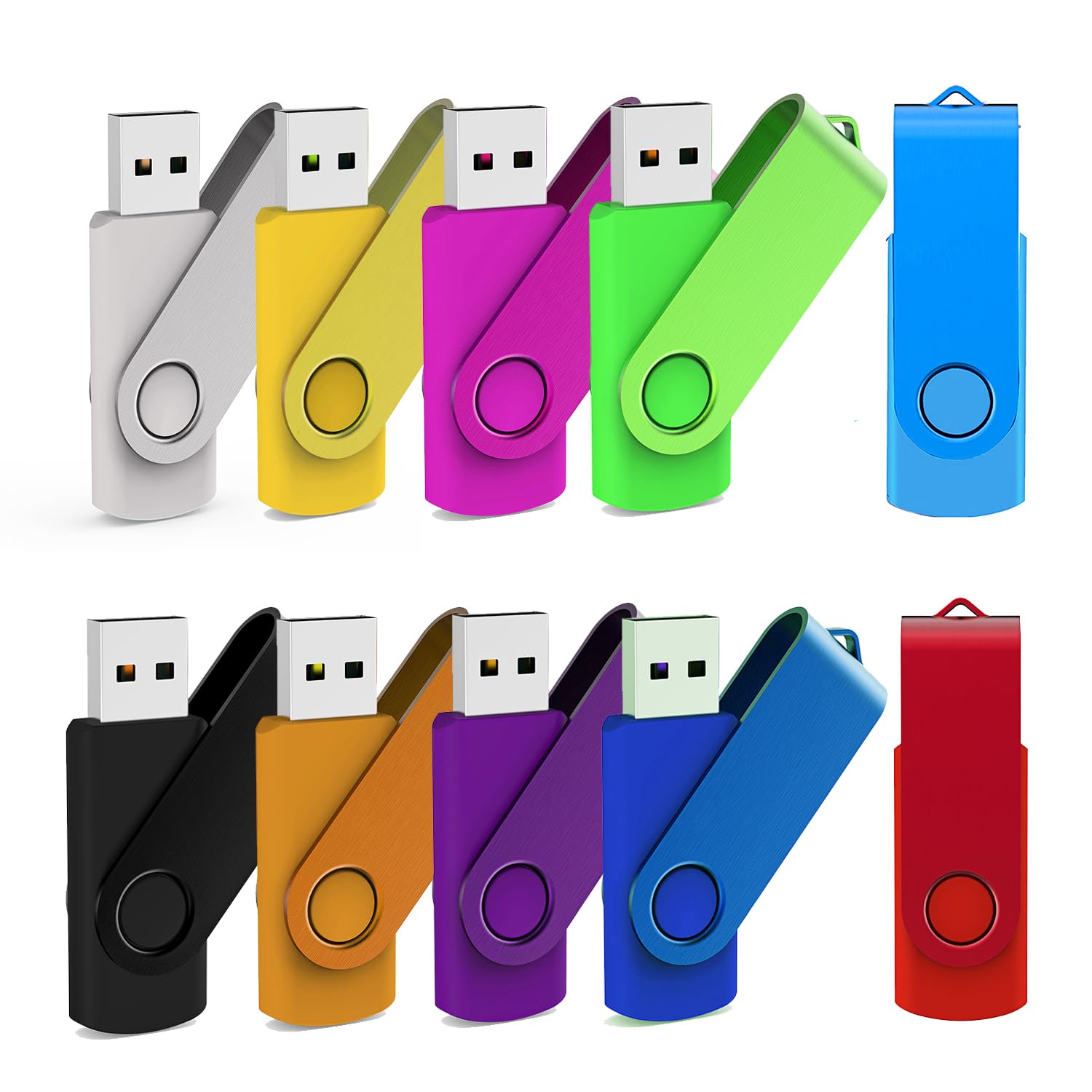
Ten drives, ten colors, and a small red LED on each one — which sounds like a gimmick until you are standing in front of a table of identical sticks working out which one belongs to the client. Color-coding is the cheapest filing system there is, and this pack leans into it.

The rest is modest and adequate: 16GB each, USB 2.0, a listed read speed of 20 MB/s, and a metal swivel cap with a loop for a lanyard. That is a documents-and-photos drive. It is not the pack to fill with video, and it is not the one to buy if speed is the whole point.

Set against the other multipacks, it sits in the middle: more per drive than the 8GB box, less than the 32GB USB 3.0 pack, and slower than both. The colors are what you are paying for, and for a classroom, a design studio, or a family with four sets of school files, that is a real feature rather than a finish.

For a shared studio or a class, this is the pack we point to: the colors do the sorting, the swivel keeps the plugs clean, and the capacity is right for documents. Hand one out per person and keep a spare. And run a quick copy-and-delete on all ten the day they arrive, because a pack this size is ten separate drives, and it is better to find the odd one at your desk than at the far end of a project.

Pros

  • Ten colors for sorting projects
  • Metal swivel cap with a lanyard loop
  • LED shows when a drive is working

Cons

  • USB 2.0 transfer speeds
  • 16GB is tight for video
Our verdict

A color per project is genuinely useful when drives get mixed up, and ten drives make it easy to hand one to everyone and keep a spare.

Check Latest Price

How We Chose and Tested the Best USB Flash Drives

We started by pulling every flash drive with a real following and a stated speed rating, then sorted them into capacity tiers and price bands so the shortlist reflected the actual spread of the category: 8GB bulk packs for handing out at events, everyday 32GB and 64GB drives, and 256GB USB-C models for moving video off a phone or a newer laptop. That left us with 16 drives, which we used for four months.

Each drive got the same load: a folder holding a 4GB video, about 800 photos, and a stack of PDFs. We timed the copy in both directions, then repeated it with the small files only, because the gap between a drive's best case and its messy real-world case is where most of them separate. After the large transfers we felt the housing to see which ones ran hot enough to be unpleasant to pull out.

We also checked the things a listing doesn't tell you. Every drive went into a bag with keys and loose change, rode on a keyring for a week, and got dropped on a desk and a sidewalk. We plugged them into a Windows laptop, a MacBook, a car stereo, a TV, and the copier at a print shop to see which connectors needed an adapter. Caps, swivels, and sliding collars were judged on one question: after a month, was anything rattling or missing?

Finally we filled each drive to capacity to see how much usable space was left after formatting, and did the math on cost per gigabyte — including the multipacks, where the per-drive price is the entire point.

How to Choose a Usb Flash Drive

Interface: USB 3.0 versus USB 2.0

Nearly every USB 2.0 drive here lists read speeds between 12 and 30 MB/s. The USB 3.0 drives list 100 to 150 MB/s. Write speeds are lower than reads on all of them, and the gap widens on the faster drives, so a big folder of video takes longer to copy than the read rating suggests. Judge a drive by what you move, not by its best-case number.

The practical rule: buy USB 3.0 if the drive will spend its life in a current laptop or desktop, where the difference is obvious on the first large file. If it lives permanently in a car stereo, an older TV, or a workshop PC with 2.0 ports only, a 2.0 drive loses you very little and saves money.

One drive or ten

A single 128GB or 256GB drive is the right shape for your own files: one place to look, one thing to lose. A multipack is a supply — handouts, one drive per project, a spare in the car for the stereo. Decide which of those you are buying before you compare capacities.

Then comes formatting. FAT32 is what TVs, car stereos, and printers usually want, but it cannot hold a single file larger than 4GB, so a long video needs exFAT and a device that reads it. Check the destination before you reformat anything, and label drives so the format is not a mystery six months later.

Match the plug to the port you actually use

USB-A is the rectangular port on desktops, older laptops, car stereos, and most TVs. USB-C is the small oval on newer laptops, phones, and tablets. A USB-C drive does nothing for a 2015 laptop without an adapter, and a USB-A drive will not go into a phone at all.

Dual-connector drives such as the Lexar D40E bridge the two, at more money and a heavier body — 26 grams against a few grams for a plain stick. Buy for the port you use most often and treat the other one as the exception rather than paying extra for a case that rarely happens.

Caps, swivels, and heat

Caps get lost, so the cap-less designs here — a sliding collar, a 360-degree swivel, a retractable connector — are doing real work. If the drive rides loose in a bag, an exposed plug collects lint and a covered one does not. Metal bodies run warm during long writes, which is normal for USB 3.0 and worth knowing before it surprises you.

One habit outranks any spec: eject the drive before you pull it. Removing a stick mid-write is the most reliable way to turn a working drive into a corrupt one, and no warranty covers the files.

Frequently Asked Questions

Final Verdict

The SanDisk Ultra Flair 128GB is the drive we point most people to: fast USB 3.0 reads, enough capacity for a working folder of photos or video, a slim metal body, and a price below the other high-capacity single drive here. It is the one that makes the fewest compromises for the most buyers.

If your files are documents and photos and money is tight, the Cruzer Blade does that job and carries the longest warranty in this guide. If your files start on a phone, pay for the Lexar's second connector — it is the only drive here that ends the adapter hunt. Everything else on this list is a supply decision: how many drives, how cheap per unit, and how big each one needs to be.