Best Overall
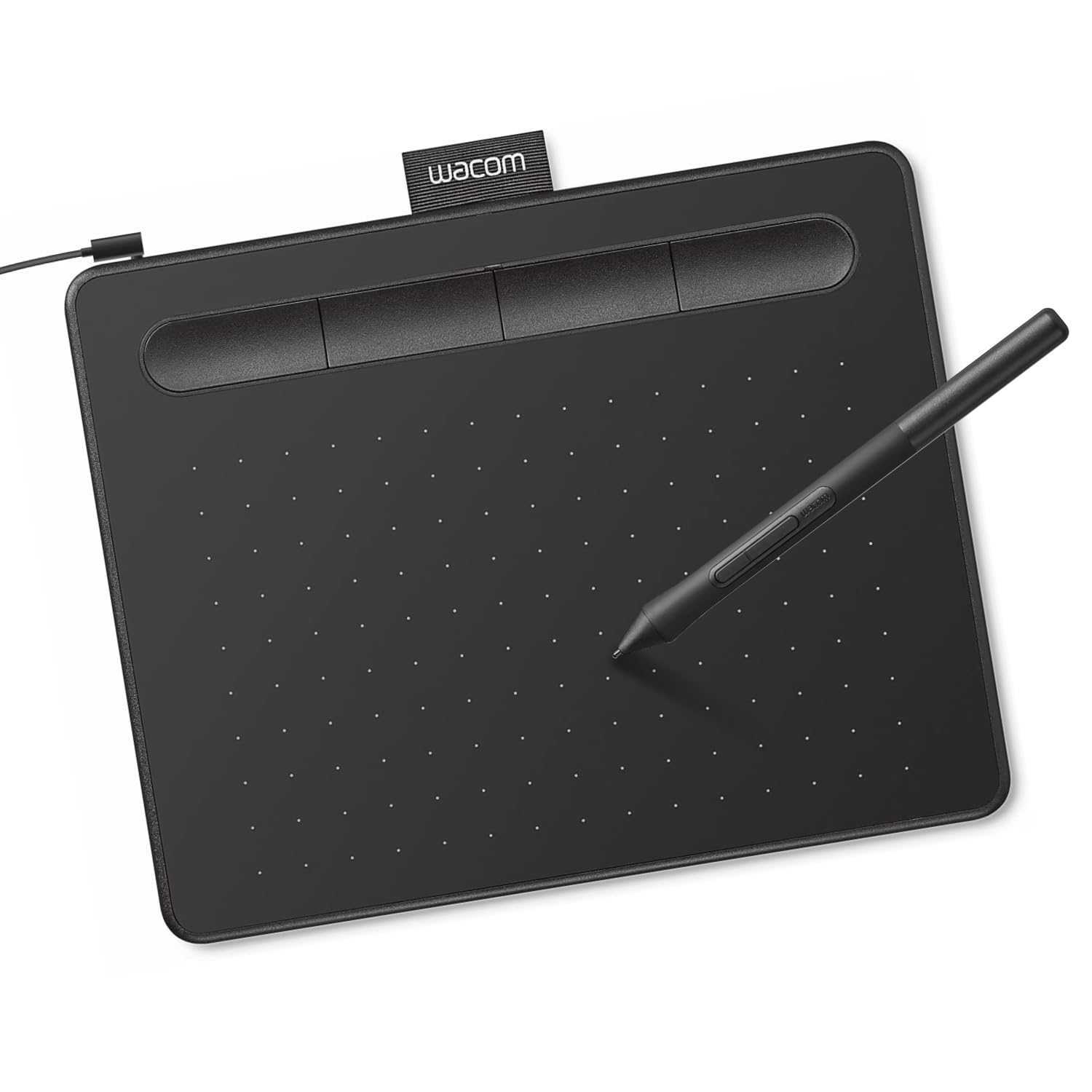
Wacom Intuos Small
Key details
- Controls
- 4 ExpressKeys
- Connection
- USB-A
- Active Area
- 6 x 3.7 in
- Pressure Levels
- 4,096
The Intuos Small is the drawing tablet we recommend first to anyone who wants to try digital art without turning the purchase into a project. It has a 6 x 3.7-inch active area, four ExpressKeys, and a battery-free pen with 4,096 pressure levels, all over a single USB-A cable. We like that simplicity: no charging, no pairing, no screen to calibrate. The catch is the footprint. Those 6 inches are enough for a sketch or a retouching session, but long, sweeping strokes need more zooming than on the 10-inch pads here. That is the trade-off for a tablet that fits beside a keyboard.
The four ExpressKeys are the right number for us. We mapped undo, brush size, zoom, and a modifier, and the hand stayed on the tablet instead of drifting to the keyboard. The pen is light and balanced, and the nib has a little give against the surface; it feels like a pen, not a stylus on glass. Setup is not quite plug-and-play. You need Wacom's driver before pressure and the keys behave, and the wired USB-A connection is the other practical catch for USB-C-only laptops. An adapter solves it, but there is no Bluetooth here.
Where the Intuos Small earns its place is as a first tablet that does not feel like a toy. It works with Windows, macOS, Android, and Chromebook, and the small surface focuses rather than cramps line work. If you already know you want a large canvas or a screen, spend more; if you are starting out, this is the safer first step.
Pros
- Battery-free pen with 4,096 pressure levels
- Four programmable ExpressKeys
- Works with Windows, macOS, Android, and Chromebook
Cons
- Bundled software can be trial-based
For a first tablet, we recommend the Intuos Small: it is simple, affordable, and easy to live with, with a battery-free pen and four useful shortcut keys.