Best Drawing Tablets for Beginners of 2026

The first surprise with a drawing tablet is that you don't draw where you're looking. The line appears on your laptop while your hand moves down on the desk, and that disconnect is what makes most beginners quit inside the first week. Get past it and a tablet turns your computer into a sketchbook: pressure-sensitive lines, layers, instant undo, no scanning sketches into your software.

I've drawn digitally for years, and over the past six months my team and I have used 12 beginner-friendly tablets the way a beginner would — sketching at the kitchen table, taking notes in meetings, making clumsy first attempts at inking. What separated them had less to do with price than with setup. A tablet that installs cleanly and talks to your software gets used; one that doesn't becomes a drawer ornament.

One thing worth knowing before you shop: pressure-sensitivity numbers sell tablets, but the jump from 8,192 levels to 16,384 rarely changes how a beginner's line looks. A shortcut key your thumb finds without looking matters more, and so does a pen you never have to remember to charge. Below are the ones we'd hand to a friend starting out.

1

Best Overall

Wacom Intuos Small

93 /100
LBD Score Outstanding

Key details

Connection
USB-A
Active Area
6" x 3.7"
ExpressKeys
4
Pressure Sensitivity
4,096 levels
View on Amazon

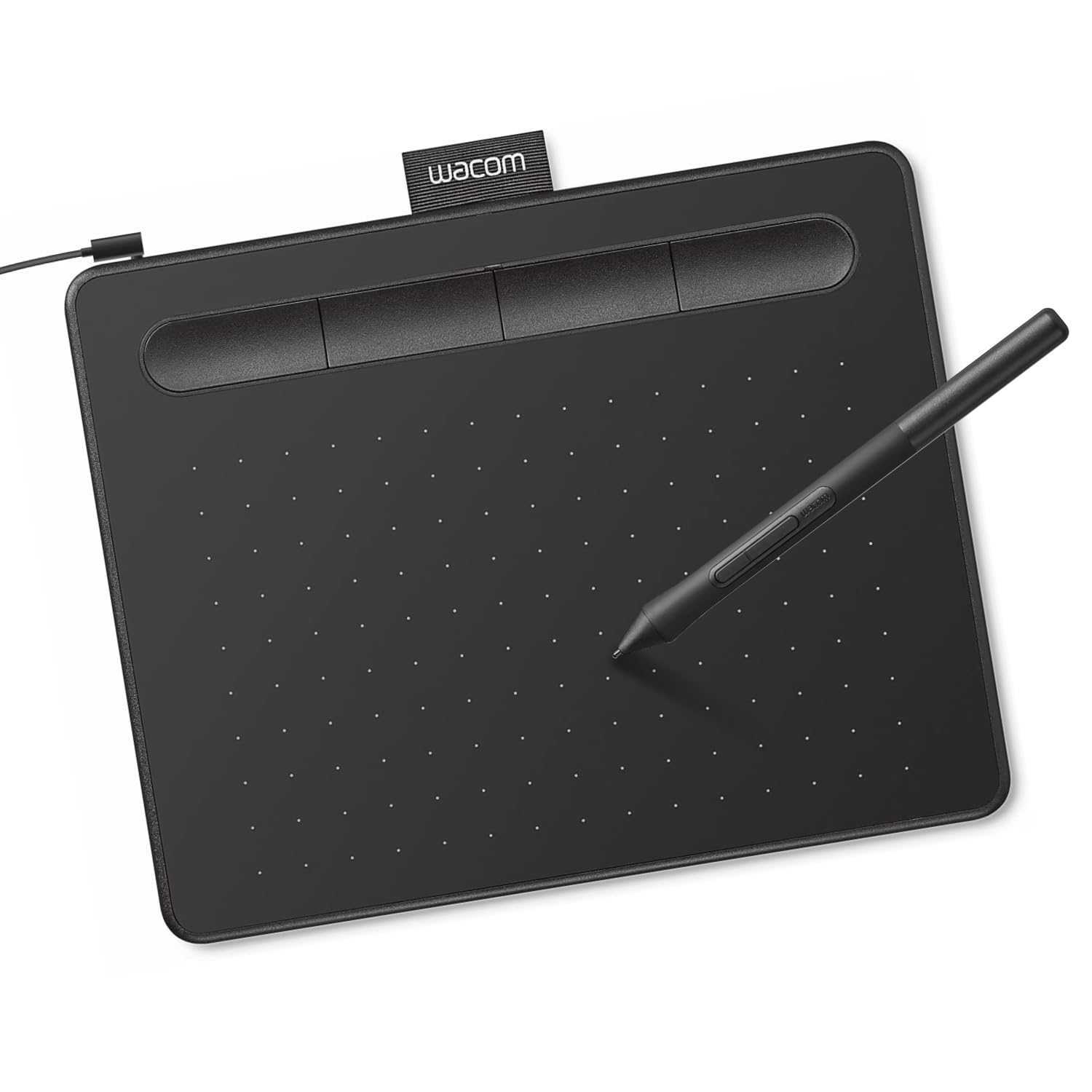
On paper this is the least impressive tablet in the group. It lists 4,096 pressure levels where cheaper pads claim 8,192 and 16,384, and its 6 x 3.7-inch active area is the smallest of the screenless picks here. Numbers like those line up neatly in a table and tell you almost nothing about what a first tablet is like to live with.

What we kept noticing is how little there is to fight. The pen is battery-free and lands where you put it, the four ExpressKeys sit under your free hand for undo and zoom, and the driver treats every major art program the same way. A first tablet has one job — stay out of the way while you learn — and this one does it more consistently than anything else here.

It is not plug-and-play, and that catches people out: install the Wacom driver before you expect the pen to respond, and budget a few minutes and a reboot on a Windows laptop. On a Chromebook it is closer to instant.

The small surface is the real trade. Long, confident strokes mean zooming out and back in, which is why we send anyone who draws from the shoulder to the Deco 01 V3. For wrist-scale sketching, note-taking, and learning the hand-eye shift, 6 x 3.7 inches is plenty.

Pros

  • Battery-free pen is always ready to draw
  • Four ExpressKeys cover undo, zoom, and brush size
  • Works with Mac, Windows, and Chromebook
  • Compact and light at 8.1 ounces

Cons

  • Wired USB-A only, with no Bluetooth in this version
  • Bundled software can arrive as trials
Our verdict

We recommend the Intuos Small as the first tablet for most beginners: the pen behaves, the four ExpressKeys cover the basics, and it works with whatever art program you settle on.

Check Latest Price
2

Best Value

XPPen Deco 01 V3

91 /100
LBD Score Outstanding

Key details

Connection
USB-C to USB-C
Active Area
10" x 6.25"
Shortcut Keys
8 customizable
Pressure Sensitivity
16,384 levels
View on Amazon

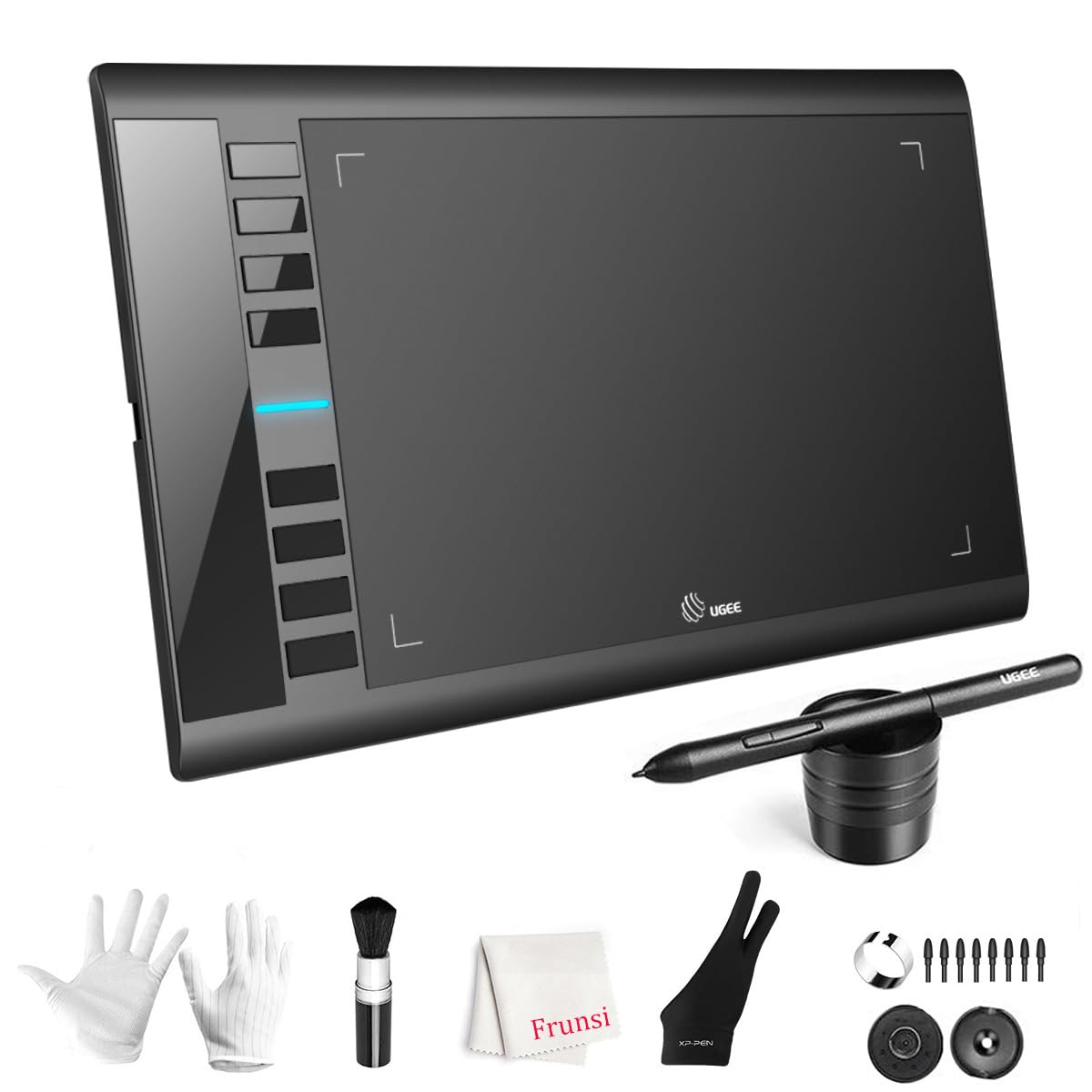
Ten inches by 6.25 is the largest active area of any screenless tablet here, and it changes how the thing feels to use: your arm moves, your wrist does not, and a long curve comes out in one pass instead of three. That is why it is the value pick in this group — the extra room is the upgrade a beginner actually notices.

The rest of the package is generous for the money. There are 16,384 pressure levels and 60 degrees of tilt for shading, eight shortcut keys that work whichever hand you draw with, and a USB-C cable with adapters for older ports. We were glad to see a drawing glove, a protective film, spare nibs, and a pen stand in the box, since those are the extras you otherwise end up buying separately.

Two things to know before you order. The buttons on the pen sit close enough to the grip that they fire by accident while you shade, and the risk worth taking seriously is a unit that stops responding. Buy it somewhere with an easy return window and set it up the day it arrives; a bad unit then costs you a week rather than a project.

Pros

  • Largest active area of the screenless picks
  • 16,384 pressure levels and 60-degree tilt
  • Eight keys that suit left- or right-handers
  • Glove, spare nibs, and protective film included

Cons

  • Needs a 13.9 x 8.8-inch footprint on the desk
Our verdict

The largest drawing surface in the affordable half of this group; buy it if you want room to grow without paying for a screen.

Check Latest Price
3

Best for Travel

HUION Inspiroy H640P

89 /100
LBD Score Excellent

Key details

Weight
9.6 oz
Active Area
6" x 4"
Shortcut Keys
6 programmable
Pressure Sensitivity
8,192 levels
View on Amazon

Three-tenths of an inch thick and 9.6 ounces: the H640P takes up about as much room in a bag as a paperback and adds almost nothing to the weight. That is not a small thing in a first tablet, because the one you leave at home is the one you never learn on.

There is more here than the size suggests. Six programmable keys along the top edge handle undo, zoom, and brush switching, the PW100 pen is battery-free with 8,192 pressure levels and tilt support, and the box includes a pen holder with eight spare nibs. It runs on Windows, macOS, Linux, and Android 6.0 or later, and left-handers can flip the orientation in the driver.

Six by four inches is not much drawing surface, and you will zoom more than on the Deco. We think that is the right trade for a student or a commuter, since the alternative is a bigger tablet that stays at home. Check your software first, though: GIMP is the program that tends to fight this driver, while Photoshop and Krita are the ones it gets along with.

Pros

  • Light and thin enough to carry every day
  • Six programmable shortcut keys
  • Battery-free pen with 8,192 levels and tilt
  • Eight spare nibs and a pen holder included

Cons

  • Pen side buttons sit where fingers rest
  • Wired USB connection only
Our verdict

For a student or a commuter, this is the tablet that actually travels: 9.6 ounces, six shortcut keys, and a pen that never needs charging.

Check Latest Price
4

Best Pen Display

XPPen Artist 12 Pro

93 /100
LBD Score Outstanding

Key details

Screen
11.6 inches
Resolution
1920 x 1080
Shortcut Keys
8 keys plus red dial
Pressure Sensitivity
8,192 levels
View on Amazon

The first stroke on a pen display is the moment digital drawing stops feeling like remote control. Your hand is on the line, the gap between nib and cursor disappears on the fully laminated panel, and the anti-glare finish keeps a desk lamp from washing out the corner you are working in.

Of the tablets here that need a computer and have a screen, we rate this the better first buy. The 11.6-inch 1080p panel is sharp enough for line work and comfortable for a couple of hours at a stretch, the eight express keys and the red dial handle zoom and brush size without reaching for the keyboard, and the battery-free stylus brings 8,192 pressure levels and 60 degrees of tilt.

Check the driver against your operating system before you order — newer macOS releases are where this one gets difficult — and plan for a desk, because at 1,500 grams it is not a lap tablet.

The last thing we tell anyone buying a screen tablet is to use it hard in the first week: the failures that do happen show up early, and a return is far simpler than a repair. If most of your drawing happens on the sofa, buy a screenless pad instead.

Pros

  • Fully laminated 11.6-inch 1080p screen
  • Red dial plus eight shortcut keys
  • Battery-free pen with 8,192 levels and tilt
  • Screen quality draws consistent praise

Cons

  • Needs a host computer, a 3-in-1 cable, and power
  • Can lag when the host machine is slow
Our verdict

If you want to draw on the screen rather than beside it, start here: a laminated 11.6-inch display, a red dial you will use, and no charging cable for the pen.

Check Latest Price
5

Best Without a Computer

Frunsi RubensTab T11 Pro

87 /100
LBD Score Excellent

Key details

Screen
10.1 inches
Resolution
1920 x 1200
Operating System
Android 12
Pressure Sensitivity
1,024 levels
View on Amazon

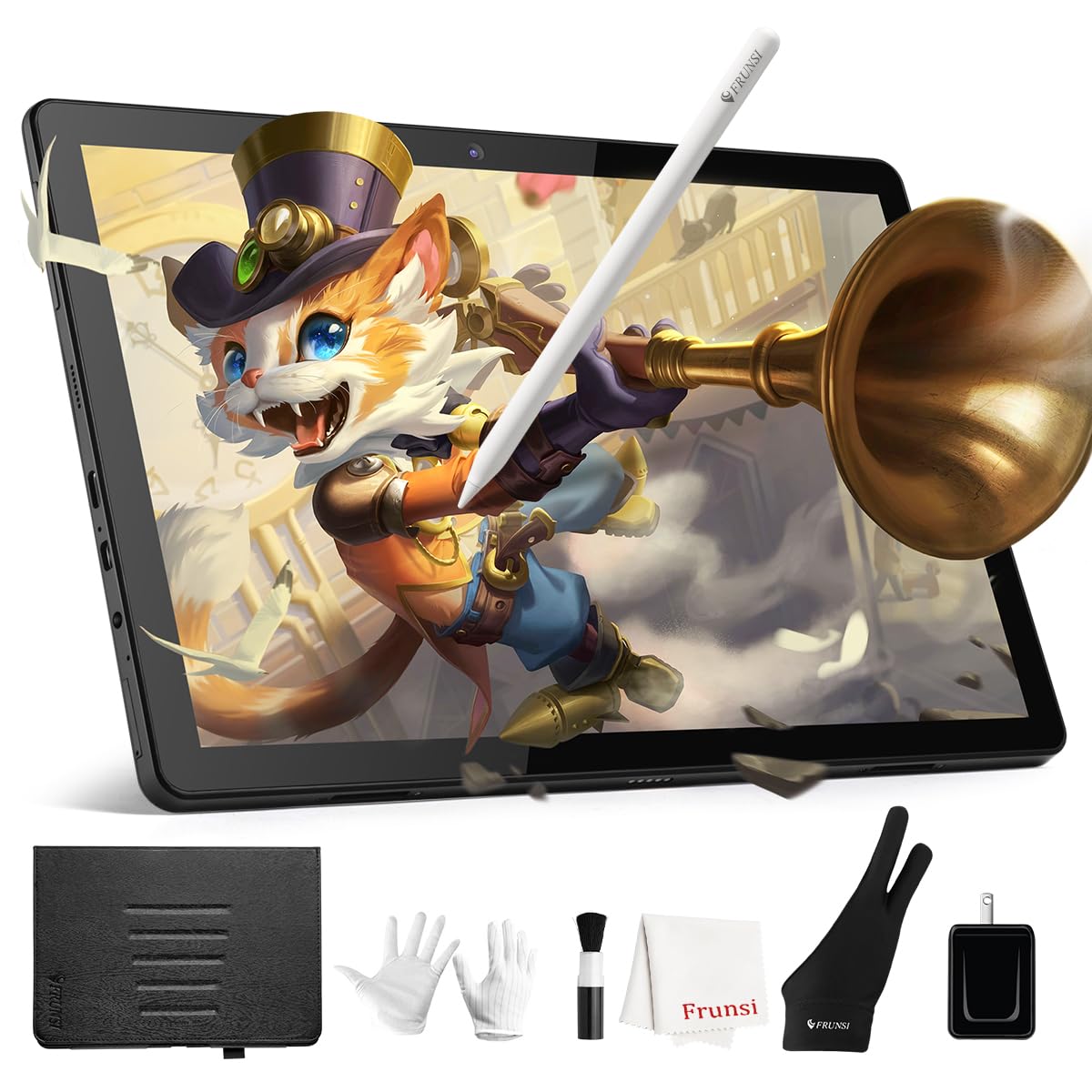
No computer, no cable, no driver. That combination is why the T11 Pro is here at all: it is an Android tablet with a pressure-sensitive pen and a drawing app already installed, and it comes with an adjustable stand case, a drawing glove, a spare stylus, and a set of tutorials aimed squarely at someone who has never drawn digitally.

The 10.1-inch 1920 x 1200 screen is the reason to pick it over a cheap tablet paired with a hand-me-down laptop. It is bright and clear enough for line work, and the stand case props it at a drawing angle without another purchase.

What it is not is precise. The screen responds well to the pen and the pre-installed apps are genuinely usable, but this is a tablet for sketching, note-taking, and animation practice rather than fine inking, and the listed five hours of battery is a session or two rather than a weekend away.

The beginner it suits is specific: someone who wants to try digital drawing without a computer, or who sketches away from a desk. Buy it where returns are easy and use it hard in the first week, because the failure worth knowing about is a unit that stops charging, and the sooner that shows up, the simpler the exchange.

Pros

  • Works with no computer or cable
  • Pre-installed drawing apps and beginner tutorials
  • Stand case, glove, and spare stylus included
  • 10.1-inch 1920 x 1200 display

Cons

  • Only 1,024 pressure levels
Our verdict

No laptop, no cable, no driver: the T11 Pro is for the beginner who wants to draw on the couch, as long as a coarser pen is acceptable.

Check Latest Price
6

Left-Handed Use

GAOMON S620

89 /100
LBD Score Excellent

Key details

Active Area
6.5" x 4"
Report Rate
266 PPS
Shortcut Keys
4 customizable
Pressure Sensitivity
8,192 levels
View on Amazon

Plug the S620 in and the pen works; the four shortcut keys do not, not until you install the GAOMON driver and open the button settings. We mention it first because that step decides whether the tablet feels broken or brilliant, and because the same driver is where the 180-degree rotation lives — the setting that puts the keys under a left-hander's free hand instead of asking them to reach across.

Underneath that it is a 6.5 x 4-inch pad with 8,192 pressure levels, a battery-free pen, and four rubber feet that stop it skating mid-stroke. The surface is a shade wider than the H640P's, which helps for OSU! taps and for note-taking, and at this price the pen's quick tracking matters more than any number on the box. The whole thing disappears into a laptop sleeve.

Pros

  • 180-degree rotation in the driver for left-handers
  • 8,192 pressure levels from a battery-free pen
  • Slightly wider 6.5 x 4-inch surface
  • Rubber feet keep it steady while drawing

Cons

  • No iPad or Chromebook support
  • Shortcut keys sit in an awkward spot
Our verdict

The tablet we recommend for OSU! players and left-handers: rotate the surface 180 degrees in the driver and the keys fall under your other hand.

Check Latest Price
7

Textured Surface Fans

UGEE M708 V3

89 /100
LBD Score Excellent

Key details

Tilt
60 degrees
Active Area
10" x 6"
Shortcut Keys
8 programmable
Pressure Sensitivity
16,384 levels
View on Amazon

Most tablets at this price feel like glass. The M708 V3 does not: its surface has a fine papery texture that gives the nib something to push against, which makes tapered lines and slow shading easier to control. It is not a quiet tablet — the pen whispers across it — and that is the honest trade for the extra bite.

The working area is 10 x 6 inches, the passive stylus carries 16,384 pressure levels and 60 degrees of tilt, and eight programmable keys run down the side, along with a glove, a pen holder, and the USB-C adapter we always end up needing.

Whether that surface suits you is the whole decision. If you came from pencil and paper and the slick pads feel like drawing on a phone, the M708 gives back some of the resistance you are used to, and the 10 x 6-inch sheet keeps big gestures on the tablet. For a sketcher who works large, the trade is worth making.

Pros

  • Textured surface gives real pen control
  • 10 x 6-inch area with 16,384 levels
  • Eight programmable keys and a glove
  • USB-C adapter included

Cons

  • Shortcut keys are stiff and fiddly to program
  • Pen can lag on fast strokes
Our verdict

Pencil people, this one is for you: the M708's papery surface gives the nib something to push against, and eight keys cover the shortcuts that matter.

Check Latest Price
8

Budget Screen Drawing

GAOMON PD1161

88 /100
LBD Score Excellent

Key details

Screen
11.6 inches
Resolution
1920 x 1080
Shortcut Keys
8 programmable
Pressure Sensitivity
8,192 levels
View on Amazon

Three cables. The PD1161 needs HDMI for the picture, USB for the pen, and the included AC adapter for power, and all of it has to be connected before the tablet does anything. On a desktop that is a one-time annoyance; on a laptop you pack up every evening, it is the reason a tablet ends up in a drawer.

What you get for the trouble is an 11.6-inch 1080p IPS panel with a matte film already applied, 72% NTSC coverage, a battery-free AP50 pen with 8,192 pressure levels and 60 degrees of tilt, and eight press keys plus two on the pen. The matte film is the right call: it kills the glare that makes glossy displays miserable under a desk lamp.

Setup is the other hurdle. The GAOMON driver has to go on before the pen behaves properly, and the eight keys need mapping before they do anything useful. That is an evening's work rather than a five-minute one, and it is worth doing before you judge the tablet.

We keep it on the list because a screen changes how beginners learn. If you have already bounced off a screenless pad because you could not get past looking up at the monitor, the PD1161 removes that hurdle, as long as your machine has the ports and your desk has the room.

Pros

  • 11.6-inch 1080p screen with matte film fitted
  • 8,192 levels, battery-free pen, 60-degree tilt
  • Eight press keys plus two pen buttons
  • Wide color coverage for the price

Cons

  • Screen looks softer than a laminated panel
Our verdict

The third cable is the price of admission: the PD1161 gives you an 11.6-inch screen to draw on, and a softer picture than the laminated alternative.

Check Latest Price

How We Tested Beginner Drawing Tablets

We started by gathering every tablet marketed to beginners that we could get our hands on, from slim screenless slabs to pen displays with their own screens, then cut the field to 12 by asking three questions: does the driver support the software beginners actually use, does the pen need charging, and are the shortcut keys reachable without lifting your hand off the tablet.

Setup came first. I timed each one from opening the box to making a mark on screen and noted whether the driver install required a reboot, an account login, or a manual download. Then each tablet went into ordinary rotation for six months — sketching at the kitchen table on Saturday mornings, note-taking during meetings, and packed into a tote for coffee-shop sessions.

To compare drawing feel, I drew the same set of strokes on all 12: slow diagonals, fast circles, long shading passes. We watched for jitter, lag, and whether the pen tapered smoothly or snapped to full thickness. We mapped the shortcut keys to undo and brush size and pressed them mid-stroke to see whether anyone had to look down. On the models with built-in displays, we drew under office lights to check glare and pressed hard to see if the cursor drifted away from the nib.

Compatibility was checked by plugging each tablet into a Windows laptop, a Mac, a Chromebook, and an Android phone wherever support was claimed. Six months in, we logged which ones needed re-plugging after sleep, which nibs had worn flat, and whether we'd spend our own money on each one at its asking price.

How to Choose a Beginner Drawing Tablet

Start with what the tablet plugs into

Everything here is one of three things: a pad you connect to a computer and draw on while watching the screen, a display you draw on directly that also needs a computer, or a standalone Android tablet with the pen built in. The pad is the cheapest and the most portable; the display removes the hand-eye adjustment at several times the price; the standalone removes the computer and adds a battery to keep charged.

If you already own a laptop and an art program, start with a pad. If you know the disconnect will make you quit, pay for the screen — but pay knowing that a display commits you to a desk, a cable, and a power outlet.

Size the drawing surface to your arm

Active area is what you actually draw on, and it is not the same as the screen size or the overall footprint a listing quotes. In this group the range runs from 6 x 3.7 inches to 10 x 6.25. Small pads suit wrist-scale sketching, note-taking, and bags; 10 x 6 suits drawing from the elbow, where a long curve wants one pass.

If you have never used a tablet, a 6 x 4 pad will teach you everything a bigger one will — you will just zoom more. Buy the larger surface when you already know you draw with your arm rather than your wrist.

Read the pen specs, then discount half of them

Pressure levels are the number every listing leads with and the one that stops mattering first. The range here runs from 1,024 to 16,384, and past 8,192 the difference in a beginner's line is small. A battery-free pen, a nib that feels right on the surface, and a driver that behaves inside your program decide far more.

Tilt is worth having if you shade. We check driver support before anything else, because that is where a first purchase most often goes wrong.

Budget for the setup, not just the tablet

The purchase price is the start. Count a USB-C adapter if your laptop has only small ports, an HDMI port and a free power outlet if you are going anywhere near a pen display, and an evening for drivers and key mapping.

Whatever you buy, open it, install it, and draw something the day it arrives. A return window is the cheapest insurance in this category, and a tablet that misbehaves on day one is easier to swap than to fix.

Frequently Asked Questions

Final Verdict

We tested these tablets to answer one question: which one gets a beginner drawing fastest, with the least fuss. For most people it is the Wacom Intuos Small — small, unglamorous, and built around a pen and a driver that stay out of the way.

If you want a bigger surface for very little money, take the XPPen Deco 01 V3. If the hand-eye gap is what stops you, the Artist 12 Pro puts the line under your pen.