Best HDR Monitors of 2026

Almost every monitor sold as HDR technically is one: it accepts the signal, switches into the mode, and hands back a picture that looks suspiciously like the SDR version. What separates a screen that earns the label is peak brightness in the highlights, color range wide enough to hold a saturated red without clipping it, and a panel that doesn't collapse into gray the moment a scene goes dark. That gap never shows up clearly on a spec sheet, which is exactly why it's worth sorting out before you buy.

I've had a dozen of these on my desk and my team's desks since the start of the year, and over eight months the pattern held: the best numbers on paper weren't always the screens I wanted to keep using. One trap worth knowing — a monitor can advertise HDR10 support and still top out around 300 nits, so the night scenes you care about look washed out instead of black. Brightness and color coverage are what you notice every single day; refresh rate gets the headlines, but it's the brightness that decides whether HDR is a feature or a checkbox.

Below are the ones that held up, whether you're color-correcting photos, docking a laptop with one cable, or playing something fast after dinner.

1

Best Overall

ASUS ROG XG27AQDMGR

87 /100
LBD Score Excellent

Key details

Color Gamut
99% DCI-P3
Refresh Rate
240 Hz
Contrast Ratio
1,500,000:1
HDR Certification
VESA DisplayHDR 400 True Black
View on Amazon

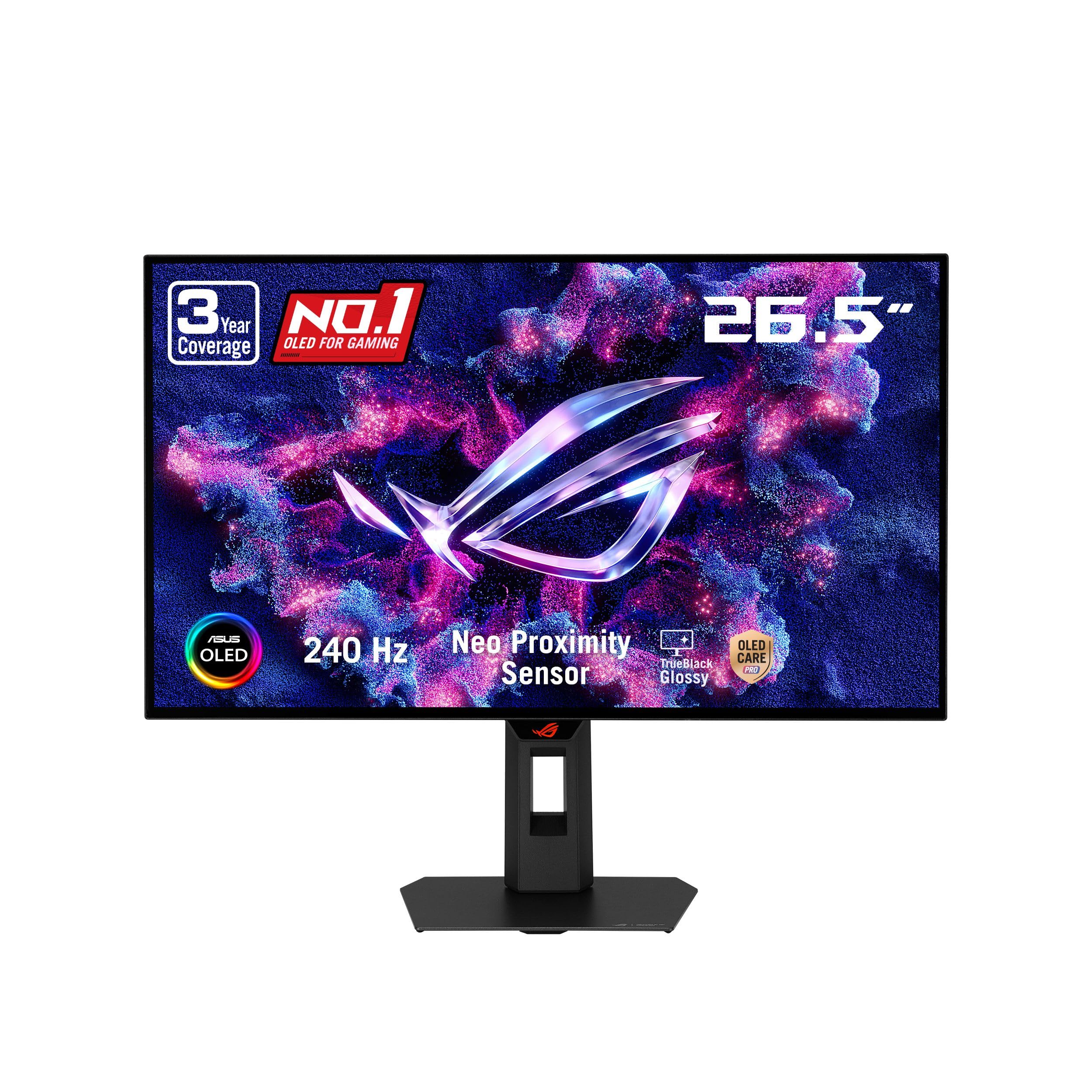
A 1,500,000:1 contrast ratio is the number that actually matters here, and it's the reason this is the monitor we point people to when they ask what HDR looks like. Every pixel switches off individually, so a night sky, or the black bars around a movie, stays black instead of glowing grey the way an edge-lit LCD does. VESA rates it DisplayHDR 400 True Black — a modest figure that measures the black level rather than the peak, which is exactly the part you notice.

The TrueBlack glossy coating is what we ended up appreciating most. Highlights in games and HDR video have a hard edge that matte panels soften, and color arrives saturated without the neon push that cheaper HDR modes layer on top of an SDR picture. We also spent time with the 240Hz refresh and 0.03ms response; that is more speed than a workday needs, but scrolling a long document at 240Hz makes 60Hz feel like a compromise.

Color holds up under scrutiny: 99% DCI-P3, true 10-bit, and Delta E under 2 mean an HDR grade lands close to where it was mastered. Living with it, we came to trust the OLED Care Pro proximity sensor, which blanks the panel when you step away — the least intrusive burn-in hedge we've used. The port count is the one place it runs tight: a single HDMI alongside one DisplayPort and two USB, so a console and a PC sharing a desk need a plan.

Three years of warranty that explicitly covers burn-in is the reassurance that matters on an OLED, and it's more coverage than most of this group offers. It's also the most expensive monitor here by a wide margin. If you want the format rather than a feature checkbox, that's money well placed.

Pros

  • Per-pixel OLED contrast with true blacks
  • 99% DCI-P3 with Delta E under 2
  • 240Hz refresh and 0.03ms response
  • Three-year warranty includes burn-in

Cons

  • Glossy panel reflects windows and lamps
Our verdict

This is the monitor we recommend when HDR is the reason you're shopping: per-pixel OLED contrast, 99% DCI-P3, and 240Hz, with burn-in coverage behind it.

Check Latest Price
2

Best for Color Work

ASUS ProArt PA279CRV

83 /100
LBD Score Excellent

Key details

Resolution
3840 x 2160
Color Gamut
99% DCI-P3, 99% Adobe RGB
Color Accuracy
Delta E < 2, Calman Verified
USB-C Power Delivery
96 W
View on Amazon

There's a printed calibration report in the box, listing the Delta E measurements for the exact panel you just unplugged. That's the pitch in one sheet of paper: Calman-verified, factory-calibrated to under 2, for people whose work gets judged against a proof. We opened a white document and a color chart first, and the neutrality held — the kind of out-of-box result that saves an hour of fiddling before a deadline.

The panel itself is 4K at 27 inches with 99% DCI-P3 and 99% Adobe RGB, which covers both a video grade and a print proof without switching profiles. Text is crisp at native resolution, and the connection story is the best here: 96W of USB-C power delivery, four USB ports, and DisplayPort daisy chaining, so a laptop runs the display, charges, and feeds a second screen through one cable. On a MacBook desk that's a dock you don't have to buy.

HDR on this one is a color story rather than a contrast one. Peak brightness is 400 cd/m² and there's no local dimming, so a dark scene won't have the depth of the OLED above — but shaded detail inside a grade resolves cleanly, and for someone delivering HDR video that's the useful half. One quirk to know about: it can take a beat to wake from sleep, and the fix lives on the computer side, in the display sleep and USB power settings.

Five years of coverage after registration, the longest in this group, plus a matte finish that keeps a window out of the reflections. If your week is grading, retouching, and proofs, that is a better use of money than a faster panel.

Pros

  • Factory-calibrated to Delta E under 2
  • 99% DCI-P3 and 99% Adobe RGB coverage
  • 96W USB-C power plus four-port hub
  • Five-year warranty after registration

Cons

  • 60Hz refresh rate rules out fast gaming
Our verdict

Buy it if color accuracy is the job: factory-calibrated 4K, 99% DCI-P3 and Adobe RGB, and 96W USB-C charging for a one-cable desk.

Check Latest Price
3

Best Budget 4K

LG 27US500-W

86 /100
LBD Score Excellent

Key details

HDR Format
HDR10
Resolution
3840 x 2160
Color Gamut
90% DCI-P3
Refresh Rate
60 Hz
View on Amazon

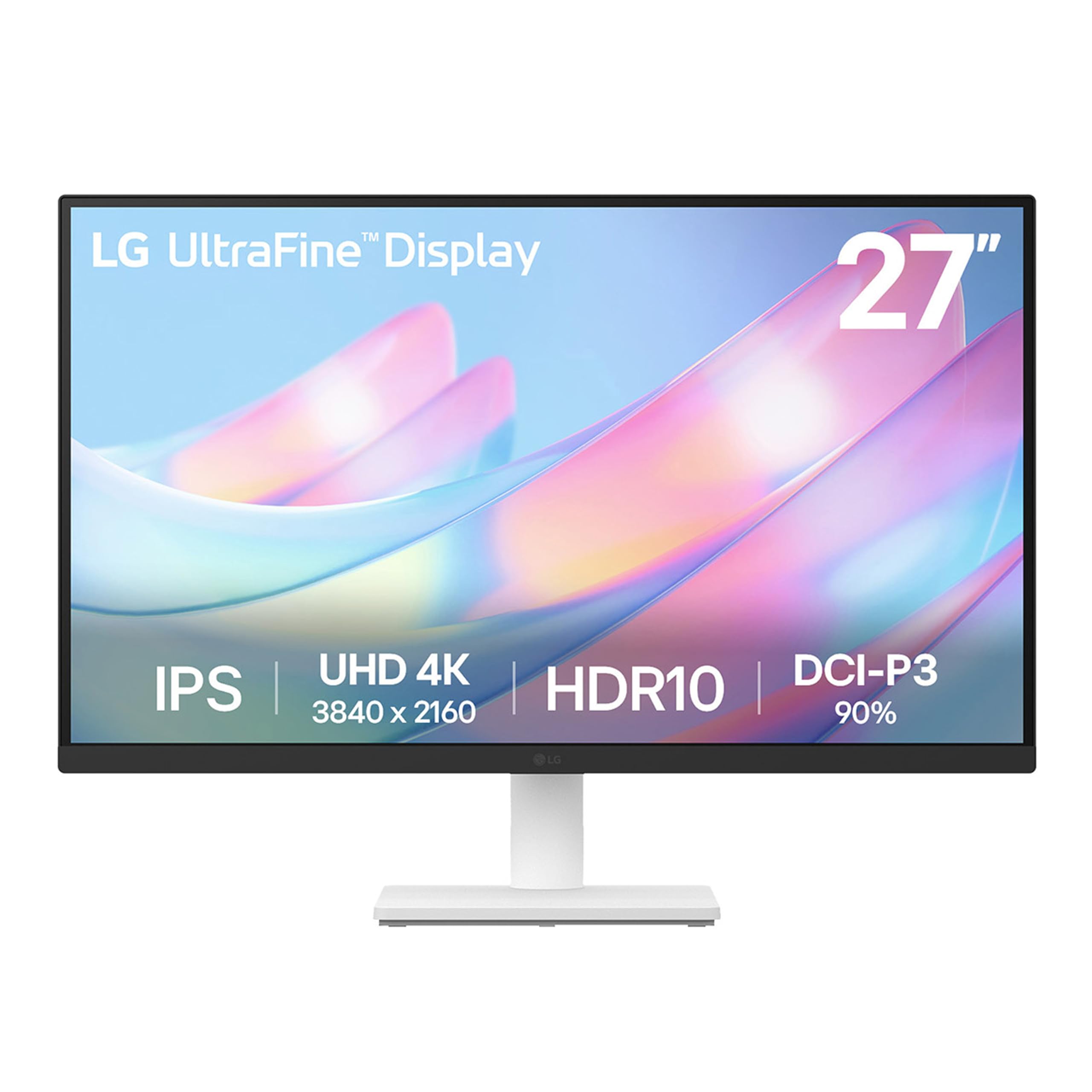
4K at 27 inches works out to about 163 pixels per inch, and that's the whole argument for this LG: text at that density has no visible edge, and two documents side by side stop feeling cramped. HDR10 with 90% DCI-P3 gives HDR content a wider palette than an sRGB-only panel manages, which is more than the money suggests.

What we noticed in daily use was how little we scrolled. Two windows at full width is the point of a 4K desk, and this one delivers it without the scaling gymnastics a larger panel asks for. The white cabinet turned out to matter more than we expected — against a light wall it disappears, and the matte screen swallows a lamp reflection that would light up a glossy panel.

The stand is the one place LG economized. It adjusts for tilt only, and typing with any force sets the panel nodding; the monitor can be wall mounted, so a monitor arm is the clean fix if that grates. Setup is otherwise plug-and-play, with the HDMI cable and power adapter in the box and no menu diving required.

Where this one gives ground is HDR impact. At 300 cd/m² with no local dimming, highlights brighten rather than blaze, so an HDR movie looks better than SDR but not dramatically so. If sharp text and honest color at a midrange price are the goal, that's a fair trade — and it's why this is the 4K pick for a desk that runs on documents rather than movies.

Pros

  • 4K resolution at 27 inches for crisp text
  • HDR10 with 90% DCI-P3 coverage
  • Clean white cabinet and matte finish
  • Plug-and-play setup with cable included

Cons

  • 60Hz refresh rate
  • No built-in speakers
Our verdict

The 4K pick for a desk full of documents and browsers: sharp text, honest HDR10 color, and a white cabinet that disappears against a light wall.

Check Latest Price
4

Best Value

SANSUI ES-G27C1 PRO

89 /100
LBD Score Excellent

Key details

Resolution
1920 x 1080
Color Gamut
130% sRGB, 95% DCI-P3
Refresh Rate
240 Hz
Contrast Ratio
4000:1
View on Amazon

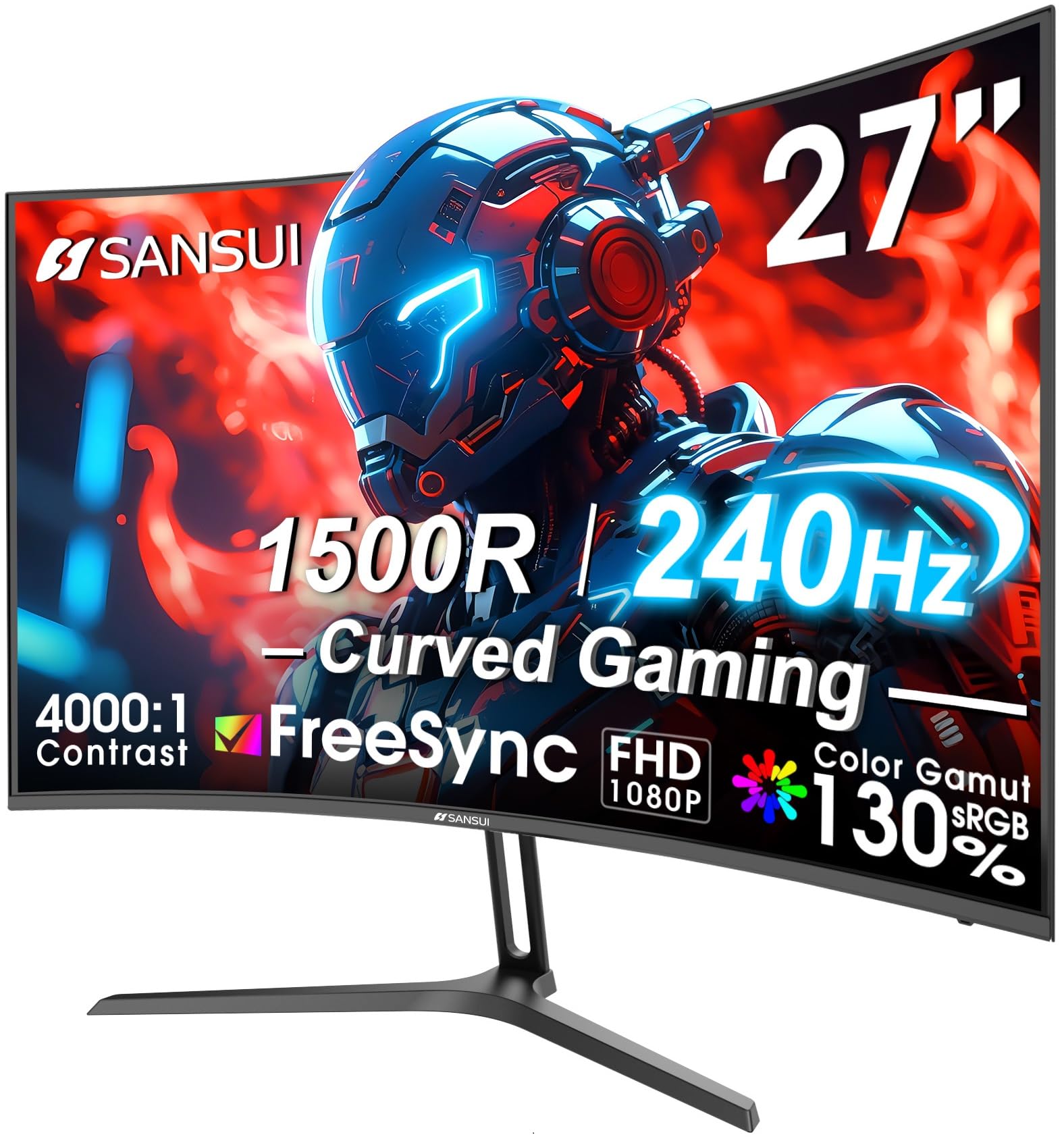
240Hz, a 1500R curve, 95% DCI-P3, and a 4000:1 contrast ratio on a 27-inch panel — read that back and it sounds like a listing error. It isn't, and the compromises that make it possible are the ones you'd predict.

We like who this suits: a first competitive setup where the refresh rate and the color both matter and 1440p doesn't fit the budget. The catch is the resolution. 1080p stretched over 27 inches lands around 82 pixels per inch, so text has visible edges and a spreadsheet looks softer than on any other pick here. In motion you won't notice; in a document you will.

The 1500R curve wraps the edges toward you, which makes the wide frame feel less like a letterbox and more like a cockpit, and the anti-glare matte finish keeps a window from washing it out. HDR is the weakest claim in the package: 300 cd/m² with no local dimming means HDR mode mostly lifts saturation. Treat it as a color setting rather than a contrast upgrade.

Assembly took a couple of minutes — metal stand, DisplayPort cable included, a tilt range that covers a normal desk. The one-year warranty is the shortest here, though the 30-day replacement window and lifetime support take some of the risk off. For a first gaming monitor, that math works.

Pros

  • 240Hz refresh at a budget price
  • 95% DCI-P3 and 130% sRGB coverage
  • Metal stand with cable in the box
  • 30-day replacement window

Cons

  • 1080p on a 27-inch panel softens text
  • No built-in speakers
Our verdict

The value pick for a first competitive setup: 240Hz, a 1500R curve, and 95% DCI-P3 coverage for budget money.

Check Latest Price
5

Small Budget Desks

MSI PRO MP243W E14

89 /100
LBD Score Excellent

Key details

Resolution
1920 x 1080
VESA Mount
100 x 100 mm
Refresh Rate
144 Hz
Contrast Ratio
1500:1
View on Amazon

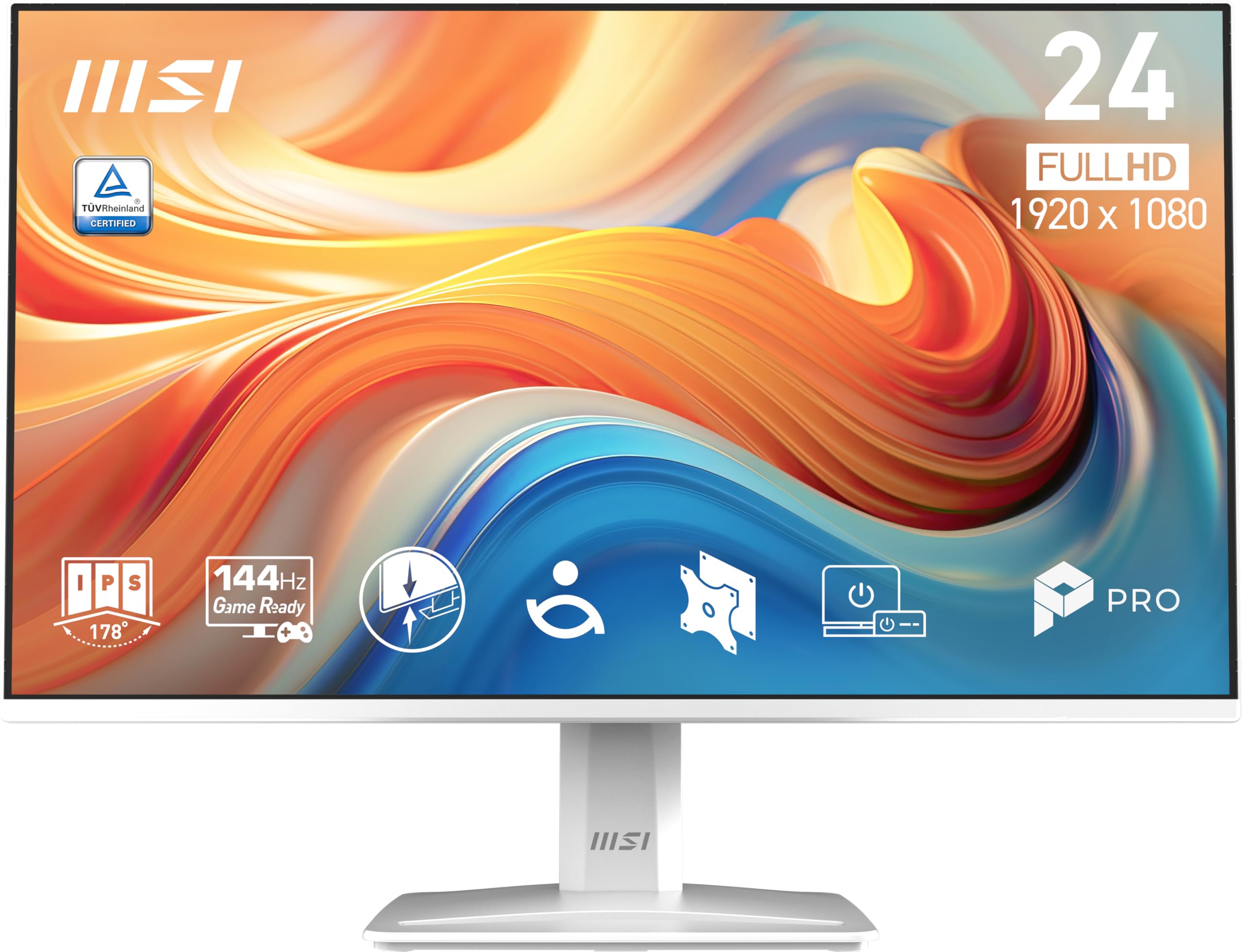
Small desks are their own category, and this MSI is built for one: 1920 x 1080 at 24 inches is about 92 pixels per inch, sharp enough for text without any scaling, and the white cabinet with four-sided slim bezels stays out of the way in a room that isn't a dedicated office.

The panel does more than the money implies. A 1500:1 contrast ratio gives it noticeably more depth in dark scenes than the LG 4K pick, 144Hz with adaptive sync keeps motion clean, and the matte finish handles an overhead light. The 87% color coverage is the modest number — fine for documents, streaming, and casual games, not something to grade video on.

HDR Ready is the honest label here. The monitor accepts an HDR10 signal and applies a mild tone map, but with no local dimming and a modest peak brightness it won't transform a movie the way the OLED does. We think of it as a bonus on a cheap panel rather than a reason to buy, and for the SDR work a 24-inch screen mostly does, that's the right call.

What we kept coming back to is the rest of the package: TÜV-certified flicker-free and low blue light, a three-year warranty that beats what LG and SANSUI offer, 100 x 100 VESA mounting, and both HDMI and DisplayPort cables in the box. As a second screen, a first setup, or a display for a docked laptop, it's more than the money implies.

Pros

  • 1500:1 contrast is deep for an IPS
  • 144Hz with adaptive sync
  • Three-year manufacturer warranty
  • VESA 100 x 100 mounting

Cons

  • Tilt-only stand with no height adjustment
Our verdict

The cheapest sensible way to add HDR-ready screen space: a bright, crisp 24-inch IPS at 144Hz that fits a small desk and a small budget.

Check Latest Price

How We Chose and Tested These HDR Monitors

We started by pulling together every current model that claimed HDR support and then narrowing hard: panels with a stated color gamut we could verify, port layouts that could handle a modern desk (USB-C with power delivery, DisplayPort, enough HDMI for a console), and stands that adjust rather than just tilt. Anything that couldn't back up its brightness or color claim once we looked closely got cut before it ever reached a desk.

Twelve monitors made the final round, and we lived with them for eight months. In a windowless room, I measured peak brightness and color coverage with a colorimeter at factory settings and again after calibration, then played the same HDR demo clips on every screen and paused on the same dark scenes to see which ones held shadow detail and which ones turned to fog. I also ran a full-white field at low brightness on each one to check for flicker and uneven backlighting.

The rest happened in ordinary use. Each monitor became somebody's daily driver for a workweek of spreadsheets, video calls, and document scrolling, with a laptop plugged into every USB-C port to time charging and confirm one cable really carried display, data, and power. Evenings went to games at each panel's top refresh rate, watching for smearing in fast pans, and to movies with the lamps off. I nudged desks mid-typing to see how much the panel swayed, reached behind each one blind to judge how annoying the ports were, and looked at bezels and finish under a normal lamp rather than showroom lighting.

Months of daily power cycling turned up the things a short review misses — a dead pixel here, image retention on the OLED after a long static window, a port that loosened. Every pick below survived all of it.

How to Choose an Hdr Monitor

Contrast Comes Before Brightness

HDR is a range problem, not a brightness contest. A backlit IPS panel with no local dimming can push a highlight, but it can't darken the pixels next to it, so a bright window in a night scene bleeds grey into the dark around it. That's why the OLED pick here looks so different from the LCDs even though its certification number is smaller.

The practical check is what kind of backlight you're buying. Per-pixel OLED, or an LCD with a real local-dimming array, gives you contrast. An edge-lit panel labeled HDR10 gives you a wider palette and a tone map. If a listing says HDR10 or HDR Ready and never mentions dimming zones or panel type, budget for the second outcome.

Match Resolution to How Close You Sit

At 27 inches, 1080p works out to roughly 82 pixels per inch, 1440p to about 109, and 4K to around 163. At arm's length the first looks soft in text, the second looks normal, and the third looks like print. That is why 4K earns its money on a document desk and 1080p is a fair trade on a gaming one.

Scaling counts too. A 27-inch 4K panel at 100% scaling makes menus tiny, so you'll likely run it near 150%, which hands you a workspace between 1440p and 4K with sharper letterforms. That's still the better result for text-heavy work, and it's why the 4K picks here suit laptops and Macs.

Weigh Panel Type and Screen Finish

IPS gives you accurate color and wide viewing angles with contrast around 1000:1 to 1500:1. OLED gives you per-pixel light and a contrast ratio in the millions. Neither is wrong; they answer different rooms and different budgets.

Finish is the part shoppers skip. Matte coatings scatter reflections and slightly soften highlights. Glossy coatings let HDR punch through and behave like a mirror once the sun moves. If your desk faces a window, matte plus a shade is the easier life; if you watch in a dim room, glossy is the better picture.

Check the Ports Against Your Desk

Two HDMI inputs let a console and a PC stay plugged in at once; one means swapping cables. USB-C with power delivery is the bigger everyday convenience for laptop owners — the ProArt here sends 96W up the same cable that carries the picture, so a laptop runs a 4K display and charges without a dock.

Count what the hub gives back as well. USB ports on the monitor are how a webcam, keyboard dongle, or card reader stay connected when the laptop walks out the door.

Don't Ignore the Stand or the Warranty

A wobbly stand is the most common regret in this category and it never shows up in a headline spec. Tilt-only stands are normal at the budget end, so check whether height adjusts and whether the panel nods when you type. All five picks here can be wall mounted, so a monitor arm is a straightforward fix when the included stand disappoints.

Coverage splits this group more than size does: one year on the budget picks, three on the MSI and the ROG, and five on the ProArt once you register. On a panel you plan to keep for years, that coverage is part of what you're buying.

Frequently Asked Questions

Final Verdict

Our recommendation is the ASUS ROG XG27AQDMGR. It's the only monitor here where HDR is a contrast experience rather than a color preset, and the burn-in coverage makes the OLED leap easier to justify than it used to be.

If your work has to match a proof or a broadcast standard, the ProArt PA279CRV buys factory calibration, 4K, and five years of coverage for less money. And if you simply want crisp text on a bright desk, the LG 27US500-W delivers 4K at roughly half the ProArt's price — just don't buy it expecting movie-theater blacks.