Best iPad Styluses of 2026

The question I hear most about iPad styluses isn't about pressure curves or nib feel — it's some version of "will this one work with my iPad?" It's a fair worry: Apple has cycled through enough generations and connector types that two tablets that look alike can need completely different pencils, and a stylus that drops palm rejection halfway down a page will make you want to throw it across the room.

Over the past six months, my team and I have tested 14 styluses, from first-party models to third-party alternatives selling for a fraction of the price, across tablets ranging from an older mini to a current-generation Pro. We took notes in meetings, sketched on the couch, and marked up PDFs on the train.

What separates a good one from a frustrating one usually isn't a spec. It's whether the magnet actually holds in a bag, whether a quick charge gets you through a meeting, and whether the tip feels solid or slightly loose in your hand. Every pick below clears that bar.

1

Best Overall

JAMJAKE K10 Stylus Pen

89 /100
LBD Score Excellent

Key details

Battery Life
15 hours
iPad Support
2018–2026 models
Charging Time
15 minutes
Palm Rejection
Yes
View on Amazon

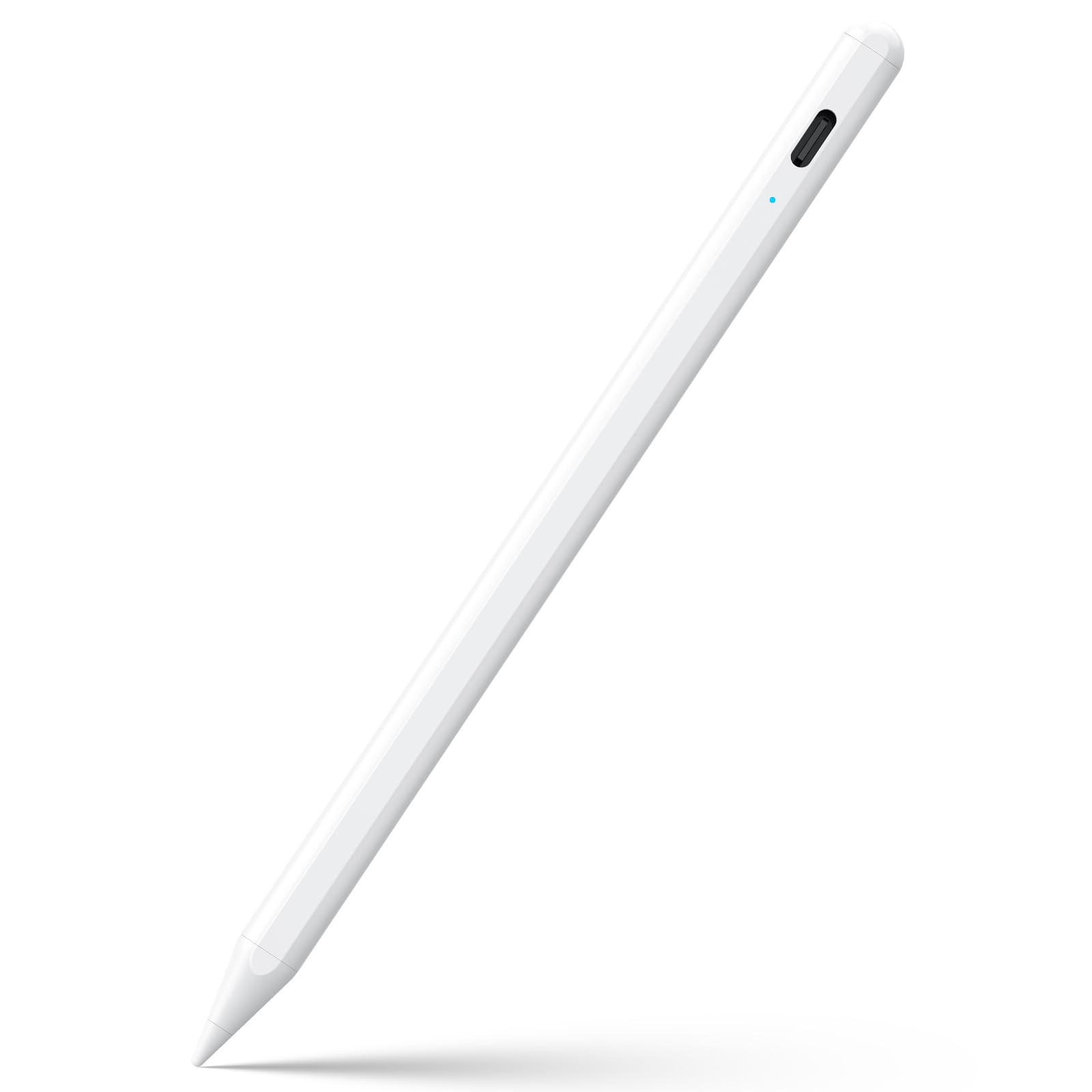
JAMJAKE rates a 15-minute charge at about 15 hours of writing, and that ratio is why the K10 kept ending up in our hands rather than in a drawer. There's no pairing step and no app to open: press the cap button, the pen wakes, and the 1.5mm tip puts a line exactly where you point it. In a house with one iPad and three people who want to use it, that absence of setup is most of the appeal.

Coverage is what earns it the top spot. This pen is built for iPads from 2018 through the current M4 models — iPad 6th generation and later, mini 5/6/7, Air 3rd gen and up, and the Pro line — so the odds are good it fits the tablet you already own. Palm rejection is the part we leaned on hardest: rest your hand on the glass the way you would on paper and the screen ignores it while the tip keeps drawing. The tip is slim enough for cramped handwriting in PDF margins, where a fat rubber stylus turns into a blunt instrument.

What you give up is depth. The pen registers a single pressure level, so a stroke stays the same weight no matter how hard you press — fine for notes, markup, and signatures, limiting for shading. If your work lives in Procreate and you own an M-series iPad, the Apple Pencil Pro is the pen that pays for itself. For everyone else the bargain is straightforward, and 14 grams of plastic is light enough to disappear in a bag until you reach for it.

Pros

  • Works with iPads from 2018 through M4 models
  • Palm rejection lets your hand rest naturally
  • 15-minute charge for about 15 hours of writing
  • No pairing or app needed

Cons

  • Single pressure level means no shading control
  • Plastic barrel feels less premium than metal
Our verdict

We point most people here: it fits every iPad from 2018 on, rejects your palm, and a short charge covers a full day of notes.

Check Latest Price
2

Best for Artists

Apple Pencil Pro

93 /100
LBD Score Outstanding

Key details

Charging
Magnetic
Gestures
Squeeze and barrel roll
iPad Support
Pro M4/M5, Air M2–M4
Pressure Sensitivity
Yes
View on Amazon

Pressure sensitivity is the line in the sand in this category, and the Pencil Pro is the only pen here that crosses it. Bear down and the stroke thickens; ease off and it thins. Add tilt for shading, squeeze to pull up a tool palette, barrel roll to twist a brush the way you turn a real one, and a haptic tap when a gesture registers. We tried the gestures half-expecting a gimmick and came away using squeeze constantly. On an iPad Pro (M4 or M5) or an iPad Air (M2 and later), nothing else here is close, and the magnetic edge handles pairing and charging without a cable.

The compatibility list is the catch, and it is short. A Pencil Pro will not pair with an iPad that predates those models — the pen and the tablet have to match, so check your model number before you order. We also minded the magnet more than we expected: it holds the pen securely in a bag, but it is the only thing holding it, and a knock against the edge of the tablet can send it to the floor.

Everything about the writing feel is right, though. The flat edge keeps it from rolling off a table, the 0.68-ounce weight sits in the hand like a wooden pencil, and the tip lands where you aim rather than a millimeter to the side. If you illustrate, sketch, or take handwritten notes you care about, this is the upgrade that shows up in the work.

Pros

  • Pressure and tilt sensitivity for real shading
  • Squeeze and barrel roll gestures
  • Magnetic charging and pairing

Cons

  • Pairs only with M-series iPad Pro and Air
  • Magnet can be knocked loose in a bag
Our verdict

Buy it if you draw on an M-series iPad — pressure, tilt, squeeze, and barrel roll are things no other pen here matches.

Check Latest Price
3

Best Official Apple Pencil

Apple Pencil (USB-C)

91 /100
LBD Score Outstanding

Key details

Charging
USB-C cable
iPad Support
USB-C iPad models
Tilt Sensitivity
Yes
Pressure Sensitivity
No
View on Amazon

The USB-C Pencil looks like the Pro and writes like the Pro right up until you press down. There's no pressure sensitivity, so a drawing app registers the same line whether you lean in or barely touch the glass. What you do get is Apple's low-latency tip and tilt sensitivity — enough for handwriting that looks like handwriting, and for shading that responds to the angle of the pen.

Charging is the other difference: a USB-C cable instead of the magnetic edge. The pen doesn't top up while it sits on the tablet, which is a genuine step down if you're used to a Pencil that is always full, and it's the change we noticed first. The upside is fit. This is the Apple Pencil for USB-C iPads that aren't on the Pro's short compatibility list.

We think of it as the sensible Apple purchase rather than the exciting one. Note-taking, PDF markup, signing, and sketching that doesn't depend on pressure all feel first-rate, and the tip is accurate enough for small lettering on a cramped form. Keep a cable at your desk, though: a dead Pencil with no magnetic charger is a stylus-shaped paperweight. Artists should walk straight to the Pro.

Pros

  • Apple's low-latency tip and tilt sensitivity
  • Fits USB-C iPads the Pro won't pair with
  • Accurate enough for small handwriting

Cons

  • No pressure sensitivity for shading
  • Charges by cable, not magnetically
Our verdict

We recommend the USB-C Pencil for USB-C iPads that aren't on the Pro's list, especially if you mostly take notes.

Check Latest Price
4

Best Budget

MYSTILUCK Stylus Pen

92 /100
LBD Score Outstanding

Key details

Battery Life
9 hours
iPad Support
2018–2026 models
Charging Time
15 minutes
On-pen Buttons
Erase and undo
View on Amazon

The cheapest pen in this guide is also one of the few with a metal barrel, which is where our interest started. MYSTILUCK's pencil is aluminum, weighs 14 grams, and charges in about 15 minutes for a stated 9 hours of use. It is shaped like the pen it is imitating, with a slim 0.39-inch barrel that sits easily between two fingers.

Two side buttons sold us. One click erases, a double click jumps back a screen, which sounds minor until you have spent an afternoon cancelling out of a lasso tool. Tilt sensitivity is here as well, so shading follows the angle of the pen, and palm rejection let us write with a hand flat on the glass. Four spare tips, a USB-C cable, and a year of warranty coverage come in the box, and the value is hard to argue with.

The limits are the ones that come with the price. There is no pressure curve, so brushwork looks flat next to anything Apple makes, and the software floor is iPadOS 16, which rules out an older tablet still running an earlier version. For notes, homework, list-making, and the occasional sketch, neither of those gets in the way.

Pros

  • Tilt sensitivity plus palm rejection
  • Side buttons for erase and undo
  • Four spare tips and a year of warranty

Cons

  • No pressure sensitivity for drawing apps
  • Requires iPadOS 16 or later
Our verdict

Our budget pick earns the name: aluminum build, tilt sensing, and erase buttons, with no pressure curve to speak of.

Check Latest Price
5

Best for Note-Taking

STYLUSHOME Dual-Tip Pencil

95 /100
LBD Score Outstanding

Key details

Tips
Fine active tip and rubber tip
Battery Life
9 hours
iPad Support
2018 and later
Charging Time
13 minutes
View on Amazon

There's a rubber tip on the back end of this pen, and it's the detail that makes it more useful than the stylus multipacks sold beside it. The working end is a 1.5mm active tip with tilt and palm rejection; flip it around and the soft tip taps and scrolls on any touchscreen in the house — the iPad, an older Android tablet, the kiosk at the pharmacy.

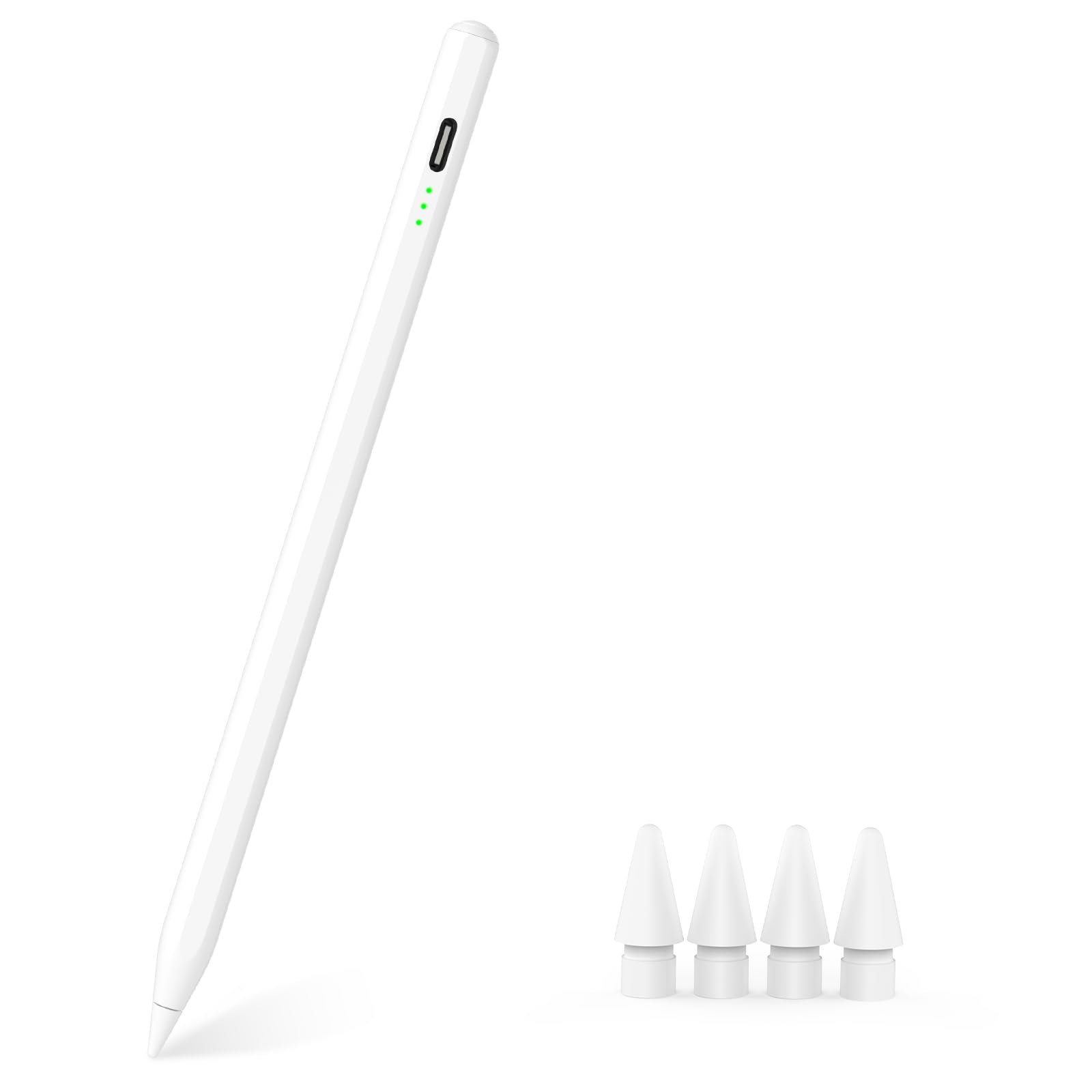
The active side is what we used. Tilt varies stroke width with the angle of the pen, palm rejection kept our hand from leaving marks, and there's no pairing at all: press the top button and write. Three small lights on the barrel report the charge instead of a single blinking LED, which we preferred — you can see trouble coming before a lecture rather than in the middle of one.

Charging runs about 13 minutes for a stated 9 hours, and the pen powers itself down after 10 idle minutes, so it isn't flat when you pull it out of a bag a week later. Tips are the part that wears on any fine-tip pen, and spares ship in the box; a worn tip starts to feel scratchy on glass long before it fails outright.

Taken together, it's the note-taker's pen here: instant connection, a charge that holds, and a gauge you can read at a glance, with a year of warranty behind it. Where it stops is pressure — brush strokes stay flat — so anyone drawing for a living should be saving for the Apple Pencil Pro. Everyone else gets a pen that behaves like a tool rather than a toy.

Pros

  • Active fine tip plus rubber touchscreen tip
  • Tilt sensitivity and palm rejection
  • Three-light battery indicator on the barrel

Cons

  • Tips wear and need replacing
Our verdict

For notes, this is the one we hand over: two tips, tilt, and a battery gauge that reads at a glance.

Check Latest Price
6

Battery Monitoring

KEEPRO Stylus Pen

93 /100
LBD Score Outstanding

Key details

Battery Life
10 hours
iPad Support
2018 and later
Charging Time
30 minutes
On-pen Controls
One-click undo, battery display
View on Amazon

The feature we kept coming back to is the least dramatic one: a real battery percentage in the iPad's status bar. KEEPRO gets there over Bluetooth, and the same connection gives the barrel a one-click undo — press once to take back the last stroke instead of hunting through the toolbar.

Charging is slower than the rest of this group. A full charge runs about 30 minutes, with 80% at the 15-minute mark, for up to 10 hours of use, and the pen shuts down after 5 idle minutes — short enough that a long pause mid-sentence means clicking it awake again.

The tips are the other reason to look. This one takes standard Apple Pencil tips, three of them in the box, so replacements are easy to find instead of a scavenger hunt. Palm rejection, tilt, and a magnet that holds it to the iPad's side round out the package. It's the pen we reach for second: the one for a backpack, a kid's homework iPad, or anyone who would rather see the number than guess at it.

Pros

  • Battery percentage in the status bar
  • One-click undo on the barrel
  • Takes standard Apple Pencil tips

Cons

  • 30-minute full charge is the slowest here
  • Shuts off after five idle minutes
Our verdict

We recommend it as a second pen for anyone who wants a battery percentage and an undo button within reach.

Check Latest Price
7

Spare-Pen Kits

Hastraith Stylus Pen

93 /100
LBD Score Outstanding

Key details

Standby Time
365 days
iPad Support
2018–2026 models
Charging Time
13 minutes
Battery Indicators
3 lights
View on Amazon

Open the box and there is more than a pen: three replacement nibs, a dust cover for the charging port, and a silicone sleeve that makes the barrel less slippery in a small hand. That kit is what we like most about the Hastraith — a first stylus, a classroom spare, the pen that lives in a backpack and gets mislaid without a fuss.

The pen charges fully in 13 minutes, shows its state on three small lights, and is rated for up to a year on standby, which is shelf life rather than writing time. Tilt and palm rejection are both on board, and there's no Bluetooth to pair before class. Durability is the open question: at this end of the market the tip and the barrel are the parts that go first, so treat the two spare nibs as part of the purchase rather than a bonus.

Pros

  • Three replacement nibs and a sleeve included
  • 13-minute charge with three battery lights
  • Long standby life between charges

Cons

  • Durability is the open question
Our verdict

We like it as a cheap kit for a backpack or a classroom spare, with three nibs, a cover, and a 13-minute charge.

Check Latest Price

How We Tested the Best iPad Styluses

We built the shortlist from compatibility charts rather than marketing copy. Every stylus had to state exactly which iPad generations it supports, which connector it charges with, and whether it attaches magnetically or needs a button press — anything vague on those points got cut. From there we narrowed by price so the final 14 covered the full range, from the first-party pencils to budget third-party options.

Testing ran for six months, and each stylus lived where a pencil actually lives: clipped to a tablet in a tote bag, on the coffee table during evening sketch sessions, and through a one-hour meeting where I wrote continuously for 40 minutes. We cycled them across a mix of tablets, including an older mini and a current Pro, so we could check the compatibility claims ourselves instead of trusting the box.

We noted what happened at each step. Pairing: whether it connected on the first try or needed a second attempt and a re-seat on the magnet. Palm rejection: whether resting my whole hand on the screen left stray marks. Tilt: slow arcs to see if shading shifted smoothly or stepped. Battery: drained to zero, timed back up in five-minute checks, and noted whether a short top-up got through a full meeting. Magnet: held the tablet upside down over the couch and gave it a shake. Durability: dropped from desk height onto hardwood, then carried loose in a tote with keys for a week and checked for tip wobble and separating seams.

We judged value the boring way — what the price actually buys, whether that's pressure sensitivity, a spare tip, or a cable in the box — and paid attention to how each one felt after 20 minutes of continuous writing, since a stylus you avoid picking up is money wasted no matter what the spec sheet says.

How to Choose an Ipad Stylus

Check Your iPad Model Before Anything Else

Compatibility in this category runs by generation, not by brand. Apple Pencil Pro pairs with iPad Pro (M4 and M5) and iPad Air (M2 and later) and nothing older. Apple Pencil (USB-C) covers a different, wider slice of USB-C iPads. The third-party pens here handle most iPads from 2018 on.

Open Settings, then General, then About, and read the model name before you look at any listing. A pen that fits one generation may refuse to pair with the one before it, and no active pen in this guide supports an iPad from 2017 or earlier.

Decide Whether You Need Pressure or Just Tilt

Tilt and pressure do different jobs. Tilt changes stroke width with the angle of the pen, which is what gives you a broad side-stroke for shading, and nearly every active pen here has it. Pressure changes width and opacity with force, and in this group only the Apple Pencil Pro does.

Note-takers, form-signers, and list-makers get along fine with tilt alone. If you sketch portraits or live in Procreate, pressure is the feature worth paying for — the cheaper pens feel like a compromise the moment you start blending.

Look at Charge Time, Runtime, and the Indicator

A 13- to 15-minute charge for roughly 9 to 15 hours of use is normal here, so speed alone won't separate these pens. Feedback does: three lights on the barrel or a percentage in the status bar beat a single LED that only blinks when the battery is nearly gone.

Check the auto-shutoff interval too, since 5 and 10 minutes feel very different mid-sentence. And ignore standby claims — a year on standby is shelf life, not writing time.

Budget for Tips, Because They Wear

Tips are consumables. Fine tips around 1.5mm suit small handwriting but flatten with use, and a worn tip drags on glass well before it stops registering. Spares ship with several pens here, and the KEEPRO takes standard Apple Pencil tips, which are the easiest to restock.

Whichever you buy, order a pack of replacements with it and keep the pen away from a pocket full of keys. A tip is the cheapest part of the system and the one most likely to end your afternoon.

Magnets, Buttons, and Carrying It Around

A side magnet is for storage, not charging — only the Apple Pencil Pro tops up on the tablet's edge in this group. The magnet matters if the pen rides in a bag, because without one it ends up loose at the bottom; pair a magnet-free pen with a case that has a loop.

Buttons are the other small luxury. A single click to erase or to undo saves a trip to the toolbar dozens of times a day, and anyone who annotates for a living notices the difference within an hour.

Frequently Asked Questions

Final Verdict

The JAMJAKE K10 is where most people should start: it covers iPads from 2018 through the M4 generation, ignores your palm, and turns a 15-minute charge into a full day of notes.

Step up to the Apple Pencil Pro if you draw on an M-series iPad and need pressure and tilt to behave like a real brush. Take the Apple Pencil (USB-C) if you want Apple's own tip on a USB-C iPad that isn't on the Pro's list and can live without pressure. The budget pens here are good enough for homework, meetings, and markup — they just stop short of art.