Best Mice for iPad of 2026

An iPad with a keyboard case is almost a laptop — right up until you reach for the screen to tap a link. iPadOS does give you a pointer, but it isn't the arrow you're used to: a translucent circle that swells and snaps as it crosses buttons and text, then vanishes when you stop moving. Get that, and the right mouse makes a tablet feel like a real machine.

The wrong one feels broken. My team and I spent three months using 14 Bluetooth mice with iPads — at the kitchen table, on flights, on the couch — and the failures were rarely about the sensor. They were pairing that dropped whenever the iPad slept, scrolling that lurched in the wrong direction, and clicks loud enough to wake a sleeping kid.

Two things I'd tell a first-time buyer: a mouse with both Bluetooth and a USB-C receiver earns its keep, since the dongle is your fallback when a paired tablet refuses to wake; and silent clicks vary wildly, from a soft thup to barely quieter than a standard mouse. Everything below earned its place on comfort, quiet, and staying connected.

1

Best Overall

Logitech Pebble 2 M350s

91 /100
LBD Score Outstanding

Key details

Weight
2.68 oz
Battery Life
18 months
Connectivity
Bluetooth
Max Sensitivity
4000 DPI
View on Amazon

The button on the underside is the reason we reach for the Pebble 2 M350s first: it holds three Bluetooth connections, so one press moves the pointer from an iPad to a laptop to a desktop. If your iPad shares a desk with another computer, that small switch saves a re-pairing ritual every time you change screens. The slim, rounded body is easy to slide into a sleeve, and the quiet clicks keep a shared room calm.

We think this is the best balance of iPad convenience and everyday manners in this group. The 4000 DPI sensor is the highest here, though for cursor work the win is smooth tracking rather than speed; the ambidextrous shape suits smaller hands and shorter sessions. Logitech rates the AA battery at 18 months, and auto sleep stretches it. The catch is the shape: it is a travel mouse, not a palm-filling desk mouse, so long editing sessions may leave larger hands cramped.

The middle button can be customized in Logi Options+, but iPadOS support for those shortcuts is limited, so do not buy it for fancy macros. We like it because the basics are right: fast pairing, quiet switches, a battery you can forget, and a footprint that disappears in a bag. If you use one device only, the Easy-Switch button is overkill; if you split your day between iPad and computer, it is the feature that keeps this mouse in our bag.

Pros

  • Three-device Easy-Switch
  • 18-month AA battery
  • Quiet clicks for shared rooms
  • 4000 DPI sensor

Cons

  • No USB-C receiver for dongle backup
Our verdict

We recommend the Pebble 2 M350s for anyone who wants one quiet iPad mouse that can also hop between a laptop and a desktop.

Check Latest Price
2

Best Budget Multi-Device

SABLUTE M31

85 /100
LBD Score Excellent

Key details

Weight
3.2 oz
Battery Life
70 hours
Connectivity
2.4G Wireless, Bluetooth, USB
Max Sensitivity
2000 DPI
View on Amazon

The included USB-C adapter is the detail that makes the SABLUTE M31 worth a look: it lets the 2.4GHz receiver plug into a USB-C iPad or laptop, while Bluetooth handles a second device. We think that flexibility is the point of this mouse, and it is why it earns a spot as our budget multi-device pick. Pairing three devices is simple, and the silver finish looks tidy next to an iPad.

The numbers back up the travel role. SABLUTE lists a 2000 DPI sensor, 70 hours of use per charge, a 3.2-ounce body, and six buttons. The USB-C port sits on the front, which makes charging less awkward than a port underneath. We like the two-year warranty, too; it is a useful vote of confidence for a smaller-brand mouse.

The trade-off is battery routine. Seventy hours is fine for a week or two of commuting, but it cannot match the 18-month AA mice here, so you need to remember the cable. If you want a simple one-device mouse, this is more machine than you need; if you want a cheap way to connect an iPad and a laptop, the M31 is the one we point to.

Pros

  • Three-device Bluetooth and 2.4GHz
  • USB-C adapter included
  • 70-hour rechargeable battery
  • Two-year warranty

Cons

  • Extra buttons may not map on iPadOS
Our verdict

If you want the flexibility of Bluetooth and a USB-C receiver without spending much, the SABLUTE M31 is the one we point to.

Check Latest Price
3

Best with a Jiggler

FYBC LED Wireless Mouse

87 /100
LBD Score Excellent

Key details

Weight
2.29 oz
Battery Life
60 days
Connectivity
Bluetooth 5.2 and 2.4GHz
Max Sensitivity
1600 DPI
View on Amazon

The built-in jiggler is the reason this FYBC mouse exists in our roundup: flip it on and the cursor nudges itself so your iPad or laptop screen does not lock while you step away. The RGB ring is the other attention-getter, and it can be turned off when you want the mouse to disappear into a bag.

We think it is a niche pick, but a useful one for a desk where you read or present and do not want to touch the screen. The three connection modes cover Bluetooth 5.2, a 2.4GHz USB-A receiver, and a USB-C receiver, and the 65-gram body is easy to carry. The 1600 DPI sensor is ordinary for this group, which is fine for iPad cursor work; the 60-day battery is the spec that matters more.

The jiggler is the feature you are paying for, and it adds a bit of setup and battery management. If you need a simple pointer, a basic mouse is easier to live with; if you want the screen-awake trick, this one earns its place. The 60-day battery is shorter than the Logitech's, so it is a travel mouse you charge more often.

Pros

  • Built-in jiggler keeps screen awake
  • Bluetooth, USB-A, and USB-C modes
  • 65 g travel-friendly body
  • RGB can be turned off

Cons

  • Shallow shape won't suit large hands
Our verdict

The FYBC LED mouse earns its place if you want a pointer that keeps your iPad awake and adds a little color to the desk.

Check Latest Price
4

Best Color Option

Normdecos Bluetooth Mouse

86 /100
LBD Score Excellent

Key details

Dimensions
4.4 x 2.3 inches
Battery Life
90 days
Connectivity
Bluetooth 5.2/3.0 and 2.4GHz
Max Sensitivity
1600 DPI
View on Amazon

The rose-gold finish is the first thing you notice, and it is the reason this Normdecos mouse exists in a crowded field. It is a close visual match for a rose-gold iPad, and the frosted panel resists fingerprints better than a glossy shell.

The hardware is more flexible than the finish suggests. It offers Bluetooth 5.2, Bluetooth 3.0, a 2.4GHz USB-A receiver, and a USB-C receiver, plus an 800mAh battery rated for 90 days. The 1600 DPI sensor and three buttons are modest but appropriate for iPad pointing. The dual-port receiver is a nice touch if you move between a USB-C iPad and an older USB-A laptop.

We like it as a color-matched second mouse. The connection can be fussy when switching modes, so it is not the one we trust as a daily driver. If color and a USB-C receiver are the priority, it is a reasonable buy; if you want the most dependable iPad connection, the M350s is the safer choice.

Pros

  • Rose-gold finish matches iPad
  • Four connection modes
  • 90-day rechargeable battery
  • USB-A and USB-C receivers

Cons

  • Light plastic feel
Our verdict

For a rose-gold iPad setup that needs a matching mouse with four ways to connect, the Normdecos is the pick we like.

Check Latest Price
5

Premium Apple Desk

Apple Magic Mouse

89 /100
LBD Score Excellent

Key details

Weight
8 oz
Dimensions
5.12 x 2.91 x 1.42 inches
Battery Life
About 1 month
Connectivity
Bluetooth
View on Amazon

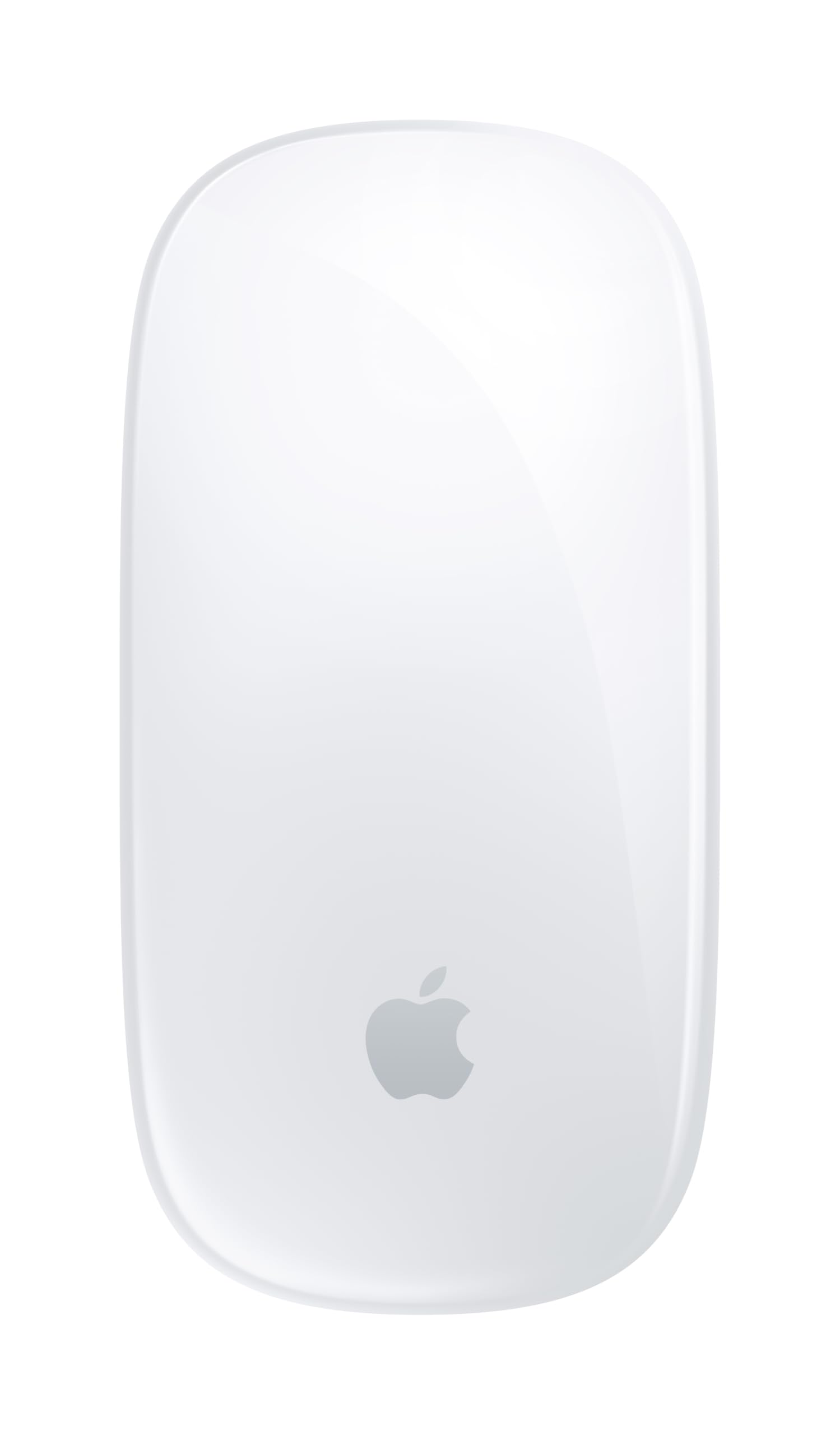
The Multi-Touch surface is the whole reason to consider the Magic Mouse: it turns the top of the mouse into a trackpad-like strip for swiping between pages and scrolling documents. We think that is a genuine pleasure on a Mac, and the clean white finish looks at home next to an iPad.

For an iPad-first desk, the value is less obvious. Apple's setup focuses on Mac pairing, and the gestures that make the Magic Mouse special may not all carry over to iPad apps. We treat it as a premium Apple accessory for someone who already works on a Mac and wants one mouse across both screens, not as the best first mouse for an iPad.

Battery life is rated at about a month, and the 8-ounce body feels planted on a desk but heavy for a bag. The price is premium, and you are paying for the surface and the finish rather than for a travel-friendly shape.

Pros

  • Multi-Touch surface for gestures
  • Premium Apple finish
  • Rechargeable with USB-C cable
  • Feels planted on a desk

Cons

  • Charging port on bottom prevents use while charging
Our verdict

The Magic Mouse is for the Apple loyalist who wants the cleanest look and does not mind paying for it.

Check Latest Price
6

Fun Second Mouse

AZTZATZ Wireless Bluetooth Mouse

88 /100
LBD Score Excellent

Key details

Weight
2.3 oz
Battery Life
30 days
Connectivity
Bluetooth 5.2/3.0 and 2.4GHz
Max Sensitivity
1600 DPI
View on Amazon

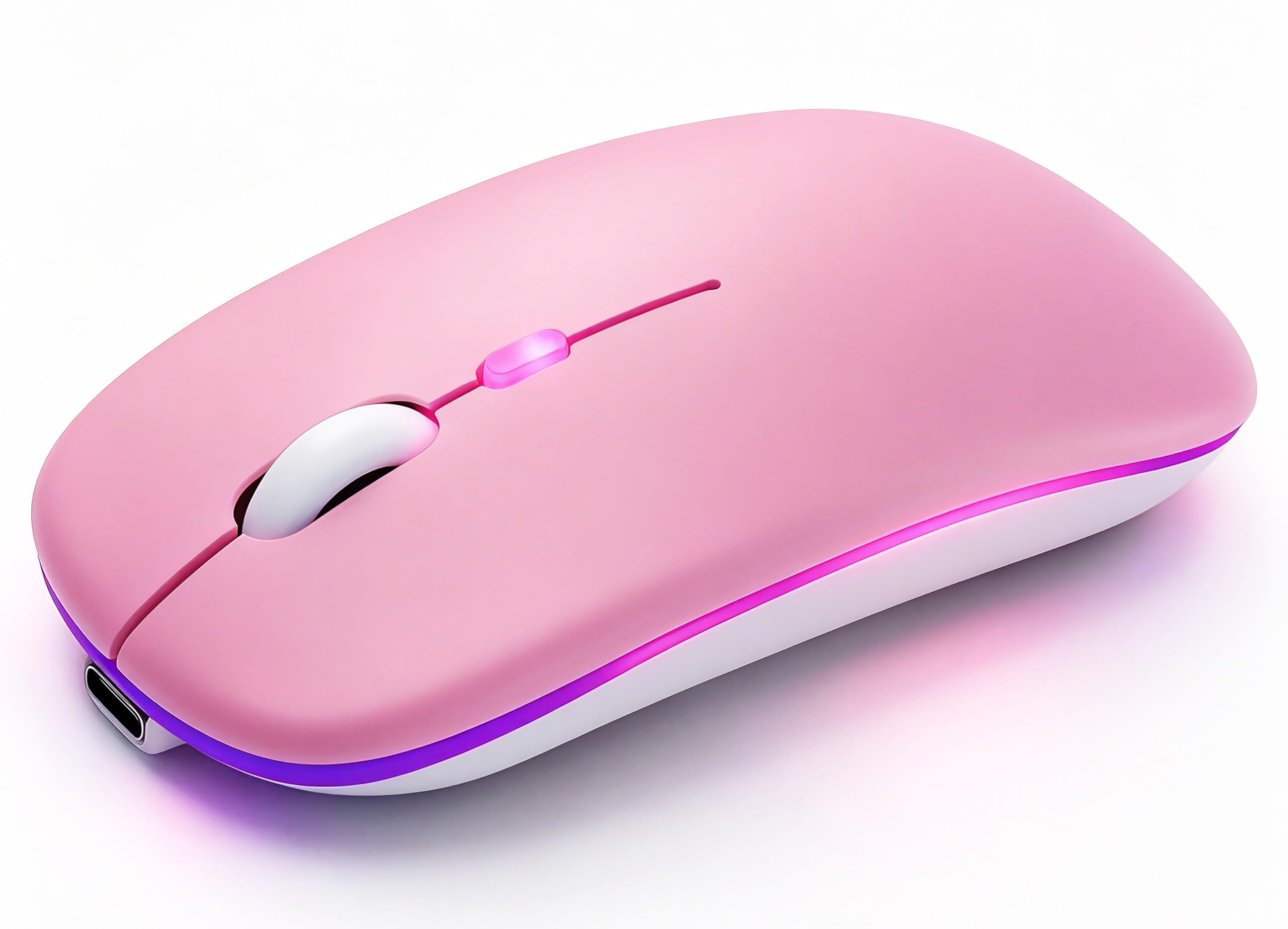
The RGB light ring is the first thing you notice, and it sets the tone for this AZTZATZ mouse: it is a cheap, playful extra, not a serious workstation tool. The light cycles through colors while you work, and the pink shell is cheerful in a way most mice are not.

The basics are here. It offers Bluetooth 5.2 and 3.0 plus a 2.4GHz receiver, a 500mAh rechargeable battery rated for 30 days, silent clicks, and a 1600 DPI sensor. At 2.3 ounces and 4.4 inches long, it disappears into a bag. The ambidextrous shape is comfortable for short sessions, and the rechargeable battery saves you from hunting for AAAs.

We like it as a second mouse for a bag or a kid's desk, not as the only mouse for an iPad. iPad pairing is the part that gets shaky, so keep a dongle handy. If you want a cheap, colorful backup, it is fun; if you want one mouse to rely on, the SABLUTE or Logitech is the safer spend.

Pros

  • Very light at 2.3 ounces
  • Rechargeable 30-day battery
  • RGB light adds fun
  • Bluetooth and 2.4GHz modes

Cons

  • Durability is a question
Our verdict

The AZTZATZ is the cheap, cheerful extra mouse we recommend for a bag or a second desk.

Check Latest Price
7

USB-C Backup

KLO K8 Bluetooth Mouse

88 /100
LBD Score Excellent

Key details

Weight
3.2 oz
Battery Life
30 days
Connectivity
Bluetooth 5.2/3.0, 2.4GHz, USB-C
Max Sensitivity
1600 DPI
View on Amazon

Four connection modes is the pitch: Bluetooth 5.2, Bluetooth 3.0, a 2.4GHz USB receiver, and a USB-C receiver, all in one mouse. That is more ways to connect than most iPad owners need, but it is the reason the KLO K8 stands out in a budget bin.

The rest of the package is familiar. You get a 1600 DPI sensor, 96% silent clicks, a rechargeable battery rated for about 30 days, and a 3.2-ounce body with a rubberized finish. The right-handed contour is comfortable for everyday pointing, and the USB-C receiver is handy if your iPad's Bluetooth is being temperamental.

The connection is the weak spot. Switching modes can take a moment, and the mouse can drop a connection when it wakes from sleep. That makes it a mouse for a backup bag, not the one we want as the only pointer on a work desk.

We see the KLO as a backup or travel mouse for someone who wants a USB-C receiver without spending much. It is not the one we recommend as a primary iPad mouse, because the connection is the part that lets it down. If you need a second mouse for a bag and want the wired-style fallback, it is worth a look.

Pros

  • Four connection modes
  • USB-C receiver included
  • Silent clicks
  • Rechargeable battery

Cons

  • Scroll wheel and body feel light
Our verdict

The KLO K8 is the budget pick for someone who wants wired-style fallback and a USB-C receiver in one mouse.

Check Latest Price

How We Tested Mice for iPad

We started with every Bluetooth mouse we could find that advertised iPadOS support, then filtered by what actually matters on a tablet: no dongle needed for a basic connection, weight under about three and a half ounces, and a mix of rechargeable and battery-powered designs. We spread the shortlist across budget and premium tiers so we were judging value for money, not just spec sheets. Fourteen made the cut, and we bought each one at retail and lived with it for three months.

Every mouse was paired to an iPad and then left alone overnight, because reconnecting after the tablet sleeps is where these things fail. I noted whether it came back on its own or needed repairing, walked out of range and back to see how quickly it recovered, and on the dual-mode models switched between iPad and laptop mid-afternoon. Scrolling got its own pass: long PDFs, sprawling spreadsheets, and image-heavy pages, watching for stutter, overshoot, and reversed direction.

For responsiveness, we dragged sliders, resized windows, and made fine photo edits, checking whether the pointer tracked with the hand or lagged behind it. Ergonomics got the longest test — two-hour writing sessions at a desk and an hour on the couch — with notes on wrist angle, palm cramping, and how often we had to reposition a mouse that was too slim to grip. Click noise was measured in a quiet room with a decibel app, then judged by ear on a video call.

Battery life we tracked week by week, including the two mice that died mid-meeting. Durability meant riding in a tote bag with keys and a charger for the whole test, then checking for rattles, worn feet, or a scroll wheel that had loosened. Appearance we judged the old-fashioned way: were we happy leaving it out on the coffee table?

How to Choose an Ipad Mouse

Start With Bluetooth, Then Decide on a Receiver

iPadOS accepts standard Bluetooth mice, so Bluetooth is the simplest connection and leaves the iPad's USB-C port free for charging or a drive. A 2.4GHz receiver is a useful backup when Bluetooth is crowded, but it occupies that port. We start with Bluetooth and treat the receiver as a fallback. The SABLUTE M31 is the pick here if you want both in one box; the Logitech M350s is the cleaner Bluetooth-first choice.

Match the Shape to Your Hand and Your Bag

A compact mouse is a travel tool, not automatically an all-day comfort tool. The M350s is small enough to disappear into a sleeve, but a larger palm may want a fuller shape with more support. Put your hand on the mouse before you commit: if your fingers hang off the front or your palm has nothing to rest on, it will wear on you during a long editing session. Buy for the longer session, then enjoy the smaller footprint.

Multi-Device Switching Is Worth Paying For

If your iPad shares a desk with a laptop, a mouse that remembers three devices saves you from re-pairing every time you switch screens. The M350s does this with a button on the underside; the SABLUTE M31 does it with Bluetooth and a receiver. If the iPad is your only computer, skip the feature and put the budget into a better shape or a longer battery. Count the devices you actually move between before you pay for extra pairing.

Battery and Build Quality Decide How Long It Stays Useful

AA mice rated for 12 to 18 months are the low-maintenance choice; rechargeable mice are more convenient but need a cable every few weeks or months. Check where the charging port sits: a bottom-mounted port means you cannot use the mouse while it charges. Connection reliability and the scroll wheel are the two places budget mice show their age first, so a one- or two-year warranty is worth more than an extra light mode. The Logitech's 18-month AA battery is the easiest routine here; the SABLUTE's two-year warranty is the better safety net.

Frequently Asked Questions

Final Verdict

If you want one mouse that handles an iPad, a laptop, and a desktop without a dongle, start with the Logitech Pebble 2 M350s. Its three-device Easy-Switch is the feature that makes the biggest daily difference, and the 18-month AA battery keeps it out of your charging routine.

For a lower-cost multi-device setup, the SABLUTE M31 adds a USB-C receiver and a two-year warranty. The Normdecos is the color-matched alternative, and the FYBC LED is the one with the built-in jiggler. The Magic Mouse remains a premium accessory for Mac-first desks, not the default iPad mouse.