Best Trackball Mice of 2026

I put off switching to a trackball for years because I was sure I'd hate it, until a long week of spreadsheet triage left my wrist aching in a way that didn't fade overnight. Two weeks in, I was a convert: you nudge a ball with your thumb or fingertips, the cursor goes where you point, and your arm stays put. That's the whole promise — less reaching, less gripping, less of the small repetitive strain that builds up quietly over a workweek.

The catch is that trackballs aren't interchangeable. Where the ball sits, how far the body tilts your hand back, and whether you scroll with a ring or a wheel change the feel more than any number on the box. We've spent eight months with 12 of them, wired and wireless, and the differences are real. The right one disappears under your hand for a full workday, and the picks below are the ones that got there.

1

Best Overall

Logitech ERGO M575S

90 /100
LBD Score Outstanding

Key details

Power
1 AA battery
Buttons
5, three customizable
Ball Control
Thumb
Connectivity
Bluetooth or Logi Bolt receiver
View on Amazon

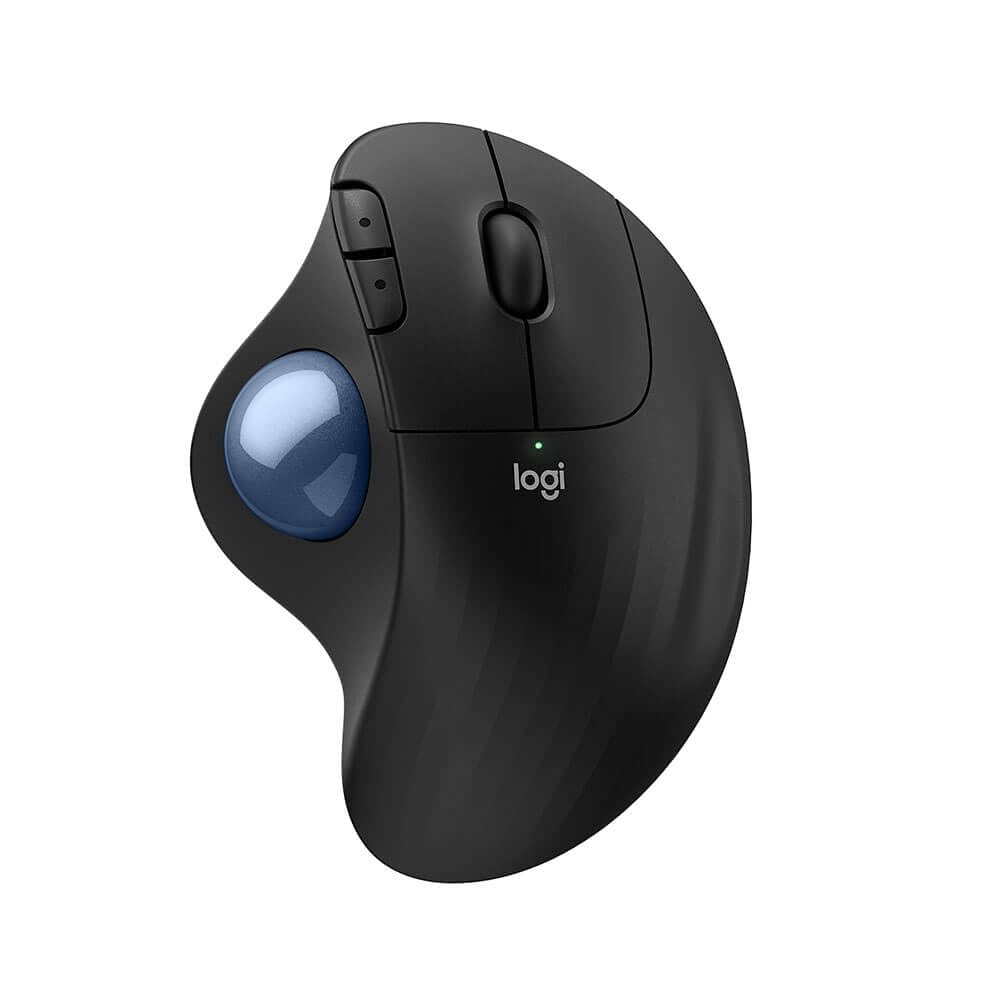
A trackball earns its place by not moving, and the ERGO M575S takes that literally: the cursor follows your thumb while the base stays planted beside a laptop stand, a stack of mail, or the edge of a small desk. Logitech shapes the body so your hand rests at a slight angle, with the ball under the thumb and the main buttons under your first two fingers. It measures about six inches long, which leaves room for the keyboard you actually type on.

We think this is the sensible default in this group. It is the one we hand to someone who has never used a trackball, because thumb control takes an afternoon to learn rather than a week, and the scroll wheel sits where your middle finger expects it. Five buttons, three of them programmable through Logi Options+, cover back, forward, and whatever shortcut you miss most. The 2,000 DPI sensor is quick enough for spreadsheets and steady enough to stay controllable on a large monitor.

Power comes from a single AA battery, and the radio is either Bluetooth or the included Logi Bolt receiver, so a work laptop with Bluetooth disabled is a non-issue — plug in the dongle and go. If hopping between three computers on a button matters more to you than software polish, the TECKNET does that for less. Otherwise there is very little to manage here: no charging, no pairing puzzles, and no app needed for basic use.

Expect lighter, quieter clicks than a mechanical mouse gives you. That suits an open office and takes some getting used to if you rely on click feedback to know a drag has registered.

Pros

  • Thumb control is quick to learn
  • Bluetooth or included Logi Bolt dongle
  • Runs on one AA battery
  • Three programmable buttons in Logi Options+

Cons

  • Left-click switch can fail over time
  • Cursor drift can show up on some units
Our verdict

For most desks, this is the trackball we recommend: a comfortable shape, quick-learning thumb control, and Bluetooth or dongle connections without a charging routine.

Check Latest Price
2

Best Premium

Logitech MX Ergo S

87 /100
LBD Score Excellent

Key details

Tilt Angle
20 degrees
Ball Control
Thumb
Battery Life
Up to 120 days
Connectivity
Bluetooth and USB receiver
View on Amazon

Twenty degrees of tilt does not sound like much until you have spent a day with your wrist rolled flat on a desk. The MX Ergo S leans the whole body over so your forearm and hand line up, and it does that with the quietest clicks in this roundup. We think it is the most comfortable trackball here for a long working day, and it is also the most expensive by a wide margin.

The rest of the package is what you hope for at this level. Six of the eight buttons are programmable in Logi Options+, and a button beside the ball toggles between speed and high-precision tracking — handy when you need to nudge a slider by a pixel and then cross three monitors. The 2,048 DPI sensor and the soft rubber grip do their part, and the sculpted body is sized for medium to large right hands.

Charging is over USB-C, and Logitech rates a one-minute top-up at 24 hours of use and a full charge at up to 120 days, which in practice means plugging it in over lunch once a quarter. The near-silent switches trade feedback for quiet: wonderful in a shared office, slightly unnerving if you depend on a solid click to confirm a drag.

If the tilt is what your wrist has been missing, this is the one. If you simply want a good thumb trackball, the ERGO M575S does the same job sitting flat for a fraction of the price.

Pros

  • 20-degree tilt eases forearm strain
  • Quietest clicks in this group
  • USB-C charging with a quick top-up
  • Six programmable buttons

Cons

  • Most expensive pick here
  • One-year warranty, the shortest here
Our verdict

Buy it if the 20-degree tilt and near-silent clicks are worth the premium; it is the most comfortable trackball here for long days at a desk.

Check Latest Price
3

Best Finger-Operated

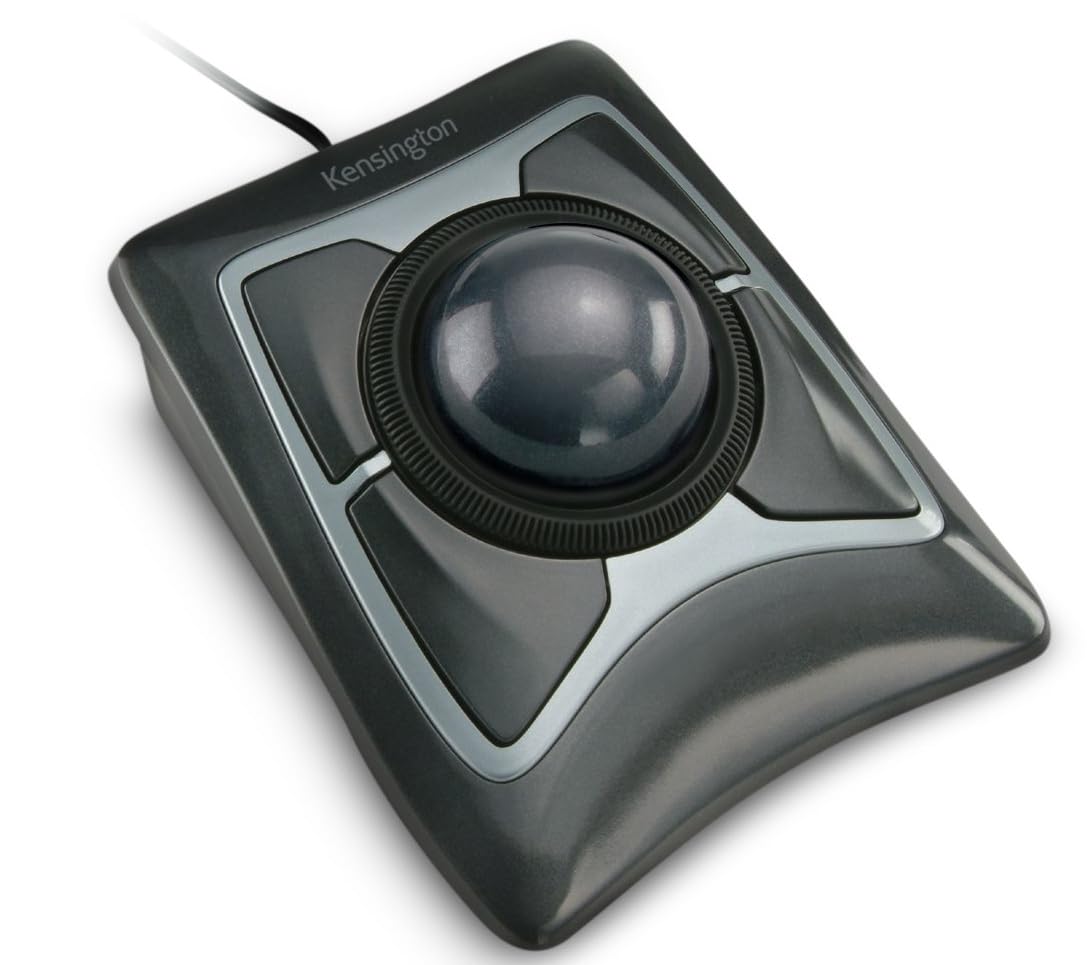
Kensington Expert Trackball

87 /100
LBD Score Excellent

Key details

Ball Control
Finger, 55 mm
Connectivity
Wired USB-A
Scroll Control
Scroll ring
Hand Orientation
Ambidextrous
View on Amazon

The Expert's ball is 55 mm across, and you drive it with your fingers rather than your thumb. That changes the grip: your palm stays planted on the body, the fingers do the fine work, and the thumb is free for the four buttons. It works equally well with either hand, which is rare in this group and the reason this is the mouse we point left-handed buyers to first.

Around the ball sits Kensington's scroll ring, a rotating collar you spin with a finger to move up and down a page. It is the feature people miss most when they lose it, and it means scrolling never takes your hand off the ball. The detachable wrist rest cushions the heel of your hand, and the wired USB-A connection brings no batteries, no pairing, and no dropouts.

For precision work, this is the one we reach for. A big ball plus finger control gives you slow, deliberate movement that a thumb ball cannot match, and the accuracy holds across a wide screen. The learning curve cuts both ways: the first day feels clumsy, and by the end of the week you are rolling with two fingers without thinking about it.

The five-year warranty is the longest in this roundup, and here it is the most useful part of the deal. The switch under a well-used button is what ends a trackball's life, and Kensington covers it for half a decade.

Pros

  • 55 mm ball for precise finger control
  • Scroll ring keeps your hand on the ball
  • Ambidextrous body with detachable wrist rest
  • Five-year warranty

Cons

  • Scroll ring can feel gritty
  • Takes up real desk depth
Our verdict

The pick for finger control and either hand: a 55 mm ball, a scroll ring, and the longest warranty here make it a workhorse for precise desktop work.

Check Latest Price
4

Best Wireless Finger Control

Kensington Expert Wireless

86 /100
LBD Score Excellent

Key details

Power
2 AA batteries
Ball Control
Finger, 55 mm
Connectivity
Bluetooth or 2.4 GHz dongle
Scroll Control
Scroll ring
View on Amazon

Take the wired Expert, cut the cable, and you have this: the same 55 mm finger ball, the same scroll ring, the same ambidextrous body and detachable wrist rest. What is new is a radio — Bluetooth LE or the included 2.4 GHz dongle — plus two AA batteries and an auto-sleep mode to stretch them between sessions.

Between the two, we keep the wired Expert on a fixed desk and this one for a laptop bag or a shared office where cables get in the way. Finger control is the same pleasure either way: the big ball rewards slow, deliberate movement, and the wireless version adds nothing to the feel. That is the point — nothing about your hand changes when you cut the cord.

Bluetooth is the weak link. It sleeps aggressively on some machines and needs a nudge to wake, so on a desktop that stays put, use the dongle and treat Bluetooth as the travel option. The three-year warranty is shorter than the wired model's but still longer than most here.

Pros

  • Same big finger ball, no cable
  • Bluetooth or included 2.4 GHz dongle
  • Auto-sleep stretches AA batteries

Cons

  • AA batteries, not a rechargeable cell
  • Large ball can overwhelm small hands
Our verdict

Choose the wireless Expert if you want Kensington's big finger ball without a cable; on a desk that never moves, the wired version is the better buy.

Check Latest Price
5

Best Budget Wireless

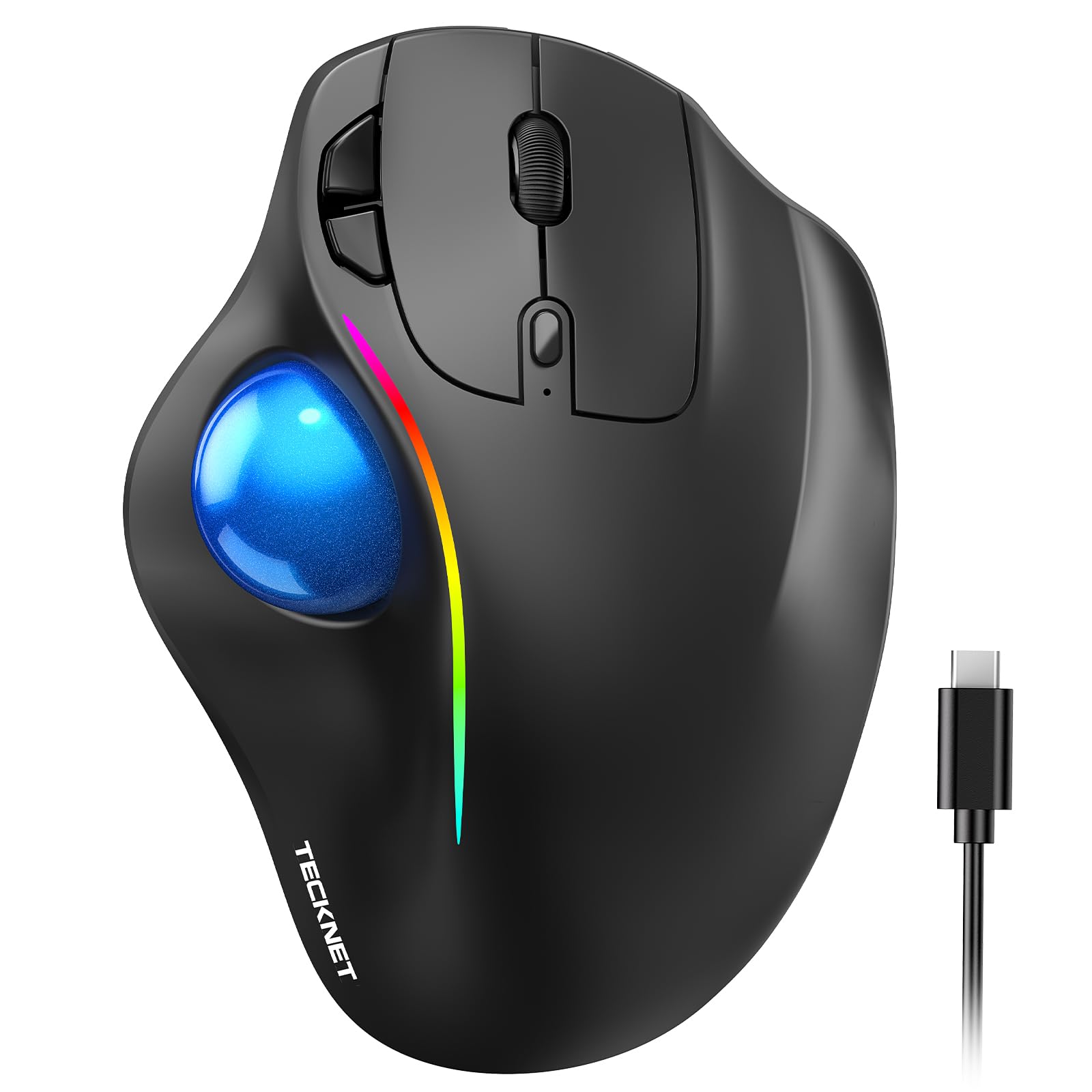
TECKNET Wireless Trackball

91 /100
LBD Score Outstanding

Key details

Battery
500 mAh rechargeable
Tilt Angle
16 degrees
Ball Control
Thumb
Connectivity
Bluetooth, 2.4 GHz, 3 devices
View on Amazon

Three devices on one button is a feature we expect to cost more than this. The TECKNET pairs to two Bluetooth hosts and one 2.4 GHz receiver and switches between them with a tap on the base, which is exactly what a day split between a work laptop, a home PC, and a tablet asks for. We think it is the best value in this group, provided you get a good unit.

In use, the 16-degree vertical angle rolls your forearm toward a handshake position, the thumb ball keeps your hand planted, and the six buttons put back and forward under your thumb where you will actually find them. Clicks are quiet, the 500 mAh battery charges over USB-C, and five DPI steps from 100 to 1,200 let you slow the cursor down for detailed work.

The catch is consistency. Some units stop working within weeks while others run for years, so buy from a seller with an easy return window — and note that the 36-month warranty is longer than either Logitech's, which takes most of the sting out of that spread. The side buttons are the second thing to watch; when one stops registering, the warranty is your answer.

Pros

  • Switches between three devices on a button
  • 16-degree tilt and quiet clicks
  • Rechargeable over USB-C

Cons

  • Side buttons can stop registering
  • Tops out at 1,200 DPI
Our verdict

The best value here for a multi-computer desk: three-device switching, a 16-degree tilt, and a price well below the Logitech pair.

Check Latest Price
6

Best Budget Wired

PORLEI Wired Trackball

87 /100
LBD Score Excellent

Key details

Buttons
6
Sensitivity
5 DPI levels
Ball Control
Thumb, 34 mm
Connectivity
Wired USB-A and USB-C
View on Amazon

Two connector types on one cable is the kind of detail that decides whether a cheap mouse actually gets used. The PORLEI handles USB-A and USB-C, so it works with an older tower and a newer laptop that dropped the rectangular port. Plug it in and it points — no receiver to lose, no battery to charge, and no software needed for the basics.

On the desk it is a standard right-handed thumb ball, 34 mm, with five DPI steps, six buttons, and a light strip around the ball housing that cycles through colors. The shape is sculpted with a thumb rest and a raised palm, and the 1.8-meter cable gives you slack to route it behind a tower.

Tracking is the part that varies. Some units arrive slick and stay that way; others feel sticky out of the box, which is usually the ball sitting on dusty bearings — lift the ball, wipe the small rollers, drop it back, and the glide returns. The left click is on the firm side and wants a deliberate press rather than a tap.

We like this as the cheap second mouse: the one for the office PC, the garage laptop, or a first trackball someone is not ready to spend much on. It does not feel like the Logitech and is not trying to. It is corded, so it never asks for anything, and the 18-month warranty covers dead switches.

Pros

  • USB-A and USB-C connections
  • No battery or receiver to manage
  • Five DPI steps and six buttons

Cons

  • Wired only
  • Left click needs a deliberate press
Our verdict

A cheap, corded thumb ball that never needs charging — the pick for a second desk or a first trackball you are not sure about.

Check Latest Price
7

Adjustable Tilt

ProtoArc EM02

85 /100
LBD Score Excellent

Key details

Power
USB-C rechargeable
Tilt Angle
0 or 15 degrees
Ball Control
Thumb
Connectivity
Bluetooth and 2.4 GHz
View on Amazon

A hinge is the whole idea here. The EM02's body pivots between flat and a 15-degree tilt, so the same mouse can sit low under a keyboard tray in the morning and angle up under your palm when your wrist starts complaining in the afternoon.

The rest is a well-equipped thumb trackball: three devices over Bluetooth or the 2.4 GHz dongle, a USB-C charging port, quiet buttons, five DPI steps from 200 to 1,600, and six buttons including back and forward. ProtoArc claims 90 days of standby from a full charge, and the small connection-status window is a nicer touch than it sounds when you are hopping between a laptop and a desktop.

The adjustable angle is what earns this one a place. We like a flat trackball for a low desk and a tilted one for a standing setup, and most mice make you commit at checkout. It also suits a hand that gets sore in one position, since changing the angle for an hour is easier than changing mice. Watch the middle button: it takes very little pressure to fire, so wheel clicks happen by accident.

Pros

  • Hinge switches between flat and 15 degrees
  • Three devices over Bluetooth or dongle
  • Quiet clicks and USB-C charging

Cons

  • Middle button fires too easily
Our verdict

Worth it for the hinge: flat or 15 degrees, three devices, and quiet clicks make this a flexible thumb trackball for hands that want a change.

Check Latest Price
8

Large Hands

SABLUTE MAM1 Pro

86 /100
LBD Score Excellent

Key details

Weight
12.6 oz
Tilt Angle
0 or 18 degrees
Sensitivity
800 to 4,800 DPI
Ball Control
Thumb
View on Amazon

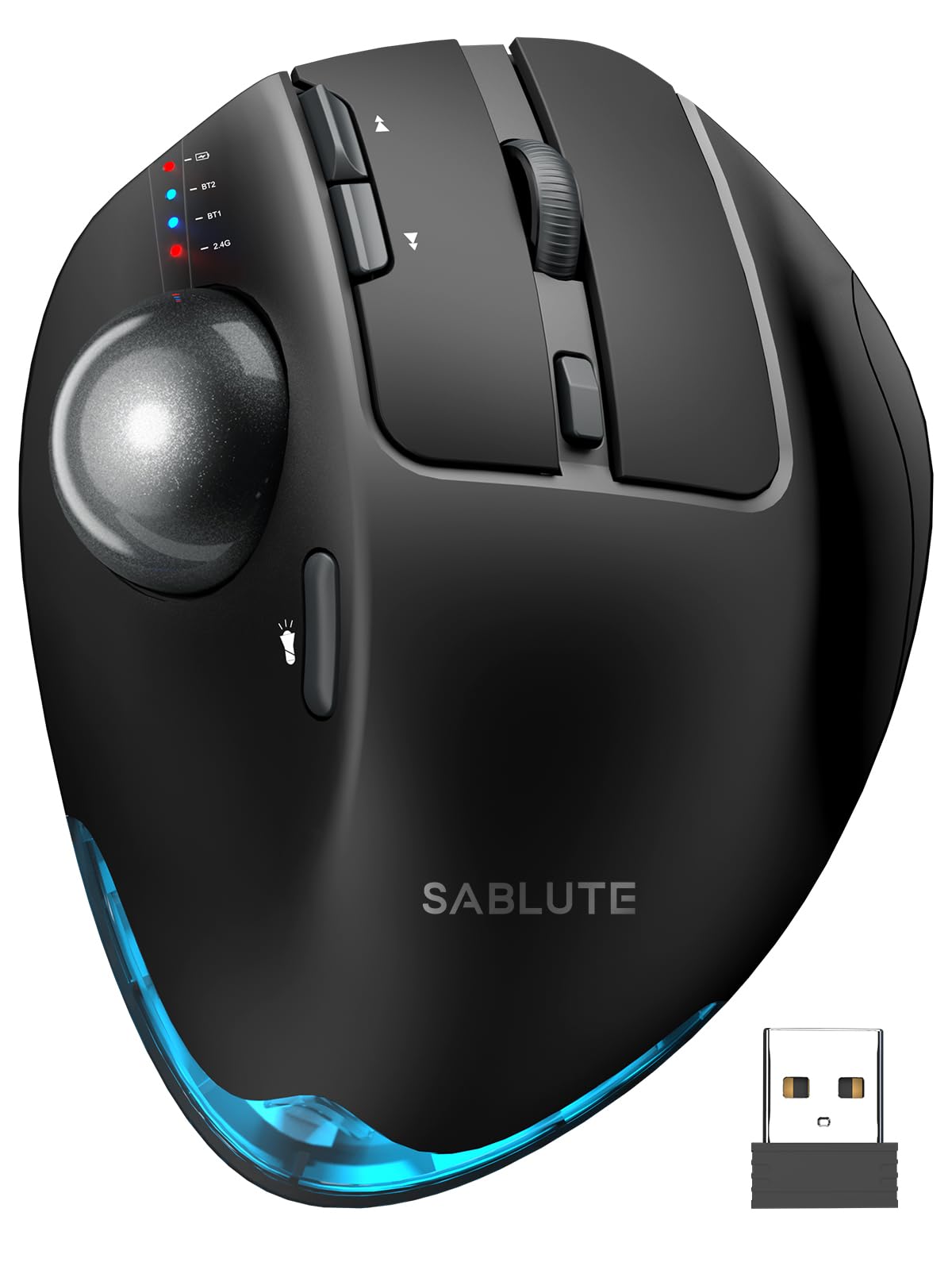
At 12.64 ounces, the MAM1 Pro is the heaviest mouse here, and the weight is the point: it stays exactly where you put it, even on a slick desk mat, and it does not skate when you roll the ball hard. The body is big enough for a large hand to rest on rather than grip, which is the other half of that equation.

The angle adjusts between flat and 18 degrees, there are eight buttons, and the sensor runs five steps from 800 to 4,800 DPI — the widest range in this group, and genuinely useful when you are pushing a cursor across two or three high-resolution monitors. A soft backlight can be switched off, and three devices connect over Bluetooth or the dongle.

The ball is the part to test in your first week. A unit that jumps or sticks is worth exchanging, because the fix is not in your hands. Battery life is the other variable: some run for weeks between charges and others want a cable every few days, so treat the first month as the real-world trial.

We like it for big hands and big screens. The weight steadies it, the adjustable angle takes pressure off the wrist, and the extra buttons earn their keep once you map them. Smaller hands will find it a lot of mouse, and the price sits close enough to the Logitech ERGO M575S that comfort should decide it, not the spec sheet.

Pros

  • Flat or 18-degree adjustable tilt
  • 4,800 DPI ceiling for large monitors
  • Eight buttons and a backlight
  • Sized for large hands

Cons

  • Heavy at 12.64 ounces
  • Large body will not suit small hands
Our verdict

The one for large hands and wide screens: 4,800 DPI, eight buttons, and a heavy body that stays put once you set the angle.

Check Latest Price

What Eight Months With 12 Trackball Mice Taught Us

We started with every trackball we could find from established ergonomic-input brands and from smaller names with strong review records, then cut the list by connection type, ball placement (thumb, finger, or ambidextrous), and whether the body let you change the tilt angle. Twelve made the final cut, and each one spent at least two weeks as the only mouse on a working desk.

That desk is where they lived: full days of spreadsheets, long documents, and photo editing, plus evenings with a laptop on the couch and a handful of trips stuffed in a bag. We took notes at the end of each day on how the wrist and thumb felt and whether we were unconsciously reaching for a regular mouse. Setup counted too — we noted which ones worked the moment they were plugged in and which needed software before the buttons did anything useful.

For accuracy, we dragged a photo-editing slider one pixel at a time and tried to hit small toolbar icons without overshooting. For smooth movement, we rolled slow circles and listened for grit or a ball that caught at the top of the stroke. Scroll got its own test: we scrolled 200-page PDFs, counted how many lines a single notch moved, and tried scroll rings around the outer edge with a thumb. We remapped every button and clicked at the edges as well as the center, and we paired each Bluetooth model with three devices and switched mid-task.

Over eight months we logged dropped connections, worn bearings, rattling balls, and finishes that wore through — reliability is the one thing a week of testing can't tell you. Value came down to what extra money bought: a rechargeable battery, more programmable buttons, a second connection type.

How to Choose a Trackball Mouse

Thumb Ball or Finger Ball

A thumb ball keeps your hand anchored: the thumb rolls, the fingers stay on the buttons, and the wrist barely moves. Most people adapt within a day, which makes the Logitech ERGO M575S and the TECKNET the easiest place to start. A finger ball is a different animal. The ball is bigger — 55 mm on the Kensington models — and you roll it with two fingers while your palm rests, which buys finer control for photo, CAD, or spreadsheet work.

Give a finger ball a week before you judge it. The first afternoon feels wrong because your fingers are doing a job your thumb usually does, and by the end of the week the two-finger roll is second nature.

Tilt, Wrist Support, and Which Hand

Nearly every trackball puts your hand at an angle, and the angle only helps if it matches how you sit. A fixed tilt of 16 to 20 degrees suits a normal desk and chair. An adjustable hinge, as on the ProtoArc and the SABLUTE, lets you go flat for a keyboard tray or a low desk and steeper for a standing setup — worth paying for if you are not sure which position your wrist wants.

A wrist rest helps if the heel of your hand carries weight. Then check the hand: most of these are molded for right hands, so left-handed buyers should look at the ambidextrous Kensington Experts.

Scroll Ring, Wheel, or Nothing

Scrolling is where trackballs quietly win or lose. A scroll ring around the ball, as on both Kensington Experts, lets you scroll without moving your hand off the ball, and it is the feature people miss most when they lose it. A thumb wheel beside the ball is the familiar alternative and easier to work one-handed while you hold a phone.

What to avoid is a ball with no scroll control at all. You will be reaching for the scrollbar on the first long document, so check the listing for a ring or a wheel before anything else.

Wired, Wireless, and What Wears Out

A wire removes two failure modes at once: no battery to charge and no radio to drop. That is why the wired Kensington Expert and the PORLEI are the low-drama choices. Wireless earns its keep for a laptop bag or a shared desk, and here the dongle is usually steadier than Bluetooth — the Expert Wireless and the TECKNET both ship with one.

Whatever you buy, the switches under the buttons fail first. Warranties run from one year on the Logitech MX Ergo S to five years on the wired Kensington Expert, and that difference is worth real money on a mouse you plan to keep.

Frequently Asked Questions

Final Verdict

The Logitech ERGO M575S is the trackball we point most people to. It is comfortable without a period of adjustment, it runs on a battery you swap once in a while instead of a charging cable, and it connects by Bluetooth or the included dongle so a locked-down work laptop is not a problem.

Spend more only for a specific reason: the Logitech MX Ergo S if the 20-degree tilt and near-silent clicks are worth the premium to your wrist, or the wired Kensington Expert if finger control with either hand is what you want.