Best Windows Hello Webcams of 2026

Face unlock is the one Windows feature people miss the second they move to a desktop — you sit down, reach for a password you haven't typed in years, and remember. A webcam with Windows Hello built in closes that gap: it reads your face with the same infrared hardware Windows already trusts, signs you in before your chair stops rolling, and then serves as the camera for every meeting you take. The catch is that the Hello part and the webcam part are two separate jobs, and plenty of cameras do one of them beautifully and phone in the other.

I've had 11 of these mounted on and around my monitors for the better part of six months, on calls, on recordings, and on all the small stuff in between. The thing worth knowing before you shop: Hello sign-in runs off the IR sensor, not the lens that records you, so a camera can shoot gorgeous 4K and still fumble your face in a dim room. The picks below are the ones that got both halves right.

1

Best Overall

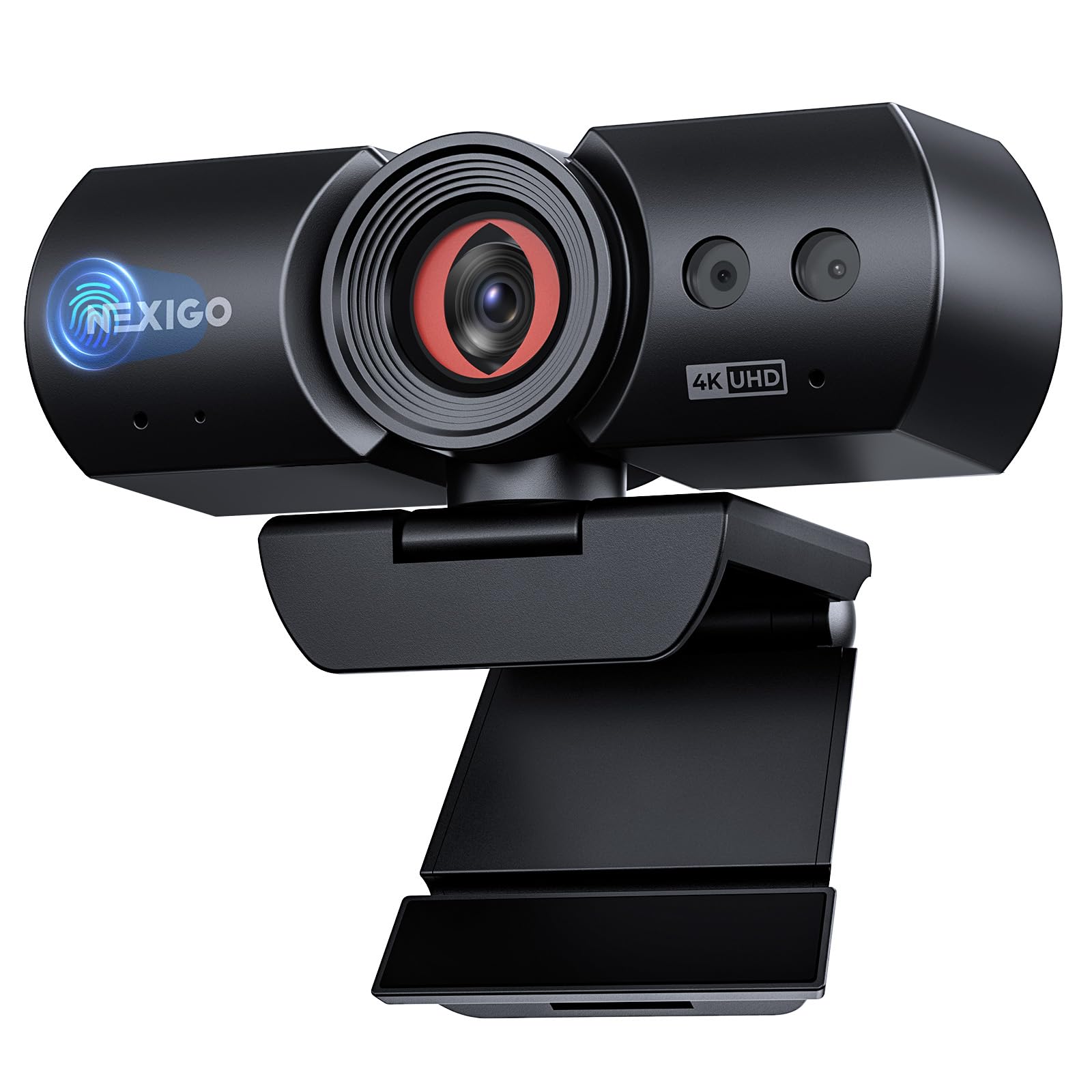
NexiGo HelloCam Pro

89 /100
LBD Score Excellent

Key details

Focus
Autofocus
Field Of View
69.2 degrees
Privacy Shutter
Automatic electronic shutter
Video Resolution
1080p at 60fps
View on Amazon

The HelloCam Pro is the one we reach for first because it gets the two halves of the job right: Windows Hello sign-in is quick, and the 1080p picture at 60fps stays smooth when you move your hands or turn your head. The electronic shutter is the detail we appreciate most. It opens for sign-in and calls, then closes on its own, so privacy is not another habit to remember.

Autofocus is the other practical win. It snaps back to your face after you hold something up to the camera, which makes it a better fit for show-and-tell calls than the fixed-focus budget cameras here. Setup is a simple USB plug-in on Windows, and the Hello enrollment is the usual face scan. On a crowded desk, the compact body sits on a monitor without dominating it.

Audio is where we temper our enthusiasm. The built-in mic is fine for one person at a desk, but it can sound thin across a room, and we keep a headset nearby for important calls. For everyday meetings where fast sign-in and a natural picture matter most, it is the easiest recommendation here.

Pros

  • Quick Windows Hello sign-in
  • Smooth 1080p at 60fps
  • Autofocus keeps you sharp
  • Automatic electronic shutter

Cons

  • Capped at 1080p
Our verdict

We recommend the HelloCam Pro for everyday desks because it pairs quick Windows Hello sign-in with smooth 1080p60 video, autofocus, and a privacy shutter that takes care of itself.

Check Latest Price
2

Best for Streaming

Logitech Brio 4K

93 /100
LBD Score Outstanding

Key details

Focus
Autofocus
Frame Rate
Up to 90fps
Field Of View
90°, 78°, or 65°
Video Resolution
4K
View on Amazon

The Brio is the one to pick when the camera has to do more than meetings. It records in 4K, shoots up to 90fps, and gives you three field-of-view presets through Logi Tune, so you can frame a tight talking-head shot or open up for a desk demo without moving the camera. That flexibility is why it stays in our streaming kit.

On calls, the picture has the crisp, high-contrast look we want from a 4K sensor, and Windows Hello works once the camera is set up properly. We did find the sign-in side less turnkey than the NexiGo: it pays to update the firmware and confirm that Windows sees the camera before you rely on it. The build feels substantial, too, which is reassuring on a monitor that gets adjusted often.

The catch is that 4K pays off only with decent light and software that can use it; in a dim home office, the extra resolution mostly disappears. The Brio also asks more of you than a plug-and-play 1080p camera, because the Logi Tune presets are part of the appeal. If you record or stream, that control is worth the effort. If you only sit in Teams meetings, the HelloCam Pro is the easier choice.

Pros

  • True 4K recording
  • Up to 90fps
  • Three field-of-view presets
  • Substantial build and mount

Cons

  • Premium price for calls-only use
Our verdict

The Brio 4K is the pick for recording and streaming, with flexible 4K framing and high frame rates; for routine meetings, the simpler HelloCam Pro is the easier buy.

Check Latest Price
3

Best for Group Calls

NexiGo HelloCam Ultra

89 /100
LBD Score Excellent

Key details

Zoom
9-step digital zoom
Frame Rate
1080p at 60fps
Privacy Shutter
Automatic electronic shutter
Video Resolution
4K
View on Amazon

The HelloCam Ultra is built for the meeting where more than one person needs to be in frame. Its wide view takes in a conference table or a good chunk of a room, and the 4K sensor gives you room to crop in software without the picture falling apart. The automatic shutter is here too, which we like for a camera that may sit in a shared space.

The 4K footage is the sharpest of the NexiGo pair, and the 1080p 60fps mode is the one we use for everyday calls: smoother motion, smaller files, and less demand on the computer. The 9-step digital zoom lets you tighten the shot without moving the mount, though it crops rather than giving you a true optical zoom. Windows Hello sign-in is fast when the camera sits at eye level.

What gives us pause is focus. This is a manual-focus camera rather than an autofocus one, so you set it for your seat and leave it; if you move around or hold objects up close, the Ultra will not chase you. For a fixed group shot that is fine, and the wide framing makes it easy to include everyone. As a solo all-day camera, the HelloCam Pro is the more forgiving pick.

Pros

  • Wide view fits groups
  • Sharp 4K video
  • Smooth 1080p at 60fps
  • Automatic electronic shutter

Cons

No notable drawbacks to flag.

Our verdict

Choose the HelloCam Ultra for group rooms and wide 4K framing; it is a fixed-shot camera, so solo workers who move around should stay with the HelloCam Pro.

Check Latest Price
4

Best Budget

Lenovo 510 FHD

84 /100
LBD Score Excellent

Key details

Zoom
4x digital
Connection
USB 2.0
Field Of View
95 degrees
Video Resolution
1080p
View on Amazon

The Lenovo 510 FHD is the budget pick because it gets the Windows Hello part right without making you pay for 4K you may not need. We plugged it in, enrolled a face, and were signing in without a password. The 95-degree lens is wider than a typical laptop camera, so it shows more of your room; that helps for a demo or a shared desk, and hurts if the background is a mess.

The 1080p picture is fine for meetings, but it is the area where the 510 shows its price. Colors are pleasant enough, detail softens in poor light, and the 4x digital zoom crops rather than giving you a true close-up. It is a camera for a reasonably lit home office, not a dark corner.

What keeps it in the guide is value and flexibility. The mount pans and tilts through 360 degrees, the dual microphones pick up a normal speaking voice, and the USB cable is long enough to reach a tower under the desk. If Hello sign-in is the priority and you mostly take calls in decent light, this is the least fussy way into the category.

Pros

  • Affordable Windows Hello
  • 95-degree wide view
  • 360-degree pan and tilt
  • Dual microphones

Cons

  • White finish stands out on black setups
Our verdict

The Lenovo 510 FHD is the budget Windows Hello pick for a reasonably lit home office, with a wide view and flexible mount; its image quality is the compromise.

Check Latest Price
5

Face Login Only

Kaysuda CA20

84 /100
LBD Score Excellent

Key details

Focus
Fixed focus
Recognition
Infrared face recognition
Field Of View
79.4 degrees
Video Resolution
Up to 1080p
View on Amazon

The CA20 is the camera we treat as a sign-in module rather than a meeting camera. Its infrared sensor recognizes a face quickly, even in a dark room, and it handles multiple users on a shared desktop without making everyone type a password. Setup is as close to plug-and-play as this category gets.

That speed is the reason it earns a place here. We pointed it at a seat, enrolled faces, and left it alone; the 79.4-degree view keeps the background out and the fixed focus is one less setting to fiddle with. The manual privacy switch is a small ritual, but it gives you a hard stop when the camera is not in use. As a dedicated Hello camera for a desktop, it makes sense.

The CA20 makes the most sense where Windows Hello is the job and the camera mostly stays pointed at a chair. It is a narrow tool, and we recommend it on that basis, not as an all-purpose webcam. If you need one camera to sign you in and carry a client call, look at the NexiGo or Lenovo picks instead.

Pros

  • Fast infrared face unlock
  • Works in low light
  • Multi-user support
  • Simple setup

Cons

  • Video looks grainy and soft
Our verdict

The CA20 is a fast, low-light Windows Hello specialist for a desktop where sign-in is the main job.

Check Latest Price

How We Tested Windows Hello Webcams

We started by reading spec sheets, then threw out anything that claimed face unlock without the infrared hardware to back it up — more listings do that than you'd expect. From there we filtered for resolution, frame rate, mounting options, and price, and kept 11 cameras spanning entry-level 1080p up to 4K. Every one had to work over plain USB with no driver download, since plug and play was the whole point.

Setup was the first real test, and we ran it on both a Windows 11 desktop and an older Windows 10 tower. I timed each camera from the moment it came out of the box to the first successful face sign-in, and noted whether Windows Hello found it on its own or needed a trip through Settings. After that, each one handled every login at my desk for six months — at 6am with the room still dark, at midday with sun coming through the window, with glasses on, and from farther back in the chair. I also left them plugged in through sleep, wake, and docking cycles to see which ones quietly dropped off.

For the camera half, we recorded the same clip in three lighting setups — bright window, single lamp, near dark — and leaned in and back to watch how fast autofocus caught up. We checked whether the electronic shutter physically closed at sign-out, and whether it reopened quickly enough to be ready for the next login. Microphone testing was a paragraph read aloud over a running desk fan, then played back to hear how much room noise came through. Last, we compared each picture against the built-in webcam on the same machine, which is the only honest measure of whether the upgrade is worth the money.

How to Choose a Windows Hello Webcam

Start with Windows Hello compatibility

Windows Hello face sign-in needs an infrared camera, not just a sharp 1080p sensor. Before you buy, check that the model is described for Windows Hello on Windows 10 or 11, then open Settings > Accounts > Sign-in options after setup and enroll your face. If Windows cannot find the camera, try a direct USB port, update the driver, and make sure the privacy shutter is open. Keep your PIN active as a backup.

Choose frame rate before resolution

1080p at 60fps is the better everyday choice for calls: motion stays smooth, and the file size and processing load stay manageable. 4K is useful when you record, stream, or crop a wide shot, but it needs good light and software that can actually use the extra pixels. The NexiGo HelloCam Pro is the straightforward 1080p60 pick here; the Logitech Brio and NexiGo Ultra are for buyers who will use 4K. If you mostly sit in Teams, put the money into smooth motion and reliable Hello instead.

Match the lens to the room

A 65- to 78-degree view keeps the frame on you, while a 90- to 95-degree lens shows more desk and room. Wide lenses are handy for demos, whiteboards, or a shared table, but they also reveal more background and can stretch faces near the edges. The Lenovo 510's 95-degree lens is a good compromise for a home office; the NexiGo Ultra goes wider for group shots. Sit at the distance you will actually use, then check what lands in frame.

Pick a shutter you will actually use

Manual shutters are simple and give you a visible confirmation that the lens is covered. Automatic electronic shutters, like the ones on the NexiGo models, open for Hello and calls and close when you finish, which is easier to live with in a shared space. Neither is a substitute for a strong password; they are privacy habits made easier. If the camera sits on a monitor you share, automatic is the smoother choice.

Do not ignore the microphone and mount

Built-in microphones are convenient, but they are the most variable part of a webcam. For a solo desk call they are usually fine; for a conference table, a headset or speakerphone will sound clearer. Check the mount too: a clip needs a thin enough monitor, and a tripod thread helps if you want the camera at eye level. A camera that sits too low makes even a good sensor look unflattering.

Frequently Asked Questions

Final Verdict

Start with the NexiGo HelloCam Pro. It is the best balance here of quick Windows Hello sign-in, smooth 1080p60 video, autofocus, and an automatic shutter, and it is the camera we recommend for most everyday desks. If you record or stream, the Logitech Brio's 4K and 90fps flexibility justify the step up; for group rooms, the NexiGo Ultra's wide view is the better fit. The Lenovo 510 is the budget route if you accept softer image quality, while the Kaysuda CA20 is only for a desktop that needs fast face login and has video covered elsewhere.