Best 240Hz Gaming Monitors of 2026

For years, buying a 240Hz monitor meant swallowing a trade-off: you got the speed, and you paid for it in washed-out color and viewing angles that fell apart the moment you leaned an inch to the left. That's mostly over. Fast IPS and QD-OLED panels have closed the gap, and the 240Hz class is now full of screens that look good sitting on a desk all day, not just mid-match. The trouble is the spec sheet stopped being useful — a 240Hz badge tells you nothing about how a panel handles overdrive, whether it hits its claimed brightness, or whether the stand wobbles when you bump the desk.

I've kept a 240Hz panel on my desk since the TN days, and over the past eight months my team and I have cycled 12 of them through ranked shooters, racing games, and the less glamorous work of spreadsheets. The keepers separate themselves fast: motion stays clean at speed, color holds up out of the box, and the stand adjusts without a fight. The eight that made the cut are below.

1

Best Overall

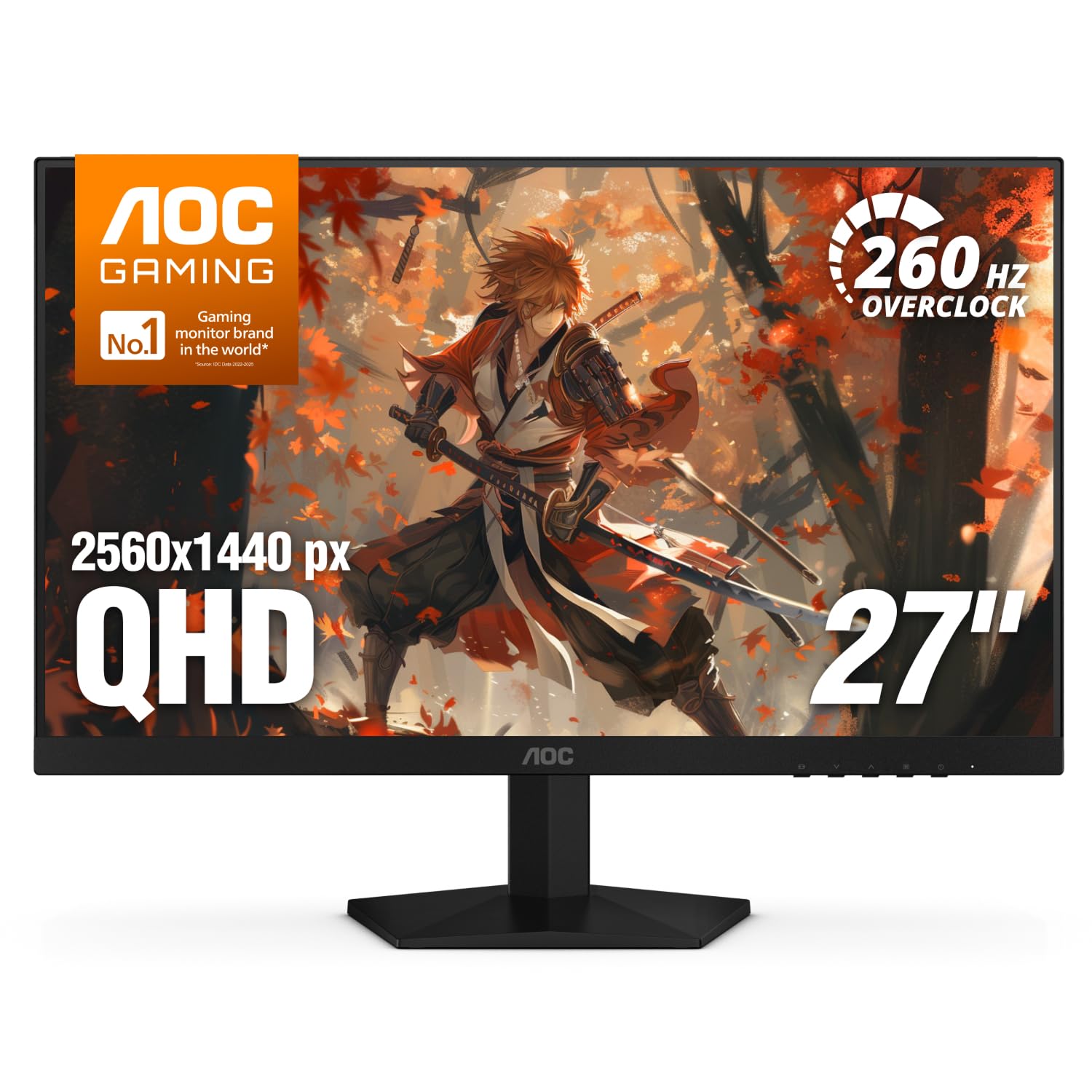
AOC Q27G41ZE

90 /100
LBD Score Outstanding

Key details

Panel
IPS
Resolution
2560 x 1440
Refresh Rate
240Hz native; 260Hz OC
Response Time
0.3ms MPRT
View on Amazon

The Q27G41ZE is the monitor we point most shoppers toward because it solves the two expensive parts of 240Hz at once: it runs at 2560 x 1440 and it does so on an IPS panel. That combination normally pushes you toward a premium tier. AOC keeps it in reach, and the 240Hz native mode, with a 260Hz overclock, gives competitive players the speed they came for. We like that you do not have to choose between sharpness and refresh rate here.

The 0.3ms MPRT response and adaptive sync support are the right specification for fast shooters, and the 27-inch 1440p panel adds detail that 1080p cannot. The glossy finish is worth a thought: it looks crisp head-on, but a window or lamp behind you will show up in dark scenes. Panel-to-panel variation is the other thing to check, so inspect for dead pixels during the return window and calibrate the color before you judge it.

The stand is tilt-only, which is the main place AOC saved money. If you sit at a fixed height, that is fine; if you share the desk or want the screen higher, plan on a VESA arm. The rest of the package is sensible: two HDMI ports, DisplayPort, and an audio output. Just use DisplayPort for 240Hz, because that is the input AOC specifies for the full rate.

For most buyers, this is the 240Hz monitor that makes sense: fast enough for competitive play, sharp enough for everyday work, and priced like a value pick rather than a halo product. The OLED alternatives are better in a dark room, but they cost more and ask more of your setup. Start here unless you already know you want OLED contrast or an ultrawide.

Pros

  • 1440p sharpness with native 240Hz
  • Fast IPS response and adaptive sync
  • Two HDMI and DisplayPort inputs
  • Strong value for a 27-inch gaming monitor

Cons

  • Tilt-only stand limits height adjustment
  • Glossy finish picks up room reflections
Our verdict

We recommend the Q27G41ZE as the default 240Hz buy: it gives you 1440p sharpness and fast IPS motion without the OLED premium.
Check Latest Price
2

Best OLED

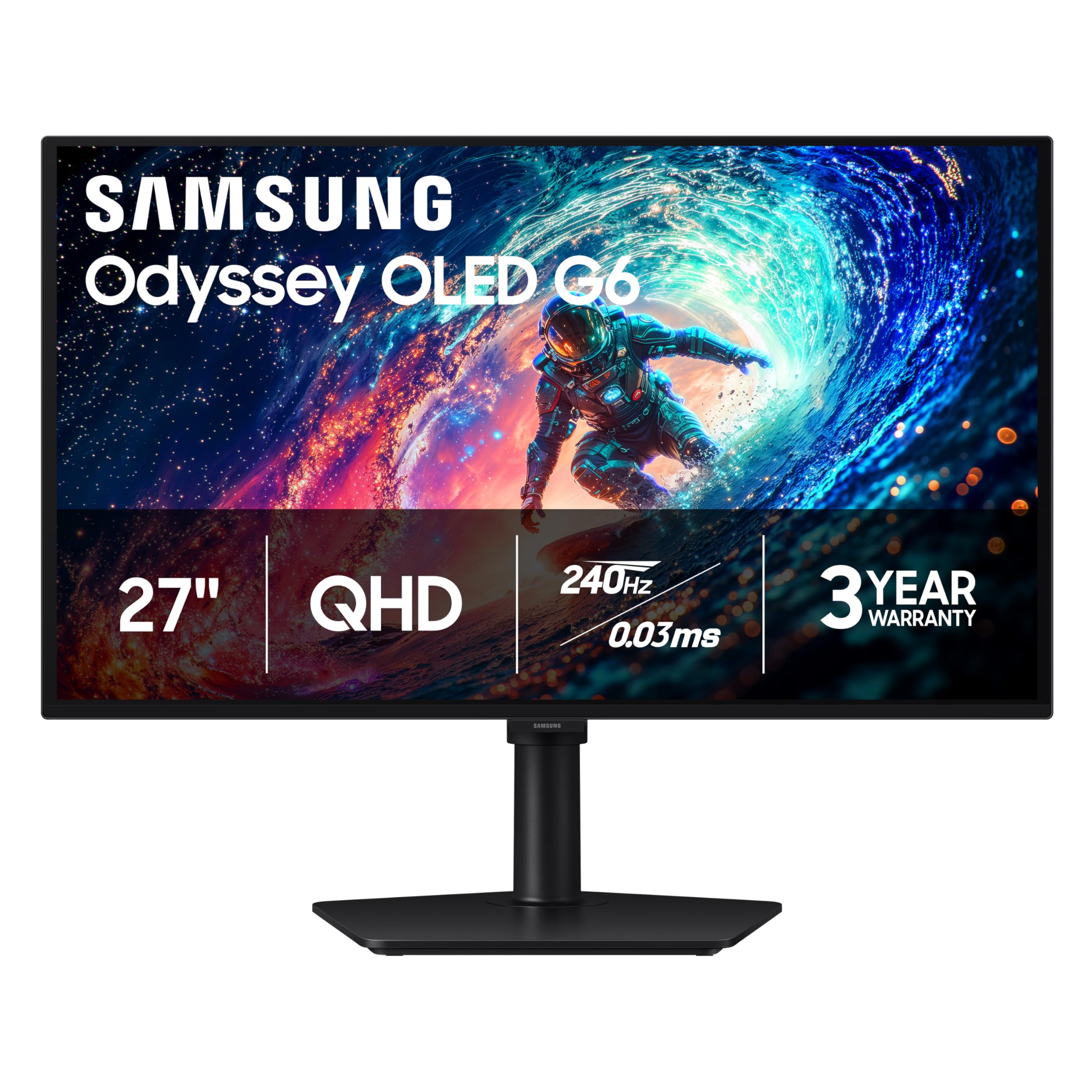
Samsung Odyssey OLED G6

89 /100
LBD Score Excellent

Key details

Panel
QD-OLED
Resolution
2560 x 1440
Refresh Rate
240Hz
Response Time
0.03ms
View on Amazon

The Odyssey OLED G6 is the point where 240Hz stops feeling like a spec sheet and starts changing how games look. QD-OLED gives it per-pixel light, so black scenes have no gray wash, and the 0.03ms response keeps motion clean at the same time. We like that Samsung put a height-adjustable stand on a 27-inch OLED; that small ergonomic detail makes it easier to live with than a tilt-only gaming panel.

This is our picture-first pick. The 2560 x 1440 resolution is sharp at 27 inches, the matte, glare-free finish handles a lamp or window better than a glossy OLED, and HDR10 adds highlight depth in supported games. The caveat is brightness: 400 nits is fine in a dim room, but this monitor will not fight a sunlit room the way a bright IPS panel can. Buy from a seller with a return window you can use.

Samsung's OLED Safeguard and the three-year warranty are the practical side of OLED ownership. We still treat static HUDs and desktop icons as something to manage, but the warranty makes the risk easier to accept than on a one-year panel. The single HDMI port is worth checking against your setup; DisplayPort is the better route for a PC.

For mixed gaming, this is the OLED to pair with a 1440p card: fast enough for competitive shooters, pretty enough for single-player worlds. The LG is the glossier alternative, but the Samsung's matte finish and stand make it the easier default.

Pros

  • QD-OLED contrast with 0.03ms response
  • 240Hz and adaptive sync
  • Height-adjustable stand and three-year warranty
  • Glare-free matte finish

Cons

  • 400 nits limits bright-room impact
  • Only one HDMI port
Our verdict

We reach for the Odyssey OLED G6 when picture quality matters as much as speed; its QD-OLED contrast makes 240Hz feel special.

Check Latest Price
3

Best Glossy OLED

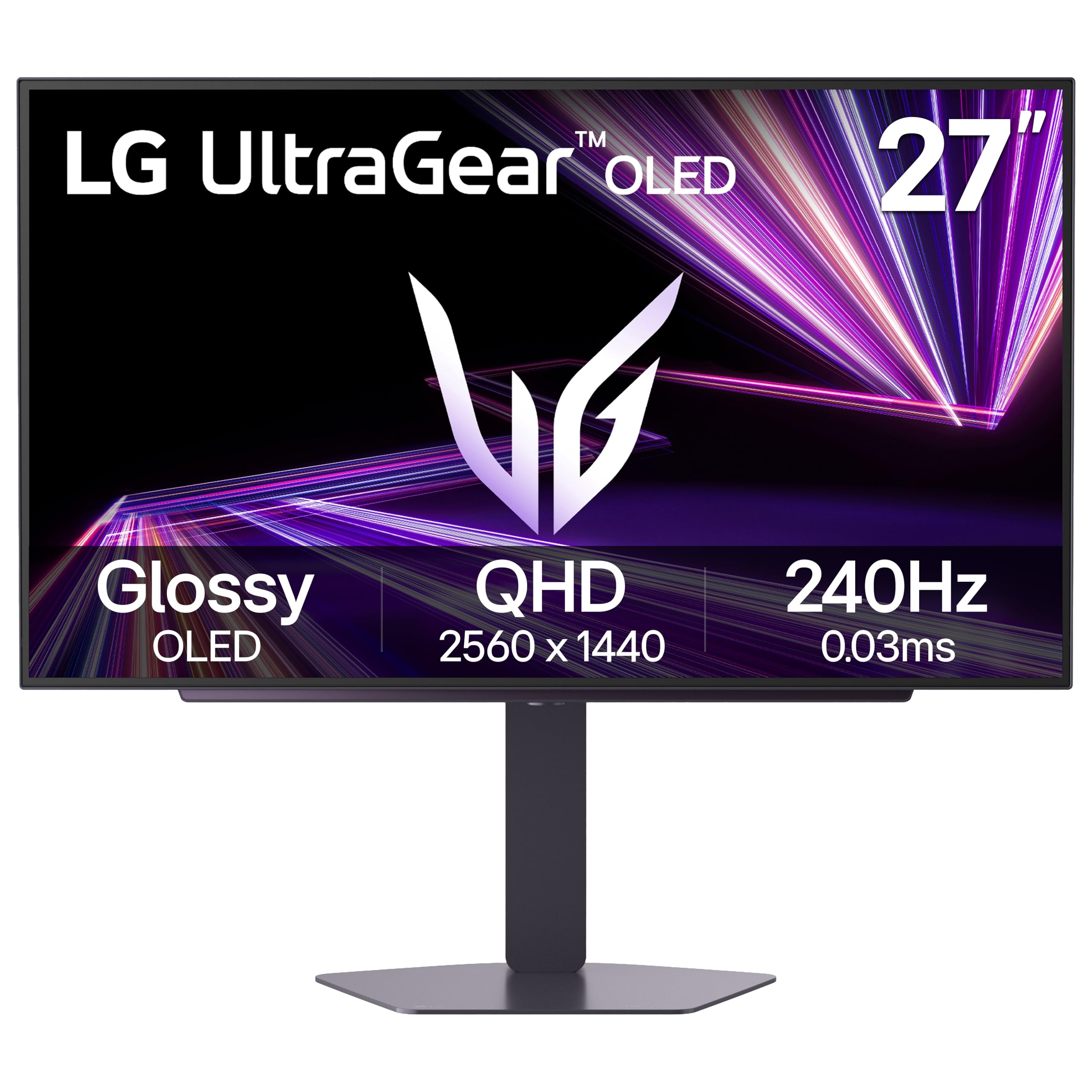
LG UltraGear 27GX704A-B

88 /100
LBD Score Excellent

Key details

Panel
OLED
Resolution
2560 x 1440
Refresh Rate
240Hz
Response Time
0.03ms
View on Amazon

The 27GX704A-B is the glossy alternative to Samsung's matte OLED, and that finish is the whole argument. In a room where you can control the light, colors look richer and blacks feel deeper because the panel is not diffusing the image. A window or desk lamp becomes part of the picture in a way it does not on a matte screen. This is a monitor for a dedicated, light-controlled setup, not a bright living room.

Underneath the finish, it is a 27-inch 2560 x 1440 OLED running at 240Hz with a 0.03ms response. Adaptive sync covers both AMD and NVIDIA cards, and HDMI 2.1 plus DisplayPort gives you modern connectivity. The 275-nit brightness is the trade-off: HDR highlights are clean in a dark room, but the panel does not have the headroom to punch through glare. If you mostly play at night, that matters less than the contrast.

For a light-controlled room, this is the OLED we prefer: the stand adds height, pivot, and swivel adjustment, so you can get the screen comfortable without immediately buying an arm. The USB hub is a nice desk-clearing extra, and the two-year warranty is reasonable, though shorter than Samsung's three-year coverage. Check the panel for uniformity during the return window.

For dark-room gaming, this is the more dramatic OLED of the two. The Samsung is the safer pick in a brighter room and has the longer warranty; the LG is the one to choose when gloss and a flexible stand matter more. Just do not buy it for a sun-facing desk and expect the finish to disappear.

Pros

  • Glossy OLED color and contrast
  • 240Hz with 0.03ms response
  • Height, pivot, and swivel stand
  • USB hub and HDMI 2.1

Cons

  • Glossy finish reflects windows and lamps
  • 275 nits limits bright-room HDR
  • Two-year warranty
Our verdict

We like this LG for a light-controlled room where its glossy OLED finish can shine, and its flexible stand makes it easy to live with.

Check Latest Price
4

Best for 300Hz

ASUS TUF VG27AQM5A

87 /100
LBD Score Excellent

Key details

Panel
Fast IPS
Resolution
2560 x 1440
Refresh Rate
300Hz
Response Time
0.3ms
View on Amazon

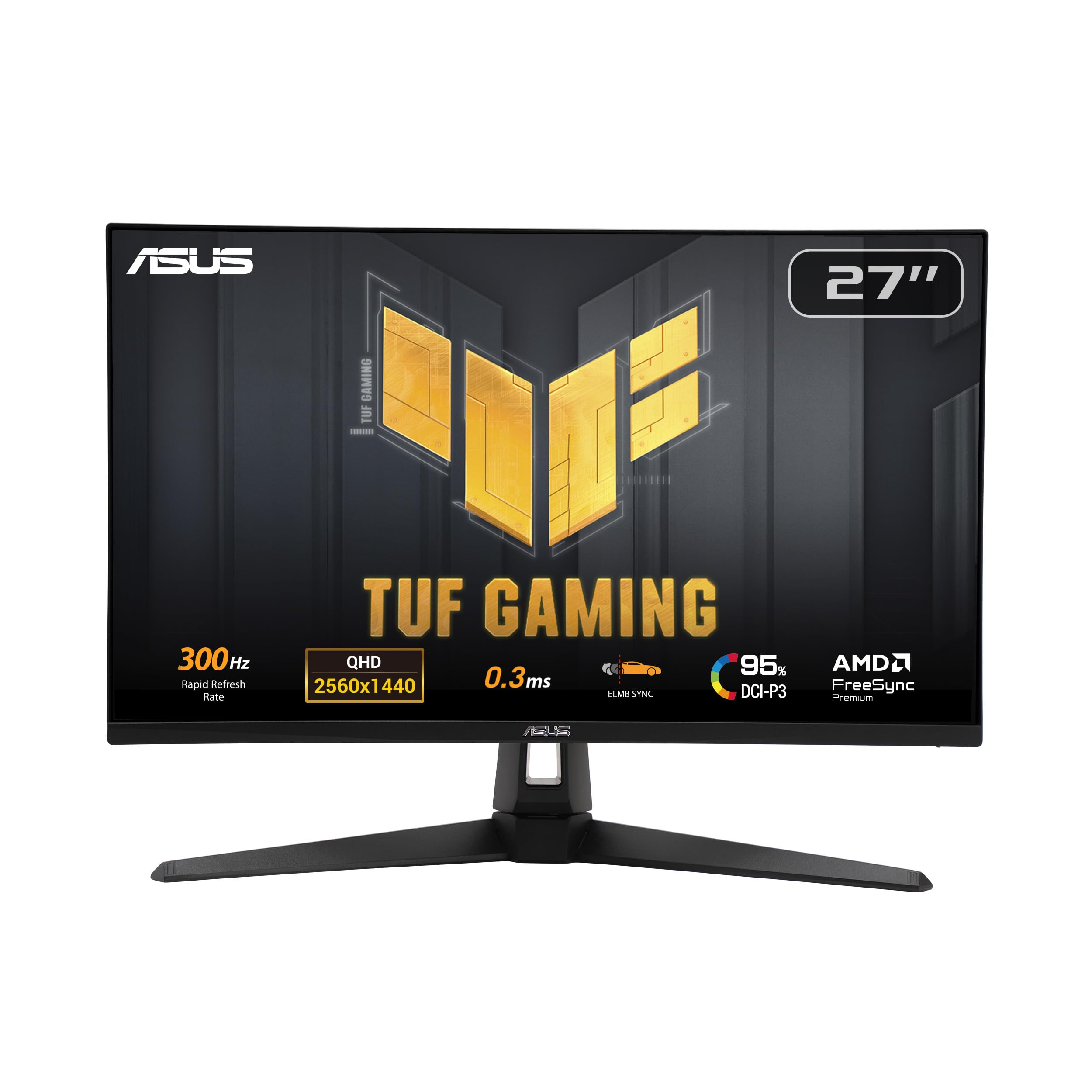
The TUF VG27AQM5A goes past the 240Hz brief with a 300Hz refresh rate, and that extra headroom is the reason to look at it. On a 27-inch 2560 x 1440 Fast IPS panel, 300Hz is for the player who already runs high frame rates and wants the monitor to stay ahead of the GPU. We like that ASUS did not reserve that speed for an OLED or a 1080p panel.

The 0.3ms response, ELMB Sync, and 95% DCI-P3 coverage round out a competitive package. ELMB Sync is the feature we pay attention to because it lets motion blur reduction work alongside variable refresh, which is not a given in this class. Built-in speakers are useful for a clean desk, though they are not a substitute for a headset. This is the speed-first pick in the group.

The catch is that 300Hz is a demanding target. You need DisplayPort, a strong GPU, and games that can actually run near that rate; otherwise you are paying for headroom you will not see. We also treat the 300Hz claim as the reason to buy rather than a guarantee of a huge jump over 240Hz. If your frame rate sits in the 140-to-180 range, the AOC is the better value.

For a 1440p competitive setup, this is the monitor that leaves room to grow. It is not the OLED picture upgrade, and it is not the cheapest route to 240Hz, but it is the one for a player chasing the last bit of motion clarity. Pair it with a GPU that can feed it.

Pros

  • 300Hz refresh at 1440p
  • Fast IPS with 0.3ms response
  • ELMB Sync and 95% DCI-P3
  • Built-in speakers

Cons

  • 300Hz needs DisplayPort and a powerful GPU
  • Less useful if your frame rate stays near 144Hz
Our verdict

We pick the TUF VG27AQM5A for players chasing 300Hz at 1440p; it is the speed-first choice without OLED pricing.

Check Latest Price
5

Best Budget Ultrawide

Sceptre C345B-QU240T

83 /100
LBD Score Excellent

Key details

Curvature
1500R
Resolution
3440 x 1440
Refresh Rate
240Hz
Response Time
1ms
View on Amazon

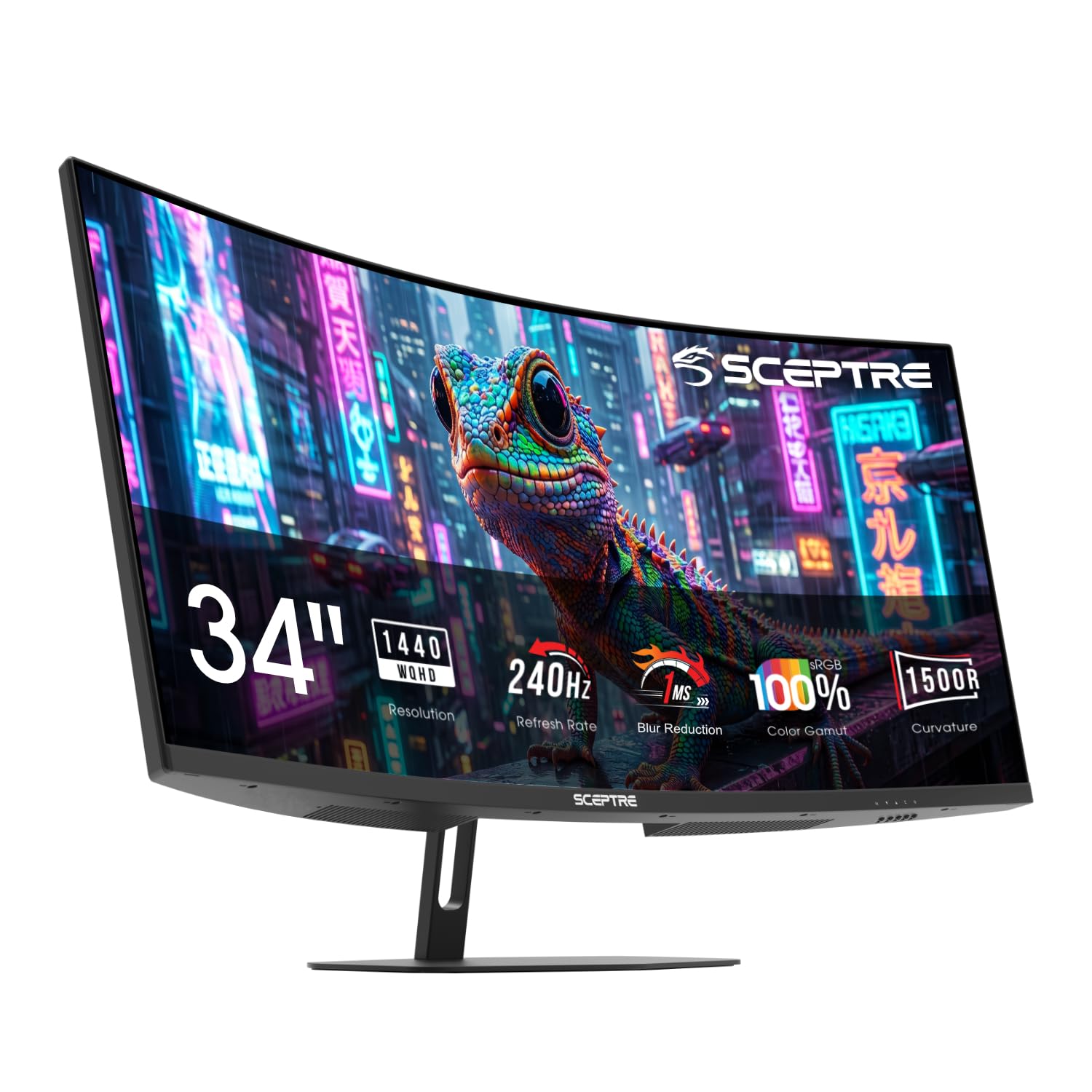
A 34-inch 3440 x 1440 ultrawide at 240Hz is a lot of screen for the money, and that is the Sceptre C345B-QU240T's whole case. The 1500R curve wraps the image around you in racing and sim games, and the extra width makes a cockpit or strategy map feel less cramped. We like it as an entry point to ultrawide gaming, not as a color-critical work display.

The 240Hz refresh and 1ms response are the right headline specs, and 100% sRGB coverage keeps games from looking obviously undersaturated. This is an LCD panel, so do not expect OLED blacks; contrast is decent but not infinite. The built-in speakers are a convenience, and the two DisplayPort and two HDMI inputs give you room for a PC and a console.

Setup is straightforward, and the metal stand is a plus at this price. The panel is about 31.8 inches wide, so measure your desk before you commit; a 34-inch ultrawide takes more room than a 27-inch monitor and sits closer to the wall. The one-year warranty is the main compromise, especially on a panel this large.

For immersive single-player games, racing, and sims, this is the budget ultrawide that makes the format accessible. If you need accurate color for photo or video work, or you want OLED contrast, step up to the Alienware. For everyone else, the width is the upgrade.

Pros

  • 3440 x 1440 at 240Hz
  • 1500R curve for immersion
  • Two DisplayPort and two HDMI inputs
  • Built-in speakers

Cons

  • One-year warranty
  • Large 31.8-inch footprint
Our verdict

We recommend this Sceptre for an affordable first ultrawide: the 34-inch 3440x1440 canvas and 240Hz curve deliver immersion for less.

Check Latest Price
6

Best Budget 1080P

Sceptre E255B-FWD240

87 /100
LBD Score Excellent

Key details

Curvature
1500R
Resolution
1920 x 1080
Refresh Rate
240Hz
Response Time
1ms
View on Amazon

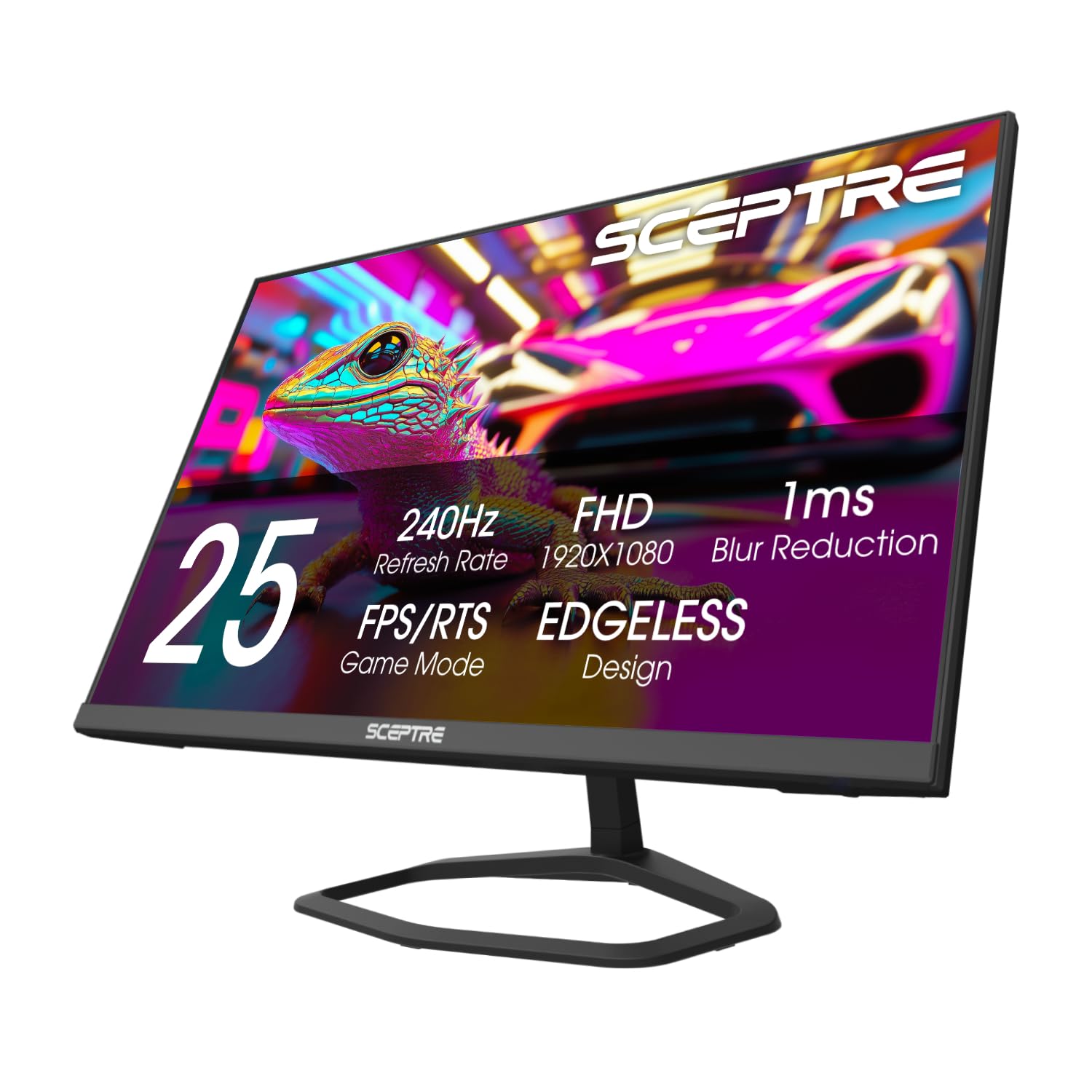
The E255B-FWD240 is the lowest-cost way into 240Hz in this group, and it gets the basics right: a 24.5-inch 1920 x 1080 panel, a 240Hz refresh, and a 1ms blur-reduction rating. We like it for a first competitive setup because 1080p is easy to drive and the smaller screen keeps pixel density reasonable. It is not the monitor for someone who wants a big, cinematic display.

FreeSync Premium, two DisplayPort inputs, two HDMI inputs, and built-in speakers make it more flexible than the price suggests. The 100% sRGB coverage is fine on paper, but color is the weak spot in practice; plan to spend time in the OSD or with a calibration profile. For fast shooters, the speed matters more than perfect color anyway.

We still think it earns its place as the budget pick, but the one-year warranty is the biggest concern. This is a budget panel, so treat the return window as part of the purchase. Check for dead pixels and screen uniformity in the first week.

If you want the cheapest route to 240Hz and you are willing to accept a basic panel, this is it. The KTC costs more but adds a three-year warranty; the AOC costs more again and adds 1440p. Those are the upgrades to weigh.

Pros

  • Lowest-cost 240Hz entry
  • 24.5-inch 1080p is easy to drive
  • Two DisplayPort and two HDMI inputs
  • Built-in speakers

Cons

  • One-year warranty
  • Colors need calibration
Our verdict

We see the E255B as the budget entry point: it puts 240Hz gaming on a small desk for the least money here.

Check Latest Price
7

Best Premium Ultrawide

Alienware AW3425DW

86 /100
LBD Score Excellent

Key details

Panel
QD-OLED
Resolution
3440 x 1440
Refresh Rate
240Hz
Response Time
0.03ms
View on Amazon

The AW3425DW is the monitor that turns a desk into a cockpit. Its 34.2-inch 1800R QD-OLED panel is wide enough to fill your peripheral vision, and the 3440 x 1440 resolution keeps the image sharp at that size. The curve pulls the edges toward you instead of leaving them as an afterthought. This is a premium ultrawide, and it feels like one.

Color is the other reason to step up. QD-OLED covers 99.3% of DCI-P3 with Delta E under 2, and VESA DisplayHDR TrueBlack 400 gives highlights and shadows real separation. The 0.03ms response and 240Hz refresh keep motion clean, while adaptive sync covers AMD, NVIDIA, and VESA setups. At 250 nits, though, this is not a monitor for a bright room; it is at its best with the lights low.

The stand adds height, swivel, and tilt adjustment, and the three-year warranty is the right coverage for an OLED this expensive. The 20-pound body and 31.7-inch width are the practical limits: measure the desk and check the VESA mount rating before you plan an arm. OLED care is part of ownership, so use the built-in protection and avoid leaving static elements on screen for hours.

We recommend it when the screen is the centerpiece of the setup and you want one monitor for competitive play and immersive games. It is not the brighter or cheaper choice, but the combination of ultrawide size, OLED contrast, and 240Hz speed is hard to match in this group. If you mostly play in a bright room, the Samsung or LG 27-inch OLEDs are easier to live with.

Pros

  • 34-inch 3440 x 1440 QD-OLED
  • 240Hz with 0.03ms response
  • 99.3% DCI-P3 and HDR TrueBlack 400
  • Three-year warranty and adjustable stand

Cons

  • 250 nits limits bright-room HDR
  • Large 20-pound, 31.7-inch body
  • OLED care adds upkeep
Our verdict

We choose the AW3425DW when the screen is the centerpiece: its 34-inch QD-OLED ultrawide is immersive, fast, and backed by three years.

Check Latest Price
8

Long Warranty

KTC H25T7-A

90 /100
LBD Score Outstanding

Key details

Panel
Fast IPS
Warranty
3 years
Resolution
1920 x 1080
Refresh Rate
240Hz
View on Amazon

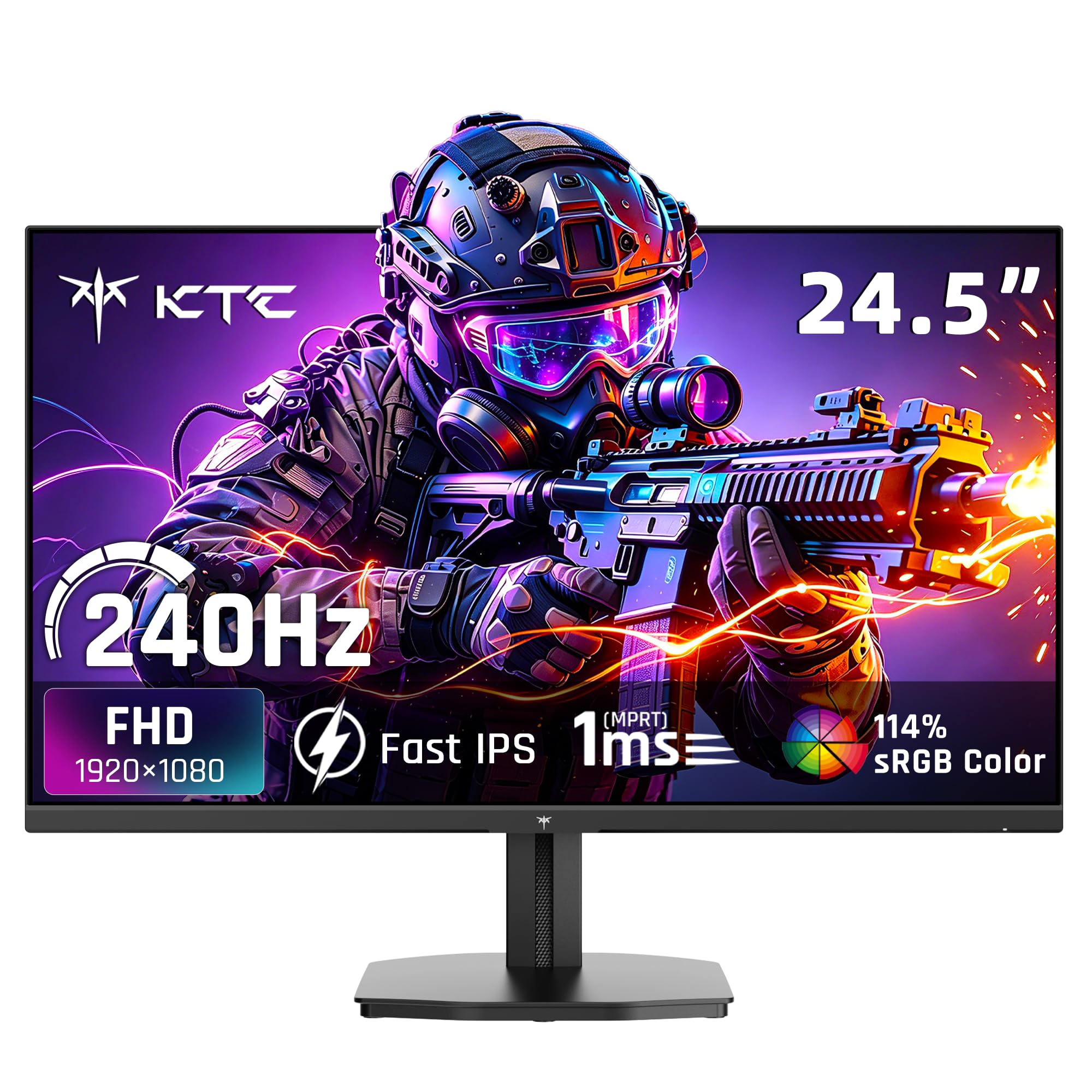
The H25T7-A's most interesting spec is not the 240Hz refresh; it is the three-year warranty. At this budget end of the market, coverage is usually the first thing to go, so KTC's longer warranty is a real reason to look twice. The rest of the package is a 24.5-inch 1920 x 1080 Fast IPS panel with a 240Hz refresh, which is the right shape for a compact competitive setup.

The 350-nit brightness and 114% sRGB coverage are stronger than we expect from a budget 240Hz panel. HDR10 support is included, though it is a modest HDR experience rather than a TrueBlack one. Adaptive Sync covers the tearing problem, and the HDMI 2.0 and DisplayPort 1.4 inputs are standard for the class. The tilt-only stand is the obvious place to save money.

At 24.5 inches, 1080p is sharp enough for games, and the smaller panel is easier to drive at high frame rates than a 1440p or ultrawide screen. The 3.2kg body is light enough to move between desks, and VESA mounting gives you an upgrade path if the stand is not enough. We like that combination of light weight and long coverage for a first or second gaming monitor.

We recommend the H25T7-A when you want a budget 240Hz monitor and a longer warranty matters more than built-in speakers or a more adjustable stand. It is not the cheapest option here, and it does not have the color punch of the AOC, but it is the safer long-term bet at the entry level. Pair it with a DisplayPort cable and confirm 240Hz in your GPU settings.

Pros

  • Three-year warranty
  • 350-nit Fast IPS panel
  • 114% sRGB and HDR10
  • Light 3.2kg body with VESA mount

Cons

  • Tilt-only stand limits height adjustment
Our verdict

We recommend the H25T7-A for budget shoppers who value a three-year warranty as much as the 240Hz panel itself.

Check Latest Price

How We Tested the Best 240Hz Gaming Monitors

We built the shortlist by reading listings, spec sheets, and owner reviews, then cutting anything that couldn't confirm its panel type or adaptive-sync support, and anything that claimed 240Hz only through an overclock we couldn't verify. That left 12 monitors, which we ran for eight months, each spending at least two weeks as the main display on a normal desk.

Motion came first. We ran a moving-object test at each monitor's top refresh rate, then cycled through every overdrive setting and filmed the screen in slow motion to see which ones left dark smear trailing a fast crosshair and which traded it for bright halos. Brightness and color got the same scrutiny: a light meter in a dark room to confirm whether each panel hit its claimed nits in the default picture mode, and a colorimeter plus a folder of skin-tone-heavy photos and film clips to judge whether the colors looked right before we touched a single setting.

Then we lived with them. I raised, tilted, and swiveled every stand, measured how much desk space each one ate, and mounted each panel on a VESA arm to check whether the ports were still reachable. We played games and watched shows through the built-in speakers with no headphones on and the volume turned up, listening for rattle and thin dialogue.

Over the months we watched for dead pixels, backlight bleed in dark scenes, and the OLED housekeeping features quietly doing their thing. Appearance counted too — bezels, cable routing, how the back of the thing looks from across the room — and so did whether the price felt fair once the honeymoon wore off.

How to Choose a 240Hz Gaming Monitor

Start With the Port, Not the Refresh Rate

A monitor can advertise 240Hz and still run at 60Hz if the connection cannot carry the signal. On most of these displays, DisplayPort is the input that reaches the full rate; some HDMI 2.1 ports can do it too, but the bundled cable is not always the right one. Check your GPU's output, use a certified cable, and set the refresh rate in Windows or your graphics control panel. The AOC Q27G41ZE is a good example: its 240Hz mode is specified over DisplayPort.

If you are upgrading an older PC, confirm the GPU and cable before you blame the panel.

Match Resolution to Screen Size and GPU

Resolution changes what the monitor demands from your graphics card. A 24.5-inch 1080p panel like the Sceptre E255B-FWD240 is the easiest to drive at high frame rates, while a 27-inch 1440p screen like the AOC gives you more detail without jumping to ultrawide. A 3440 x 1440 ultrawide adds another third of the pixels and a wider field of view, so it needs more GPU headroom. Pick the resolution you can actually feed near 240 frames per second.

Pixel density matters too: 1080p at 24.5 inches looks crisp, but the same resolution stretched across 27 inches or more softens text and fine detail. For a do-everything desk, 27-inch 1440p is the safer balance.

Pick the Panel for Your Room and Your Games

IPS is the all-rounder: good viewing angles, predictable color, and no OLED burn-in worry. OLED, as on the Samsung Odyssey OLED G6 and LG 27GX704A-B, gives per-pixel contrast and the fastest response, but brightness is lower and static elements need care. VA panels can offer strong contrast on a budget, though fast motion can ghost. Match the panel to the room: OLED for a light-controlled space, IPS for a brighter room or mixed work, VA only if contrast matters more than clean motion.

If you play both competitive shooters and single-player games, IPS or OLED is the easier compromise; a cheap VA panel is the one to audition carefully.

Measure the Desk and Check the Stand

A 34-inch ultrawide is roughly 31.8 inches wide, and the Alienware AW3425DW weighs about 20 pounds before you add an arm. Measure the desk, check the VESA pattern, and confirm the mount's weight rating before you plan a floating setup. Stand adjustment matters just as much: tilt-only designs like the AOC and KTC are fine at a fixed height, but height-adjustable stands make a shared desk or a taller user much more comfortable.

If the stand is the compromise, budget for a VESA arm rather than living with a bad viewing angle.

Treat the Warranty as Part of the Price

A one-year warranty is common at the budget end, while Samsung and Alienware back their OLED panels with three years. That coverage matters more on OLED, where burn-in and panel faults are part of the ownership conversation. Check the return window too, because dead pixels and flicker are easiest to resolve early. A cheaper monitor with a short warranty can cost more over time than a slightly pricier one with three-year coverage.

We prefer paying a little more for three years of coverage than saving at the register and carrying the risk ourselves.

Frequently Asked Questions

Final Verdict

Start with the AOC Q27G41ZE. It gets the fundamentals right: 27-inch 1440p, a native 240Hz IPS panel, and adaptive sync, without asking you to pay OLED money. We think it is the safest recommendation for most competitive players.

If picture quality is the priority, the Samsung Odyssey OLED G6 is the OLED step up, while the Sceptre C345B-QU240T gives ultrawide immersion on a tighter budget. Choose the Sceptre E255B-FWD240 only if the lowest entry cost matters more than warranty and color.