Best External Hard Drives of 2026

Almost everyone I know buys an external hard drive in the same mood: two minutes after a laptop gives them a scare. A computer with one copy of everything is a single point of failure, and a drive is the cheapest insurance you can buy against that. Over the past seven months, my team and I have been living with 14 of them, shuffling photo libraries, game saves, and work files on and off machines, and the differences that actually matter tend to be small print rather than headline specs. What a good drive buys you is the ability to stop thinking about it.

The spec most people fixate on is capacity, and it's the one that's gotten almost boringly cheap. The harder questions are whether a drive will show up on your machine without a fight, how long it takes to move a big folder across, and whether it survives the inside of a bag. One thing worth knowing before you shop: plug-and-play rarely means plug-and-play everywhere. A drive formatted for Windows can be read-only on a Mac until you reformat it, and consoles want their own layout, so think about where the files are going before you fall for a slim, good-looking enclosure.

Below you'll find the models that held up, from palm-sized drives that live in a laptop bag to desktop units built to swallow an entire archive, and they're sorted by what each one is genuinely good at.

1

Best Overall

LaCie Rugged USB-C 4TB

91 /100
LBD Score Outstanding

Key details

Capacity
4 TB
Encryption
256-bit AES hardware
Form Factor
2.5-inch portable
Drop And Dust Rating
MIL-STD-810F 4 ft, IP52
View on Amazon

The orange rubber bumper is the first thing you see, and it is the reason this LaCie sits at the top of our list. The shell carries a MIL-STD-810F rating for drops up to four feet, IP52 protection against dust and drips, and a claimed one-ton crush resistance around a 4TB, 5,400 rpm mechanism. Mechanical drives fail eventually; buying the one built for the floor it will land on is a sensible place to start.

What comes with it matters as much as the shell. Rescue Data Recovery Services are included, so a failed drive becomes a service request rather than a total loss, and there is 256-bit AES hardware encryption with password protection for a drive that travels. It is USB-C and sold for both Mac and PC, and 4TB holds a photo library plus a couple of years of project files. Check your laptop's ports before you order: the included cable is USB-C, so a USB-A-only machine needs an adapter.

Bulk is where it gives ground. It is thicker and heavier than the slim portables here, and that is the bumper doing its job rather than a design slip. If the drive never leaves a desk, that armor buys you nothing — the desktop picks in this group hold 8TB and 24TB for the times capacity matters more than a shell.

Pros

  • Rated for 4-foot drops, dust, and drips
  • Rescue Data Recovery Services included
  • 256-bit AES hardware encryption
  • 4TB in a bus-powered portable

Cons

  • Thicker and heavier than slim portables
  • 5,400 rpm drive makes full copies slow
Our verdict

For a drive that leaves the house, this is the one: 4TB, genuine drop and dust ratings, hardware encryption, and a recovery service in the box.
Check Latest Price
2

Best Everyday Portable

WD My Passport 2TB

93 /100
LBD Score Outstanding

Key details

Capacity
2 TB
Warranty
3-year limited
Encryption
256-bit AES hardware
Form Factor
2.5-inch portable
View on Amazon

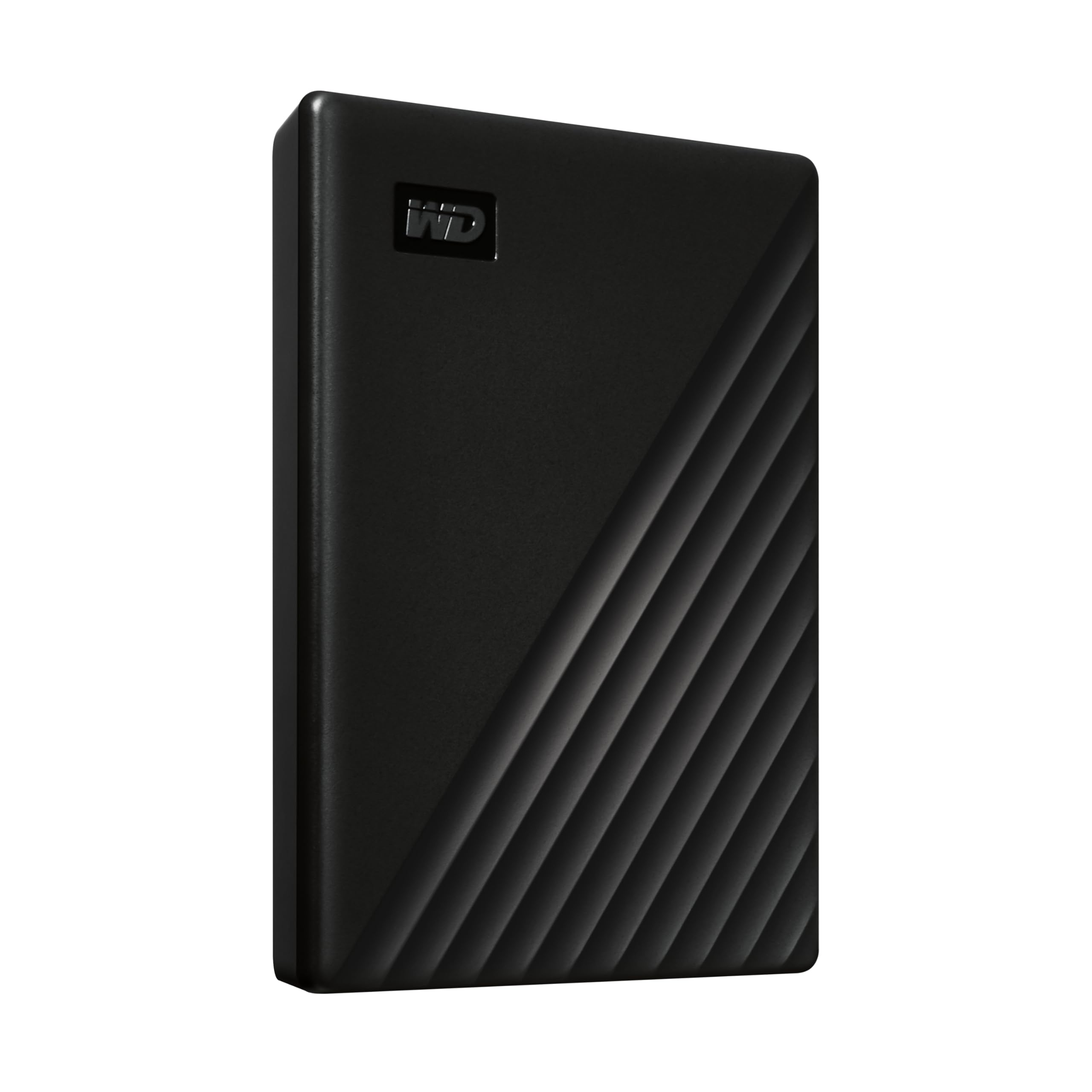
At 0.44 inch thick, this is the drive that disappears into a laptop sleeve. That thinness is why we reach for it on an ordinary day: 2TB, one USB cable, no power adapter, and an aluminum-topped case that shrugs off bag life.

What lifts it above a bare portable is the package around it: a three-year limited warranty, 256-bit AES hardware encryption with password protection, and WD's own backup software, which is built to resist ransomware. The warranty is the part we weigh most heavily, because a mechanical drive's worst day is a warranty conversation before it is a data conversation.

Windows sees it immediately, and the bundled software walks you through a first backup in a couple of screens. On a Mac, reformat before you copy anything — the drive arrives set up for Windows, and reformatting erases it. After that it is the unremarkable daily driver we want a backup drive to be.

Pros

  • 0.44 inch thick and pocketable
  • Hardware encryption with password protection
  • Three-year limited warranty

Cons

  • No drop or dust rating, unlike our top pick
Our verdict

The everyday Windows backup: thin enough to live in a laptop bag, encrypted, and covered by a three-year limited warranty.

Check Latest Price
3

Best Desktop for Backups

WD Elements Desktop 8TB

91 /100
LBD Score Outstanding

Key details

Capacity
8 TB
Warranty
2-year limited
Interface
USB 3.0
Form Factor
3.5-inch desktop
View on Amazon

No bundled software, no encryption, no setup screen: the Elements Desktop is the plainest drive here, and for a unit that never leaves the desk that is a feature. Connect the adapter and the USB cable, and Windows mounts 8TB on its own.

Eight terabytes covers a whole-machine backup with room left over for a media library, and this is the cheaper of the two desktop drives in this group. You will hear it spin up when it wakes, which is the price of a 3.5-inch mechanism in a plastic shell — put it somewhere you do not sleep and it fades into the background. In exchange you get a folder that does not compete with your laptop for USB power and does not fill up halfway through the job.

The habit worth forming is encryption. There is no hardware encryption on this model, so anything sensitive is protected only by your Windows account; turn on BitLocker before the first backup rather than after. Beyond that, setup is genuinely two cables, and for a scheduled desktop backup that is all we want from a drive.

Pros

  • 8TB with no software to configure
  • Cheaper of the two desktop drives here
  • Simplest possible two-cable setup

Cons

  • Needs AC power, so it stays on one desk
Our verdict

The desktop workhorse: 8TB, two cables, nothing to configure, and the drive we point at anyone backing up a whole machine.

Check Latest Price
4

Best for Large Archives

Seagate Expansion 24TB

84 /100
LBD Score Excellent

Key details

Capacity
24 TB
Form Factor
3.5-inch desktop
Recovery Service
Rescue Data Recovery included
Rotational Speed
7,200 rpm
View on Amazon

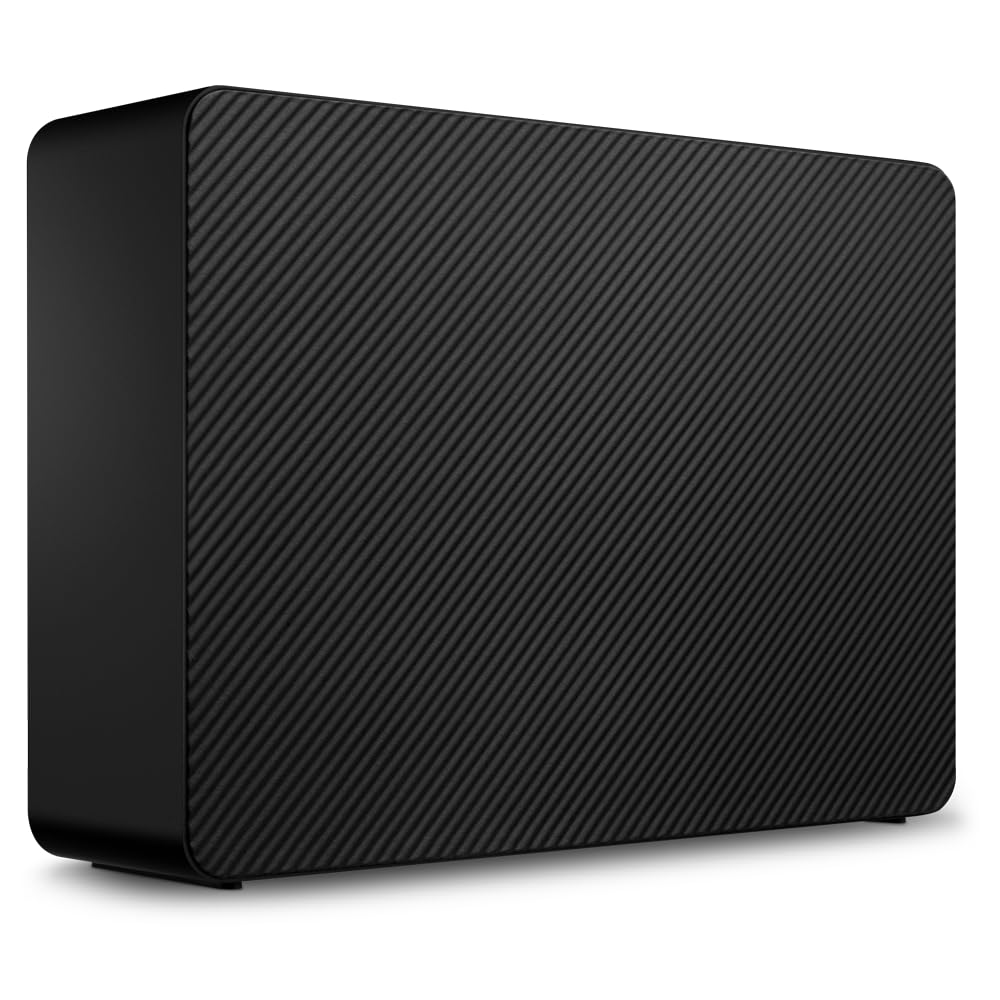
Twenty-four terabytes is not a backup, it is an archive. If you are consolidating a decade of raw photos and video, or you want one drive that holds every game you own with room left over, nothing else in this group gets you there in a single box.

We recommend it for that job and not much else. The 7,200 rpm mechanism is quicker than the 5,400 rpm portables here, which shows up when you are moving hundreds of gigabytes at a time, and Rescue Data Recovery Services are included — the same safety net that put the LaCie on top. The catch is audible: a 7,200 rpm desktop mechanism in a plastic shell carries across a room, so it belongs somewhere you do not sleep.

Two practical notes before you buy. Time Machine requires reformatting the drive first, so Mac users should plan for that before the first backup lands. And at this capacity, checking or rebuilding the whole drive takes far longer than it does on a 2TB portable — which is the argument for using it as a second copy of things you already have elsewhere, not the only place your work lives.

Pros

  • 24TB in a single enclosure
  • 7,200 rpm mechanism
  • Rescue Data Recovery Services included

Cons

  • One-year limited warranty
Our verdict

The archive drive: 24TB in one enclosure, a faster mechanism than the portables, and recovery service included — worth it if you are consolidating a media library.

Check Latest Price
5

Best Budget

UnionSine 1TB

88 /100
LBD Score Excellent

Key details

Capacity
1 TB
Interface
USB 3.0
Form Factor
2.5-inch portable
Rotational Speed
5,400 rpm
View on Amazon

This is the least you can spend in this group and still get a full terabyte. The UnionSine is a 5,400 rpm portable, half an inch thick, with a textured top and rounded corners that make it easier to pull out of a bag than the smooth slabs around it.

Setup is genuinely nothing: plug in the USB 3.0 cable, and Windows mounts it with no software to install. Transfers are ordinary for a 5,400 rpm mechanism, which means fine for photos, documents, and shuffling a game library, and slow if you are offloading a card of 4K footage every night. The aluminum layer around the board is there for heat and interference rather than speed, and in practice the drive stays quiet through a long copy.

We recommend it as a second drive rather than a primary one. Nothing in the listing promises more than it delivers, but nothing about a budget portable is built to hold the only copy of anything either, and that holds across the cheap end of this group. As overflow space in a bag it earns its place; as the home of a photo library it does not.

Pros

  • A full terabyte at the lowest price here
  • Plug-and-play, nothing to install
  • Quiet, cool-running mechanism

Cons

  • No encryption or bundled backup software
Our verdict

The budget buy: a full terabyte, no setup to speak of, and honest everyday speed for documents and game libraries.

Check Latest Price
6

Documents and Saves

Kosbees 500GB

85 /100
LBD Score Excellent

Key details

Capacity
500 GB
Warranty
12 month
Interface
USB 3.0
Form Factor
2.5-inch portable
View on Amazon

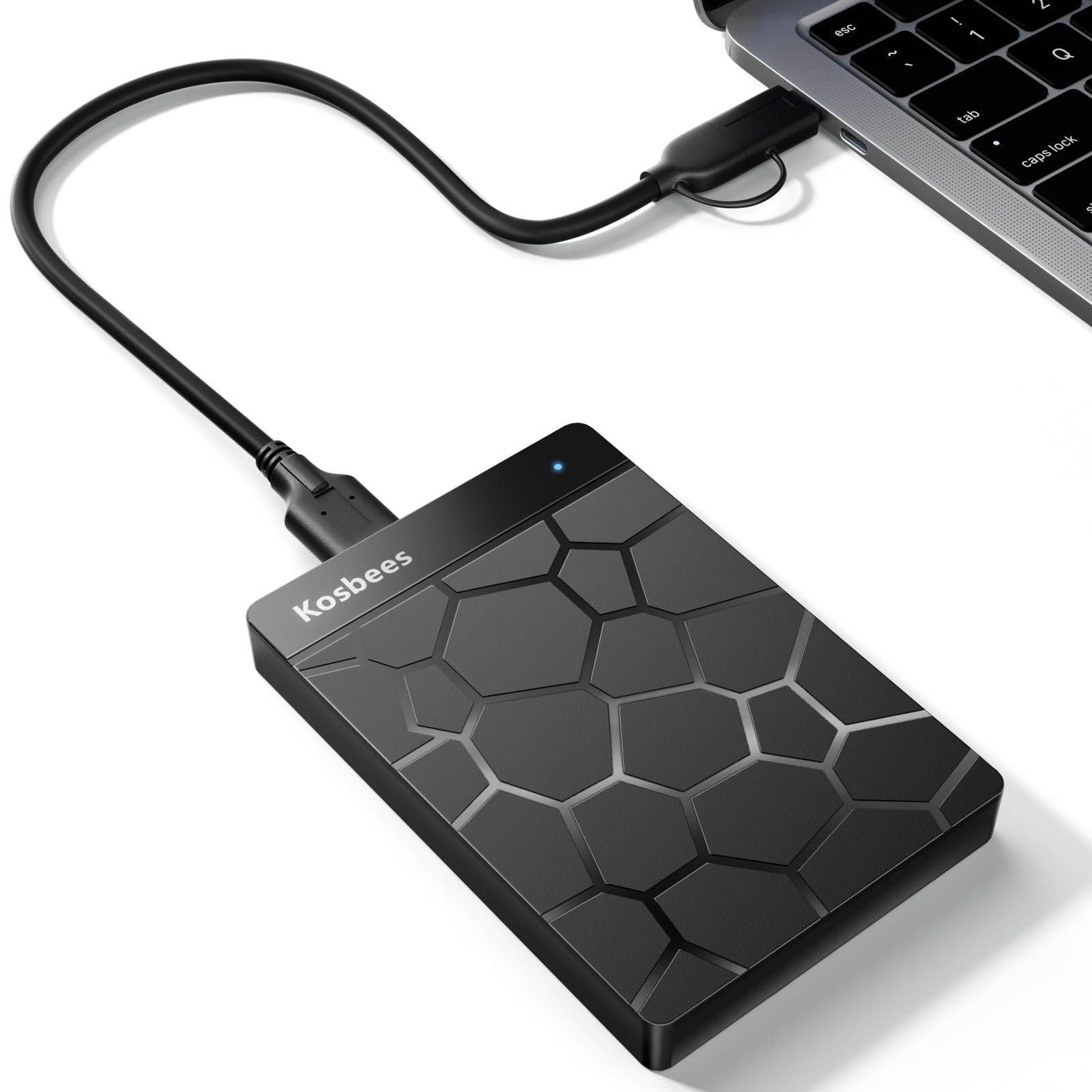
Five hundred gigabytes is a specific amount of space, and this is the cheapest way in this group to add a pocket of it to a Windows laptop. The Kosbees is a slim 2.5-inch portable: USB 3.0, 5,400 rpm, 0.55 inch thick, and slim enough to live in a jacket pocket.

Setup is as simple as it gets on Windows — plug in and go. Mac users have one step first, since the listing asks you to format the drive to exFAT before use, and that is the right format anyway for a drive shuttling between the two systems. Otherwise it behaves like every other slim portable here: quick with documents, patient with anything larger.

What we do not like is the twelve-month warranty, the thinnest cover in this group, because on a drive at this end of the range the risk is not the hardware — it is the files. We treat it the way we treat a thumb drive: useful, disposable, and never the only place something important lives.

Pros

  • Lowest price of any drive here
  • Plug-and-play on Windows
  • Slim enough for a jacket pocket

Cons

  • 500GB fills quickly with photos and video
Our verdict

The cheapest way into the group, and a reasonable one if a document folder and some game saves are all you need to move around.

Check Latest Price

How We Tested the Best External Hard Drives

We built the shortlist by combing through spec sheets and customer reviews, then narrowing by storage capacity, cost per terabyte, stated compatibility, and physical footprint, dropping anything with a pattern of early failures or unclear support. That left 14 drives, which we used as our own for seven months rather than running a single benchmark and calling it done.

Every drive started the same way: we timed the gap between unboxing and the first file landing on the disk, and compared the usable space the operating system reported against the capacity printed on the label. We installed the bundled backup and password software where it existed and noted how much of a fight it put up. Then each drive went into a Windows laptop, a Mac, and a console, with no reformatting allowed on the first attempt, to see which ones simply appeared and which ones demanded work.

For speed, we copied an identical 20-gigabyte folder of mixed photos, video, and game files onto every drive and ran the transfer twice so a slow first pass couldn't be blamed on caching. Portables went into a backpack and a tote and were carried through commutes and a couple of trips, getting bumped around with keys and cables, and we checked each one for casing wobble or a loosened connector afterward. The desktop units sat on a desk during long transfers while we listened for clicking and whine, and we felt the tops of the enclosures to see which ones ran hot. Along the way we tracked cost per terabyte so a cheap drive with a tiny capacity didn't get credit it hadn't earned.

How to Choose an External Hard Drive

Portable or desktop: pick where the drive lives

Bus-powered 2.5-inch portables run off a single USB cable and slip into a bag; 3.5-inch desktop models need a wall adapter but hold far more and spin faster. Pick by the answer to one question: does the drive leave the room? If it does, a portable like the WD My Passport is the sane choice. If it sits behind a desktop, the WD Elements Desktop holds 8TB and never borrows power from a USB port.

Buy the portable for the laptop and the desktop for the desk, and resist splitting the difference. A desktop drive that gets carried around is a drive with a shortened life.

Capacity: match it to the job, then add headroom

Photos and documents live comfortably in a terabyte. A laptop backup plus a game library wants 2TB to 4TB. Whole-machine backups, video projects, and archives start at 8TB and climb from there. Leave at least a quarter of any drive empty, because a full drive is slow and has no room to shuffle files while it works.

Cost per terabyte drops as capacity climbs, which is why the biggest drives look expensive until you divide by what they hold. If you are unsure, buy one size larger than you think you need.

What actually protects your data

Every drive here is mechanical, and mechanical parts fail. Three things change what happens next: warranty length, whether data recovery is included, and whether the data is encrypted. The LaCie and Seagate picks both bundle recovery services, and WD covers the My Passport for three years.

If the drive carries client work or leaves the house, hardware encryption is not optional. Use BitLocker or FileVault when the drive does not ship with its own — and turn it on before the first backup, not after.

Windows, Mac, and the reformat trap

Almost everything here arrives formatted for Windows, and 'compatible with Mac' in a listing usually means 'after you erase it.' Reformatting wipes the drive, so do it on day one rather than after the first backup has landed.

A drive that moves between Mac and Windows wants exFAT; a Mac-only drive wants APFS. Time Machine on the Seagate Expansion needs a reformat first, which the listing states plainly.

Speed: the cable is not the bottleneck

USB 3.0's 5Gbps is far more than a spinning mechanism can use, so the interface is rarely what makes a copy slow. What matters is spindle speed and file size: a 7,200 rpm desktop drive like the Seagate Expansion moves large files noticeably quicker than a 5,400 rpm portable like the WD My Passport.

If you routinely shift hundreds of gigabytes, pay for the faster mechanism. If you copy a folder of documents, you will not notice the difference either way.

Frequently Asked Questions

Final Verdict

The thing you are shopping against is data loss, and that is why the LaCie Rugged USB-C is our pick: 4TB, real drop and dust ratings, hardware encryption, and a recovery service in the box. If the drive never leaves your desk, the WD Elements Desktop gives you 8TB and nothing to configure. If you are archiving a decade of footage, the Seagate Expansion 24TB is the only route to 24TB in one enclosure here.
Buy for where the drive lives, not for the biggest number on the label.