Best External GPU Enclosures of 2026

An external GPU enclosure is a fairly dumb box doing one clever thing: it moves a desktop graphics card out of your laptop's cramped chassis and onto your desk, connected by a single cable. Choosing one is harder than the box suggests, because the box isn't the interesting part — the port you plug it into is. The same enclosure can feel like a revelation on one machine and a stuttering, driver-crashing brick on another.

We've spent the past eight months running 11 enclosures through the same two laptops and a mini PC, and the pattern held: the keepers matched the machine's connection — Thunderbolt or USB4 on one side, OCuLink on the other — and stayed stable under load. One thing nobody tells a first-time buyer: several ship without a power supply, so the page price isn't the price of a working setup until you've added enough wattage for the card you actually want. A chassis that flexes under a three-slot card is something you feel every time you move it. The picks below are the ones that survived all of it.

1

Best Overall

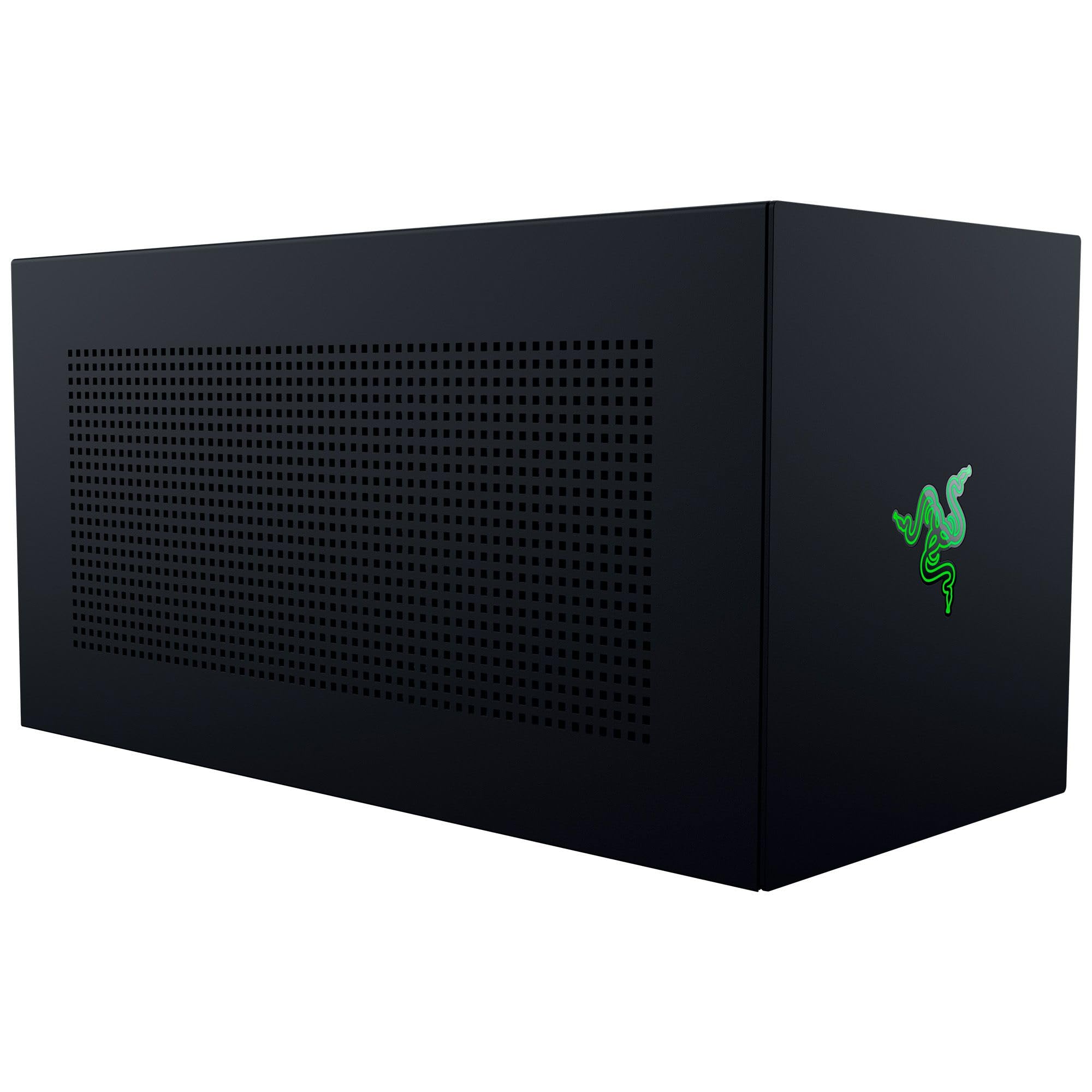
Razer Core X V2

79 /100
LBD Score Very Good

Key details

Connection
Thunderbolt 5, 80Gbps
Power Supply
ATX, user-supplied
GPU Clearance
4 slots wide
Laptop Charging
140W via USB-C
View on Amazon

Thunderbolt 5 at 80Gbps is the number Razer leads with, and it is the main reason this enclosure sits at the top of our list. It is one of two here that can run a Thunderbolt 5 link at full width, and it still drops back to Thunderbolt 4 laptops and USB4 handhelds without a second dock, so the chassis you buy now keeps working when the laptop changes.

Room inside is the second argument. Cards up to four slots wide fit, and the 16.59-inch steel body leaves space for the long triple-fan models. Four slots is more than most cards need, but it is exactly what stops a thick cooler and its power cables from fouling the side panel, which is a thing you only notice when it doesn't fit. The panels come off with the included thumbscrews, so fitting a card is a five-minute job with no screwdriver hunt, and the ATX bay at the back is open enough to route the PCIe cables cleanly.

The 140W of USB-C power delivery is the detail that turns it into a dock rather than a box. One cable carries the PCIe link, the display signal, and enough charge to keep a 14-inch laptop up, which is the difference between a tidy desk and a power brick on the floor. It is a stationary piece, so give the single 120mm fan some air at the back and route the cable once. For a laptop that lives on a desk and needs real graphics, this is the one we build around.

Pros

  • Thunderbolt 5 link with Thunderbolt 4 and USB4 fallback
  • Fits cards up to four slots wide
  • Tool-free card and power supply access
  • 140W laptop charging over the same cable

Cons

  • Premium price for an empty chassis
  • Power supply sold separately
Our verdict

We recommend the Core X V2 for a Thunderbolt 5 or USB4 laptop that needs desktop graphics at a desk, because it takes the biggest cards here and charges the laptop over the same cable.

Check Latest Price
2

Best With Power Supply Included

Sonnet Breakaway Box 750ex

77 /100
LBD Score Very Good

Key details

Connection
Thunderbolt 3
Included PSU
750W, up to 375W to GPU
Built-in Ports
4x USB-A, Gigabit Ethernet
Max GPU Length
312mm
View on Amazon

The Breakaway Box 750ex is the only enclosure here that arrives with its power supply already inside, and after one build that convenience stops looking like a small thing. A 750W unit feeds up to 375W continuous to the card, enough for everything short of the thirstiest flagship, and you connect one Thunderbolt 3 cable and stop shopping.

It is also the closest thing here to a desk dock. Four USB-A ports at 5Gb/s and a Gigabit Ethernet jack ride the same cable, so a laptop can arrive, plug in once, and pick up graphics, peripherals, and a wired network together. The chassis is a plain black box with a single fan, which is fine by us; it disappears under a monitor riser, and that is where most of these end up.

The extras are where the age shows a little. The Ethernet jack has been the unreliable part on Macs, working on Windows machines and not on some MacBooks, so test it inside the return window. Otherwise this is the enclosure for a Windows editing, rendering, or color-grading desk, where the ports and the included supply do more for the working day than a faster link would, and the card bay being shorter than the longest cards is the trade you accept for all of it.

Pros

  • 750W supply with up to 375W to the card
  • Four USB-A ports and Gigabit Ethernet built in
  • Straightforward plug-and-play install

Cons

  • GPU bay tops out at 312mm
  • Thunderbolt 3 rather than USB4 or Thunderbolt 5
Our verdict

If you want to add a card without shopping for a power supply, this is the one, provided your GPU is under 312mm and your laptop runs Thunderbolt 3 or 4.

Check Latest Price
3

Best Dual-Mode Dock

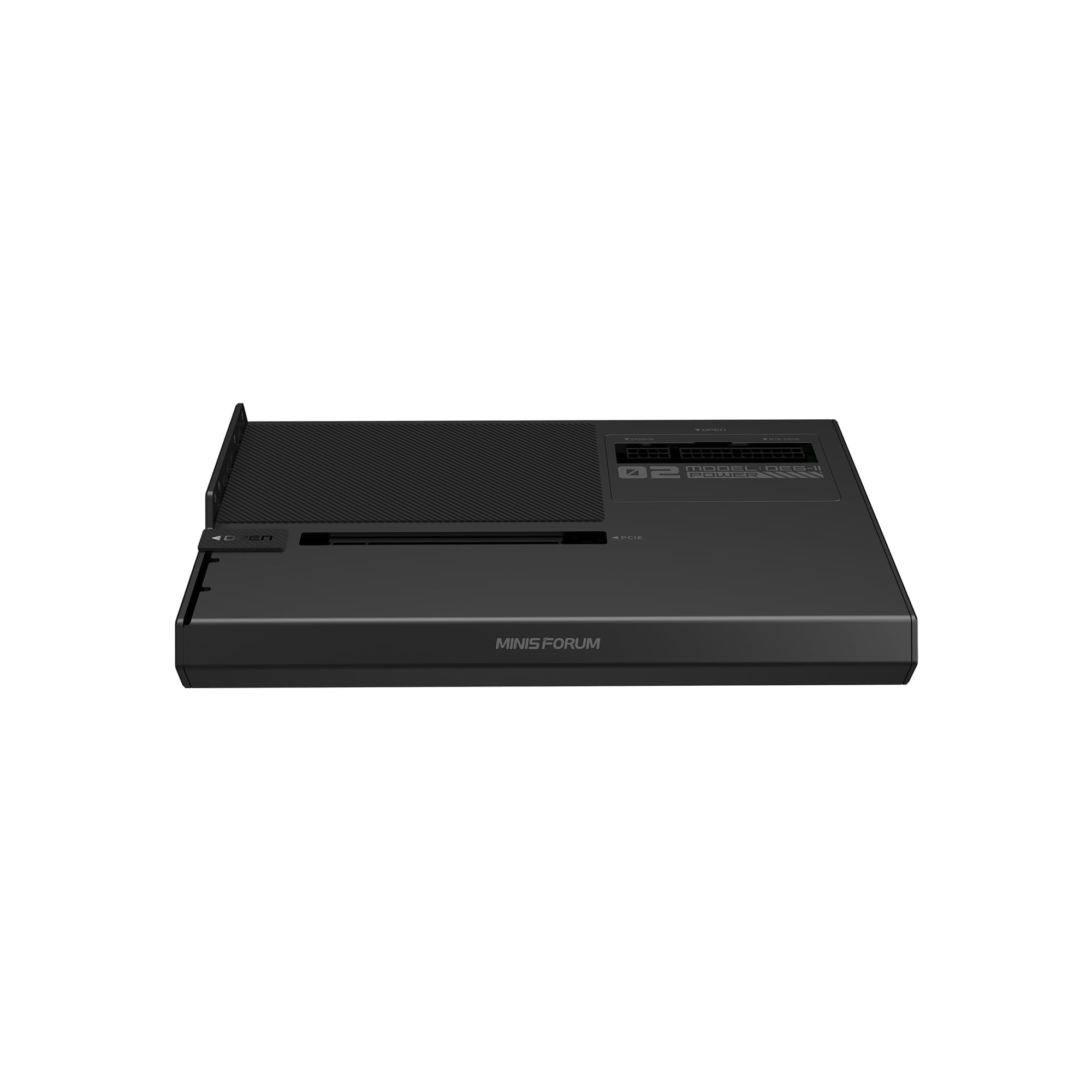
MINISFORUM DEG2

83 /100
LBD Score Excellent

Key details

Storage
M.2 2280 slot
Connection
USB4 V2 (TBT5 compatible) and OCuLink
Link Speed
Up to 80Gbps (TB5) and 64Gbps (OCuLink)
Power Supply
ATX or SFX, user-supplied
View on Amazon

Two machines, one dock is the pitch, and the DEG2 is the only enclosure here that flips between an 80Gbps USB4 V2 link, Thunderbolt 5 compatible, and a 64Gbps OCuLink cable with a hardware switch. If your desk has a work laptop on Thunderbolt and a mini PC on OCuLink, that switch is worth more than any single figure on this page, because the alternative is two enclosures and two idle power bricks.

The M.2 2280 slot inside is the smartest extra in this group. Keeping models, project files, or a game library on a drive in the dock means the card isn't queueing behind the laptop's own storage over the same cable, and the drive stays put when the laptop is swapped. A re-drive chip steadies the PCIe signal at these speeds, the power supply bay is left visible so you can check the cabling and the fan at a glance, and one Thunderbolt 5 cable carries data, display, and laptop charging.

Set it up once and it behaves like a dock: automatic power-on with the host, a single cable to the laptop, and a second machine that connects with a different cable in a different socket. The frame is honest about being a frame, so the card is on show rather than sealed away. That is the whole trade at this price, and for a two-machine desk it is a good one.

Pros

  • Thunderbolt 5-class 80Gbps and OCuLink in one dock
  • M.2 2280 slot for models and project files
  • One cable for data, display, and charging

Cons

  • Power supply not included
  • Some card and power supply pairs fit poorly
Our verdict

For a desk that switches between a Thunderbolt laptop and an OCuLink mini PC, the DEG2 serves both from one frame, as long as you budget for a power supply.

Check Latest Price
4

Best Budget OCuLink Dock

OwlTree OCuLink Dock

84 /100
LBD Score Excellent

Key details

Connection
OCuLink SFF-8611
Link Speed
PCIe 4.0 x4, 64Gbps
Power Supply
Standard ATX, user-supplied
Included Cable
50cm / 19.7in flat SFF-8611
View on Amazon

This is the least expensive enclosure in the group, and what arrives is the dock, a 50cm SFF-8611 cable, and nothing else. No card, no power supply. The board takes a standard ATX unit, the cable runs from an OCuLink port on your machine to a PCIe x16 slot for the card, and both ends detach so the whole assembly packs down far flatter than a fixed riser.

The cable is the part we didn't expect to rate. At half a millimetre thick it flexes instead of levering on the connector, which is exactly how OCuLink ports get killed by stiff cables, and the flat run tucks behind a mini PC without a loop of rigid plastic sticking out into the room. With gold-plated contacts on the board and a detachable design at both ends, it behaves like a good passive adapter rather than a fragile one.

What it isn't is a finished appliance. There's no shroud and no fan, so the card sits open on the frame and any noise is the card's own. For a mini PC running AI workloads, video exports, or a second machine that needs a card on a shelf now and then, none of that counts as a cost. It's a tinkerer's dock, and a competent one.

Pros

  • Least expensive OCuLink dock here
  • Thin 50cm cable flexes instead of levering the port
  • Both ends detach for storage

Cons

  • No hot-plug; shut down before unplugging
  • Card slot is delicate to reseat
Our verdict

For a mini PC with an OCuLink port and a spare ATX supply, this is the least expensive way in, a plain and flexible dock that simply does the job.

Check Latest Price
5

Mini PC Builds

MINISFORUM DEG1

79 /100
LBD Score Very Good

Key details

Connection
OCuLink 4i (PCIe 4.0 x4)
Dimensions
10.64 x 6.87 x 1.6 in
GPU Support
RTX 4090, AMD RX 7900 XTX
Power Supply
ATX or SFX, user-supplied
View on Amazon

The DEG1 is 1.6 inches tall, and that flatness is the whole idea: the card lies low in an open frame instead of standing up in a tower, so the whole thing slides onto a shelf beside a mini PC instead of taking over the desk. It is the tidiest of the OCuLink docks here, and the one we pick for a small form-factor build.

Inside there is nothing to configure. OCuLink 4i comes in at PCIe 4.0 x4 and a PCIe x16 slot takes the card at the same electrical width, with a bay for a standard ATX or SFX supply. A force power-on button with an LED brings the dock up on a press, and the open frame moves air well because the card's own fans do the cooling, with no extra blower adding to the noise in the room.

The handshake is the part that catches people out. Power the dock first, give it a beat, then start the machine, and OCuLink comes up reliably; start them the other way round and you can sit looking at nothing. Two limits come with the design: it is OCuLink only, so a Thunderbolt laptop needs an adapter to use it, and the follow-start feature works only with MINISFORUM's own mini PCs. Neither matters on the shelf it was built for.

Pros

  • Slim 1.6-inch frame fits on a shelf
  • Runs cool and quiet with the card doing the work
  • Takes standard ATX or SFX power supplies

Cons

  • No power supply in the box
Our verdict

The DEG1 is the dock we build a mini PC around: slim, quiet in use, and OCuLink only, so it suits a desktop that will never need Thunderbolt.

Check Latest Price

How We Tested 11 External GPU Enclosures

We started with spec sheets rather than sample units, gathering every enclosure that accepted a full-length, full-width desktop card, then cutting anything that locked you to one GPU generation or buried its power-supply requirement in the fine print. That left 11 enclosures, run for eight months across a thin-and-light laptop, a beefier Thunderbolt machine, and a mini PC, so a bad result could be blamed on the box and not on one strange computer.

Setup was timed from box open to a first game loading, working alone and without the manual. We counted every reboot, driver reinstall, and BIOS detour, then repeated the whole install a second time to see whether it got faster or only worked on the port it first met. With a card in place we lifted each chassis by the front panel to check for flex, listened for rattle when we set it back down, and watched whether the card seated cleanly in the slot or needed a shove at the bracket.

Most of the testing happened where these actually live. One unit spent a week under a home-office monitor running 20-minute 4K exports and hour-long gaming sessions; another got unplugged and carried to the living room every evening and plugged back in, to see whether the display returned by itself or the machine needed a restart. We logged frame rates and export times against the same card in a desktop tower, listened for fan noise during a four-hour benchmark loop, and tracked power — whether a supply came in the box, whether the laptop kept charging while the card was pinned, and what browned out when both happened at once. A dropped link mid-export was an automatic disqualifier.

How to Choose an External Gpu Enclosure

Start With the Port on Your Laptop

Thunderbolt 5 and USB4 V2 enclosures move data at up to 80Gbps, Thunderbolt 3 tops out at 40Gbps, and OCuLink carries PCIe 4.0 x4 at 64Gbps. That order only helps if your machine can use it: a Thunderbolt 5 chassis on a Thunderbolt 4 laptop runs at the older speed, and an OCuLink dock is dead weight on a laptop with no OCuLink port or spare M.2 slot.

So buy for the machine you own. Thunderbolt 4 laptops and USB4 handhelds are the Razer Core X V2's home ground; a mini PC with an accessible M.2 slot is what the OCuLink docks are for. If a laptop upgrade is coming anyway, paying for Thunderbolt 5 is the one choice that survives it.

Decide Who Buys the Power Supply

Only the Sonnet arrives with a supply inside, a 750W unit good for up to 375W continuous to the card. Everything else here expects you to fit an ATX or SFX unit, which is often better: you can match it to the card and carry it to the next one. What you can't do is treat it as an afterthought, since an undersized supply is the usual reason a dock looks fine on the desktop and folds in a game.

Add up the card's draw, leave a few hundred watts of headroom, and check which PCIe power connectors the card needs. A card on a 16-pin connector wants a supply that ships with that cable rather than an adapter chain.

Measure the Card, Then the Desk

Card length rules models out faster than anything else. Sonnet rates its bay to 312mm; the Razer takes cards four slots wide; the open-frame OCuLink docks put no length limit on the card but leave it hanging in the air. A two-slot card fits nearly everything here, and a 3.5-slot triple-fan model is where the measuring starts.

Then look at the furniture rather than the card. The Core X V2 runs 16.59 inches deep, which is more than some shelves allow, while an open frame takes the biggest card you own and puts all of it on show.

Weigh the Extras: Ports, Charging, Storage

An enclosure can do more than hold a card. The Breakaway Box adds four USB-A ports and Ethernet so one cable delivers graphics, peripherals, and a wired network; the Core X V2 sends 140W back up the cable to charge the laptop; the DEG2 has an M.2 slot for a drive that stays with the dock.

Pay for that once, not twice. If your monitor already has a USB hub, charging wattage is the extra that changes your day. If you shift large project files or models, the M.2 slot earns its keep. Otherwise the money belongs in the card.

Frequently Asked Questions

Final Verdict

The Razer Core X V2 is the enclosure we point most people to. It gives a Thunderbolt 5 laptop the full 80Gbps link, swallows a four-slot card, and sends 140W up the same cable, with Thunderbolt 4 and USB4 machines still supported. Bringing your own ATX supply is the one extra decision, and it's one worth making carefully.

If you would rather not shop for a supply, the Sonnet Breakaway Box 750ex arrives with 750W and four USB ports, provided your card is under 312mm. And if the machine is a mini PC with an OCuLink port, the DEG1 does the same job for a fraction of the money and never asks for Thunderbolt.