Best Laptops for Blender of 2026

Blender will launch on almost any laptop you own. The trouble arrives when you drop a subdivision modifier on a dense mesh and the viewport turns into a slideshow while the fans spin up like a leaf blower. A laptop worth buying for Blender keeps that viewport fluid, then grinds through a Cycles render without melting your desk.

Over six months, my team and I ran eight laptops through real Blender projects, from quick product mockups to a scene heavy enough to make a desktop sweat. The surprise: the GPU matters more than the CPU for Cycles, but cooling decides whether that GPU is still fast twenty minutes into a render. Panel color matters more than refresh rate here.

Reliability is the quiet factor: a machine that renders beautifully for a week, then throttles into a stutter, is worse than a slower one that holds steady. Most of these are gaming laptops, and that's not a compromise — the card that renders your scene runs games fine too, as long as the chassis can cool it. The picks below are sorted by how you actually work.

1

Best Overall

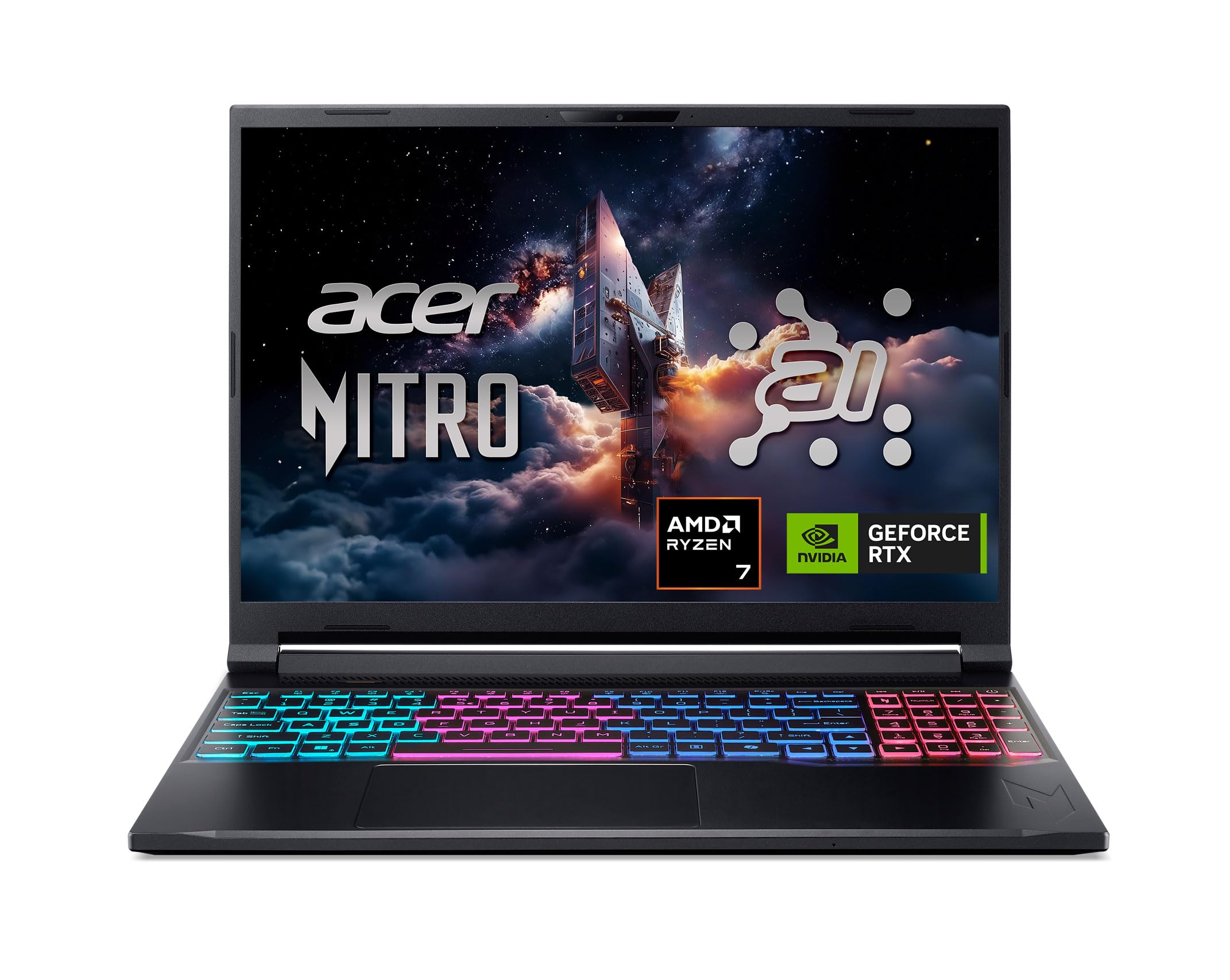
Acer Nitro V 16S AI

86 /100
LBD Score Excellent

Key details

Memory
32GB DDR5, 2 slots (maxed)
Display
16 in, 1920 x 1200, 180Hz
Storage
1TB PCIe Gen 4
Graphics
RTX 5060, 8GB GDDR7
View on Amazon

Thirty-two gigabytes of DDR5 is the number that organizes this list, and the Nitro V 16S is the only machine here that arrives with it already installed. Blender is greedy in a specific way: a sculpt with a few subdivision levels, a cloth sim, and a browser full of reference will eat memory long before the render itself becomes the bottleneck. With the Ryzen 7 260 and the RTX 5060's 8GB of GDDR7 behind that memory, nothing in the working file forces a compromise before you start.

That combination is why we put it first. Both DDR5 slots are filled at 32GB, so this is the ceiling as well as the starting point, a closed door but a generous one, and easier to live with than a laptop you have to open on day one. The 1TB Gen 4 drive leaves a second M.2 slot free, which is the upgrade path that matters once an asset library and a hundred saved versions of the same project start stacking up.

The screen earns its place too. Full sRGB coverage means you can judge a texture bake without a second monitor, the 180Hz refresh keeps the viewport fluid when you orbit a dense mesh, and the 16:10 shape gives the timeline and outliner a little more room. It is not the sharpest panel on this page, since the two 2560 x 1600 machines show finer wireframes, but 1200p across 16 inches is perfectly workable for modeling and node work.

What you accept in return is heat and fan noise during long Cycles sessions, the usual tax on an 8-core chassis this thin. It is managed rather than solved with a performance profile, a stand, and headphones, and it is the one thing about this laptop that argues for giving it a desk of its own.

Pros

  • 32GB of DDR5 installed from the start
  • 8GB RTX 5060 on fast GDDR7
  • Full sRGB coverage on a 180Hz panel
  • Second M.2 slot left free

Cons

  • No memory path beyond 32GB
  • 65Wh battery won't carry an unplugged render
Our verdict

We recommend the Nitro V 16S as the default Blender laptop because it ships with the 32GB of memory big scenes want, alongside an 8GB RTX 5060 and a color-accurate 16-inch screen.
Check Latest Price
2

Best for Simulation Work

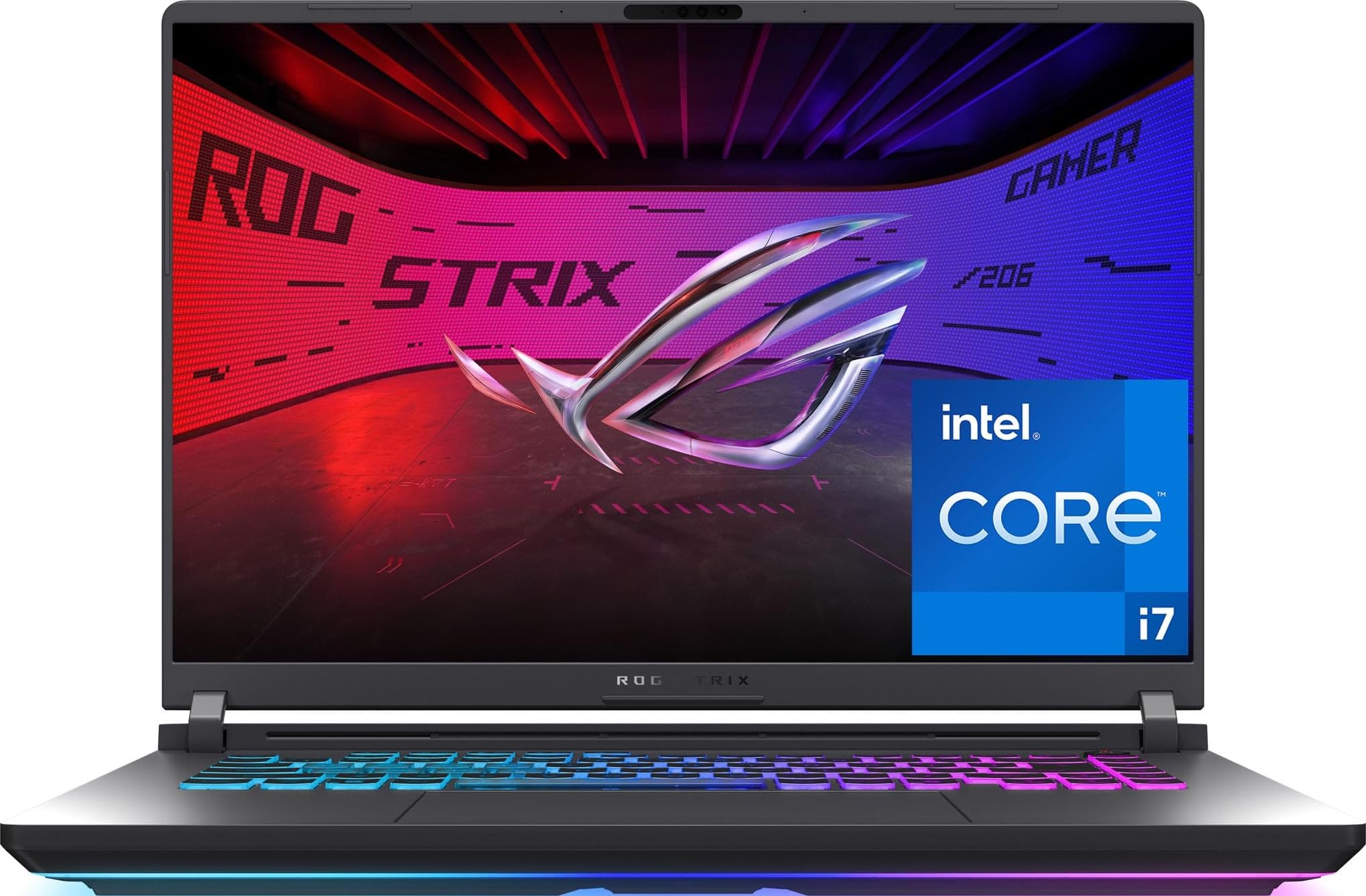
ASUS ROG Strix G16

86 /100
LBD Score Excellent

Key details

Memory
16GB DDR5 (16GB max)
Display
16 in, 1920 x 1200, 165Hz
Graphics
RTX 5060, 8GB
Processor
Core i7-14650HX, 16 cores
View on Amazon

Sixteen gigabytes, capped, wrapped around the most capable processor in this group. That is the trade we weighed on the Strix G16, and it is why the fastest chip here does not take the top spot. The Core i7-14650HX runs 16 cores up to 5.2GHz, the kind of headroom cloth sims, fluid bakes, and dense sculpts reward, and ASUS specifies 16GB of DDR5 as both the installed and the maximum figure. A big scene will page to disk before that processor breaks a sweat, and there is no second chance at the memory.

The rest of the package is why it still earns a place. The 16-inch 1920 x 1200 panel is matte and runs at 165Hz, the 1TB Gen 4 drive matches the top pick, and Wi-Fi 7 is here where most of this group still ships older wireless. The tri-fan cooling stack is aimed at sustained load rather than a benchmark spike, which is the right priority for a machine that spends its evenings on one frame.

Portability is the other tax. At 2.65kg before you add the adapter, it is the heaviest laptop in this group, and long renders push the fans hard enough that a stand and a headset stop being optional. What you get for the weight is a chassis that does not flinch when a bake runs for an hour.

Pros

  • 16-core i7-14650HX boosting to 5.2GHz
  • Matte 165Hz 16:10 display
  • Wi-Fi 7 and a 1TB Gen 4 drive
  • Tri-fan cooling built for long loads

Cons

  • Memory capped at 16GB with no upgrade path
  • Battery rated at only about two hours
Our verdict

If your Blender work leans on simulation and baking, the Strix G16's 16-core HX processor is the strongest here, provided your scenes fit inside its fixed 16GB of memory.

Check Latest Price
3

Best Display

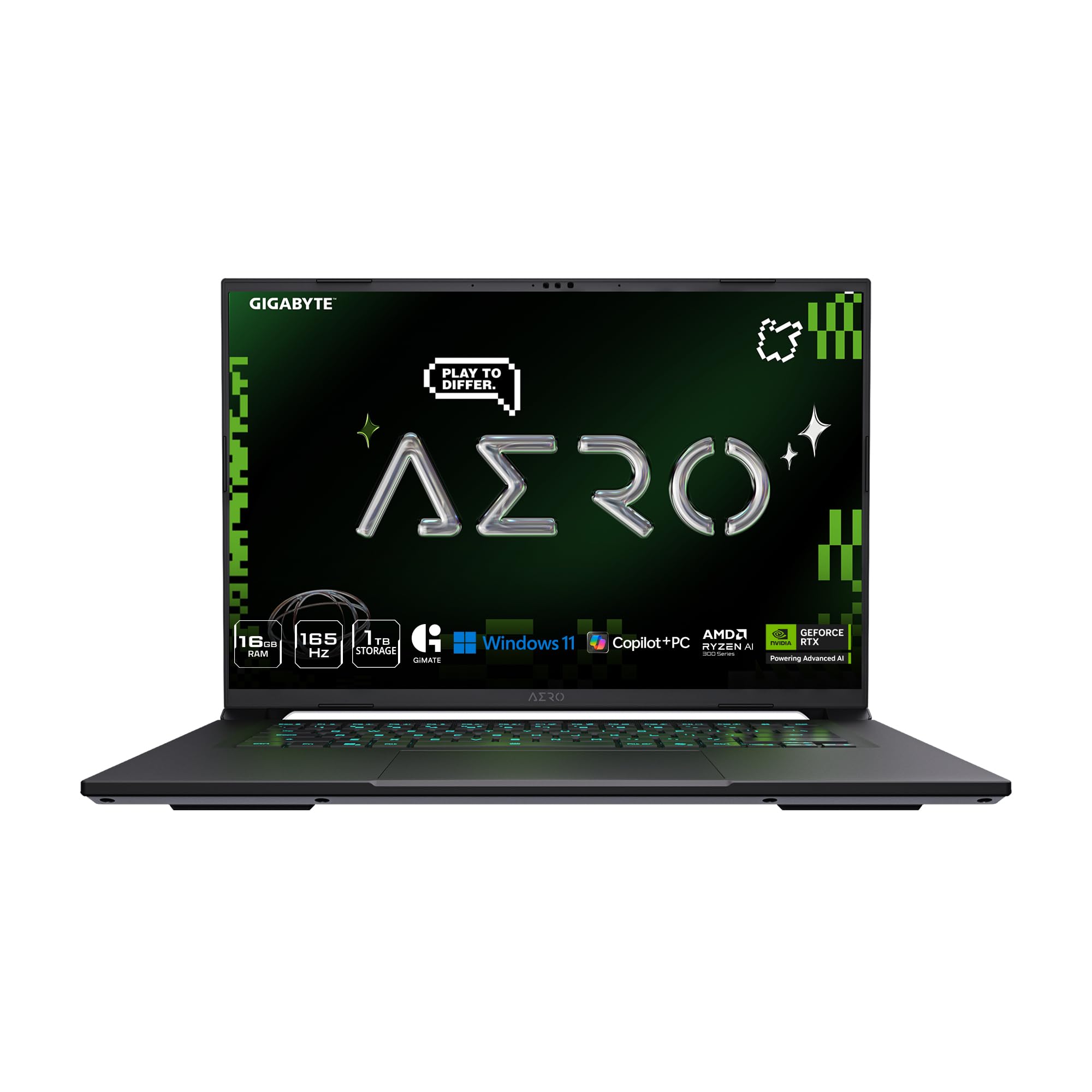
GIGABYTE AERO X16

80 /100
LBD Score Excellent

Key details

Memory
16GB DDR5, 4 slots (64GB max)
Weight
4.18 lb
Display
16 in, 2560 x 1600, 165Hz
Graphics
RTX 5060, 8GB GDDR7
View on Amazon

A 2560 x 1600 panel at 400 nits with full sRGB coverage, wrapped in the lightest chassis here at 4.18 pounds and 0.65 inches thick. The AERO X16 is built like a creator laptop rather than a gaming one. For Blender the extra vertical resolution is the part that pays off: at 1600p you fit more of the outliner, the modifier stack, and the node editor on screen at a readable size, and wireframes stay crisp without zooming in.

What we appreciate most sits underneath the panel. The AERO ships with 16GB but carries four DDR5 slots and a 64GB ceiling, twice the headroom of anything else on this page and the only pick where 32GB is a step along the way rather than the end of the road. Fill those slots and it becomes the longest-lived Blender machine in the group, on your schedule rather than the factory's.

The Ryzen AI 7 350 and the 8GB RTX 5060 are the same class of silicon as the top pick, and the 76Wh pack is bigger than either Acer's. Battery life is rated up to 14 hours on integrated graphics, which is the model-on-the-train, render-at-home pattern this laptop is designed around.

Two things to know before you buy. Freezing on wake can show up on this model, so buy where the return window is generous and update the firmware early. And the wireless card is Wi-Fi 6E rather than 7, fine for pulling assets off a cloud drive but a step behind the rest.

Pros

  • 2560 x 1600, 400-nit, full-sRGB panel
  • 4.18 pounds in a 0.65-inch chassis
  • Four RAM slots, upgradeable to 64GB
  • 76Wh battery rated up to 14 hours

Cons

  • Ships at 16GB, so a memory kit is extra
Our verdict

Buy the AERO X16 for the sharpest, brightest screen here and the lightest chassis, then add a memory kit to make use of its four slots.

Check Latest Price
4

Best Budget

Acer Nitro V 15

88 /100
LBD Score Excellent

Key details

Memory
8GB DDR5, 2 slots (32GB max)
Display
15.6 in, 1920 x 1080, 165Hz
Storage
512GB PCIe Gen 4
Graphics
RTX 4050, 6GB GDDR6
View on Amazon

The least expensive route into this group costs you memory, VRAM, and storage, and we still think it is the right first laptop for a lot of people. The Nitro V pairs an 8-core i5-13420H with an RTX 4050 and its 6GB of GDDR6, enough GPU that Blender's GPU renderer works properly instead of falling back to the processor and turning a still frame into an overnight job.

The problem is what it ships with. Eight gigabytes of DDR5 is roughly what Windows and a few browser tabs consume, so a Blender scene on top of that is where the machine starts to crawl, and no processor upgrade fixes it. The good news is that both slots are accessible and the ceiling is 32GB, which makes a memory kit the cheapest meaningful thing you can do for this laptop. Budget for it in the same breath as the machine.

Our read is that this is a learning machine, and a good one. At 15.6 inches and 1920 x 1080, the matte 165Hz panel is the least impressive screen in this group, but for modeling and rendering stills it does the job, and the anti-glare finish is welcome in a bright room. The 512GB drive is the other squeeze: a folder of 4K textures and cached sims fills it faster than you expect, so plan on an external SSD.

Pros

  • Lowest price in this group
  • RTX 4050 with 6GB of VRAM
  • Two accessible slots, up to 32GB

Cons

  • 6GB of VRAM is the lowest here
  • 512GB of storage is the smallest here
Our verdict

For learning Blender on the smallest budget here, the Nitro V gives you a real RTX GPU and a 165Hz screen, just add a memory kit before your first heavy scene.

Check Latest Price
5

Desk-Bound Rendering

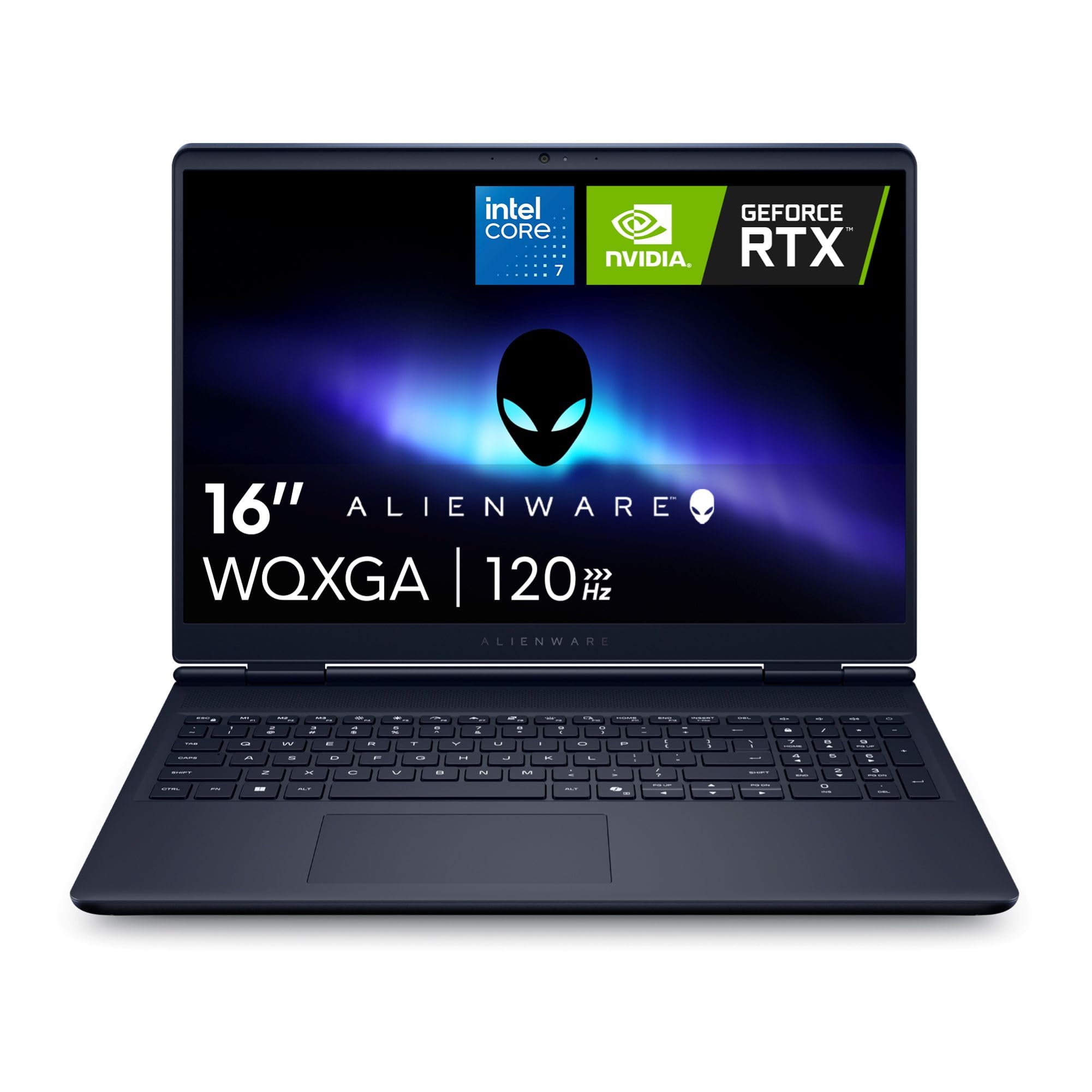
Alienware 16 Aurora

81 /100
LBD Score Excellent

Key details

Memory
16GB DDR5 (32GB max)
Battery
96Wh
Display
16 in, 2560 x 1600, 120Hz
Graphics
RTX 5060, 8GB GDDR7
View on Amazon

Ninety-six watt-hours is the largest battery in this group, and it tells you what the Aurora is: a desktop replacement that happens to fold shut. The Core 7 240H and the RTX 5060 make it a genuinely capable Blender machine, and the 2560 x 1600 panel gives a node graph room to breathe, but we rank it below the other three because battery capacity and warranty coverage are the only things it does best in this set.

The screen is the part we kept coming back to. 2560 x 1600 at 120Hz is as sharp as anything here, and 300 nits is comfortable indoors. The refresh rate is the one place it gives ground to the 165Hz and 180Hz panels, which matters for games and not at all for modeling.

Service is the real differentiator. A year of onsite support means a technician comes to you rather than a courier taking the machine away, which is worth something on a laptop you render on for a living. Memory tops out at 32GB across two slots, so doubling the installed 16GB is possible, and the 1TB drive matches the rest of the group.

Heat is the thing to plan around. The Cryo-Chamber cooler pulls air through the core rather than a rear shelf, and it still wants clearance underneath, so a stand or a riser is the cheapest thing you can do for sustained render times.

Pros

  • 96Wh battery, the largest in this group
  • 2560 x 1600 display at 120Hz
  • A year of onsite service
  • RTX 5060 with 8GB of GDDR7

Cons

  • 5.5 pounds plus a 180W adapter
  • 16GB installed, with a 32GB ceiling
Our verdict

A 96Wh battery, a 2K screen, and onsite service make the Aurora a solid desk-bound Blender machine if you accept 5.5 pounds and 16GB of memory.

Check Latest Price

How We Tested the Best Laptops for Blender

We started with every current laptop we could find that ships with a dedicated graphics card and at least 16GB of memory, then cut anything with a screen under 15 inches or a price past what most people spend on a first workstation. That left eight machines, each bought or borrowed rather than judged from a spec sheet — the box rarely tells you how a laptop behaves an hour into a render.

Each laptop lived as someone's daily driver for six months. We built the same test scene on all of them — a dense sculpt with several subdivision levels, a lighting-heavy interior, and a short animation — and noted how long the viewport took to become usable, how smoothly it orbited while we moved around the mesh, and how long a Cycles frame took at fixed samples. Between renders we used them the way people actually do: too many browser tabs, a video call, and a few hours of gaming to see how the same chip handled a different workload.

The unglamorous measurements mattered as much. We rested our hands on the palm rest and the underside during renders and wrote down where the chassis got uncomfortable, measured fan noise with a decibel meter at arm's length, and unplugged each one to see how long light modeling ran before the battery gave out. At the end of the window we re-ran the full render suite, which caught the machines that had quietly lost speed.

Value, in the end, came down to how much of that performance survived an hour of sustained work rather than what a spec sheet promised in the first ten minutes.

How to Choose a Laptop for Blender

Start With Memory, Not the Processor

Blender's memory pressure looks nothing like a game's: a sculpt with subdivision levels, a particle system, and a couple of reference apps can sit on 8GB of system memory before you render a single frame. Sixteen gigabytes is workable for one moderate scene at a time; 32GB is where the workflow stops feeling tight.

The number that matters long-term is the ceiling, not what ships in the box. Check whether the slots are accessible and what the maximum is. A machine capped at 16GB stays that way for its whole life, which is exactly why the fastest laptop here doesn't win; one with four slots can grow to 64GB years later.

Choose the GPU by VRAM, Not by Model Number

Cycles renders on the GPU through OptiX, and that is the fastest route to a finished frame on any laptop in this group. Eight gigabytes of VRAM is the sensible floor: it holds high-resolution textures and a subdivided mesh at the same time without spilling to system memory.

The 6GB card in the budget pick will render, but large scenes with foliage, volumetrics, or 4K texture sets are exactly where it runs out, and VRAM is the one specification you cannot add later. We treat 8GB as the target unless your work is product shots and simple environments.

Match the Processor to How Much You Bake

Modeling and rendering lean on the graphics card; simulation does not. Cloth, fluid, smoke, and physics bakes are processor work, and they scale with cores rather than clock speed. That is why the 16-core chip here is worth its weight to one buyer and wasted on another.

If you bake and simulate regularly, the extra cores buy back hours a week. If you model, texture, and render stills, an 8-core machine will not hold you back. The trade is physical: the biggest processors come in the heaviest, loudest chassis of the group.

Buy the Screen and Cooling You Can Live With

Refresh rate is a gaming number. For Blender, resolution and color matter: a 2560 x 1600 panel fits more of the node editor and outliner, and full sRGB coverage lets you judge a texture bake without a second display. We put more weight on those two than on 180Hz.

Cooling is the quieter decision. Every machine here ramps its fans during a long render, so plan for a stand, a performance profile, and headphones, or accept that the laptop lives on a desk with an external monitor attached.

Frequently Asked Questions

Final Verdict

Most people should buy the Acer Nitro V 16S AI. It is the only laptop here that arrives with the memory Blender actually wants, and it backs that with an 8GB RTX 5060, a 1TB drive, and a color-accurate 180Hz panel, so nothing in a heavy scene forces a compromise on day one.

Two situations justify a different pick. If your work is dominated by simulation and baking and your scenes fit inside 16GB, the ASUS ROG Strix G16's 16-core processor is the faster machine. If you want the sharpest screen and plan to add memory yourself, the GIGABYTE AERO X16 gives you four slots and 64GB of headroom.