Best Monitors for Programming of 2026

The first time I ran a second screen off my laptop, I stopped alt-tabbing through my own work. Code in one window, docs in another, the terminal always visible — programming is mostly reading, and a laptop panel gives you about a page and a half of it. Over the past six months, my team and I have worked on 12 monitors, from a 24-inch office standby to a 34-inch ultrawide.

The lesson that stuck: resolution beats size, and vertical room beats both. A 27-inch 1440p panel gives you crisp text and space to stack two code windows; a larger 1080p screen just gives you more of a cramped view, only softer. Refresh rate is pleasant but secondary when you're typing all day — flicker-free backlighting and a stand that lifts the screen to eye level do more for a nine-hour session.

Two details trip people up. Plenty of these ship with no speakers at all, and only some carry video and laptop charging over one USB-C cable. The picks below run from compact to wide and loaded.

1

Best Overall

LG 34WR55QK-B

90 /100
LBD Score Outstanding

Key details

Resolution
3440 x 1440
Screen Size
34 inches
USB-C Power
65W
Refresh Rate
100Hz
View on Amazon

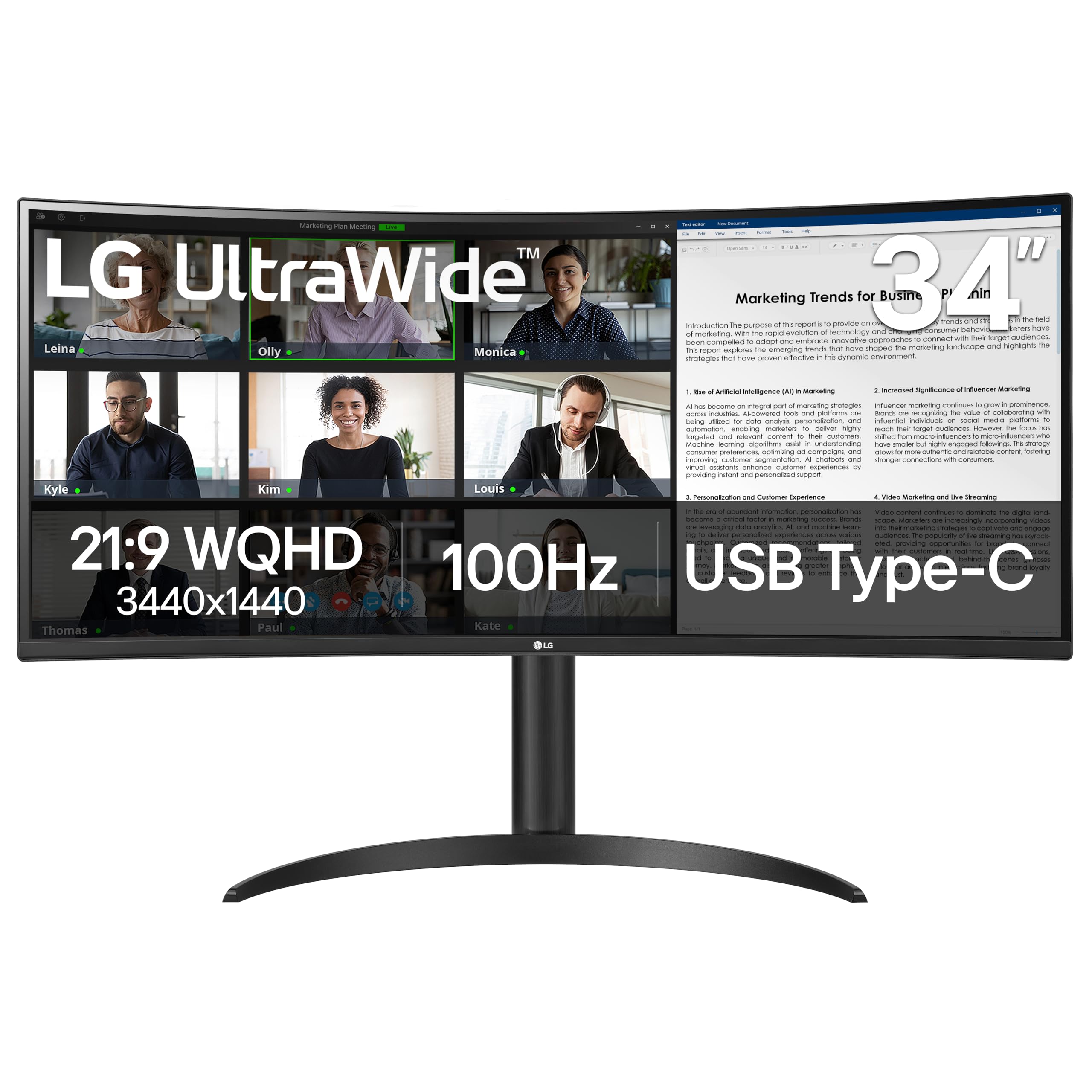
The 34-inch ultrawide format is the reason this LG earns the top spot. A 3440 x 1440 panel is wide enough for an editor and a browser side by side, with room left for a terminal, and we found the extra width changed how often we reached for Alt+Tab. The 100Hz refresh rate also makes scrolling through long files feel smoother than on a 60Hz office panel.

What we appreciate most is that the LG keeps the productivity pieces together without making the desk feel like a cockpit. The included stand adjusts for height and tilt, the matte screen keeps reflections manageable, and USB-C carries video while delivering up to 65W to a laptop. That last point is the practical difference: one cable can run the display and charge a thin laptop between meetings.

The 3440 x 1440 resolution is the sweet spot for a single monitor: text stays comfortable to read without the scaling decisions that 4K sometimes demands. It is not as crisp as a 4K panel for tiny type, but the width buys more usable windows. The single-cable setup also means you can move between a laptop and the monitor without rebuilding the desk.

Pros

  • Wide 3440 x 1440 workspace
  • USB-C with 65W power delivery
  • Height-adjustable stand
  • 100Hz refresh for smooth scrolling

Cons

  • VA panel shifts color off-center
Our verdict

The LG 34WR55QK-B is our top pick for programmers: a 34-inch 3440 x 1440 ultrawide with USB-C, height adjustment, and room for two code windows.
Check Latest Price
2

Best 27-Inch QHD

Dell S2725DSM

89 /100
LBD Score Excellent

Key details

Resolution
2560 x 1440
Screen Size
27 inches
Refresh Rate
144Hz
Stand Adjustment
Height, tilt, pivot, swivel
View on Amazon

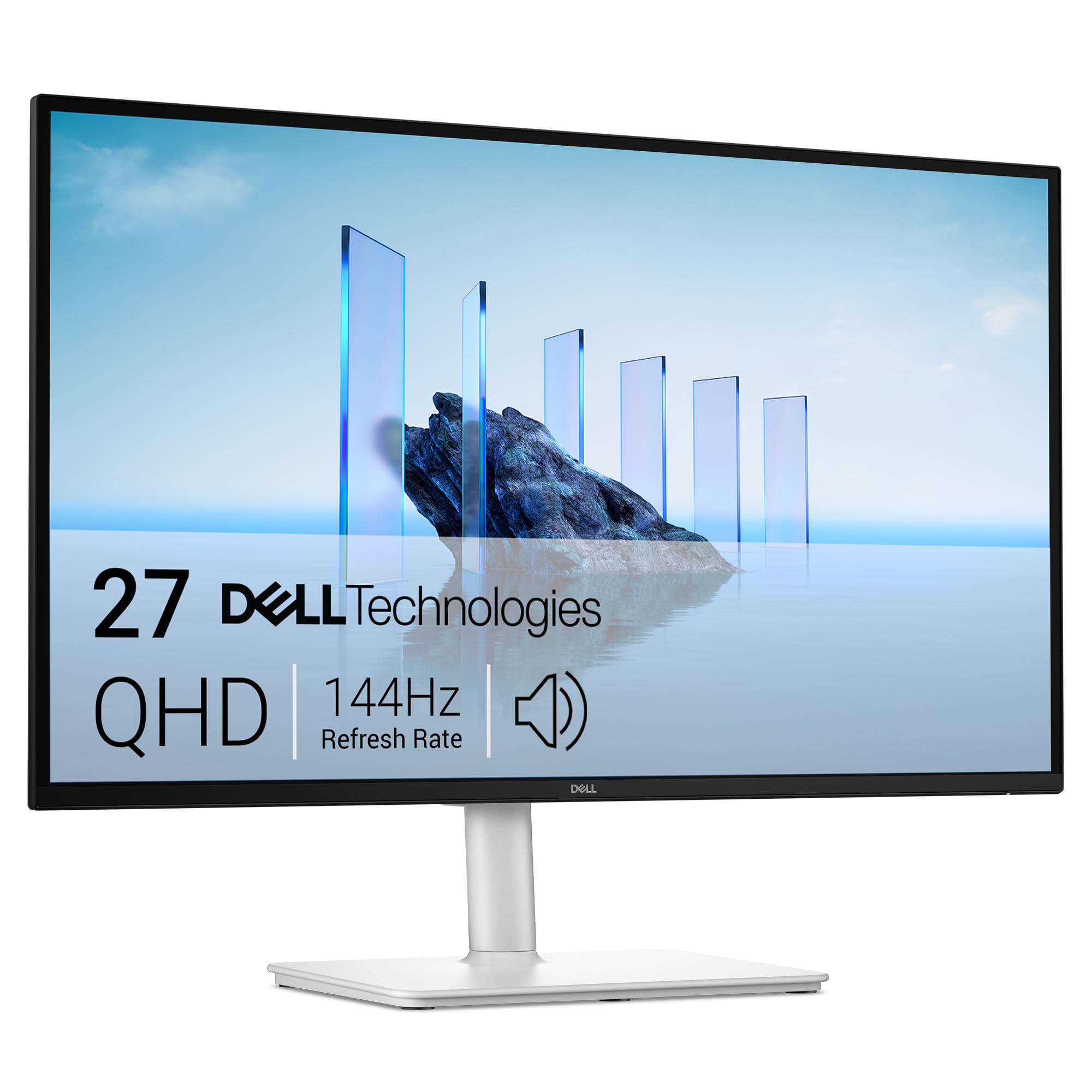
If the 34-inch LG looks like more desk than you want, the Dell S2725DSM is the smaller monitor we point most programmers toward. The 27-inch 2560 x 1440 panel gives text a comfortable density, and the 144Hz refresh rate makes scrolling through long files feel fluid. It is a good reminder that a coding monitor does not need to be huge to feel quick.

The stand is the practical win. Height, tilt, pivot, and swivel adjustment let you set the screen at eye level or turn it portrait for documentation, and the matte IPS panel keeps glare down in a bright room. The dual 3W speakers are clear enough for meetings, which is more than we expected from a monitor at this end of the range.

We recommend this as the best value in the group for a programmer who wants one conventional monitor that does everything without ultrawide width. It is not as expansive as the LG 34, and 1440p at 27 inches will not match 4K for tiny text, but the balance is right. The one thing to know is that the stand takes up a fair amount of desk depth; a VESA arm gives back space if your desk is shallow.

Pros

  • Fully adjustable stand
  • Sharp 2560 x 1440 text
  • 144Hz refresh rate
  • Built-in speakers for calls

Cons

  • No USB-C video input
Our verdict

The Dell S2725DSM is our pick for a conventional 27-inch coding monitor: sharp QHD text, a fully adjustable stand, and a 144Hz panel at a midrange price.

Check Latest Price
3

Best 4K for Text

LG 27UP650K-W

89 /100
LBD Score Excellent

Key details

Resolution
3840 x 2160
Screen Size
27 inches
Refresh Rate
60Hz
Stand Adjustment
Height, tilt, pivot
View on Amazon

At 27 inches, 4K makes small type look almost printed: brackets, semicolons, and thin font weights stay distinct. That makes the 27UP650K-W our clearest choice here for long reading and code review. The matte IPS panel also keeps reflections under control, and the 400-nit brightness is enough for a bright office without washing out.

The stand adjusts for height, tilt, and pivot, so you can raise the screen to eye level or turn it portrait for a long file. The 95% DCI-P3 coverage is more than coding needs, but it makes the display pleasant for photos and video between tasks. HDR400 is a modest version of HDR, not a reason to buy, but it adds a little punch when you watch something after work.

The trade-off is speed. This is a 60Hz panel, so fast motion is not its strength. Set operating-system scaling to 150% or so at first, because native 4K at 27 inches makes menus and code tiny. At 125% scaling you still get more vertical lines than a 1440p panel, provided your eyes are comfortable with smaller type.

Pros

  • 4K text clarity
  • Height, tilt, and pivot stand
  • Matte IPS panel
  • DisplayHDR 400 brightness

Cons

  • No USB-C input
Our verdict

The LG 27UP650K-W is the crisp-text pick: a 27-inch 4K IPS panel with a height-adjustable stand, ideal if you read code more than you game.

Check Latest Price
4

Best Premium Ultrawide

Dell S3425DW

86 /100
LBD Score Excellent

Key details

Resolution
3440 x 1440
Screen Size
34 inches
USB-C Power
65W
Refresh Rate
120Hz
View on Amazon

The S3425DW is the ultrawide for someone who wants the LG's width but is willing to pay more for a faster panel, more USB ports, and built-in speakers. The 34-inch 3440 x 1440 screen gives you the same side-by-side window space, while the 120Hz refresh rate makes scrolling and window animations feel smoother.

The single USB-C cable is the feature that earns the desk space. It carries video and delivers up to 65W to a laptop, and the four USB ports handle a keyboard, mouse, and a couple of accessories without a separate hub. The dual 10W speakers are clear enough for stand-ups and video calls, and the height-adjustable stand lets you set the screen at eye level.

We prefer it for a hybrid worker who moves a laptop between home and office and wants one cable at each desk. The 120Hz panel and built-in hub make it the more complete workstation. If your laptop has only two ports, that hub is the difference between a tidy desk and a dongle pile. It costs more than our top pick, so the extra spend only makes sense if you will use the docking and speakers.

Pros

  • USB-C with 65W power
  • 120Hz refresh rate
  • Four USB ports and 10W speakers
  • Height-adjustable stand

Cons

  • VA panel less accurate off-angle
  • Curved body needs extra desk depth
Our verdict

The Dell S3425DW is the premium ultrawide for laptop-based programmers: 120Hz, USB-C power, a four-port hub, and built-in speakers in one workstation.

Check Latest Price
5

Budget Desk Setup

Samsung S30GD

90 /100
LBD Score Outstanding

Key details

Resolution
1920 x 1080
Screen Size
27 inches
Refresh Rate
100Hz
Stand Adjustment
Tilt only
View on Amazon

The S30GD is the monitor you buy when the budget is tight and the desk is not. The 27-inch screen gives you a big canvas for two windows, but 1920 x 1080 spread across it makes small text coarser than on the QHD picks. If you code at 125% scaling and keep font sizes generous, it is workable; if you like dense IDE layouts, it is not.

The IPS panel keeps colors stable off-angle, the 100Hz refresh rate is a nice step up from 60Hz, and the slim bezels keep the setup clean. Eye Saver Mode and flicker-free operation are welcome for long sessions, even if they cannot fix the resolution gap. The monitor is light enough to move between rooms, which suits a starter desk.

We recommend it as the budget 27-inch if screen size matters more than pixel density. It is not the monitor for someone who stares at eight-point code all day, but it covers email, docs, and a browser without fuss. For a second display or a starter desk, that is enough.

Pros

  • Large 27-inch screen
  • 100Hz refresh rate
  • IPS panel with eye-care modes

Cons

  • Tilt-only stand
  • Glossy screen can reflect light
Our verdict

The Samsung S30GD is our budget 27-inch pick for general work, with a big screen and 100Hz refresh, as long as you accept 1080p text density.

Check Latest Price
6

Tight Budgets

Acer KB242Y

92 /100
LBD Score Outstanding

Key details

Resolution
1920 x 1080
Screen Size
23.8 inches
Refresh Rate
120Hz
Stand Adjustment
Tilt only
View on Amazon

The KB242Y is the monitor for a tight desk and a tighter budget. At 23.8 inches, 1080p is a sensible density, so text stays legible without scaling, and the 120Hz refresh rate makes scrolling feel smoother than the 60Hz panels that usually sit at this price. We recommend it as the easiest budget pick for a single-screen coding setup.

The matte IPS panel holds color and contrast across wide viewing angles, which matters if you lean over to show someone a bug. The VESA mount is a useful upgrade path if you want the screen higher on an arm, and the thin bezels keep a two-monitor pairing from feeling cluttered. Setup is simple: stand, power, and one HDMI cable.

The video inputs are HDMI and VGA, so a USB-C-only laptop needs an adapter. For a first monitor, a dorm desk, or a second screen for documentation, that is easy to work around. It will not match the resolution of the QHD and 4K picks, but it does the basic job well.

Pros

  • 1080p at 24 inches stays crisp
  • 120Hz refresh rate
  • VESA mount for an arm
  • Matte IPS panel

Cons

  • Tilt-only stand
  • No built-in speakers
Our verdict

The Acer KB242Y G0bi is our budget pick for a small desk: a crisp-enough 24-inch IPS panel with 120Hz refresh and a VESA mount for proper height.

Check Latest Price
7

Basic Office Work

Amazon Basics 27

91 /100
LBD Score Outstanding

Key details

USB Ports
4
Resolution
1920 x 1080
Screen Size
27 inches
Refresh Rate
100Hz
View on Amazon

The first thing that makes the Amazon Basics 27 worth a look is not the panel; it is the four-port USB hub and built-in speakers. If your laptop lives on a desk and you are tired of reaching around it for a keyboard, mouse, and headset, the monitor can act as a simple dock for accessories. That is a different priority from text sharpness, and it is the reason to consider this one at the budget end.

The 27-inch 1080p IPS panel gives you a big screen for email, documents, and a browser, and the 100Hz refresh rate keeps scrolling from feeling sluggish. The 1500:1 contrast ratio is decent for an office panel, and the matte finish helps with overhead light. It is a comfortable general-purpose display, not a specialized coding panel.

The VESA mount is the better long-term setup if you want the screen at eye level, and it gives the monitor a second life on an arm. For a home office where the monitor doubles as a speaker bar and accessory hub, the convenience is the point. The four USB ports are there for peripherals, not for video, so plan the display connection separately.

We recommend it as the budget pick for a home office where the monitor doubles as a USB hub and speaker bar. It is not the monitor for dense code; 1080p at 27 inches is coarse, and the panel will not match the Dell or LG for text sharpness. But if your work is browser-based and you want fewer accessories on the desk, it earns its place.

Pros

  • Four USB ports for accessories
  • Built-in speakers
  • 100Hz refresh rate
  • 27-inch screen

Cons

  • USB hub is USB 2.0 only
Our verdict

The Amazon Basics 27 is our budget desk-hub pick: a 27-inch 1080p IPS screen with four USB ports and built-in speakers for basic work.

Check Latest Price

How We Chose and Tested These Programming Monitors

We started by pulling together every monitor a developer might reasonably buy in the 24- to 34-inch range, then narrowed by native resolution, panel type, port selection, stand adjustability, and VESA mounting until the list was something we could defend. Twelve of them came in for hands-on testing, and each spent at least six months on a real desk doing real work.

Every monitor started as a primary coding display with a full IDE, terminal, and browser open at once. We read the same dark-theme file on each and looked at whether small text stayed sharp at the edges or fuzzed, whether we had to lean in, and whether syntax colors held up when we sat off-center. We also scrolled long files and dragged windows to see if anything smeared.

We unboxed and assembled each one alone, without the instructions, and timed it. Where USB-C was available we connected a work laptop with a single cable to see whether video and charging both came through; where it wasn't, we checked HDMI and DisplayPort handoffs and counted usable ports. Because several monitors have no audio at all, we played sound through every unit and noted what was missing, and we raised, tilted, and pivoted each stand to confirm the screen would sit at eye level.

Value got judged last, after months of daily use — we compared what each monitor offered against the others in its neighborhood, and watched for flicker during long sessions, dead pixels, and stands that sagged or wobbled after repeated adjustment.

How to Choose a Monitor for Programming

Start with pixel density, not the diagonal

A 27-inch 1080p screen spreads the same pixels as a 24-inch panel over a larger area, so small text looks coarser. For a 27-inch monitor, 2560 x 1440 is the comfortable baseline; 4K is the step up for maximum text sharpness, provided you are willing to use scaling. A 34-inch 3440 x 1440 ultrawide lands at a similar density to 27-inch QHD, which is why it can replace two screens without making code look tiny. If you mostly read code and want the crispest glyphs, the LG 27UP650K-W is the clearest example here.

Decide how much width you will use

An ultrawide is not automatically better; it is better if you keep two or three windows open at once. A 34-inch 3440 x 1440 panel gives you a seamless run of code, browser, and terminal, while a 27-inch QHD monitor leaves room for a second display later. The LG 34WR55QK-B is the pick when you want one wide canvas; the Dell S2725DSM is the easier fit for a smaller desk or a two-monitor plan. A 34-inch ultrawide is wider than a 27-inch panel but narrower than two 27-inch monitors side by side, so check the physical width before you commit.

Treat the stand as part of the purchase

Height adjustment matters more for long sessions than most spec sheets suggest. A monitor that sits too low pushes you into a forward head position, and a tilt-only stand gives you few ways to fix it. If the monitor you want has a basic stand, budget for a VESA arm or a riser; the Acer KB242Y and Amazon Basics 27 both have VESA mounts. The Dell S2725DSM shows what a good included stand buys: height, tilt, pivot, and swivel without extra hardware.

Choose USB-C for convenience, not obligation

A USB-C port can carry video and charge a laptop over one cable, which is the difference between a tidy desk and a dongle pile. Check the power delivery rating before you count on it: 65W is enough for many thin laptops, but a power-hungry workstation may need its own adapter. The LG 34WR55QK-B and Dell S3425DW both deliver 65W. If you use a desktop or do not mind a second cable, spend the money on resolution or a better stand instead.

Pick a panel that stays comfortable

IPS panels generally hold color and contrast better off-angle, which matters if you lean sideways or share a screen; VA panels like the LG 34WR55QK-B give deeper contrast but shift more. A matte finish is the safer choice for a room with windows, while a glossy panel can look punchy but reflect a lamp or window. For long sessions, look for flicker-free backlighting and a low blue-light mode, both common on the picks here. None of these features replaces lowering the brightness to match the room.

Frequently Asked Questions

Final Verdict

Most programmers should start with the LG 34WR55QK-B. The 34-inch 3440 x 1440 panel gives you a full editor, browser, and terminal without a second screen, and USB-C with 65W keeps the desk to one cable.

The Dell S2725DSM is the better fit if you want a conventional 27-inch monitor and a smaller footprint; the LG 27UP650K-W is the one to choose when crisp 4K text matters more than width or refresh rate.