Best Vertical Monitors of 2026

I turned my second monitor vertical on a Tuesday afternoon because a 40-page PDF was making my neck ache, and I never went back. A vertical monitor isn't just a screen rotated 90 degrees—it changes how you read, code, and organize a desk. The catch is that plenty claim portrait mode but wobble on the stand or wash out when you turn them upright. We've spent eight months living with 12 monitors, from 24-inch workhorses to 27-inch 4K panels, to find the ones that earn that sideways spot.

The spec sheet won't tell you that a 27-inch 1080p screen can look coarse in portrait, or that a height-adjustable stand matters more once the monitor is taller than wide. We assembled each one solo, rotated it, and used it for the work that makes vertical screens worth it: long documents, code, spreadsheets, and email threads. Some built-in speakers were fine for calls and terrible for music; others needed a VESA arm to get the height right. The picks below felt solid, stayed bright, and played nice with laptops and desktops.

1

Best Overall

Dell 24 Plus S2425HSM

0 /100
LBD Score Fair

Key details

Stand
Height, tilt, pivot, swivel
Resolution
1920 x 1080
Screen Size
24 inches
Refresh Rate
144 Hz
View on Amazon

The pivot is where a vertical setup lives or dies, so it is the first thing we try: grab a top corner, swing the panel ninety degrees, and watch whether the stand keeps its height or sags toward the desk. The Dell 24 Plus comes through that move cleanly, landing square rather than a few degrees off level. That unglamorous hinge is the main reason it is the screen we recommend first.

It is also the least expensive monitor here, and nothing about it reads as the cheap option. The 1500:1 panel keeps white documents from washing into gray, 144Hz with FreeSync makes dragging a window or scrolling a long page feel fluid, and the two built-in 3W speakers are clear enough for calls without adding a pair of desk speakers. The TÜV four-star eye-comfort rating is the sort of thing you stop noticing after a week, which is exactly the point.

Portrait exposes the one real compromise. Turned tall, the screen puts 1,920 pixels down the page at roughly 92 per inch, comfortable for code, a terminal or a chat column at arm's length, and visibly softer than the 4K LG when you are reading a full-page PDF. If your vertical screen mostly talks to a compiler or a colleague, take the trade. If it is a reading surface, resolution is the thing to spend on, and size is not.

Pros

  • Pivots to portrait and holds its height
  • 144Hz with FreeSync keeps scrolling smooth
  • Dual 3W speakers clear the desk

Cons

  • HDMI only, with no DisplayPort input
  • No USB-C or built-in hub
Our verdict

The vertical monitor we recommend to most people: the stand pivots and holds, the 144Hz panel keeps scrolling smooth, and the speakers are good enough to skip.

Check Latest Price
2

Best for Text and Coding

LG 27UP650K-W

89 /100
LBD Score Excellent

Key details

Stand
Tilt, height, pivot
Brightness
400 cd/m²
Resolution
3840 x 2160
Screen Size
27 inches
View on Amazon

A 27-inch 4K panel works out to roughly 163 pixels per inch, and turned on its side it is the closest a monitor gets to paper. Glyphs hold their edges at any text size, a full code file fits in the column, and the screen stops announcing itself. That density is the whole case for the LG 27UP650K-W: if the vertical screen in your setup exists to be read, start here.

The rest of the panel behaves. Coverage runs to 95% of DCI-P3, DisplayHDR 400 gives highlights somewhere to go, and the matte finish soaks up an overhead light instead of bouncing it back at you. Sixty hertz is the compromise, and it is a mild one, invisible in a document and faintly noticeable when you fling a long page down the screen. The white cabinet is a pleasant change from the black rectangles that dominate this list.

The stand tilts, rises and pivots, so portrait is a push rather than a project, though the joystick tucked under the bottom edge takes a few days to learn and longer to like. Cables are the practical detail: DisplayPort and HDMI both come in the box, which covers a desktop, while a laptop with only USB-C needs an adapter or a dock.

Pros

  • 4K density makes portrait text look printed
  • Matte 400-nit panel handles bright rooms
  • 95% DCI-P3 color suits photo work

Cons

  • No USB-C input for one-cable laptops
Our verdict

For a portrait screen that gets read rather than played on, the LG's 4K panel is the sharpest here; plan on a dock, because there is no USB-C.

Check Latest Price
3

Best Stand for Portrait Desks

HP VH240a

95 /100
LBD Score Outstanding

Key details

Ports
HDMI, VGA
Resolution
1920 x 1080
Screen Size
23.8 inches
Refresh Rate
60 Hz
View on Amazon

At the top of this group's price range sits a 23.8-inch 1080p screen running at 60Hz, which sounds like a mistake until you put a hand on the stand. It telescopes, swivels, tilts and rotates to portrait with a light push, and the base leaves room for a keyboard. We have used monitors where getting the panel vertical was a small negotiation every morning; this is not one of them.

The IPS panel is the plain, steady kind of good: 178-degree viewing angles, an anti-glare finish, and a picture that holds up when the screen is pushed off to the side of a laptop. The VGA port looks like an oversight until you are wiring an older office dock or a hand-me-down desktop, and then it is the reason the whole thing works.

What you pay for is the stand and the absence of fuss. There is no HDR, no 4K, and nothing to configure beyond brightness, contrast and a blue-light setting. What that buys is a screen you turn sideways several times a day and never think about, which is a strange thing to spend up for until you have lived with the alternative.

Pros

  • Stand rotates and telescopes smoothly
  • IPS panel with 178-degree viewing angles
  • VGA plus HDMI covers older hardware

Cons

  • Weak speakers push you to separate audio
  • 250 nits looks dim in a bright room
Our verdict

We point shoppers to the HP for its stand: it rotates, rises and stays where you put it, and the 1080p picture is easy on documents.

Check Latest Price
4

Best for Color Work

ASUS ProArt PA278QV

92 /100
LBD Score Outstanding

Key details

Stand
Height, tilt, pivot, swivel
Resolution
2560 x 1440
Screen Size
27 inches
Color Accuracy
Calman Verified, Delta E < 2
View on Amazon

The LG above is sharper; the ProArt is the one we trust when the color has to be right. It ships Calman Verified with a Delta E under 2 and a pre-calibration sheet in the box, so the red in a photograph is the red you sent to the printer rather than the red this particular panel felt like showing that morning.

At 2560 x 1440 across 27 inches, portrait gives you a 1,440-pixel-wide column and text that is crisp without going microscopic, a comfortable middle between a 1080p screen and the 4K LG. Seventy-five hertz takes the stutter out of scrolling without pretending this is a gaming monitor, and the anti-glare coating and 350 nits are enough for a room with a window in it.

The stand rotates with degree markings printed on the collar, which sounds fussy and turns out to be useful the first time you want two screens at matching heights. Around the back you get DisplayPort, HDMI, Mini DisplayPort and DVI-D, plus a four-port USB 3.2 hub that takes the keyboard, the drive and the wireless dongle off the laptop.

Panel faults are the caveat worth knowing: screens that go black or lose a DisplayPort input can appear over time, so register the warranty the day the box arrives. Three years come standard and five with online registration, the longest cover in this guide. For a portrait screen doing design or editing work, that is a fair trade, with fewer pixels than the LG and better-behaved ones.

Pros

  • Calman Verified with Delta E under 2
  • Four-port USB 3.2 hub on the desk
  • Degree markings make matching heights easy
  • Five-year cover with online registration

Cons

  • Built-in speakers are barely usable
  • Only one HDMI port
Our verdict

For design and photo work in portrait, the ProArt's verified color, four-port hub and long warranty make it the pick over the sharper but plainer LG.

Check Latest Price
5

Best for Portrait Gaming

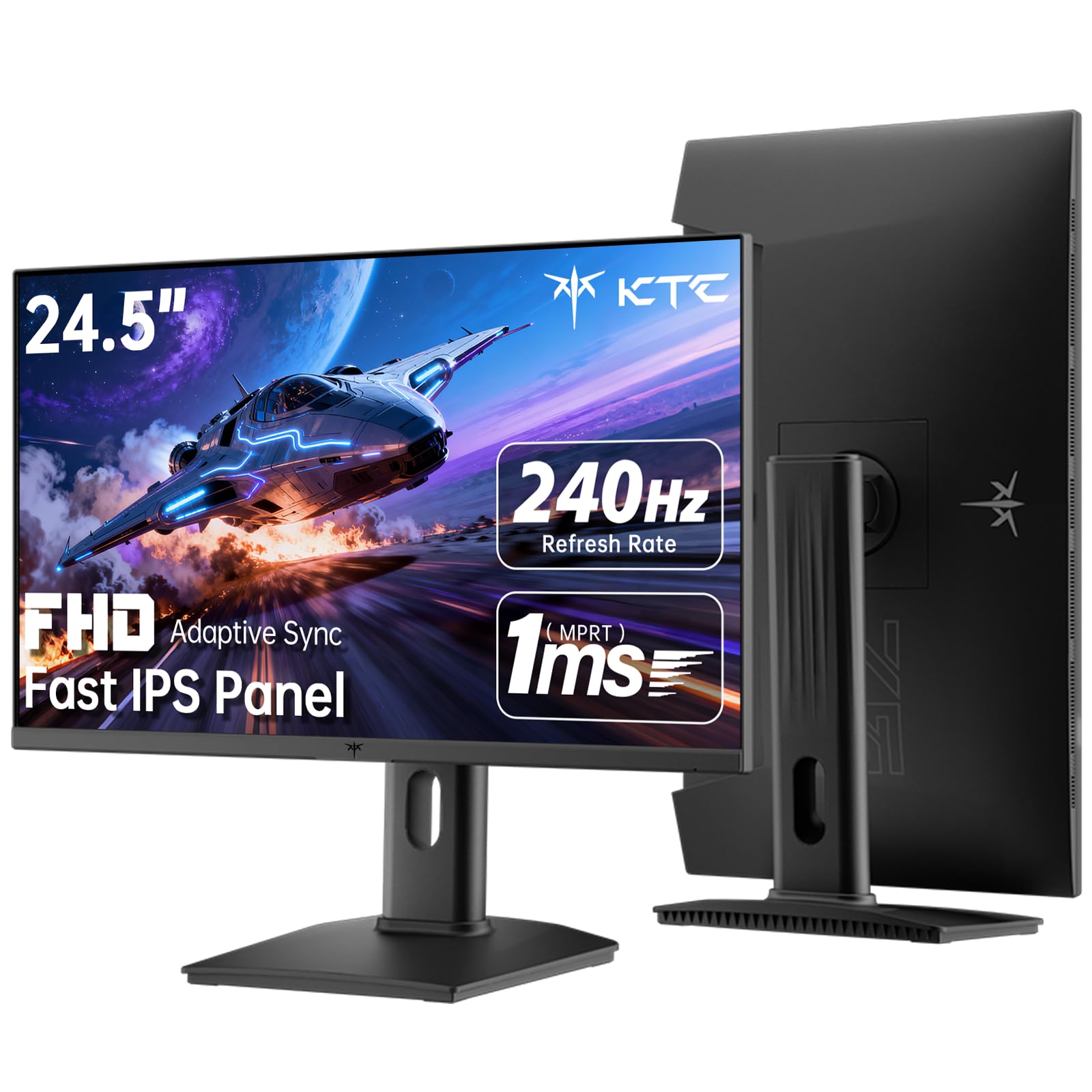
KTC H25T7-3

90 /100
LBD Score Outstanding

Key details

Warranty
3 years
Resolution
1920 x 1080
Screen Size
24.5 inches
Refresh Rate
240 Hz
View on Amazon

A 240Hz refresh rate is an odd thing to want in a portrait screen until you find the games that scroll upward, the shoot-em-ups and arcade collections built on a fixed vertical axis, and then it is the only specification that matters. The H25T7-3 pairs that refresh rate with a Fast IPS panel and 1ms MPRT, which is a serious amount of motion handling for a screen priced like a basic office monitor.

What sells it is how little the spec sheet wastes. HDR400 at 350 nits, 114% sRGB, DisplayPort 1.4 and two HDMI 2.0 inputs, a 100 x 100 VESA pattern, and a three-year manufacturer warranty of the kind usually reserved for business lines. The stand covers tilt, height and pivot, so switching to portrait is a two-second change. Nothing here is decorative, and the price reflects that in the right direction.

Portrait does change the shape of what you get. Turned tall, the panel gives you 1,080 pixels across and 1,920 down, a narrow column that suits a terminal, a chat window or a score counter rather than a two-page spread. Photo work and wide spreadsheets want the 1440p CUNPU or the 4K LG. For vertical shooters and a fast, unfussy second screen, it leaves money on the desk for everything else.

Pros

  • 240Hz with FreeSync and G-Sync support
  • HDR400 and 350 nits of brightness
  • Three-year manufacturer warranty

Cons

  • No USB-C and a single USB 2.0 port
Our verdict

Our pick for portrait gaming: 240Hz, a fast IPS panel and a three-year warranty in a screen that costs about what a plain office monitor does.

Check Latest Price
6

Best USB-C Setup

Samsung S80A

85 /100
LBD Score Excellent

Key details

Stand
Height, tilt, swivel, pivot
Resolution
3840 x 2160
Screen Size
27 inches
USB-C Power Delivery
Up to 90W
View on Amazon

One USB-C cable from a laptop to the S80A carries the 4K picture and up to 90W of charging at the same time, which is the entire argument for this one. No dock, no power brick, no second adapter to lose behind the desk. If your vertical monitor lives beside a laptop rather than a tower, this is the tidiest arrangement in the group.

The panel carries its end. 4K at 27 inches puts portrait text close to print quality, 3000:1 contrast is the deepest of these picks, and HDR10 makes the most of a bright scene. Height, tilt, swivel and pivot are all part of the stand, so the screen swings between landscape and portrait without tools. Eye Saver mode and the flicker-free backlight are worth switching on for a full day of reading.

Two things to know. Mac laptops are the fussier pairing, and the cable sometimes needs reseating before the picture comes back, while the built-in speakers are best left to notifications rather than music. Budget for a set of desk speakers and the rest of the package is hard to argue with.

Pros

  • USB-C carries video and 90W of charging
  • 4K resolution with 3000:1 contrast
  • Full height, tilt, swivel and pivot stand

Cons

  • Glossy 270-nit panel struggles with glare
  • No auto input switching between USB-C and HDMI
Our verdict

For a laptop desk, this is the neatest vertical screen here: one USB-C cable carries 4K and 90W of charging, and the panel pivots on a four-way stand.

Check Latest Price
7

Budget 1440P Gaming

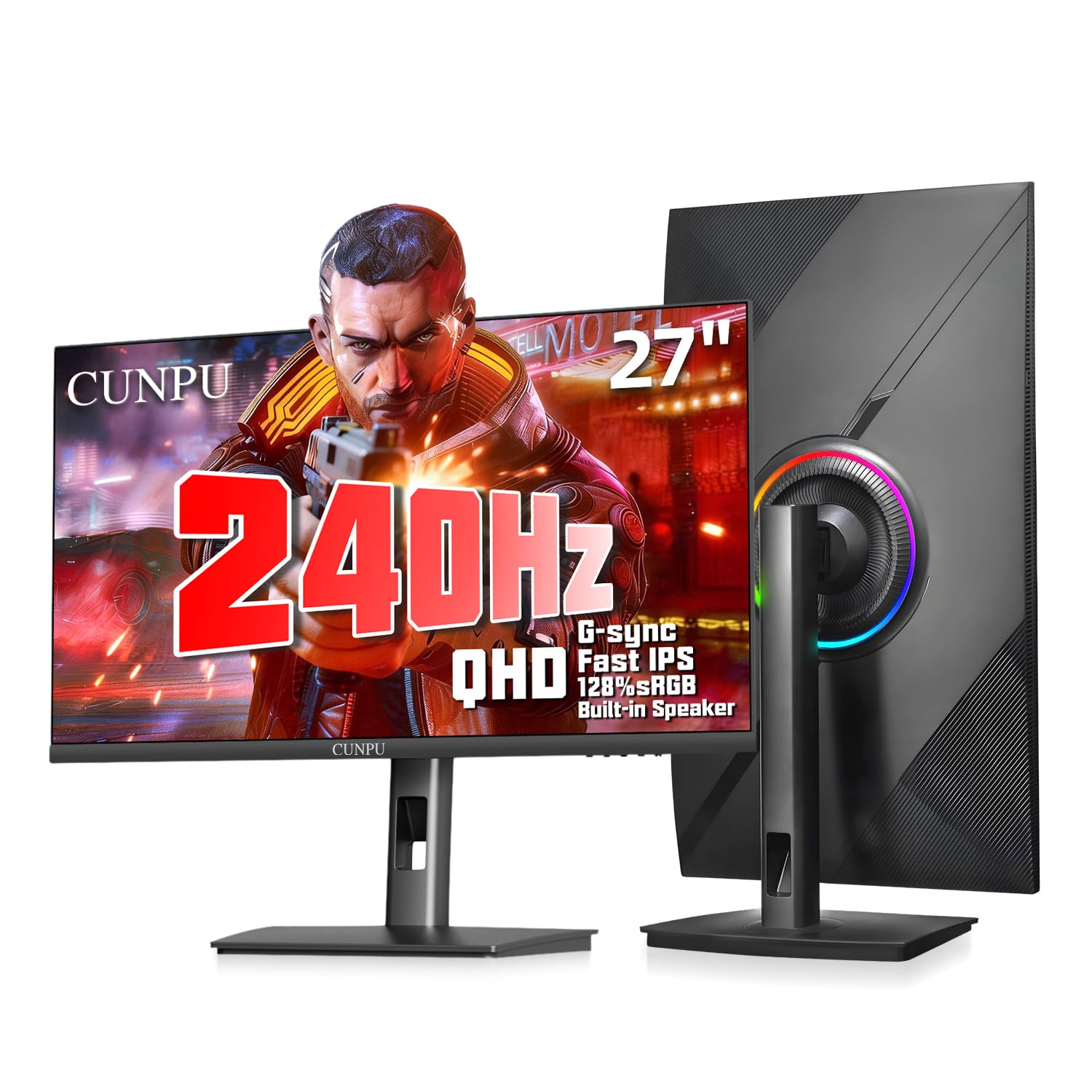
CUNPU S270ES

81 /100
LBD Score Excellent

Key details

Stand
Height, pivot, tilt, swivel
Resolution
2560 x 1440
Screen Size
27 inches
Refresh Rate
240 Hz
View on Amazon

The S270ES is the least expensive route to 1440p at 240Hz here, and the specification list reads like a pricier monitor: Fast IPS, 1ms GTG, FreeSync and G-Sync compatibility, HDR10, 128% sRGB coverage and 100% of DCI-P3. On paper it is the gamer's answer to a tall screen.

Setup is genuinely tool-free, with a bracket that snaps onto the base without screws, and the stand covers height, pivot, tilt and swivel, more adjustability than the price suggests. DisplayPort 1.4, two HDMI 2.0 inputs and a headphone jack keep a console and a PC connected at once.

Where it gives ground is refinement. The panel and the finish are honest rather than lovely, and 240Hz is the reason to buy rather than the color. As a big, fast portrait screen for gaming and browsing, though, size is the quiet advantage: a 27-inch column feels far less cramped than the 24.5-inch options, and nothing else here offers this much resolution at this refresh rate for the outlay.

Pros

  • 1440p at 240Hz for the least money here
  • Tool-free stand with height, pivot, tilt, swivel
  • FreeSync and G-Sync compatible

Cons

  • Color needs tuning before photos look right
  • One-year warranty is short
Our verdict

The value play: 1440p at 240Hz with a tool-free pivoting stand, if you will tune the color and accept a short warranty.

Check Latest Price

How We Tested (and Lived With) Vertical Monitors

We started by pulling together monitors with a physical pivot in the stand or a VESA mount that could handle portrait orientation, then filtered by panel type, resolution, port selection, and price. That left us with 12 units, which we set up on home office desks and used as both primary and secondary screens for eight months. We assembled each stand solo and noted whether the hardware, cable routing, and on-screen menus made sense without the manual.

In portrait, we read long PDFs, scrolled through code, compared spreadsheets side by side, and kept email open in a tall column. We checked text sharpness at the top and bottom of the screen, watched for brightness uniformity and color shift when the panel rotated, and tested visibility in a sunny room and late at night. We also used each monitor in landscape for video calls and casual gaming, and listened to the built-in speakers for call audio and music.

Adjustability got a hands-on test: we raised, tilted, swiveled, and pivoted each stand, then tried a VESA arm where the stand fell short. We judged build quality by how much the stand and panel flexed when we nudged them, and we kept notes on any wobble in portrait. We plugged in HDMI, DisplayPort, and USB-C sources where the monitor offered them, swapped cables, and noted any handshake hiccups or missing inputs. Over the eight months, we tracked dead pixels, flicker, and wake-from-sleep reliability, and we logged whether speakers sounded clear on calls or thin and tinny.

How to Choose a Vertical Monitor

The Stand Does Half the Work

Every screen here rotates to portrait, but they do not rotate equally. What separates a good vertical stand from an irritating one is whether it holds height and tilt through the turn, whether it comes back to level without a nudge, and whether the base leaves room for a keyboard. If the stand only tilts, you are shopping for a VESA arm instead of a monitor.

The Dell 24 Plus is our reference point for the mechanics: four axes, no drama, and the panel lands square every time. The HP is the one to pick if you like changing height through the day, since its stand travels higher than most.

Pixel Density Is What You Notice First

Portrait turns the short edge of the screen into your line length, so the number that matters is pixels per inch rather than inches. A 24-inch 1080p panel works out to roughly 92 ppi, which is fine for a terminal or a chat column and soft for a full-page PDF. A 27-inch 1440p screen lands near 109 ppi, and 4K at the same size reaches about 163 ppi, where text stops looking rendered.

The trap is buying a bigger 1080p screen for more room. You get the same pixels spread thinner and softer type, and the vertical column grows without getting more readable.

Refresh Rate: Buy Only What You Will Use

Sixty hertz is plenty for documents, and the 4K LG proves it. Pay for 144Hz or 240Hz when the screen also serves gaming, or when you scroll long pages all day and notice the smear. Adaptive sync matters more than the headline number, because a fast panel that tears when the frame rate dips feels worse than a smooth slower one.

Ignore the HDR badge on a 300-to-400-nit panel. It is a certification, not an experience; spend the difference on brightness instead.

Ports Decide How Many Cables You Own

A desktop tower needs one cable. A laptop can need three unless the monitor's USB-C port carries video and power together. Read the wattage, not just the port count: the Samsung's 90W charging runs a laptop through a workday, while a low-wattage port will move data and little else.

Check what comes in the box before you plan the desk. The LG ships with DisplayPort and HDMI cables, the KTC and CUNPU include a DisplayPort cable, and the Dell arrives with HDMI only, so an adapter may be the first thing you order.

Glare, Panels, and Where the Screen Sits

A portrait screen usually sits at an angle to your eyeline and to a window, which is why panel type matters more here than in a landscape setup; every pick in this guide uses an IPS-type panel that holds color from the side. Finish matters too. Matte panels shrug off an overhead light, while a glossy one shows you the room.

If the desk faces a window, put your budget into brightness before anything else. Two hundred and fifty nits is a dim-room screen; 350 to 400 nits is what keeps a tall column of text readable on a sunny afternoon.

Frequently Asked Questions

Final Verdict

The Dell 24 Plus is the vertical monitor we recommend first: its stand turns and holds, 144Hz keeps everything from scrolling to spreadsheets smooth, and the built-in speakers mean one less thing on the desk. It is also the least expensive pick here, which rarely hurts.

Spend more only for a specific reason. If the screen exists to be read, whether code, briefs or long PDFs, the LG's 4K panel is worth the jump. If a laptop is the source, the Samsung's single USB-C cable is the tidier answer, and when color has to be right, the ASUS is the one to take.