Best Sublimation Printers of 2026

Sublimation printing makes sense the first time you watch it happen: the ink turns to gas under the heat of a press, sinks into polyester or a coated blank, and cools into color that won't crack or wash off. Everything actually hard happens around that moment — whether the ink still flows after a few idle weeks, whether the deep reds you designed survive the transfer, and how much of the setup you can manage without calling support. I've spent the last eight months pressing shirts, totes, and tumblers at my own kitchen table, with seven printers cycling through it and my team running the same tests in their own spaces.

The part new buyers always underestimate is the blank. Cotton won't take sublimation at all, and a cheap polyester tee will make even a good print look muddy. What you're really comparing is consistency — clean nozzle checks, honest color, ink you can afford to replace, and a footprint that fits on a counter you also cook on. We weighed all of it, down to whether a printer talks to your laptop over Wi-Fi or only over a cable, and the picks below are the ones that held up.

1

Best Overall

Epson SureColor F170

90 /100
LBD Score Outstanding

Key details

Print Type
Dye sublimation
Paper Sizes
3.5 x 5 to 8.5 x 14 inches
Connectivity
Wireless, USB, Ethernet
Auto-feed Tray
150 sheets
View on Amazon

The F170's tray takes sheets from 3.5 x 5 up to 8.5 x 14 inches, and that extra length over the 8.5 x 11 machines here is what turns a printer into a small production tool: a long shirt panel, a tote side, or a row of small blanks all fit on one sheet. Epson also houses the paper in a closed, dust-resistant tray that holds 150 sheets — a detail that matters more than it sounds, since dust and grit on sublimation paper are a short route to a misbehaving print head.

We recommend it as the default buy because it's a real dye-sublimation machine rather than an inkjet pressed into service. The PrecisionCore head, a full set of OEM Epson sublimation ink in the box, and drivers for Windows and macOS meant our setup was ink fill, alignment, and a test print rather than an afternoon of troubleshooting. Output is sharp and bright on polyester and on coated blanks alike.

Color is where to spend your patience. Saturated reds and greens come easily; the shades that need watching are the in-between ones — a burnt orange, a teal, a wine red — which can land flatter than the file. Print a swatch of your bestseller's signature color before you commit to twenty of them, and keep the profile you built from it.

Ink is the ongoing cost to plan around. There's no tank to refill here — the F170 runs on cartridges — so a busy month of orders means restocking ink and paper together. Keep a spare set on the shelf rather than discovering the shortage halfway through a job you've already sold.

Pros

  • Prints sheets up to 8.5 x 14 inches
  • Closed 150-sheet tray keeps paper clean
  • Full set of genuine Epson sublimation ink included
  • Straightforward setup on Windows and macOS

Cons

  • No printing from phones or tablets
Our verdict

We recommend this Epson to anyone who wants a real dye-sublimation machine on a desk: it prints 14-inch sheets, sets up without drama, and turns out bright, sharp transfers.

Check Latest Price
2

Best for App-First Beginners

Brother SP-1 Sublimation Printer

86 /100
LBD Score Excellent

Key details

Weight
7.9 lb
Design App
Artspira
Print Type
Dye sublimation
Max Media Size
8.5 x 11 in
View on Amazon

The Artspira app isn't a bonus feature on the SP-1; it's the design desk. You import images on a phone or tablet, pick up a template, and send the job from there, and a desktop version has been promised rather than shipped. We found that trade easier to live with than we expected, because the built-in templates remove most of the guesswork from a first mug or tote, but if your artwork lives in Photoshop on a laptop, this is the machine that will make you fight it.

What arrives is light: 7.9 pounds, small enough to sit beside the heat press and move to a shelf when the table is needed for something else. The box carries four Brother inks and a starter pack of sublimation paper, so the first project doesn't wait on a second order, and setup is quick.

As a beginner's machine, we like it best of this group, and not only because of the app. Prints come out with sharp detail, jobs turn around fast enough to keep a small batch moving, and the whole thing is quiet enough to run in the same room as the television. Where we temper expectations is color: teal and navy are the shades to test on scrap before you commit a shirt, since strong blues are where this one most often lands somewhere other than you planned.

Cartridges, not refillable tanks, are what you'll be buying, so running cost becomes a line item rather than an afterthought once orders pick up. For occasional gifts and a craft-fair table, that's a fair trade for the simplicity.

Pros

  • Four inks and starter sublimation paper included
  • 7.9 pounds, easy to move and store
  • App templates get a beginner to a first print fast
  • Fast, quiet printing for small batches

Cons

  • 8.5 x 11 inch maximum print size
Our verdict

Buy the Brother if your designs start on a phone or tablet — we found the app workflow genuinely beginner-friendly, and the prints come out sharp.

Check Latest Price
3

Best Turnkey Bundle

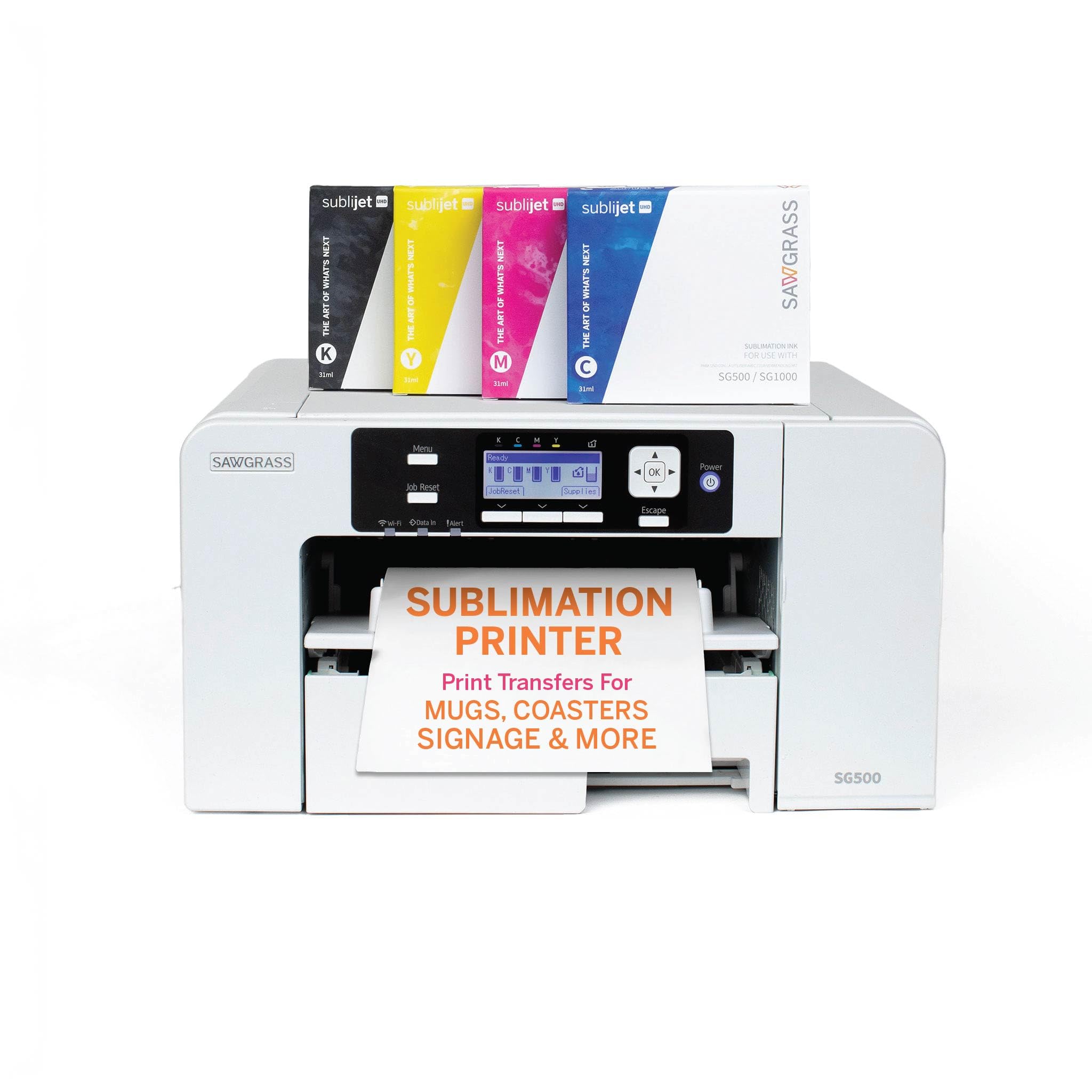
Sawgrass SG500 Bundle

81 /100
LBD Score Excellent

Key details

Print Type
Dye sublimation
Connectivity
Wi-Fi, USB
Max Media Size
8.5 x 14 in
Bundle Includes
Four 31 mL inks and TruePix paper
View on Amazon

Four 31 mL SubliJet UHD cartridges and a pack of TruePix paper arrive with the SG500, which is the point of buying the bundle: you can go from unboxing to a pressed shirt without a separate ink order. The printer takes sheets up to 8.5 x 14 inches from a 100-sheet tray, connects over Wi-Fi, and runs print head auto-maintenance between jobs to keep the nozzles clear.

What you're really paying for is the software. MySawgrass is an online design platform with templates and job setup built in, and for a small shop that has never dealt with a RIP or an ICC profile, that's worth a lot: it turns color management into a dropdown instead of a weekend. We think that platform, combined with a 14-inch sheet width one size up from the Brother, makes this the bundle to buy when you want a complete workflow in a single order.

The 31 mL cartridges are the number to plan around. They're smaller than the tanks on the Pinckney and they won't cover a long run of shirts, so order replacements two jobs ahead rather than the night before a market. That's a mild irritant rather than a problem for a shop whose real bottleneck is the heat press anyway.

Pros

  • Inks and TruePix paper included in the box
  • Prints sheets up to 8.5 x 14 inches
  • MySawgrass design platform with templates
  • Print head auto-maintenance between jobs

Cons

  • Premium price against the other desktop picks
Our verdict

This is the bundle we point to when you want inks, paper, and design software in one order, plus a 14-inch sheet to work with.

Check Latest Price
4

Best for Wide-Format Volume

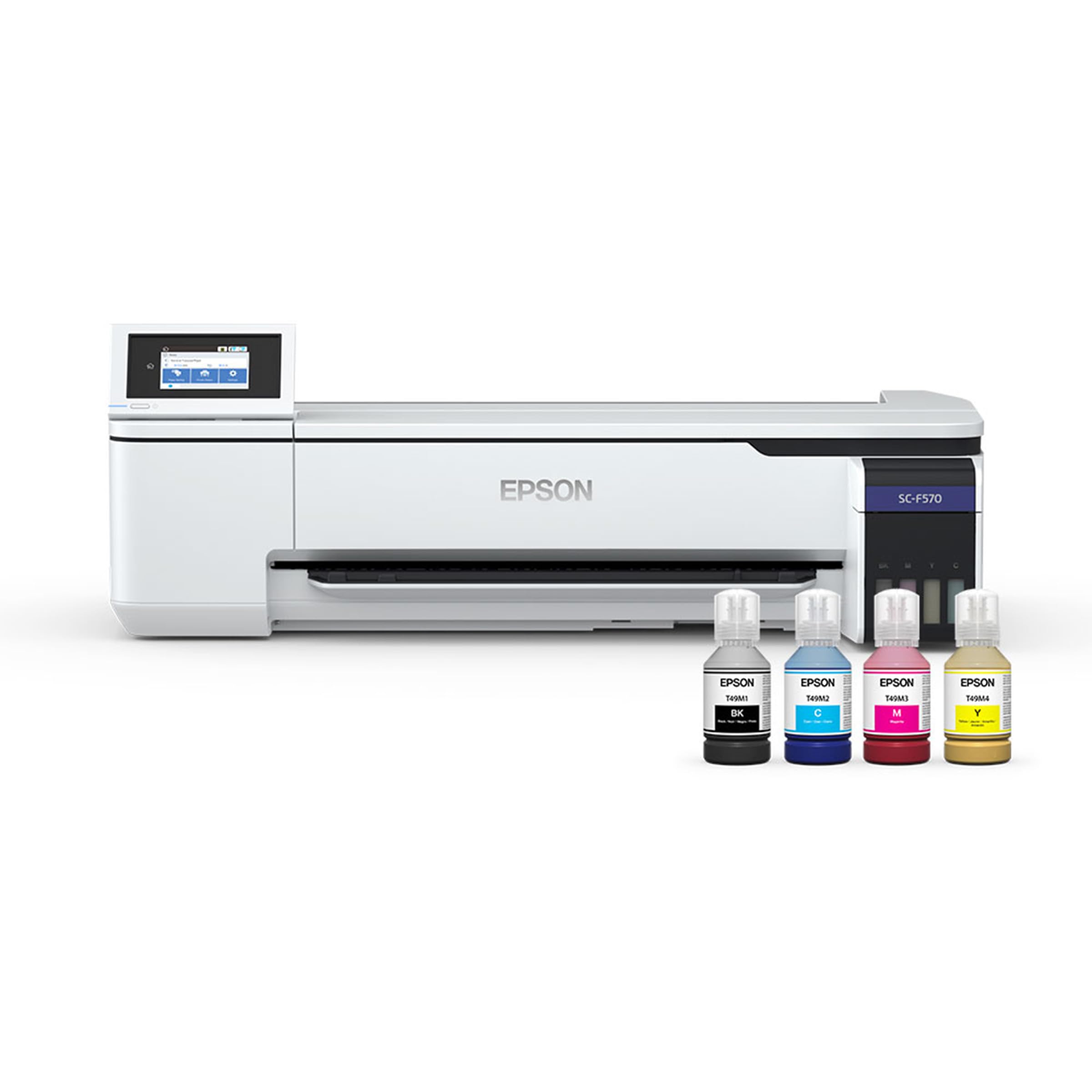
Epson SureColor F570 24"

83 /100
LBD Score Excellent

Key details

Weight
151 lb
Print Type
Dye sublimation
Built-in Cutter
Yes
Max Media Width
24 inches
View on Amazon

Twenty-four inches of width is the whole argument for the F570, and you feel it the first time you lay out a job: a full all-over shirt panel, a large mat, or a dozen small items nested together can go on one run. Add roll support, a built-in cutter, and a 50-sheet auto-feed tray, and the workflow stops being 'print a page' and starts being 'run a batch.'

The hardware is built for people who print most days. The PrecisionCore MicroTFP head with Nozzle Verification checks itself between jobs, and Epson Edge Print Pro handles job layout, nesting, and pattern repeats, so you aren't rebuilding a sheet of tumblers by hand every morning. The T49M inks are Epson's own, engineered for the SureColor line rather than adapted from an office printer.

For a shop with orders to fill, this is the pick: nothing else here prints wide goods, and the production software is aimed at someone protecting a job already sold. If your work is shirt fronts, mugs, and totes, the F170 does all of it for a fraction of the money and the floor space — capacity you aren't using is just a bigger table you have to find room for.

Pros

  • Roll and sheet printing up to 24 inches
  • Built-in cutter for roll jobs
  • 50-sheet auto-feed tray for sheet work
  • Edge Print Pro layout and nesting software

Cons

  • 151 pounds, freight delivery, and a dedicated table
Our verdict

Our pick for steady production: the only machine here that prints 24 inches wide, with the software and self-checks a working shop needs.

Check Latest Price
5

Budget First Setup

Pinckney Super-Tank Sublimation Bundle

80 /100
LBD Score Excellent

Key details

Functions
Print, scan, copy
Print Type
Inkjet with sublimation ink
Ink Volumes
Black 127 mL; color 85 mL each
Max Media Size
8.5 x 11 in
View on Amazon

This is the least expensive way onto this list, and what the money buys is an EcoTank all-in-one — print, scan, copy — filled with Pinckney sublimation ink rather than built as a factory dye-sublimation engine. We think that earns it a place for a hobbyist learning the process: the hardware is capable, and the color work becomes yours.

The tanks are the appealing part. You get 127 mL of black and 85 mL each of cyan, magenta, and yellow, filled through an auto-fill nozzle that doesn't need a syringe or a steady hand, and unlike the Epson F170 this one prints from phones and tablets over Wi-Fi. The scanner is a genuine bonus in a craft room — copying a drawing or a fabric swatch to print as a transfer takes a minute.

The risk is consistency. Sublimation ink in an ordinary inkjet means you own the color management, and output can drift: prints that start bright can go soft after a few weeks of steady use, and a design that looked fine on a mug can band across a shirt. Print a test panel with every new bottle, keep a spare blank for it, and build a profile before you take money for a batch.

Pros

  • Large refillable tanks with an easy auto-fill nozzle
  • Prints, scans, and copies
  • Wi-Fi printing from phones and tablets
  • Lowest-priced machine in this set

Cons

  • Print quality can degrade after a few weeks of use
Our verdict

We think the Pinckney earns its place as a cheap way into sublimation, provided you're ready to handle color yourself and test as you go.

Check Latest Price

How We Tested These Sublimation Printers

We started by pulling every desktop sublimation printer with real user feedback behind it, then narrowed to seven across the price range, favoring a mix of standard 8.5-by-11 models and wide-format machines so the comparison wasn't one-sided. Printers that locked you into proprietary cartridges with no clear replacement cost, or that shipped dry with no ink at all, dropped out early. Bundled ink sets and paper swayed the shortlist, since a starter kit you can't actually print with is just a box.

Each printer got set up cold at a kitchen table, and I timed every step from cutting the tape to the first clean nozzle check, noting where the instructions assumed something I didn't know and where the on-screen prompts stalled me. Then came the same files on the same blanks, weekend after weekend: a full-color photo on a polyester tee, a logo on a tote, a gradient on a tumbler. Every transfer ran on the same heat press at the same temperature and pressure, so any difference in color came from the printer.

Print quality we judged against a physical reference print, not a screen — watching for banded gradients, reds that drifted orange, and ink that pooled at the edges of a large block of color. Speed we timed on a single full-page transfer, start to finish. Once pressed, each piece went through ten machine washes to see whether the color held. We measured footprints on a four-foot table and connected each machine to both a mesh network and a plain home router to see how the wireless setup behaved.

Reliability got the slowest test of all: each printer sat idle for weeks at a stretch, and we ran a nozzle check afterward to see how much ink it took to recover and whether it needed a manual flush. We tracked replacement ink cost per set too, which is where the value gap between these machines really shows.

How to Choose a Sublimation Printer

A dye-sub engine or a converted inkjet

Two kinds of machine sit on this list. Epson, Brother, and Sawgrass build printers specifically for sublimation, with heads, inks, and profiles designed to work together; the Epson F170 and the Brother SP-1 are the two most affordable examples. The Pinckney takes an EcoTank all-in-one and fills it with sublimation ink instead.

The converted route is cheaper and it does work, but you inherit the color management. If you sell finished goods and a repeatable color is part of the promise, buy the dedicated engine. If you're making gifts for family and learning how the process behaves, a converted tank printer is a legitimate place to start.

Sheet size decides what you can sell

An 8.5 x 11-inch sheet covers a shirt front, a mug wrap, or a tote panel. A 14-inch sheet lets you run a longer panel or gang several small items on one page, which is why the F170 and the SG500 are the more productive desktop choices here. All-over prints, banners, and large mats need width — the F570's 24 inches — and no amount of clever nesting fakes it on a smaller machine.

Measure the box as carefully as the paper. These printers run from under 8 pounds to 151 pounds, and the wide one arrives by freight appointment and needs a table and a doorway that will take it.

Do the ink math before you commit

Ink is sold three ways here: small cartridges (the SG500's 31 mL set), larger cartridges (both Epsons), and refillable tanks (the Pinckney's 127 mL black and 85 mL colors). Reservoir size matters less for the price of a bottle than for how often you stop working to reorder.

Estimate your prints per month, then look at what a full ink set covers rather than what one cartridge costs. And budget for transfer paper and blanks as a running cost of their own — they're the part new sublimation buyers consistently underestimate.

Treat the software as part of the printer

Where your artwork lives should decide the machine. The Brother SP-1 runs through the Artspira app with no desktop version shipped yet, which delights a phone-first crafter and frustrates anyone working in Photoshop. Sawgrass bundles the MySawgrass design platform, Epson ships Edge Print Pro with the F570, and the Pinckney gives you no design layer at all.

If you already own a profile workflow and a RIP you trust, pay for hardware and ignore the bundled tools. If you don't, bundled software is worth more than a marginally better specification, because it's the difference between a first print this weekend and a first print next month.

Frequently Asked Questions

Final Verdict

If you want one machine to learn on and keep using, our pick is the Epson SureColor F170: a genuine dye-sublimation engine, a 14-inch paper path, and the calmest setup of the group.

The exception is a phone-first workflow — the Brother SP-1 suits that better and costs about the same. A shop printing wide goods should skip both and go straight to the F570.