Best Video Conferencing Monitors of 2026

A monitor with a webcam built in sounds like one less thing to buy — until the call starts and you look like a grainy security-camera feed while your voice arrives through a speaker that sounds like a drive-thru window. The appeal is still obvious: one screen, one cable, and a camera at eye level instead of perched on a stack of books. Get it right and the whole desk gets quieter.

Over the past six months, my team and I have sat through meetings, class sessions, and family calls on 10 of these monitors. The lesson that surprised me most is that a pop-up webcam is a privacy feature first and a camera second — where it sits in the bezel decides whether colleagues look you in the eye or straight up your nose. The mic array is the other trap: convenient, but often mounted close enough in the frame to catch every keystroke.

Picture quality still matters most, since this is the screen you'll stare at all day, and you're paying for a camera, speakers, and a hub, not just a panel. The picks below cover the desk that has to do everything.

1

Best Overall

HP Series 5 Pro 24-inch

85 /100
LBD Score Excellent

Key details

Webcam
5MP Poly Studio pop-up, tiltable
Speakers
4 x 3W down-firing
Resolution
1920 x 1080
Screen Size
23.8 inches
View on Amazon

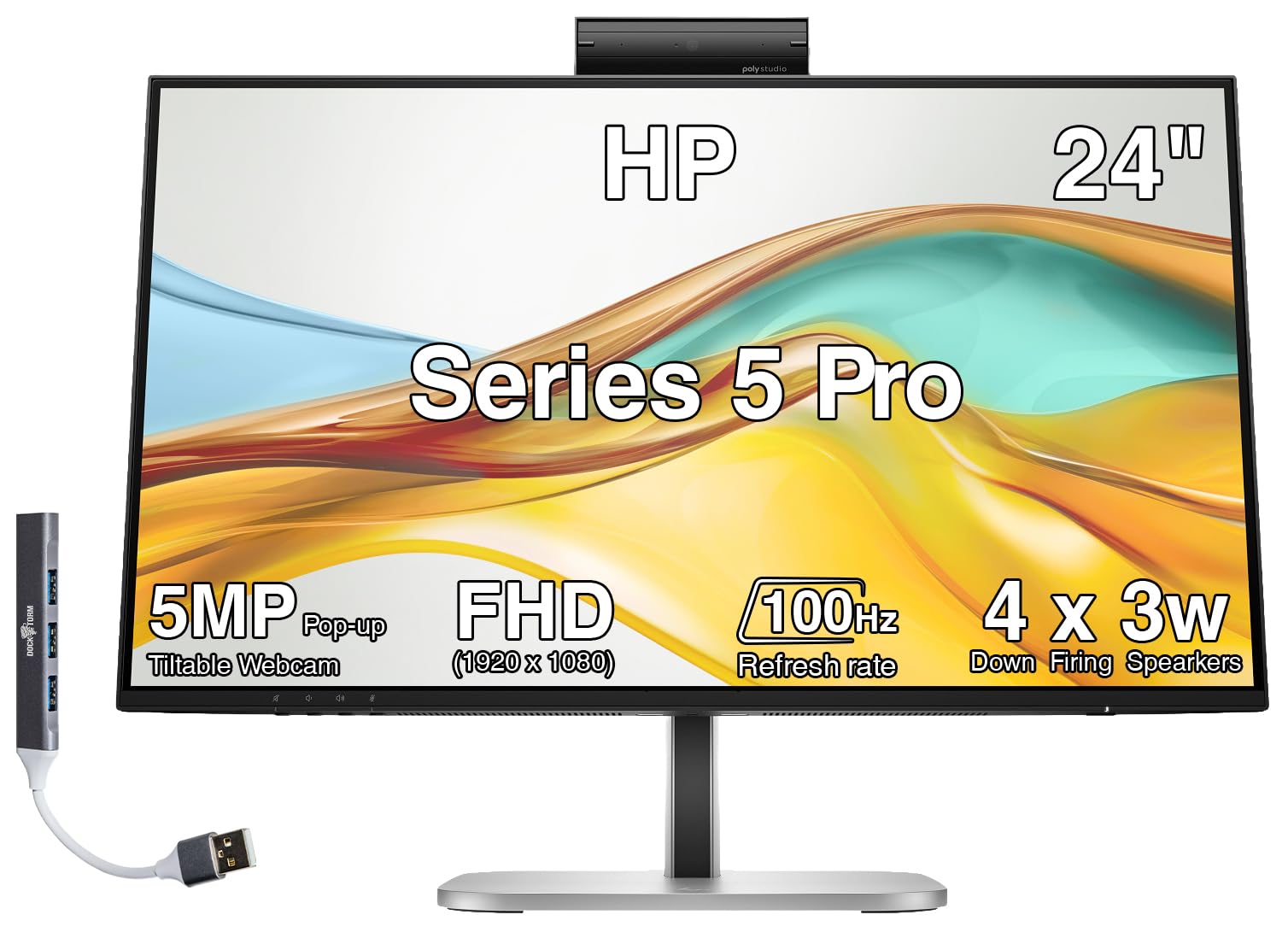
The camera on HP's Series 5 Pro grows out of the top of the bezel on a short stalk, and it tilts. That sounds minor until you have spent a year on calls with a monitor whose webcam is buried in the bottom frame, aiming up your nose. Because the camera starts at the top of a 23.8-inch panel and angles down, you get a natural, roughly eye-level shot without stacking the monitor on books. HP fits it with a 5MP Poly Studio sensor and mics that filter background noise, and the lens drops back into the body when you are off camera.

Sound is the other half of the job, and this is the only monitor here with four 3W speakers firing downward. Down-firing means the audio bounces off the desk and back up at you instead of away toward the wall behind the screen, and on our calls we never reached for a headset. Set that against the rear-mounted speakers on the ASUS below and the difference stops being subtle.

The stand does height, tilt, swivel, and pivot, so getting the top of the screen, and the camera with it, to eye level is a two-minute adjustment rather than a shopping trip for a riser. Around back there is USB-C alongside HDMI and DisplayPort plus a three-port USB hub, which is what makes a one-cable desk possible on a laptop. The 1080p matte panel runs at 100Hz and looks perfectly good; it is not the sharpest or brightest screen in this group, but nobody on the other end of the call can tell.

Pros

  • Tilting 5MP pop-up camera at the top of the frame
  • Four 3W down-firing speakers aimed at your ears
  • Full height, tilt, swivel, and pivot adjustment
  • USB-C plus a three-port USB hub for a clean desk

Cons

  • Highest price in this roundup
Our verdict

We recommend it to anyone who is on camera daily: the tilting pop-up camera, four-speaker audio, and full height adjustment do the whole job without a headset or a riser.

Check Latest Price
2

Best Warranty

Dell P2418HZm

88 /100
LBD Score Excellent

Key details

Warranty
3 years, advance exchange
Resolution
1920 x 1080
Screen Size
24 inches
Screen Finish
Glossy
View on Amazon

Dell's P2418HZm asks the same money as our top pick and makes its case somewhere else entirely: in the meeting rather than on the desk. The camera, microphone, and speakers are built into the frame, the screen is a 24-inch 1080p panel, and there is no separate webcam to clip on or pair. You sit down, open the app, and you are in the room.

The panel is where this one separates itself, for better and worse. It is glossy with a 2000:1 contrast ratio, so blacks sit deeper and color comes out richer than on the matte screens here, and any window, desk lamp, or overhead light behind you turns into a bright rectangle in the glass. Point it away from the light and keep the room dim and it looks great. In a bright, unshaded office, the matte ASUS or CUNPU will be the easier screen to live with, and we would swap rather than fight the reflections.

Around back there is HDMI, VGA, and a single USB port on a 12.2-pound body that takes a VESA mount. At 60Hz with a 6ms response it is a work monitor in the plainest sense — nothing here is fast, and nothing needs to be for a spreadsheet and a video window. What stands out is the three-year warranty with advance exchange, more coverage than anything else on this page and the reason this stays in the roundup for a desk that cannot go dark on a Monday.

Pros

  • Camera, mic, and speakers built in and ready to go
  • Three-year warranty with advance exchange
  • Glossy high-contrast panel with deep blacks

Cons

  • No USB-C, so no single-cable laptop setup
Our verdict

We keep it in the roundup for call simplicity and three years of advance-exchange coverage, so pick it if the monitor has to just work and you can live with a glossy screen.

Check Latest Price
3

Best Value

CUNPU U240CA 24-inch

78 /100
LBD Score Very Good

Key details

Stand
Height, swivel, pivot, tilt
Webcam
5MP pop-up, retracting
Screen Size
24 inches
Native Resolution
1920 x 1080
View on Amazon

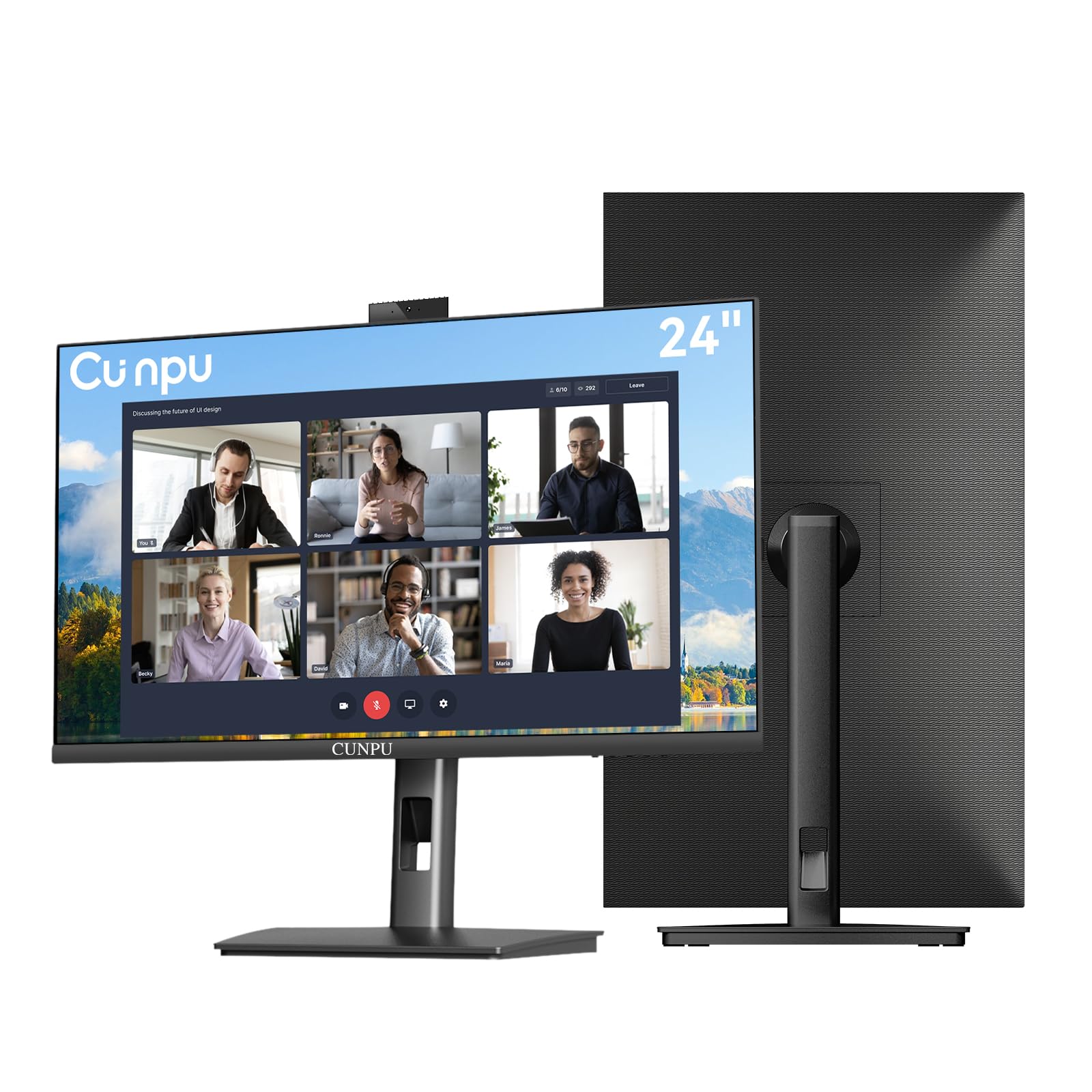
Pop-up cameras are the feature to hold out for in this category, and the CUNPU is the least expensive way here to get one: a 5MP lens that rises out of the top of the frame for calls and retracts out of sight afterward. Nothing gets clipped over the bezel and nothing has to be unplugged for privacy. The stand is the other surprise — 5.31 inches of height, 35 degrees of swivel each way, 90 degrees of pivot for portrait work, and tilt, which is a full ergonomic stand on the cheapest monitor in this roundup.

Read the listing carefully before ordering. It mentions 2K and 1440p in places; the panel inside is 1920 x 1080, so buy it expecting a good 1080p picture rather than a sharper one. What you do get beyond the basics is 120Hz over HDMI, and at this price that is the real bonus — dragging a window or scrolling a long document is visibly smoother than on the 60Hz Dell, even though it does nothing at all for the call itself.

One practical note before the return window closes: check the panel for discolored patches and dead pixels. A failing panel is the fault to watch for on these, and swapping through the retailer is faster than any service claim. Otherwise this is a compact matte 24-inch workstation that does the conferencing job and then gets out of the way, which is more than the price suggests.

Pros

  • 5MP pop-up camera that retracts for privacy
  • Lowest price here for a pop-up camera and adjustable stand
  • 120Hz over HDMI for noticeably smoother scrolling

Cons

  • Native panel is 1080p despite the 1440p marketing
  • One-year warranty is the shortest here
  • Ports on the bottom edge are hard to reach
Our verdict

Our value pick: it is the least expensive route here to a 5MP pop-up camera and a genuinely adjustable stand, as long as you buy it as a 1080p monitor.

Check Latest Price
4

Display-First Setups

ASUS BE24EQK

79 /100
LBD Score Very Good

Key details

Webcam
2MP adjustable
Warranty
3 years manufacturer
Resolution
1920 x 1080
Screen Size
23.8 inches
View on Amazon

The speakers on ASUS's BE24EQK are the reason it sits below our top picks. They are stereo, they are built in, and they mount at the back of the cabinet and run quiet, so a call on them alone means leaning in and asking people to repeat themselves. Plan on a headset and the rest of this monitor makes a great deal more sense.

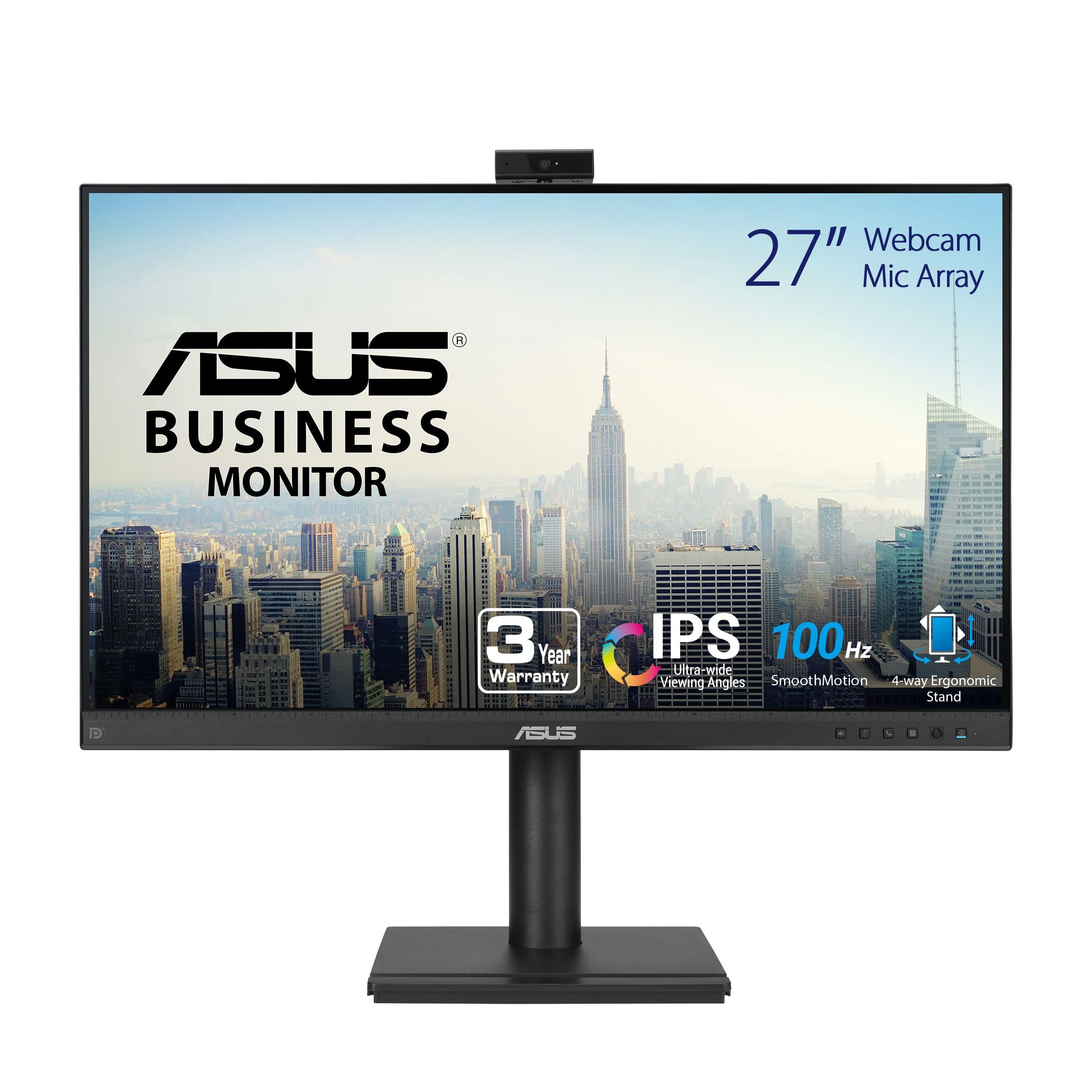
What the money buys is a genuinely good 23.8-inch IPS panel: matte finish, 300 nits, 178-degree viewing angles, a frameless three-sided bezel, and flicker-free, low-blue-light treatment for long days. Video, documents, and spreadsheets all look right on it, and the matte surface shrugs off the window behind your desk in a way the glossy Dell cannot.

The camera is a 2MP unit on an adjustable arm, and the mic array uses beamforming with echo cancellation to push keyboard clatter out of the mix. One detail worth knowing before you buy: the camera travels over its own USB cable, separate from HDMI or DisplayPort, so it needs a free USB port on the computer or dock. If it never appears in your meeting app, that cable and the app's camera permission are the first two things to check.

ASUS covers it with a three-year manufacturer warranty, which is more than the CUNPU or the SKitphrati offer. It is also one of the least expensive monitors here, and it earns its place on the panel and the warranty rather than on the conference hardware bolted to the top.

Pros

  • Crisp matte 1080p IPS panel with wide viewing angles
  • Beamforming mic array with echo cancellation
  • Three-year manufacturer warranty
  • One of the least expensive monitors in this group

Cons

  • Quiet speakers mounted at the back of the cabinet
  • Webcam needs a free USB port of its own
Our verdict

Buy it if the display is what you care about and you already own a headset — we would not count on its speakers to carry a meeting.

Check Latest Price
5

Big-Screen Multitasking

SKitphrati HD-270 27-inch

78 /100
LBD Score Very Good

Key details

Webcam
3MP built-in
Resolution
1920 x 1080
Screen Size
27 inches
Refresh Rate
120Hz
View on Amazon

Twenty-seven inches is the whole argument here. Most conferencing monitors at this price stop at 24, and the extra diagonal makes a real difference when you are juggling a call window, a document, and a chat pane at once — you stop shuffling windows and start leaving them where they are.

The catch is the panel. It is 1920 x 1080 stretched across 27 inches, which spreads the pixels thinner and softens small text compared with a 24-inch 1080p screen like the ASUS. Sitting a little further back helps, and video calls look perfectly fine; it is spreadsheets and long emails where you notice. The IPS panel with its 120Hz refresh and 178-degree viewing angles is genuinely pleasant for everything else, and the matte finish keeps a bright room from washing it out.

The camera is a 3MP unit fixed high on the top bezel with no tilt, so the only way to change your angle is to move the monitor's height, and with a basic desk stand that is not much of an adjustment. We would put it on a VESA arm if framing matters. Do a test recording before your first big meeting, too: the built-in microphone is the part of this monitor most likely to let you down, and a muffled outgoing voice is the kind of thing nobody mentions until the debrief.

It arrives with an HDMI cable, a USB cable for the camera, and a two-year manufacturer warranty, and at 5.49 kg (about 12 pounds) it is easy enough for one person to set up. For a secondary desk where the screen is the point and the calls are occasional, that adds up to a lot of workspace for the money.

Pros

  • 27-inch screen at a budget price
  • 120Hz IPS panel with 178-degree viewing angles
  • VESA mount available for fixing camera height

Cons

  • 1080p across 27 inches softens small text
  • Camera is fixed high on the bezel with no tilt
Our verdict

Worth it if 27 inches of screen matters more to you than sharp text and a camera you can aim; test your outgoing audio in the first week.

Check Latest Price

How We Tested Video Conferencing Monitors

To build the shortlist, I started with the specs that actually change a workday — panel resolution, screen size, webcam placement, and ports — and filtered out anything without a built-in camera or a way to raise it to eye level. From there I narrowed to 10 monitors between 24 and 27 inches, favoring models with USB-C or HDMI alongside a mic array and speakers, and bought them at retail so nothing arrived pre-configured by a manufacturer.

Testing ran for six months and looked like an ordinary workweek. Each monitor replaced my daily driver for at least a week and got used for scheduled meetings, an all-hands or two, screen-sharing sessions, and the usual eight hours of spreadsheets and email. Setup was timed from opening the box to the first working call, with a note on how many cables were required and whether I could get picture, sound, and camera running on an older laptop with only HDMI.

On calls, I asked the person on the other end to rate the picture and sound without knowing which monitor I was using, and I kept a mechanical keyboard and a desk fan nearby so I could hear how much of that leaked into the mic. I raised and lowered each pop-up camera, leaned in from an angle, and checked whether the stand would put the lens at eye level or somewhere less flattering. For the picture itself, I opened the same dark photo, white spreadsheet, and video clip on all 10, then sat off to the side to see how quickly the image washed out.

How to Choose a Video Conferencing Monitor

Put the Camera at Eye Level

Megapixels get the headlines, but height does more for how you look on a call. A camera buried in the bottom bezel points up at your chin and your ceiling; one at the top of the frame, or on a stalk that pops up and tilts, can meet your eyes. Because the camera rises and falls with the screen, a stand with real height adjustment is a conferencing feature rather than a comfort extra — the HP's four-way stand and the CUNPU's 5.31 inches of lift both do this work.

If the monitor cannot rise, budget for a VESA arm or a riser instead. A pop-up camera that retracts into the body is also the simplest privacy switch in this category, and worth preferring over a lens that just sits there.

Listen to Where the Speakers Fire

Speaker wattage tells you less than speaker direction. Rear-facing drivers push sound into the wall behind the monitor and away from your ears, which is why so many conferencing monitors sound thin at normal desk distance; down-firing drivers bounce audio off the desk and back at you. The HP's four 3W down-firing array is the most serious audio setup in this group, while the ASUS puts its stereo speakers at the back of the cabinet.

On the microphone side, look for an array with noise and echo cancellation if you type during calls. And if you are on calls most of the day, a headset still beats every built-in speaker here — pay for the camera and the panel instead.

Match Size, Resolution, and Finish to Your Desk

Twenty-four inches at 1080p is the sweet spot: text is crisp at normal viewing distance and windows stay where you put them. Step up to 27 inches at the same resolution and the pixels spread out — fine for video and large-type work, softer for long documents, which is exactly the trade the SKitphrati makes for its extra screen.

Finish matters too in a room with windows. Matte panels shrug off overhead lights; a glossy panel like the Dell's returns deeper blacks and richer color and reflects whatever is behind you. Choose glossy for a dim room, matte for a bright one.

Count Your Cables Before You Buy

The camera almost never travels over HDMI or DisplayPort. On most of these monitors it needs its own USB link to the computer, so a laptop with one free port is fine and a fully loaded dock is not — that is the usual reason a built-in camera is not found. A model that carries video and the camera over USB-C earns its premium if you unplug every day; on a fixed desktop it buys tidiness rather than function.

Check where the ports sit, too. Downward-facing connections look clean on the shelf and are miserable to reach once the monitor is in position.

Frequently Asked Questions

Final Verdict

Our pick is the HP Series 5 Pro. A tilting 5MP pop-up camera, four down-firing speakers, and a stand that puts both at eye level are the three things a conferencing monitor has to get right, and it is the only model here that gets all three without an accessory.

If that is more than you want to spend on a second screen, the CUNPU gives you the pop-up camera and the adjustable stand for far less, provided you want a 1080p panel and can live with the shortest warranty here. And if the display is what you stare at all day and you already own a headset, the ASUS is the better picture for the money.